
Slack Active on Multiple Devices: Which One Sets Your Status?
When you use Slack on a phone and a computer at once, one active device keeps you green, and a manual away set on any device makes you away on all of them. We measured connection_count per browser tab and a manual away across four connections.
Free tool, runs in this tab
Keep your screen awake and see when Slack sets you away
Press Start. This tab keeps the screen on while it stays open, and shows the minute Slack, Teams and Zoom would set you away if nothing touches the keyboard or mouse.
This tab cannot move your pointer or press keys, so on its own it cannot keep Slack or Teams active. It reads the same idle time the Slack desktop app, Teams and Zoom read. To test a jiggler, start, then take your hands off for 6 minutes: if Your computer stays green, the jiggler keeps them active.
- Your computerNot measured yetPress Start and allow idle detection.
- Slack desktop app-Away after 10 min, any input.
- Microsoft Teams-Away after about 5 min, any input.
- Zoom-Away after 15 min by default, any input.
When you are signed in to Slack on several devices, Slack shows one dot for all of them. If any one device is active, you show as active. A computer counts as active for 10 minutes after your last keyboard or mouse input in any app, and a phone counts only while the Slack app is open on screen. You show away only when every device is idle, asleep or closed. One setting overrides all of that: Set yourself as away on any device makes you away everywhere until you undo it. Slack Green acts as that one active device from a server, so your dot stays green with the laptop and phone off, free for 7 days with no card.
We tested the two parts we could measure on 3 October 2026, in our own workspace through Slack's presence API: how Slack counts devices, and what a manual away does to the other ones.
What Slack counts as a device
Every open Slack client is its own connection: each desktop app, each browser tab and each phone with Slack running. Slack reports the number for your own account as connection_count. We opened Slack in more browser tabs and read it after each one:
07:39:38Z  baseline (2 Slack tabs already open)   connection_count: 2
07:40:04Z  opened a third tab                      connection_count: 3
07:40:23Z  opened a fourth tab                     connection_count: 4
07:41:37Z  closed our two tabs                     connection_count: 1
(Another tab closed during the last minute, so the count fell to 1, not 2.) Each new tab also moved last_activity to the moment it connected. So any forgotten tab or second computer is one more connection that can count as active.
A manual away covers every device
With four connections open, we set the account to away through one client, the way Set yourself as away does. Slack's presence API answered at once:
07:40:34Z  presence: away    manual_away: true    connection_count: 4
07:40:37Z  presence: active  manual_away: false   connection_count: 4   (after "auto")
A second tab, which had not done anything, switched to away as well. Its profile menu showed Away and offered Set yourself as active:
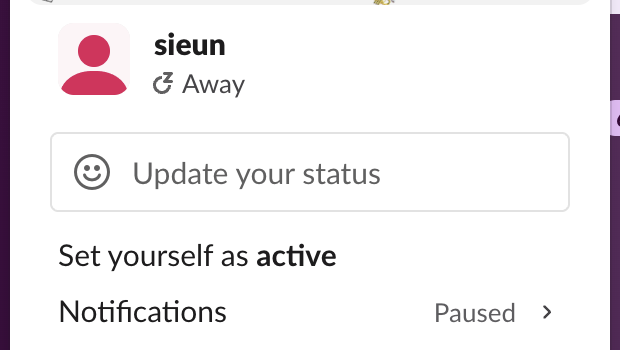
Clicking around in that tab moved last_activity forward, yet manual_away stayed true. Activity does not end a manual away; only Set yourself as active, on any device, does.
Even with every device signed in, Slack sets you away once each one is idle, asleep or closed. A server-side tool keeps your Slack dot green with no input, even with the laptop closed or the phone locked.
The rule, step by step
- Manual away first. It is a setting on your account, not on one device, as the test above shows.
- Then any active device. Desktop app, browser tab and phone all count. One active connection makes you green.
- Otherwise away. When the last active device goes idle, sleeps or locks, you turn into an empty circle.
Do Not Disturb works the same on all devices. It adds a small z to your dot and pauses notifications, but it never makes you green or away; see the green dot with a z. The per-device timers are in how long does Slack stay active.
Common two-device situations
| Situation | Your dot | Why |
|---|---|---|
| Laptop idle for 15 minutes, Slack open on the phone screen | Green | The phone is an active device |
| Typing on the laptop, phone locked in your pocket | Green | The laptop is active |
| Laptop asleep, phone locked | Away | No device is active |
| Set yourself away on the phone, typing on the laptop | Away | Manual away covers every device |
| Two computers, one idle and one in use | Green | One active connection is enough |
| An old browser tab on a second computer | Green for 10 minutes after any input there | It is a connection too |
Can coworkers see which device you are on?
No. Being active on two devices looks the same as being active on one, and coworkers see no phone badge or device label; does Slack show when you are on mobile covers what they can still guess. Your own access log lists every sign-in with its client and IP, and Owners and Admins can see everyone's on paid plans; see does Slack track your location.
Where notifications go when you use several devices
By default Slack sends notifications to the desktop while you are active there, and to your phone once you are inactive on desktop. The delay is under Preferences, Notifications, "Send notifications to my mobile devices". If phone notifications never arrive, a desktop connection that still counts as active is a common cause; see Slack notifications not working.
Check your own connections
Call users.getPresence with your own user token. For your own account it returns connection_count and manual_away; for anyone else it returns only presence:
curl -s https://slack.com/api/users.getPresence \
  -H "Authorization: Bearer $SLACK_USER_TOKEN"
If the count is higher than the devices you think you use, open my.slack.com/account/logs and use sign out of all sessions. It signs out every other session, your phone included, so keep the device you are using at hand. More on the API in the Slack presence API.
Using a second device to stay green
Because one active device is enough, a second one can keep you green while the main one is closed. A phone with Slack open on screen and auto-lock off does this until the battery or the OS stops it; the setup is in keep Slack active on mobile. A server-side tool does the same with a session it runs for you, so the dot stays green with your laptop and phone off. Every option is compared in how to keep Slack active.
FAQ
Why does Slack show me away on my phone when I am active on my laptop?
It should not. Check whether a manual away is on, and whether the laptop is signed in to a different workspace. Presence is per workspace; see using several Slack workspaces.
Related Articles
Can You See Slack Status History? No, Here Is What Exists
No. Slack shows your active or away dot and your custom status only as they are right now, and keeps no history of either that coworkers or admins can open. Admins on paid plans see a last active date and sign-in logs. How to keep your own status log with the Slack API, from today on.
Slack: Get Notified When Someone Comes Online (No Built-In Alert)
Slack has no alert for when a coworker becomes active. No preference, Workflow Builder trigger or profile button does it. You can watch their green dot, send a message they will see when they return, or run a short script that checks users.getPresence every minute and DMs you.
Phone Jiggler: Why a Phone Wiggler Won't Keep Teams Green
A phone jiggler rocks your phone back and forth. That adds steps in a pedometer app, but it does not keep the screen awake or Teams and Slack green, because phones count touches, not motion. Here is what each kind of phone jiggler does and what works instead.