
Slack Notifications Not Working on Mac? Check These Settings
When Slack alerts stop on a Mac, the cause is usually macOS: Slack's notification permission, a Focus mode or schedule, or the setting that hides every banner while you share your screen. The Mac checks in order, then the Slack settings, sound, and a reset.
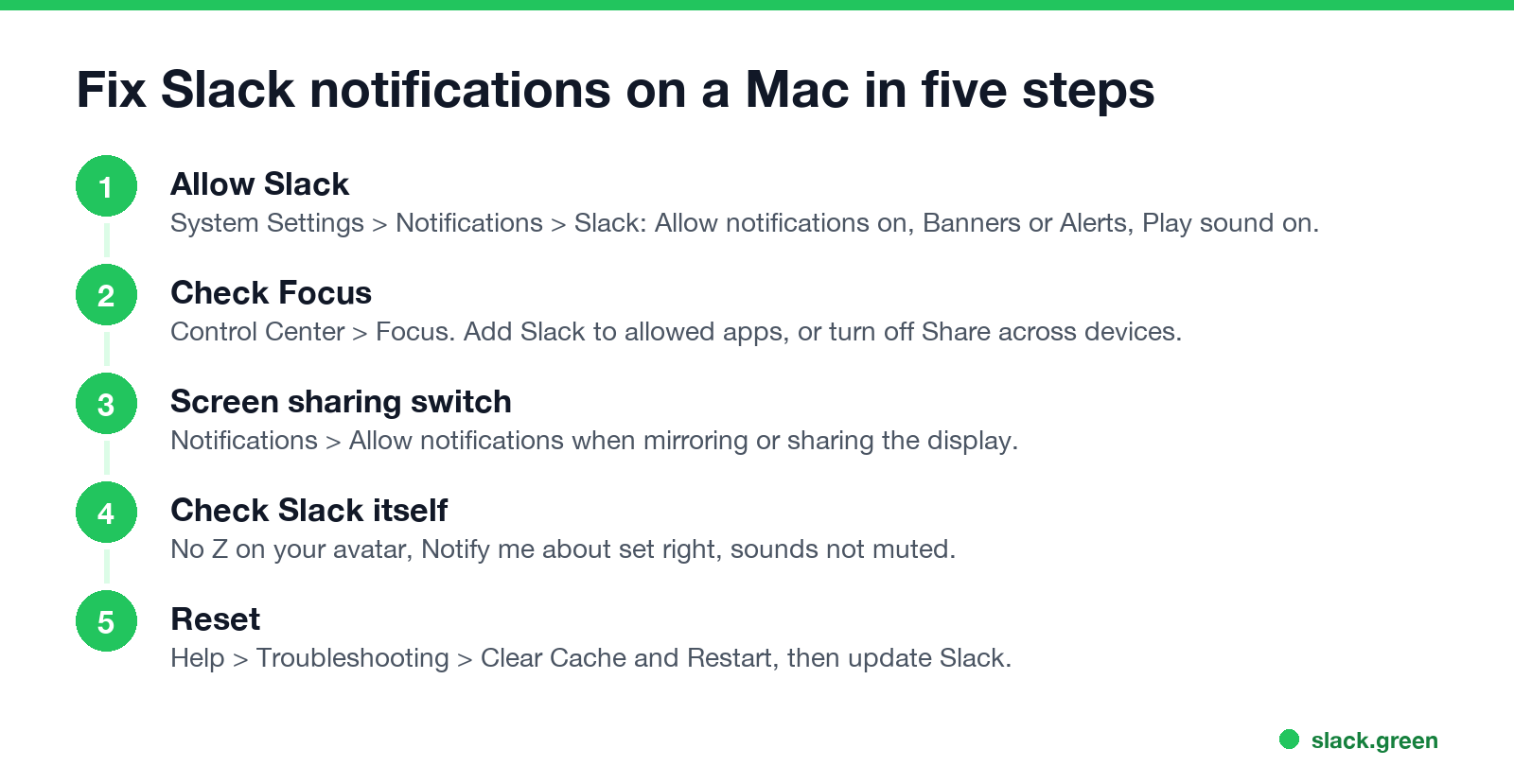
If Slack notifications are not working on your Mac, open System Settings > Notifications > Slack and check that Allow notifications is on and the alert style is Banners or Alerts. Then check Focus in Control Center: a Focus mode, or a Focus shared from your iPhone, blocks Slack unless it is on the allowed list. The third cause catches people in meetings: macOS hides all notifications while you mirror or share your screen, unless you turn that off. If all three are right, the cause is inside Slack, and the checks are below.
Slack also decides where to send each alert from your activity. It holds phone alerts while you look active on the desktop and shows you away after 10 minutes with no input in the Slack window. Slack Green keeps your status green on a schedule; if you use it, set mobile alerts to arrive immediately, as explained further down.
Find the cause from what you see
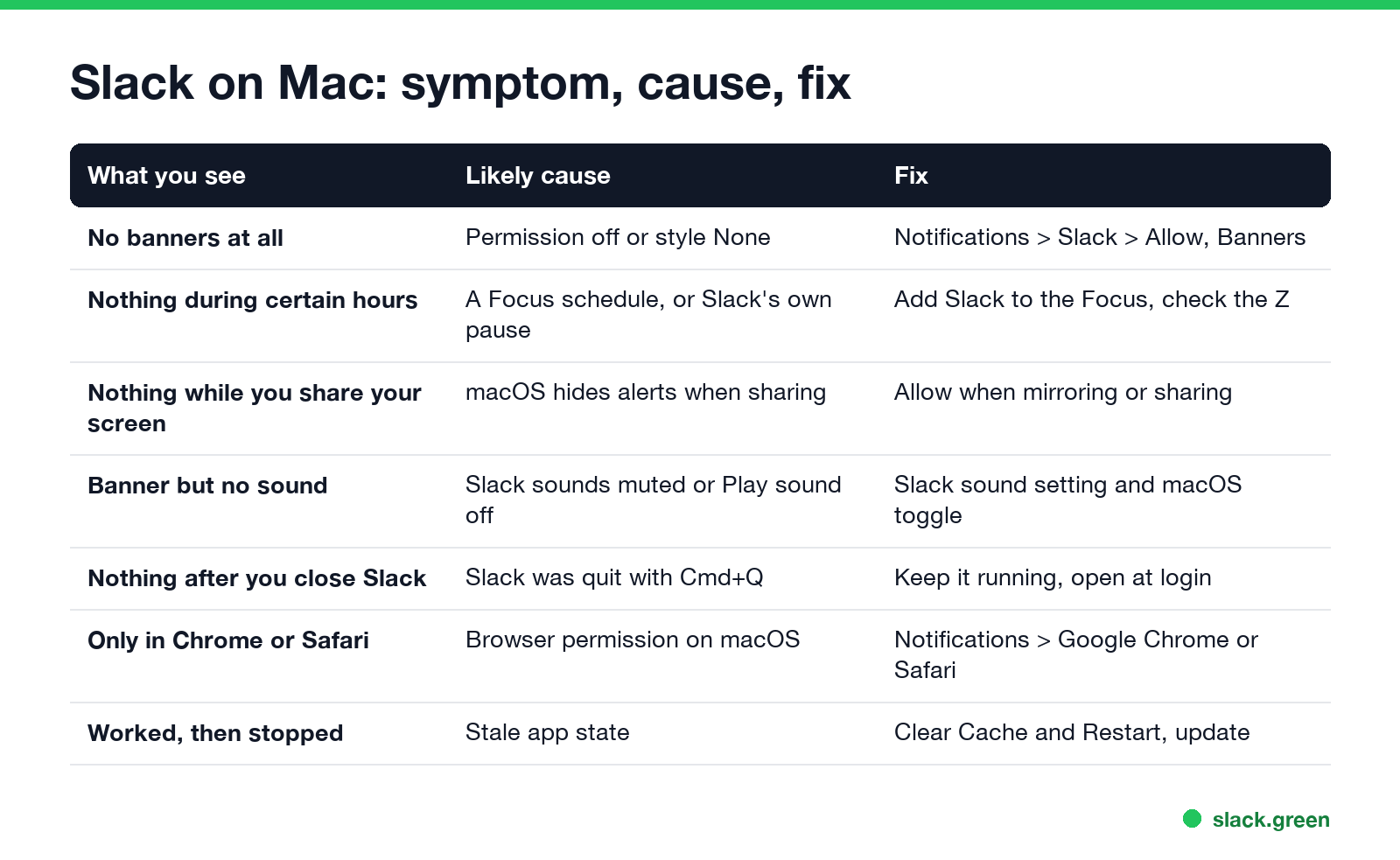
| What you see | Likely cause | Go to |
|---|---|---|
| No banners at all | Permission off, or alert style None | Fix 1 |
| Nothing during certain hours | A Focus schedule, or Slack's own pause | Fixes 2 and 4 |
| Nothing while you share your screen | macOS hides alerts while sharing | Fix 3 |
| A banner but no sound | Slack sounds muted, or Play sound off | Fix 5 |
| Nothing after you close the window | Slack was quit, not closed | Fix 6 |
| Only broken in Chrome or Safari | The browser's permission on macOS | Fix 6 |
| Worked, then stopped | Stale app state | Fix 7 |
Fix 1: allow Slack in macOS notification settings
- Open System Settings > Notifications.
- Click Slack in the application list. If Slack is missing, open Slack once and send yourself a test message so macOS registers it.
- Turn on Allow notifications.
- Set the alert style to Banners (they disappear by themselves) or Alerts (they stay until you click). None sends alerts to Notification Center without showing them.
- Turn on Play sound for notification and Badge application icon.
At the top of the same page, Show previews decides whether the message text appears. If it is set to Never, banners still arrive but only say Slack.
Fix 2: check Focus and Focus shared from your iPhone
Never appear "away" on Slack again
Cloud-based. No downloads. Works 24/7 even when your laptop is off.
A Focus mode (Do Not Disturb, Work, Personal, Sleep) silences every app not on its allowed list. The Focus icon in the menu bar or Control Center shows which one is on.
Fix 3: notifications while you share or mirror the screen
This one is Mac-specific and is off by default. In System Settings > Notifications, under the notification center options at the top, turn on Allow notifications when mirroring or sharing the display. With it off, no banner appears while you share your screen in Zoom, Teams, Google Meet or a Slack huddle, or while you use AirPlay to a TV. That default protects you from showing a private message to a meeting, so turn it on only if you need alerts while you present. Two neighbours in the same list control alerts when the display is sleeping and when the screen is locked.
Fix 4: the Slack settings
If macOS lets Slack through and nothing arrives, look inside Slack. Open Slack > Settings (Cmd+,) and click Notifications:
/dnd off. Why a pause keeps coming back is in why does Slack pause my notifications.Every in-Slack check, with the settings on iPhone, Android and Windows, is in the main guide, Slack notifications not working.
Fix 5: no notification sound on Mac
Never appear "away" on Slack again
Cloud-based. No downloads. Works 24/7 even when your laptop is off.
A banner with no sound has three possible switches:
Fix 6: Slack must be running
On a Mac, clicking the red close button hides the Slack window, and alerts keep coming. Cmd+Q or Slack > Quit Slack stops it, and no alerts arrive until you open it again. To start it every day, right-click Slack in the Dock and choose Options > Open at Login, or add it in System Settings > General > Login Items & Extensions.
If you use Slack in Chrome or Safari instead of the app, the browser needs its own permission: System Settings > Notifications > Google Chrome (or Safari), plus the site permission for app.slack.com in the browser. The tab must stay open. The trade-offs are in Slack desktop app vs browser.
Fix 7: reset Slack and Notification Center
When every setting is right and alerts still do not show:
# restart the macOS notification service; it starts again by itself
killall NotificationCenter

# quit Slack cleanly, then open it again
osascript -e 'quit app "Slack"' && sleep 2 && open -a SlackWhen the Mac gets the alert and the phone does not
Never appear "away" on Slack again
Cloud-based. No downloads. Works 24/7 even when your laptop is off.
That is the Slack timing rule. By default Slack sends phone alerts only after you have been inactive on the desktop for a while, so a Mac that looks active keeps the phone quiet. Change it in Settings > Notifications > When I'm not active on desktop, and pick Immediately, even if I'm active if you want both. The iPhone side is in keep Slack active on iPhone.
The phone side, including Scheduled Summary and quiet alerts, is in Slack notifications not working on iPhone.
FAQ
Why am I not getting Slack notifications on my Mac? Usually the macOS permission, a Focus mode, or screen sharing. Check System Settings > Notifications > Slack first.
How do I allow Slack notifications on a Mac? Open System Settings > Notifications > Slack, turn on Allow notifications, and set the style to Banners or Alerts.
Why is there no Slack notification sound on my Mac? Slack's sounds are muted, Play sound is off for Slack in macOS, or the sound goes to another output.
Why do Slack notifications stop when I share my screen? macOS hides alerts while you share or mirror the display. Turn on Allow notifications when mirroring or sharing the display.
Do I get Slack notifications if I close the Slack window on Mac? Yes. Closing the window keeps Slack running. Quitting with Cmd+Q stops all alerts.
Stop Jiggling Your Mouse.
Join hundreds of remote workers who never worry about their Slack status. Set it up once, stay green forever.
Related Articles
Slack Notifications Not Working on iPhone? Fix It in Order
Slack holds iPhone alerts while you look active on a computer, so a quiet phone is often by design. After that, iOS decides: the Slack permission, Focus, Scheduled Summary, and ringer volume. Every iPhone check in order, plus quiet alerts and a badge that will not clear.
How to Check if Your Work Mac Is Being Monitored
Six read-only checks on a work Mac, no admin password needed: MDM enrollment, the Privacy & Security lists, permissions IT pre-approved, background items, running agents and the browser. Plus a script that runs them all and what counts as normal.
Can My Employer See When I Log Into My Computer?
On a work computer, yes. Windows and macOS record every sign-in, sign-out, lock and unlock, and a managed laptop can pass those records to IT along with app sign-ins, VPN times and monitoring data. What each record holds, who reads it, and how to see your own.