
Slack Notifications Not Working on iPhone? Fix It in Order
Slack holds iPhone alerts while you look active on a computer, so a quiet phone is often by design. After that, iOS decides: the Slack permission, Focus, Scheduled Summary, and ringer volume. Every iPhone check in order, plus quiet alerts and a badge that will not clear.
If Slack notifications are not working on your iPhone, first check whether Slack is holding them on purpose. By default, Slack sends phone alerts only after you have been inactive on your computer for a while, so an iPhone next to an open laptop stays quiet. Set You > Notifications > Notify me on mobile to Immediately in the Slack app to test. If that is not it, open Settings > Notifications > Slack on the iPhone and turn on Allow Notifications, then check Focus and Scheduled Summary. Slack's built-in test, You > Notifications > Troubleshoot notifications, checks the permission and the push connection and sends a test alert.
The same timing rule decides when you look away. Slack shows you away after 10 minutes with no input in the Slack window on your computer, and on the iPhone you are active only while the app is open. Slack Green keeps your status green during the hours you set, from a server.
Find the cause from what you see
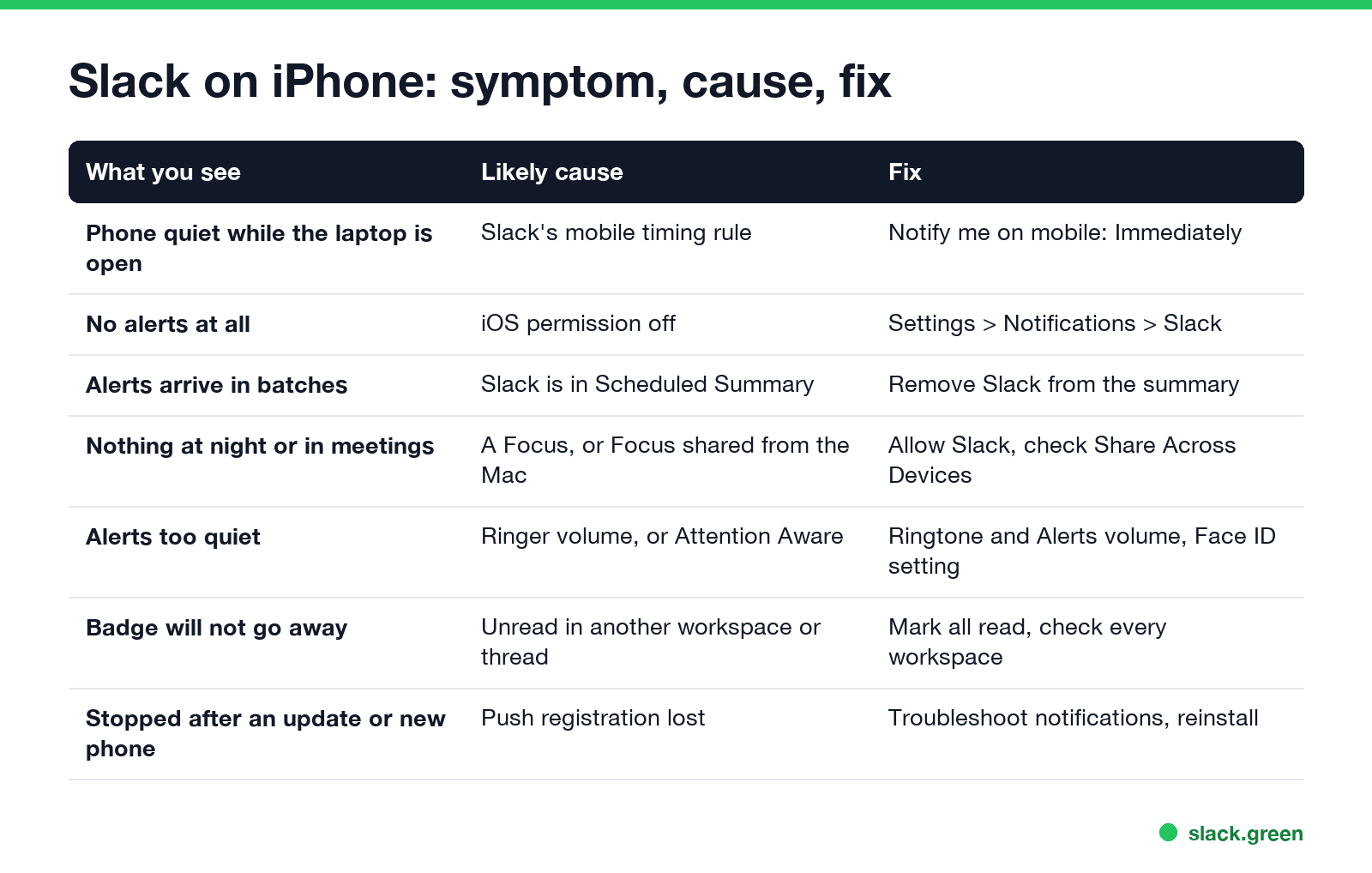
| What you see | Likely cause | Go to |
|---|---|---|
| Phone quiet while the laptop is open | Slack's mobile timing rule | Fix 1 |
| No alerts at all | iOS permission off | Fix 2 |
| Alerts arrive in batches | Slack is in Scheduled Summary | Fix 3 |
| Nothing at night or during meetings | A Focus, or a Focus shared from the Mac | Fix 4 |
| Alerts too quiet | Ringer volume, or Attention Aware | Fix 6 |
| Badge will not go away | Unread in another workspace or a thread | Fix 7 |
| Stopped after an update or a new phone | Push registration lost | Fix 8 |
Fix 1: set Slack to notify your iPhone immediately
In the Slack app, tap You (your profile picture), then Notifications, then Notify me on mobile. The choices are Immediately, even if I'm active, As soon as I'm inactive, and after a delay. Slack's help center says the default sends mobile alerts one minute after you lock your computer screen, or ten minutes after Slack stops detecting activity on the desktop. Pick Immediately if you want the phone to buzz while you work at the laptop.
While you are here, check Notify me about (all messages, or only DMs, mentions and keywords) and look for a Z on your profile picture. A Z means notifications are paused; tap Resume notifications. Why pauses switch on by themselves is in why does Slack pause my notifications.
Fix 2: turn on Slack notifications in iPhone Settings
Never appear "away" on Slack again
Cloud-based. No downloads. Works 24/7 even when your laptop is off.
- Open Settings > Notifications > Slack.
- Turn on Allow Notifications.
- Under Alerts, tick Lock Screen, Notification Center and Banners. Set Banner Style to Persistent if banners vanish before you see them.
- Turn on Sounds and Badges.
- Set Show Previews to Always or When Unlocked.
- • Allow Slack: Settings > Focus, pick the Focus, tap Apps, and add Slack. Do this for Work Focus at least.
- • Schedules: Sleep Focus and other schedules turn on by themselves. Check the times under each Focus.
- • Share Across Devices: a Focus started on your Mac or iPad also applies to the iPhone. Turn it off at the bottom of Settings > Focus if a Mac Focus is muting your phone.
If Slack is not in the list, open the Slack app once and accept the notification prompt. If you tapped Don't Allow when you first installed it, this page is the only place to turn it back on.
Fix 3: take Slack out of Scheduled Summary
Settings > Notifications > Scheduled Summary collects alerts from chosen apps and delivers them at set times, such as 8am and 6pm. If Slack is on that list, messages arrive in a bundle hours late. Turn Slack off in the summary's app list, or turn Scheduled Summary off.
Fix 4: check Focus, including Focus shared from your Mac
A Focus (Do Not Disturb, Work, Personal, Sleep) silences every app it does not allow.
The Mac side of the same setting is in Slack notifications not working on Mac.
Fix 5: Low Power Mode, network and sign-in
Never appear "away" on Slack again
Cloud-based. No downloads. Works 24/7 even when your laptop is off.
Slack alerts come through Apple's push service, which needs the phone online and Slack signed in to each workspace. Low Power Mode can delay background activity, so turn it off to test. If you use several workspaces, you get alerts only from the ones you are signed in to on the phone; check the workspace switcher. Turning on Settings > General > Background App Refresh > Slack helps Slack keep messages up to date between pushes.
Fix 6: Slack notifications too quiet on iPhone
Slack alerts play at the ringer volume, not the media volume you set with the side buttons while a video plays.
Fix 7: Slack badge won't go away on iPhone
The red number on the Slack icon counts unread DMs and mentions across every workspace you are signed in to. When it stays after you read everything:
A red dot that survives all of this is covered in Slack red dot won't go away, and thread unreads in Slack keeps showing unread messages.
Fix 8: reset Slack's push registration
Never appear "away" on Slack again
Cloud-based. No downloads. Works 24/7 even when your laptop is off.
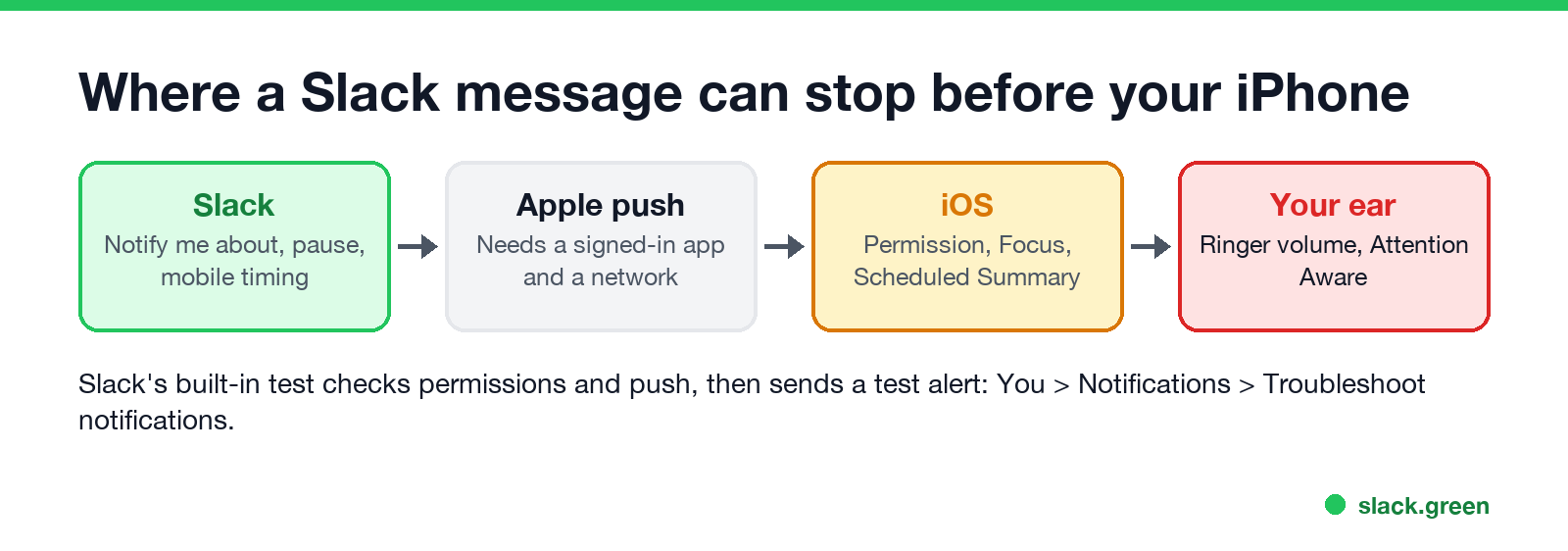
After a new iPhone, an iOS update or a restore from backup, Slack's link to Apple push can break. Run You > Notifications > Troubleshoot notifications first. If it reports a problem, sign out of Slack and sign back in, then update Slack in the App Store. If alerts still fail, delete the app, restart the iPhone, reinstall, and accept the notification prompt. Your messages are on Slack's servers, so nothing is lost.
Still nothing? The six-step guide for every device, including the desktop settings that decide what reaches the phone, is Slack notifications not working.
FAQ
Why am I not getting Slack notifications on my iPhone? Most often Slack is holding them while you are active on a computer. Set Notify me on mobile to Immediately.
How do I turn on Slack notifications on iPhone? Open Settings > Notifications > Slack, turn on Allow Notifications, and turn on Lock Screen, Banners and Sounds.
Why are my Slack notifications delayed on iPhone? Slack may be in Scheduled Summary, or its mobile timing rule waits for you to go inactive on desktop.
Why are Slack notifications so quiet on my iPhone? They use the ringer volume. Raise Ringtone and Alerts, and check Attention Aware Features in Face ID settings.
How do I get rid of the Slack badge on my iPhone? Open every workspace, check Threads and Activity, then toggle Badges off and on in iPhone Settings.
Stop Jiggling Your Mouse.
Join hundreds of remote workers who never worry about their Slack status. Set it up once, stay green forever.
Related Articles
Slack Screen Sharing Not Working on Mac? Fix the Permission
On a Mac, Slack can share your screen in a huddle only with the Screen & System Audio Recording permission, and macOS applies it only after Slack restarts. The steps, what a wallpaper-only share means, how to reset the permission, and the browser case.
Why Is Slack So Slow on Mac? Causes and Fixes in Order
Slack slows down on a Mac when memory runs short, when you run the Intel build on Apple silicon, with many workspaces or animated emoji, or when the app has been open for days. How to check each one in Activity Monitor and Terminal, and the fix for each.
Slack App Not Opening? How to Fix It on Windows and Mac
When the Slack app will not open, it is usually already running with no window, or its window sits on a monitor you unplugged. End every Slack process and open it again. If that fails: reset the app data, reinstall, and check what the sign-in link does. Steps for Windows 11 and Mac.