
Copy Text From Slack With Formatting (or Without It)
Slack's Copy message puts four versions of a message on the clipboard: plain text, HTML, markdown and Slack's own HTML. Which one you get depends on where you paste. We read all four.
To copy a Slack message with its formatting, hover over the message, open More actions (the three dots) and choose Copy message, or select the text and press Cmd+C (Ctrl+C on Windows). When we copied a selected message this way, Slack put four versions on the clipboard, including a markdown version, and the app you paste into picks the one it understands. On October 27, 2026 we copied a test message with bold, italics, strikethrough, inline code, a link, an emoji, a bulleted list and a code block in Slack's web app, and read every version Slack produced.
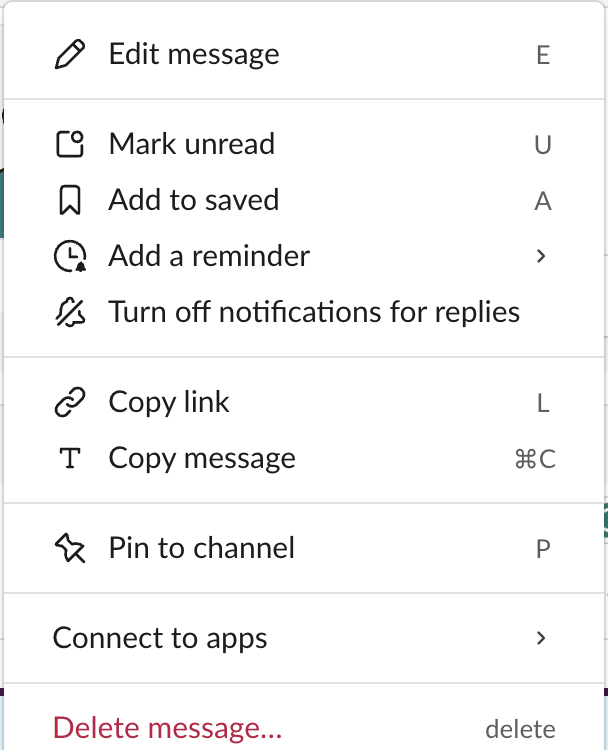
The four formats Slack puts on the clipboard
We selected the whole message, fired the browser's copy event on it and listed what Slack's copy handler wrote: text/plain, text/html, text/markdown and slack/html.
Markdown. This is the useful one for docs, GitHub, Notion or an AI chat. It came out as standard markdown, not Slack's own *bold* style:
Release notes: **bold**, *italic*, ~~struck~~, `inline code`, a [link](https://slack.green/en/tools/markdown-to-slack) and :tada:

- first item
- second item
The code block followed as a normal fenced block: a line of three backticks, npm run build, echo done, and a closing line of three backticks.
Bold became **bold**, strikethrough ~~struck~~, the link a normal [link](url), and the list - items. The emoji stayed as its :tada: code.
Plain text. Every formatting mark is gone. Links keep only their text, so the URL is lost:
Release notes: bold, italic, struck, inline code, a link and :tada:

first item
second item
npm run build
echo done
HTML. Bold, italics, strikethrough, inline code, the link and the list all came through as HTML tags with inline styles, and the emoji as an image. Rich text editors such as Google Docs, Word or an email composer usually read this version.
slack/html is Slack's own copy of the rendered message. Only Slack reads it.
Pasting it back into Slack
We pasted each version back into a Slack message box (we sent the paste event ourselves, so the owner's real clipboard stayed untouched):
| What we pasted | What the message box showed |
|---|---|
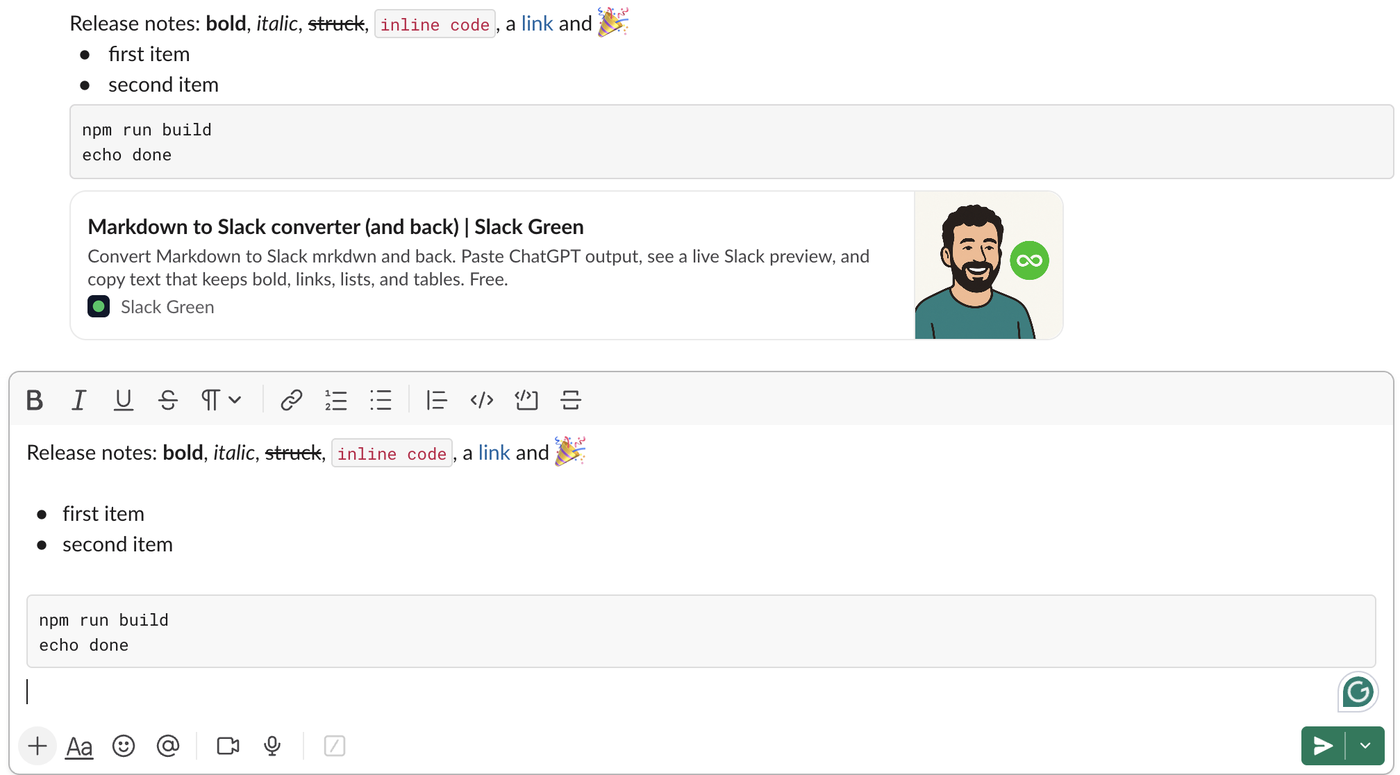
| Markdown only, as plain text | Bold, italics, strikethrough, inline code, link, list, code block and the emoji, all formatted |
| HTML plus plain text | All the formatting, but the emoji was missing |
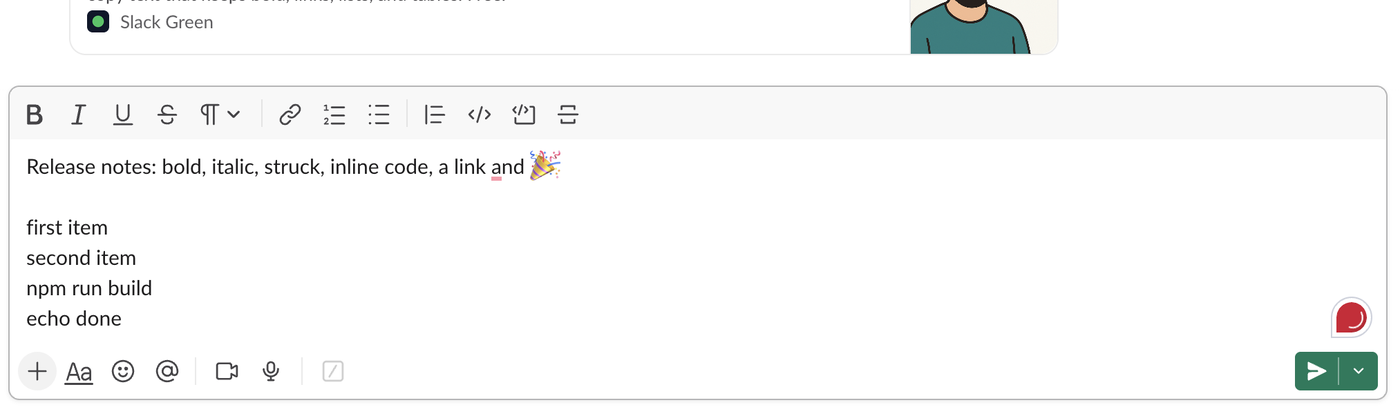
| Plain text only | No formatting; the emoji code turned back into the emoji |
This differs from our September 28 test for Slack markdown not working, where pasted **bold** and [text](url) stayed literal. Slack's paste handling seems to have changed since then, or the result depends on how the paste arrives, so check the message box before you send.
Pasting markdown gave the closest copy of the original:
The plain text version came back flat:
If formatting does not appear after a paste, that page also covers the Format messages with markup setting and the Apply formatting prompt.
Never appear "away" on Slack again
Cloud-based. No downloads. Works 24/7 even when your laptop is off.
How to copy from Slack without formatting
Paste with Cmd+Shift+V on a Mac or Ctrl+Shift+V on Windows. In most apps that pastes the plain text version shown above. A plain text field, such as a terminal or a code editor, takes the plain text version on its own. The catch is the links: plain text keeps only the link text, so copy links one at a time with Copy link if you need the URLs.
Copy as markdown, then convert
Because Slack writes standard markdown, the copied text drops straight into GitHub, Notion, Obsidian or a README. Going the other way, from a markdown file into a Slack message or a bot, the Markdown to Slack converter turns standard markdown into Slack's mrkdwn and shows a live preview. To build formatted text by hand, the Slack message formatter does the same in the browser.
FAQ
Why does my pasted Slack text lose the links?
The app you pasted into took the plain text version, which keeps the link text and drops the URL. Paste into an app that accepts HTML or markdown, or copy each link with Copy link.
Does Copy message include replies in the thread?
We copied single messages only. For a whole thread, how to copy a Slack thread shows the methods we tested.
Stop Jiggling Your Mouse.
Join hundreds of remote workers who never worry about their Slack status. Set it up once, stay green forever.
Related Articles
How to Mark a Message Urgent in Slack (There Is No Flag)
Slack has no urgent or priority flag on messages. On October 27, 2026 we checked every menu in the Free plan's message box and message menu and found none. What works instead: a DM, @here or @channel, a reminder on the message, and the reader's VIP and keyword settings.
How to Delete a Thread in Slack (Parent and Replies)
Slack has no delete-thread button. Deleting the first message leaves 'This message was deleted.' with the replies still attached; the thread only disappears once every reply is deleted too. We tested both in the app and through the API on October 27, 2026.
How to Delete Files in Slack (Deleting the Message Is Not Enough)
Delete a Slack file from Files or from the file's own menu with Delete file. In our October 27, 2026 test, Delete message on a file post removed the post but left the file on Slack's servers. We also deleted files in bulk with a short script.