
How to Make Bullet Points in Slack, Including Nested Lists
To make bullet points in Slack, type an asterisk and a space at the start of a line, or press Cmd+Shift+8 (Ctrl+Shift+8 on Windows). Shift+Enter adds the next bullet, Tab indents it, Shift+Tab moves it back. Numbered lists, mobile, bots, and what to do when the asterisk stays an asterisk.
To make bullet points in Slack, type an asterisk (*) and press the spacebar at the start of a line. Slack turns it into a bulleted list. You can also select text and press Cmd+Shift+8 on a Mac or Ctrl+Shift+8 on Windows and Linux, or click the bulleted-list button in the formatting toolbar. Press Shift+Enter for the next bullet, Tab to indent it under the one above, and Shift+Tab to move it back out. For a numbered list, type 1. and a space, or press Cmd+Shift+7 (Ctrl+Shift+7).
The typed starts and toolbar buttons are from Slack's help article "Format your messages in Slack" and the shortcuts from Slack's keyboard shortcuts page, both checked on 27 September.
A tidy status update in Slack still shows you as away if you stop typing in Slack for 10 minutes. Slack Green keeps your status green during the hours you set, from a server, whatever else you are doing.
Every way to start a bulleted or numbered list
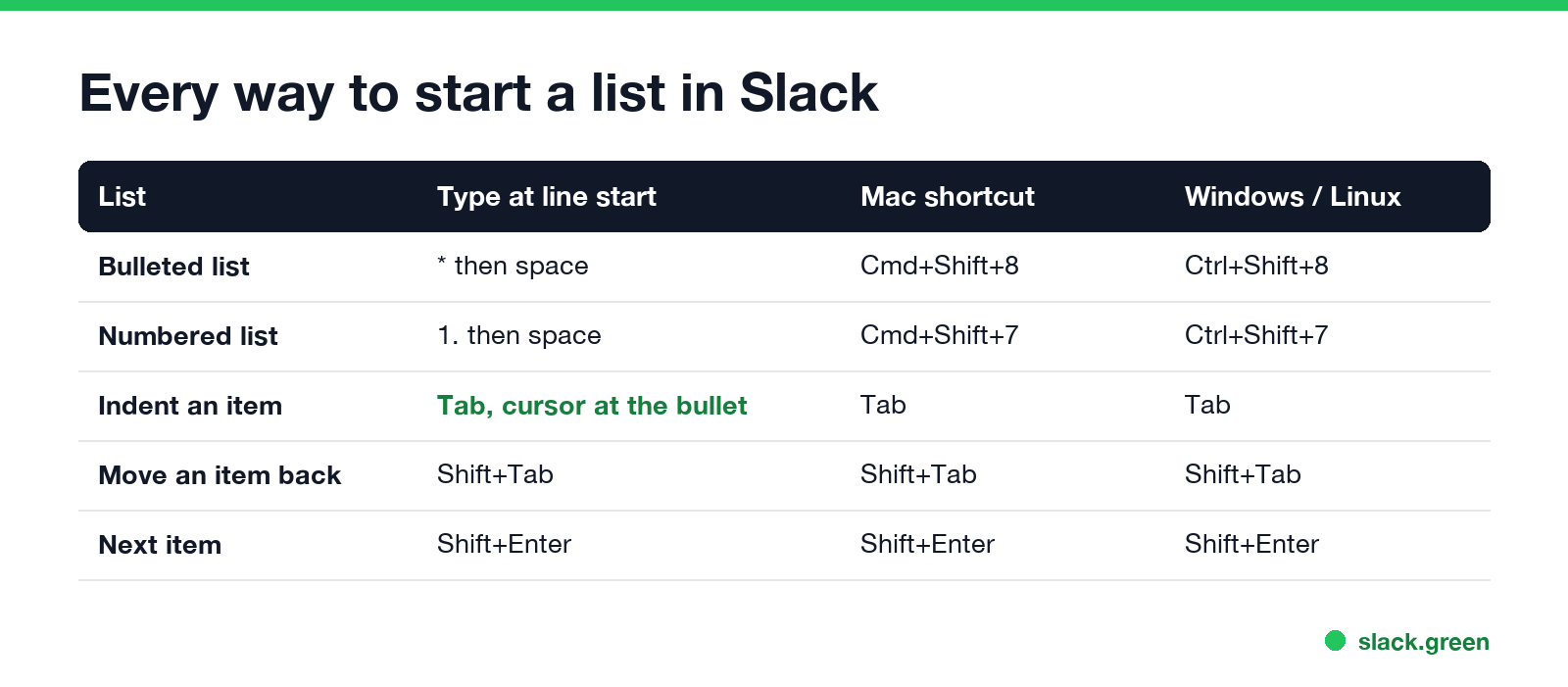
| What you want | Type at the start of a line | Mac | Windows / Linux |
|---|---|---|---|
| Bulleted list | * then space | Cmd+Shift+8 | Ctrl+Shift+8 |
| Numbered list | 1. then space | Cmd+Shift+7 | Ctrl+Shift+7 |
| Next item | Shift+Enter | Shift+Enter | |
| Indent an item | Tab | Tab | |
| Move an item back | Shift+Tab | Shift+Tab |
The shortcut also works on text you already wrote: select the lines and press Cmd+Shift+8, and each line becomes a bullet. The formatting toolbar under the message box has the same two list buttons. If you cannot see the toolbar, click the formatting icon (Aa) in the message field to show it.
How to make nested bullet points in Slack
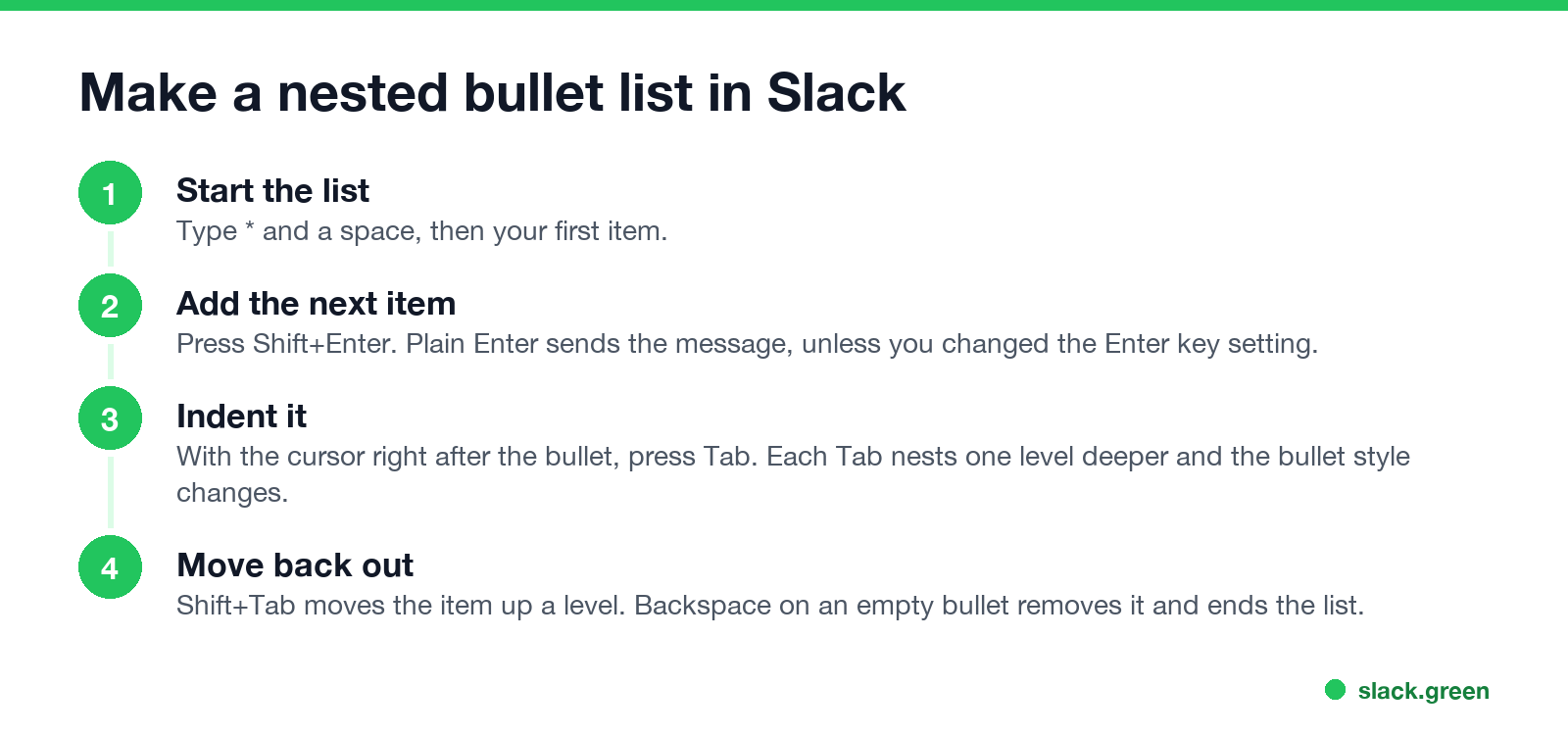
- Type
*and a space, then your first item. - Press Shift+Enter for a new bullet. Plain Enter sends the message, unless you changed Slack's Enter key setting.
- With the cursor right after the new bullet, press Tab. The item moves one level in and the bullet changes from • to ◦. Press Tab again to go a level deeper.
- Press Shift+Tab to move an item back out a level. Backspace on an empty bullet removes it and ends the list.
Tab, Shift+Tab and Backspace only change the indent when the cursor sits right after the bullet. Numbered lists nest the same way. A sent message looks like this:
• Launch plan
    ◦ Blog post, Thursday
    ◦ Email, Friday
• Open questions
How to make bullet points in Slack on mobile
Never appear "away" on Slack again
Cloud-based. No downloads. Works 24/7 even when your laptop is off.
In the Slack app for iPhone and Android, start a line with an asterisk and a space, or 1. and a space, the same as on desktop. The phone keyboard has no Tab key, so nested lists are easier to build on desktop. On a phone, keep lists flat.
If your phone turns the asterisk into something else, type the bullet character itself. On an iPhone, press and hold the hyphen key and pick •. On Android's Gboard, it sits on the second symbols page. A line that starts with • and a space looks like a Slack bullet, without the automatic indent.
Bullet points not working in Slack?
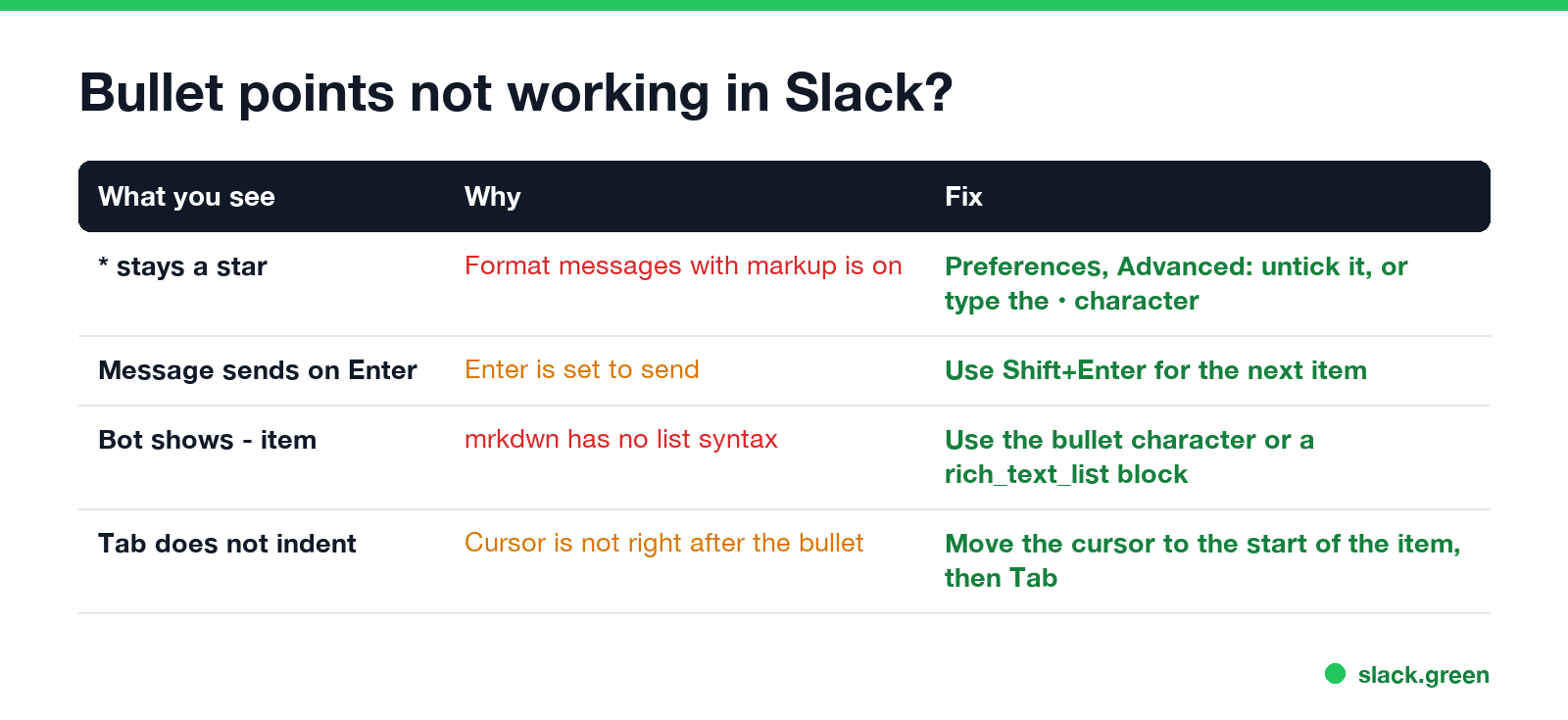
The asterisk stays an asterisk. You have Format messages with markup turned on. Slack's help says that with this setting, automatic formatting for bulleted, numbered and indented lists is not applied. To turn it off, click your profile picture, open Preferences, then Advanced, and untick Format messages with markup under Input Options.
The message sends when you press Enter. Enter sends by default. Use Shift+Enter for the next bullet, or change the Enter key preference so Enter adds a line and Cmd+Enter sends.
A pasted list shows dashes or stars. A markdown list copied from ChatGPT or a README can arrive as plain - or * characters. Paste it into our markdown to Slack converter first, then copy the result into Slack.
Your bot's list shows plain dashes. Messages sent with the mrkdwn text format have no list syntax. See the next section.
Bullet points in Slack bot and API messages
For a quick list in mrkdwn text, put a real bullet character and a line break before each item: "text": "• Tests pass\n• Docs updated". Slack shows it as typed.
Slack's Block Kit markdown block ("type": "markdown") is the exception: it reads standard - item and 1. item lists.
For real lists, including nested ones, use a Block Kit rich_text block with rich_text_list elements. style is bullet or ordered, and indent sets the level. This payload posts a two-level list with chat.postMessage:
{
  "channel": "C0123456789",
  "text": "Release checklist",
  "blocks": [
    {
      "type": "rich_text",
      "elements": [
        {"type": "rich_text_section", "elements": [{"type": "text", "text": "Release checklist:"}]},
        {"type": "rich_text_list", "style": "bullet", "indent": 0, "elements": [
          {"type": "rich_text_section", "elements": [{"type": "text", "text": "Tests pass"}]},
          {"type": "rich_text_section", "elements": [{"type": "text", "text": "Docs updated"}]}
        ]},
        {"type": "rich_text_list", "style": "bullet", "indent": 1, "elements": [
          {"type": "rich_text_section", "elements": [{"type": "text", "text": "API reference"}]},
          {"type": "rich_text_section", "elements": [{"type": "text", "text": "Changelog"}]}
        ]}
      ]
    }
  ]
}
Slack's docs note that the rich text block is what Slack's own message box produces, so a list built this way looks the same as one a person typed. To check plain mrkdwn before a bot sends it, paste it into the Slack message formatter.
When to use a list, and when not to
Never appear "away" on Slack again
Cloud-based. No downloads. Works 24/7 even when your laptop is off.
A short list reads faster than a paragraph in a busy channel: an agenda, a standup update, the three steps someone needs. For items with owners and due dates that change, a Slack list tracks them better than bullets in a message; see Slack canvas vs lists. For data in rows and columns, see how to make a table in Slack. To answer one line of someone else's message, see how to quote a message in Slack. Every formatting shortcut is in Slack keyboard shortcuts.
FAQ
What is the shortcut for bullet points in Slack?
Cmd+Shift+8 on a Mac, Ctrl+Shift+8 on Windows and Linux. Cmd+Shift+7 or Ctrl+Shift+7 makes a numbered list.
How do I indent a bullet in Slack?
Put the cursor right after the bullet and press Tab. Shift+Tab moves it back.
How do I add a new bullet without sending the message?
Press Shift+Enter. Enter on its own sends the message.
Can I use a dash for bullets in Slack?
Slack's help lists the asterisk. In bot messages, neither a dash nor an asterisk becomes a bullet; use the • character or a rich_text_list block.
How do I make a numbered list in Slack?
Type 1. and a space at the start of a line, or press Cmd+Shift+7 (Ctrl+Shift+7 on Windows).
Stop Jiggling Your Mouse.
Join hundreds of remote workers who never worry about their Slack status. Set it up once, stay green forever.
Related Articles
Slack Status for a Doctor Appointment: 24 Statuses and Emoji
A Slack status for a doctor appointment says you are out and when you are back, such as 🏥 'At an appointment, back at 2 PM.' You do not have to say what kind. 24 statuses for doctor, dentist and other appointments, the emoji codes, and how to schedule the status so it clears by itself.
Slack Status for Limited Availability: 30 Statuses to Copy
A Slack status for limited availability says you are around but slow, until when, and how to reach you if it is urgent, such as ⏳ 'Limited availability today, replies after 3 PM. Urgent: @mention me.' 30 statuses for busy days, slow replies and catching up, the emoji to use, and when to pause notifications too.
Slack Emoji for Thank You (and You're Welcome)
The usual Slack emoji for thank you are 🙏 :pray:, 🙌 :raised_hands: and ❤️ :heart:. For you're welcome, 😊 :blush: or 🤗 :hugging_face:. What each one says, which ones read wrong, and custom :ty:, :np: and :welcome: emoji your team can add in a minute.