
Slack Checkbox in a Message: 5 Ways We Tried, and the 2 That Click
You cannot type a checkbox into a Slack message. We tried the composer, mrkdwn, a markdown block, a rich_text checklist and a Block Kit checkboxes element, and show which ones render and which ones a person can actually tick.
You cannot add a checkbox to a Slack message from the message box. Typing - [ ] or [ ] sends the brackets as text. A checkbox someone can tick needs an app that posts a Block Kit checkboxes element. An app can also post a checklist that only displays, through a markdown block or a rich_text list. If you want a list people tick by hand with no app, use a canvas. We tested all of these on 4 October 2026 in the Slack web app on a free-plan workspace, with a test app posting through chat.postMessage.
The 5 ways, side by side
| Method | Who can use it | Renders as a checkbox | Can be ticked |
|---|---|---|---|
Type - [ ], [ ] or [] in the message box | anyone | no | no |
- [ ] in message text (mrkdwn) from an app | apps | no | no |
- [ ] in a markdown block | apps | yes | no |
rich_text_list with "checklist": true | apps | yes | no |
Block Kit checkboxes element | apps | yes | yes, and the app gets each click |
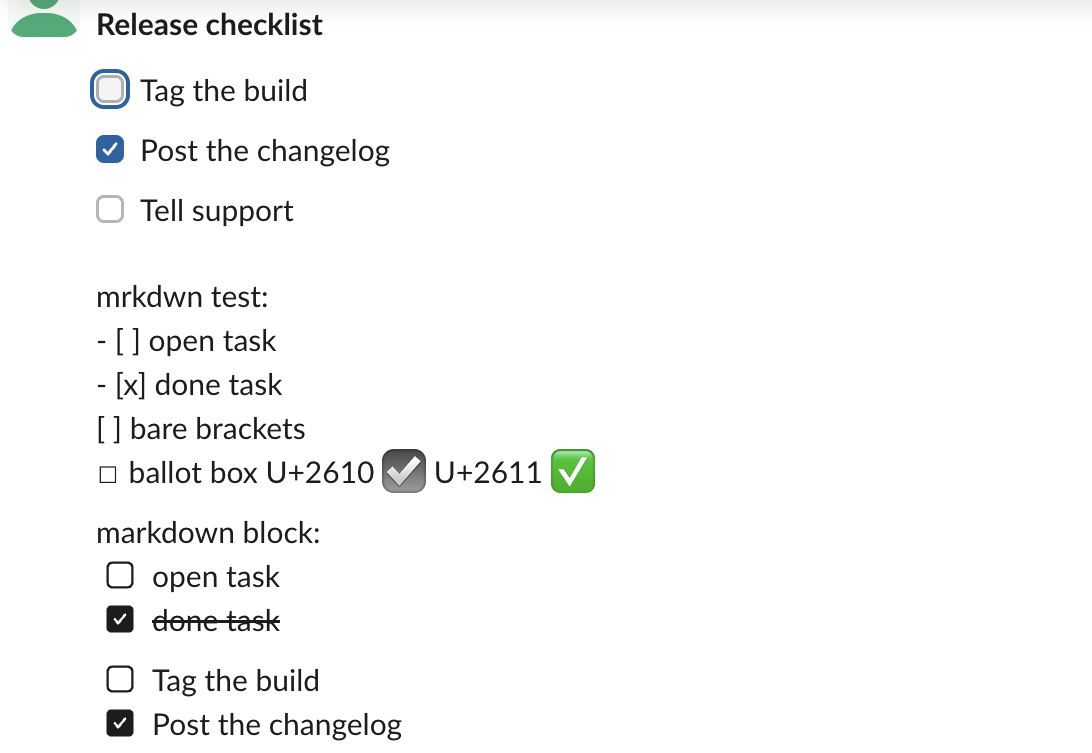
This is how the four app messages looked in the channel. The top one is the Block Kit element after two clicks, the next is mrkdwn text, then the markdown block, then the rich_text checklist:
Typing a checkbox in the message box
We typed three lines into the Slack message box and sent each one:
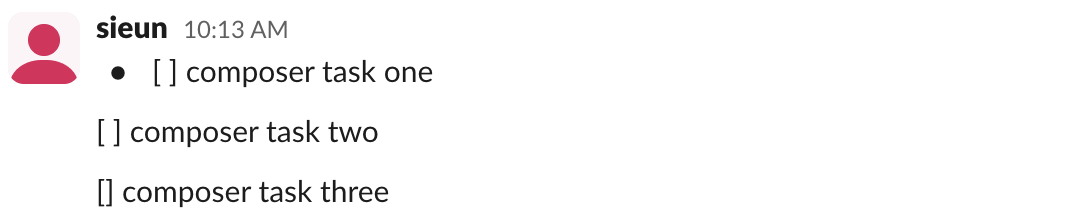
- turned into a bullet as soon as we typed the space, so the first line became a bullet that starts with [ ]. The other two stayed plain text. The stored message has no checklist flag either: conversations.history returned a plain rich_text_section with the text [ ] composer task two. The formatting bar has bold, italic, underline, strikethrough, link, two list types, quote, code and code block, and no checklist.
The closest you get by hand is a symbol. ☐ (U+2610) shows as a box character and ☑ (U+2611) became Slack's ballot-box emoji, as the figure above shows. Neither one changes when you click it.
A read-only checklist from an app
Two app methods draw real boxes. Both are for display only.
A markdown block reads GitHub-style task lists. We posted this:
{"type": "markdown", "text": "markdown block:\n- [ ] open task\n- [x] done task"}Slack stored it as a rich_text block. The list came back with "checklist": true, each item had "checked": false or true, and Slack added a strikethrough style to the checked item on its own. You can post that shape yourself, without the markdown block:
{"type": "rich_text", "elements": [{
  "type": "rich_text_list", "style": "bullet", "indent": 0, "checklist": true,
  "elements": [
    {"type": "rich_text_section", "checked": false, "elements": [{"type": "text", "text": "Tag the build"}]},
    {"type": "rich_text_section", "checked": true, "elements": [{"type": "text", "text": "Post the changelog"}]}
  ]
}]}
Both rendered with boxes. In the page, each box is an SVG icon marked aria-hidden, not an input. We clicked the empty box in the markdown-block message and its data-checked attribute stayed false. To change one, the app has to edit the message with chat.update.
Never appear "away" on Slack again
Cloud-based. No downloads. Works 24/7 even when your laptop is off.
A checkbox people can tick: Block Kit
The checkboxes element is interactive. We put it in an actions block of an app with interactivity turned on, and posted it with a bot token that had chat:write, and our app listened over Socket Mode:
blocks = [
    {"type": "section", "text": {"type": "mrkdwn", "text": "*Release checklist*"}},
    {"type": "actions", "block_id": "chk", "elements": [{
        "type": "checkboxes", "action_id": "tasks",
        "options": [
            {"text": {"type": "mrkdwn", "text": "Tag the build"}, "value": "tag"},
            {"text": {"type": "mrkdwn", "text": "Post the changelog"}, "value": "changelog"},
            {"text": {"type": "mrkdwn", "text": "Tell support"}, "value": "support"},
        ],
    }]},
]
client.chat_postMessage(channel=CHANNEL, text="Release checklist", blocks=blocks)
Ticking Tag the build sent a block_actions payload to the app 0.43 seconds after the click. This is the part that matters, with the IDs and URLs cut:
{
  "type": "block_actions",
  "actions": [{
    "type": "checkboxes", "action_id": "tasks", "block_id": "chk",
    "selected_options": [{"text": {"type": "mrkdwn", "text": "Tag the build"}, "value": "tag"}]
  }],
  "state": {"values": {"chk": {"tasks": {"type": "checkboxes",
    "selected_options": [{"value": "tag"}]}}}},
  "container": {"type": "message", "message_ts": "1791076270.604169", "is_ephemeral": false}
}
selected_options is the full list of ticked boxes after the click, not the one that changed. When we ticked Post the changelog next, it held both. When we then unticked Tag the build, it held only changelog. There is no field for the box that was cleared, so compare with the last list you saw.
Why the tick disappears after a reload
The tick lives only in your browser until the app saves it. In our first run the app acknowledged the click and did nothing else. The box showed as ticked, and after a page reload all three boxes were empty again.
In the second run the app rebuilt the message with chat.update, copying selected_options into the element's initial_options:
def keep_ticks(payload):
    blocks = payload["message"]["blocks"]
    for block_id, actions in payload["state"]["values"].items():
        for action_id, el in actions.items():
            for b in blocks:
                if b.get("block_id") != block_id:
                    continue
                for e in b["elements"]:
                    if e["action_id"] == action_id:
                        if el["selected_options"]:
                            e["initial_options"] = el["selected_options"]
                        else:
                            e.pop("initial_options", None)
    client.chat_update(channel=payload["channel"]["id"],
                       ts=payload["message"]["ts"],
                       text=payload["message"]["text"], blocks=blocks)
chat.update returned ok about 0.3 seconds after the click event arrived, and both ticks survived the reload. Copy the option objects from the payload instead of building new ones. We changed one initial_options entry to differ from its option only in the text, then only in the text type, then only in the value, and chat.update refused all three with invalid_blocks and must be one of the provided options. Every edit also fires a message_changed event if your app subscribes to channel messages; our log had one per click. The message_changed payloads page shows what those look like.
A checklist with no app: canvas
In a canvas, the checklist is built in. The [] shortcut (no space) or the checklist button in the canvas toolbar makes a box you tick with a click. The other canvas shortcuts are on our canvas formatting page. We ticked one item in a channel canvas by hand and then downloaded the canvas through files.info and url_private_download. The item now had class='checked' in the HTML, so the tick was saved for everyone. An app can create the same checklist with - [ ] in the markdown it sends to conversations.canvases.create; that is how our test canvas started.
FAQ
Can I see who ticked a box?
In a Block Kit message, yes: each block_actions payload carries the user who clicked. In a canvas checklist, the HTML we downloaded had only the checked class and no name.
Stop Jiggling Your Mouse.
Join hundreds of remote workers who never worry about their Slack status. Set it up once, stay green forever.
Related Articles
@slack/web-api v8: A Tested Node.js and TypeScript Example
@slack/web-api 8.2.0 runs on Node 20 or newer and sends requests with fetch. We posted, paginated, caught a Slack error and a rate limit in TypeScript, and found that the v7 agent option for proxies is silently ignored in v8.
Slack API in Go With slack-go/slack: A Tested Example
slack-go/slack v0.29.0 is the Go client most people use for the Slack API. We ran a program that posts, reads back and updates a Block Kit message, a Socket Mode bot that answers a mention, and a loop that hit the rate limit, with the output and error types we got.
slack-ruby-client: A Tested Ruby Example, Errors and Limits
slack-ruby-client 3.2.0 is the Ruby gem for the Slack Web API. We installed it, posted, read back, reacted and paginated against a real workspace, and recorded the error classes it raised, including the rate-limit error that a rescue of SlackError does not catch.