
Slack Keyboard Shortcuts Cheat Sheet for Mac and Windows
The Slack keyboard shortcuts worth learning, for Mac and Windows, from Slack's own list: Cmd/Ctrl+K to jump, Shift+Esc to mark all read, Cmd/Ctrl+Shift+Y to set a status, formatting, huddles and one-key message actions. Press Cmd/Ctrl+/ in Slack to see them all.
The most useful Slack keyboard shortcuts are Cmd+K (Mac) or Ctrl+K (Windows and Linux) to jump to any conversation, Shift+Esc to mark everything as read, Cmd/Ctrl+Shift+A to open All unreads, Cmd/Ctrl+Shift+Y to set your status, and Cmd/Ctrl+Shift+H to start or join a huddle. Press Cmd+/ or Ctrl+/ in Slack to see the full list. Slack does not let you change or add shortcuts.
Everything below comes from the Slack help center's shortcut list, grouped by what you do most. None of them keep your dot green, which turns grey 10 minutes after your last input in Slack; Slack Green keeps it active during the working hours you set, from the cloud.
The Slack shortcuts worth learning first
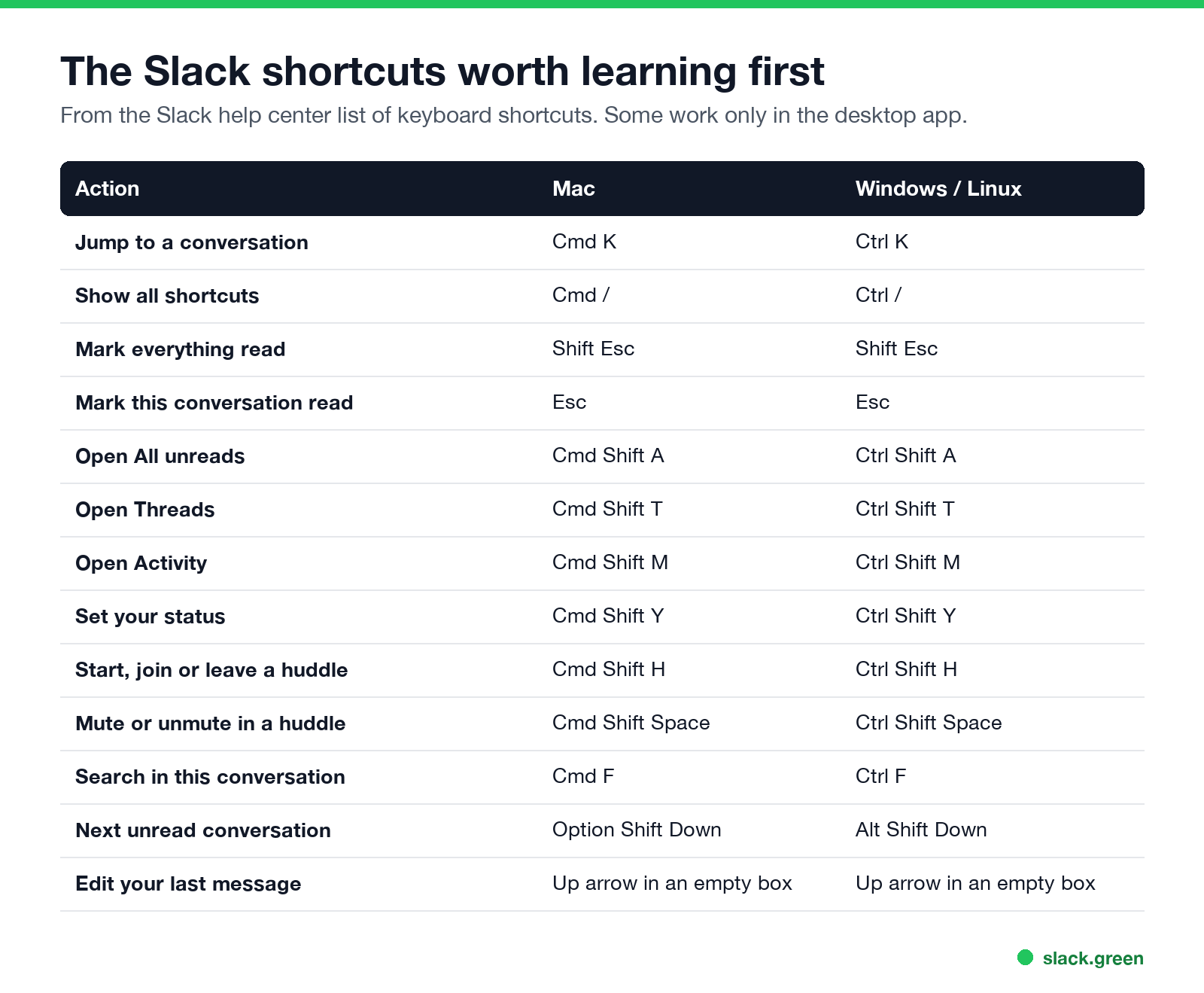
| Action | Mac | Windows / Linux |
|---|---|---|
| Jump to a conversation | Cmd+K | Ctrl+K |
| Show all shortcuts | Cmd+/ | Ctrl+/ |
| Compose a new message | Cmd+N | Ctrl+N |
| Search | Cmd+G | Ctrl+G |
| Search in this conversation | Cmd+F | Ctrl+F |
| Set your status | Cmd+Shift+Y | Ctrl+Shift+Y |
| Unsend a message | Cmd+Z | Ctrl+Z |
| Open preferences (desktop app) | Cmd+, | Ctrl+, |
| Hide the right sidebar | Cmd+. | Ctrl+. |
Shortcuts to read and catch up
| Action | Mac | Windows / Linux |
|---|---|---|
| Mark everything as read | Shift+Esc | Shift+Esc |
| Mark this conversation as read | Esc | Esc |
| Mark a message as unread | Option+click | Alt+click |
| Open All unreads | Cmd+Shift+A | Ctrl+Shift+A |
| Open Threads (desktop app) | Cmd+Shift+T | Ctrl+Shift+T |
| Open Activity (desktop app) | Cmd+Shift+M | Ctrl+Shift+M |
| Next unread conversation | Option+Shift+Down | Alt+Shift+Down |
| Previous unread conversation | Option+Shift+Up | Alt+Shift+Up |
| Jump to the latest unread in a conversation (desktop app) | Cmd+J | Ctrl+J |
| Go back / forward in history | Cmd+[ / Cmd+] | Alt+Left / Alt+Right |
If a badge still will not clear after Shift+Esc, see Slack keeps showing unread messages. To narrow a search with from:, in: and dates, see Slack search operators.
Huddle and workspace shortcuts
Nie wieder "abwesend" auf Slack erscheinen
Cloud-basiert. Keine Downloads. Funktioniert 24/7 auch wenn Ihr Laptop aus ist.
| Action | Mac | Windows / Linux |
|---|---|---|
| Start, join, leave or end a huddle | Cmd+Shift+H | Ctrl+Shift+H |
| Mute or unmute in a huddle | Cmd+Shift+Space | Ctrl+Shift+Space |
| Next workspace | Ctrl+Tab | Ctrl+Tab |
| Previous workspace | Ctrl+Shift+Tab | Ctrl+Shift+Tab |
| Switch to workspace number | Cmd+1, 2, 3... | Ctrl+1, 2, 3... |
Formatting shortcuts
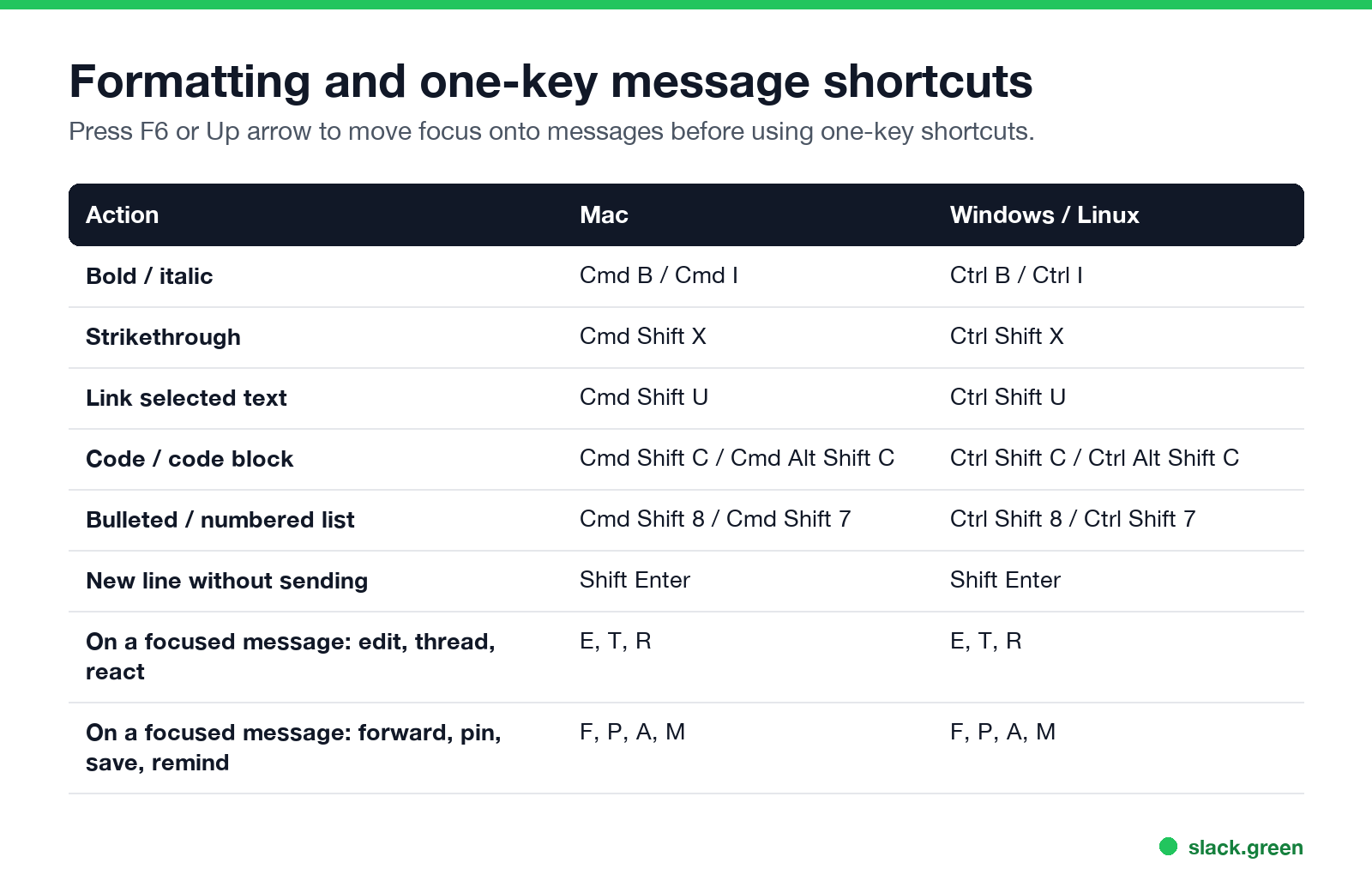
| Action | Mac | Windows / Linux |
|---|---|---|
| Bold | Cmd+B | Ctrl+B |
| Italic | Cmd+I | Ctrl+I |
| Strikethrough | Cmd+Shift+X | Ctrl+Shift+X |
| Link selected text | Cmd+Shift+U | Ctrl+Shift+U |
| Inline code | Cmd+Shift+C | Ctrl+Shift+C |
| Code block | Cmd+Alt+Shift+C | Ctrl+Alt+Shift+C |
| Quote | Cmd+Shift+9 | Ctrl+Shift+9 |
| Bulleted list | Cmd+Shift+8 | Ctrl+Shift+8 |
| Numbered list | Cmd+Shift+7 | Ctrl+Shift+7 |
| New line without sending | Shift+Enter | Shift+Enter |
With a link copied, select text and paste (Cmd+V or Ctrl+V) to turn it into a link. To preview formatting before you post, try the Slack message formatter.
One-key shortcuts on a message
Move focus onto a message first (press the Up arrow from an empty message box, or F6 to move between sections). Then:
- • E edit your message
- • T or Right arrow open or reply in the thread
- • R add a reaction (what reactions mean is in what does the eyes emoji mean in Slack)
- • F forward
- • P pin or unpin
- • A save for later (see Slack saved for later)
- • M set a reminder about the message
- • U mark everything above as unread
- • Delete delete your message
By default, the Up arrow in an empty message box edits your last message. You can change that in preferences so it moves focus to the last message instead.
Slack keyboard shortcuts not working
Nie wieder "abwesend" auf Slack erscheinen
Cloud-basiert. Keine Downloads. Funktioniert 24/7 auch wenn Ihr Laptop aus ist.
Can you customize Slack keyboard shortcuts?
No. Slack's help center says it is not currently possible to set custom keyboard shortcuts. On a Mac you can remap menu items for Slack under System Settings, Keyboard, Keyboard Shortcuts, App Shortcuts, which works for commands in the Slack menu bar.
FAQ
How do I see all Slack keyboard shortcuts?
Press Cmd+/ on a Mac or Ctrl+/ on Windows and Linux. For commands you type in the message box, see the Slack slash commands list.
What is the shortcut to mark all as read in Slack?
Shift+Esc.
What is the Slack shortcut to set my status?
Cmd+Shift+Y on Mac, Ctrl+Shift+Y on Windows. To schedule one ahead, see how to schedule a Slack status.
How do I start a huddle with the keyboard?
Cmd+Shift+H on Mac, Ctrl+Shift+H on Windows, in the conversation you want to huddle in. To keep a transcript or recording of it, see how to record a Slack huddle.
Does pressing shortcuts keep me active on Slack?
Yes, while the Slack window is in focus, because it is input in Slack. Your dot still goes grey 10 minutes after your last input; see how long does Slack stay active.
Hör auf, die Maus zu Bewegen.
Hunderte Remote-Arbeiter sorgen sich nicht mehr um ihren Slack-Status. Einmal einrichten, für immer grün bleiben.
Related Articles
How to Connect Slack and Microsoft Teams: Calls, Messages and Status
Slack and Teams do not connect natively for chat. You can start Teams calls from Slack with the free Microsoft Teams Calls app, relay messages with a paid bridge such as Mio, and sync your Teams status to Slack with a short script. Every option, what it costs, and the setup steps.
Slack Active on Multiple Devices: Which One Sets Your Status?
When you use Slack on a phone and a computer at once, one active device is enough to keep you green, and a manual away on any device sets you away on all of them. The rule, common cases, and how notifications pick a device.
Slack Huddles vs Zoom: Which to Use for Team Calls
Slack huddles are quick calls inside Slack: 1:1 on the free plan, up to 50 people on paid plans, no recording. Zoom is built for scheduled, recorded and large meetings, with a free plan of 100 people for 40 minutes. Limits, cost, recording and privacy side by side.