
Export a Slack Canvas to PDF or Markdown: What Works, Tested
Slack has no download or export button for canvases. We checked every menu on a test canvas, used Print canvas for PDF, and turned the API's HTML download into clean Markdown with a script we ran.
Slack has no export or download button for canvases. To get a PDF, open the canvas, click the three-dot menu, choose Print canvas, and pick Save as PDF as the printer. To get Markdown, download the canvas by API, which returns HTML, and convert it; the script below does that, and it fixes four things a plain converter gets wrong. We checked this on 6 October 2026 in the Slack web app on our free-plan test workspace, with a channel canvas that had a heading, a mention, a checklist, a table, a code block and a link.
The canvas menu has Print, not Download
These are all the items in the canvas's three-dot menu: Copy link, Share this canvas, View file details, Add to saved, Add to-do, Move to section, Add cover image, Show all threads, View version history, Print canvas, Accessibility, Change system font, Open in split view and Delete canvas. View file details opens a side panel whose own More actions menu has Add to saved, Add to-do, View file details, Copy link to canvas, Remove as tab, Add to folder, Open in split view and Delete canvas. Neither menu has a download, export or "copy as Markdown" item, and no item was greyed out with an upgrade prompt on the free plan.
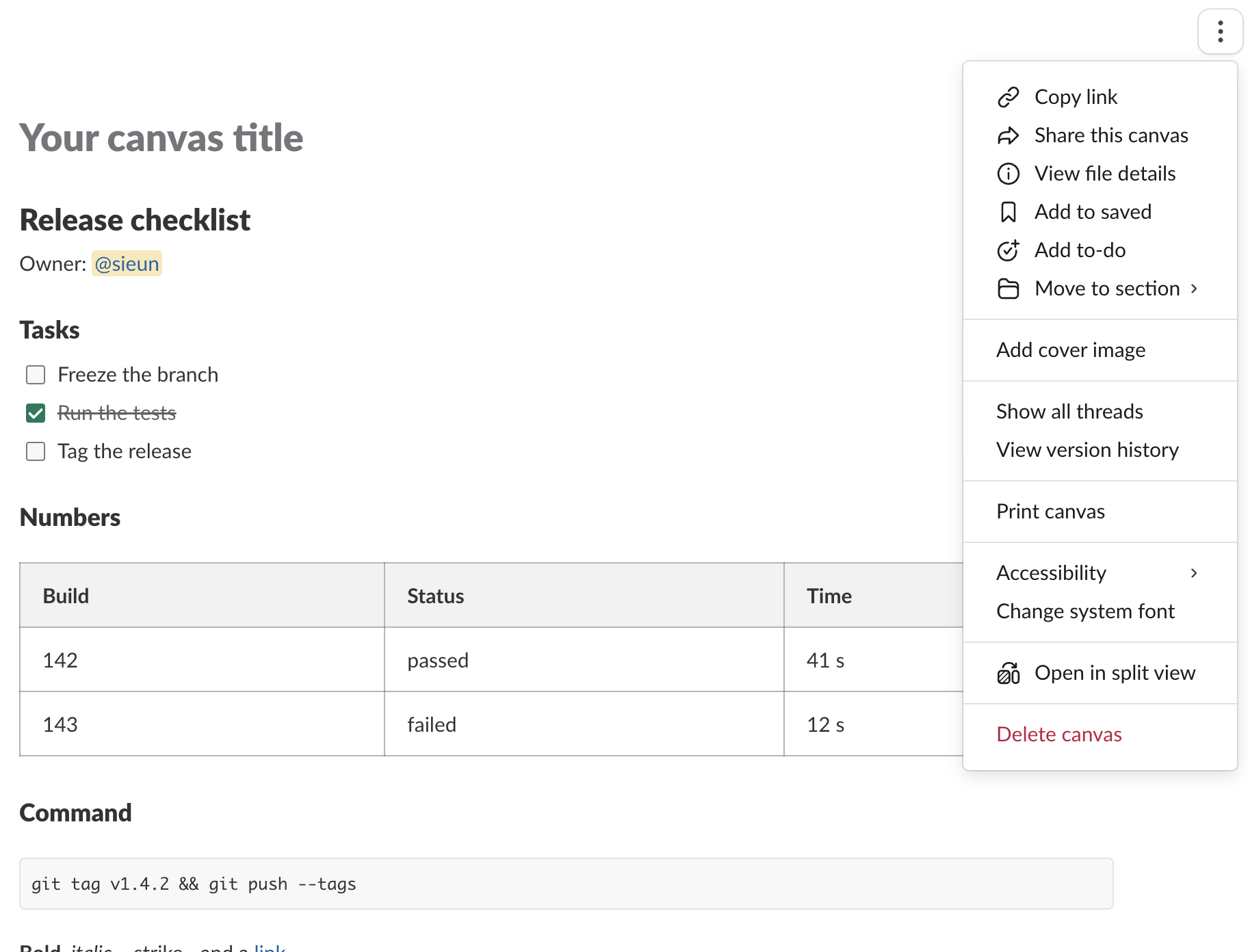
Save a canvas as PDF with Print canvas
After Print canvas, Slack showed a "Preparing canvas for printing..." notice, built a separate print-only page, and opened the browser's print dialog. In Chrome-based browsers, set Destination to Save as PDF.
We read the print-only page Slack built before the dialog opened. It held the heading, the mention as @sieun, the three checklist items as real checkboxes, the table with all three rows and columns, the code block and the formatted text. So none of those are dropped on the way to the PDF. Two limits: we did not save and inspect the final PDF file, and the print page also contained the text "Add cover", which the print styles may or may not hide. If you see it in your PDF, add a cover image or remove that line in a PDF editor.
Never appear "away" on Slack again
Cloud-based. No downloads. Works 24/7 even when your laptop is off.
Download the canvas by API and convert it to Markdown
A canvas is a file. files.info on the canvas ID returned "filetype": "quip", "mimetype": "application/vnd.slack-docs" and a url_private_download. A GET on that URL with a bot token that has files:read returned 1,952 bytes of text/html. Our canvas API guide covers creating and editing canvases with the same app.
Run through a standard HTML-to-Markdown converter (markdownify), our canvas came out with four problems:
| Element | Plain conversion | Why |
|---|---|---|
| Mention | @U0B7L4YK420 | the HTML holds the member ID, not the name |
| Checklist | - Run the tests with no box | done items only carry class='checked' on the <li> |
| Table | an empty header row, then all rows | Slack writes every cell as <td>, no <th> |
| Code block | plain text | it is a <p class="prettyprint">, not <pre> |
| Link | the word "link" with no URL | Slack uses its own <lnk href> tag instead of <a> |
Headings, bold and italic converted cleanly. This script fixes the rest. It needs a bot token with files:read and users:read, and the canvas ID (the F... ID in the canvas link):
import os, re, requests
from bs4 import BeautifulSoup
from markdownify import markdownify

TOKEN = os.environ["SLACK_BOT_TOKEN"]     # bot token with files:read
CANVAS_ID = os.environ["CANVAS_ID"]

H = {"Authorization": f"Bearer {TOKEN}"}
f = requests.get("https://slack.com/api/files.info", params={"file": CANVAS_ID}, headers=H, timeout=30).json()["file"]
soup = BeautifulSoup(requests.get(f["url_private_download"], headers=H, timeout=30).text, "html.parser")

for lnk in soup.find_all("lnk"):                       # Slack's own link tag
    lnk.name = "a"
for li in soup.select("div[data-section-style='7'] li"):  # checklist items
    li.insert(0, "[x] " if "checked" in (li.get("class") or []) else "[ ] ")
for p in soup.select("p.prettyprint"):                 # code block lines
    pre = soup.new_tag("pre"); pre.string = p.get_text(); p.replace_with(pre)
for table in soup.find_all("table"):                   # first row is the header
    for td in table.find("tr").find_all("td"):
        td.name = "th"
names = {}
for a in soup.select("control a"):                     # @U123 -> @display name
    uid = a.get_text().lstrip("@")
    if uid not in names:
        u = requests.get("https://slack.com/api/users.info", params={"user": uid}, headers=H, timeout=30).json()
        names[uid] = u["user"]["profile"].get("display_name") or u["user"]["real_name"]
    a.string = "@" + names[uid]

print(markdownify(str(soup), heading_style="ATX", bullets="-", code_language=""))
Output for our canvas:
# Release checklist

Owner: @sieun

## Tasks

- [ ] Freeze the branch
- [x] Run the tests
- [ ] Tag the release

## Numbers

| Build | Status | Time |
| --- | --- | --- |
| 142 | passed | 41 s |
| 143 | failed | 12 s |

## Command

```
git tag v1.4.2 && git push --tags
```

**Bold**, *italic*, ~strike~ and a [link](https://slack.com).
The ~strike~ is text we typed that way when we made the canvas through the API, so it stayed literal. The checklist selector relies on the data-section-style='7' wrapper Slack used for checklists in our download; if your checklist items come out without boxes, look at the HTML for the class Slack used. We did not add an image to the test canvas, so images are not covered by this script.
Word and other formats
Slack offers no Word or .docx export for canvases. The routes are the PDF from Print canvas or the HTML and Markdown from the API, and we did not test opening either in Word. If you need a whole channel rather than one canvas, the options are different; our guide to exporting Slack messages without admin access covers them.
FAQ
Does exporting a canvas notify anyone?
Nothing was posted in the channel when we printed the canvas or downloaded it through the API; the last message in the channel was still the bot's join notice. The canvas panel counts views ("Viewed by 1 person"), and we did not check whether an API download adds a view.
Stop Jiggling Your Mouse.
Join hundreds of remote workers who never worry about their Slack status. Set it up once, stay green forever.
Related Articles
Slack Forward Multiple Messages: No Multi-Select, 3 Workarounds Tested
Slack forwards one message at a time. We checked the message menu, shift-click and the forward dialog, then tested three ways to move 10 messages at once: a thread, a copied range, and a script that posts links.
Send a Slack Message From PowerShell: Webhook, Bot Token and Files
Working PowerShell for Slack: Invoke-RestMethod to a webhook, chat.postMessage with a bot token, Block Kit, and a file upload. Every script was run in PowerShell 7.6.6 against a real Slack workspace, with its output.
Slack App Name Change: Why the Bot Name Does Not Update, Tested
We renamed a Slack app and its bot user eight times in a test workspace. Which names changed, how fast Slack showed them, the App Home edit that never reached Slack, and the exact validation messages.