
Slack Markdown File Preview: How to Read .md Files in Slack
Slack shows an uploaded .md file as raw text, with the # and ** characters visible. To read it formatted, paste the rendered text into a canvas, create the canvas from markdown with the API, or send it in a markdown block. HTML files and Mermaid diagrams do not render either; the workarounds are below.
Slack does not render markdown files. When you upload a .md file, Slack shows it as a text file, with the #, ** and - characters visible, the same as a .txt. To read a markdown file formatted inside Slack, put it in a canvas: copy the rendered text from a preview (GitHub or VS Code) and paste it into a canvas, or have an app create the canvas from the markdown with Slack's canvases.create API. For a bot message, the Block Kit markdown block formats standard markdown up to 12,000 characters.
HTML files and Mermaid diagrams do not render in Slack either. For those, share a link or an image.
We build Slack Green. For a markdown snippet going into a normal message, our free Markdown to Slack converter rewrites it in Slack's own syntax.
Where markdown renders in Slack
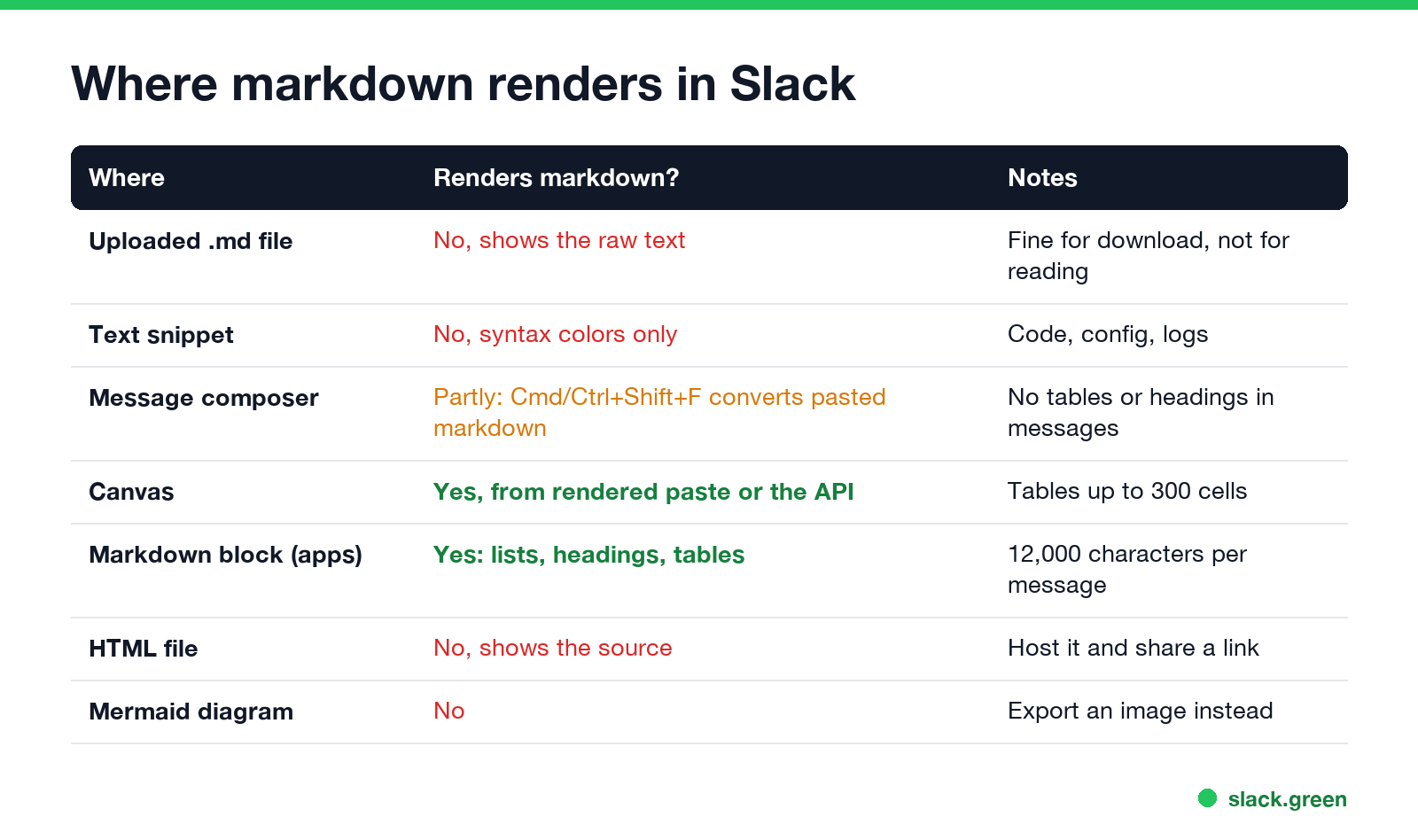
| Where | Renders markdown? | Notes |
|---|---|---|
| Uploaded .md file | No, raw text | Good for downloading, not reading |
| Text snippet | No, syntax colors only | For code, config and logs |
| Message composer | Partly | Paste, then Cmd+Shift+F (Ctrl+Shift+F) to apply markdown formatting; no tables or headings |
| Canvas | Yes | Headings, lists, tables up to 300 cells, checklists |
| Markdown block, from an app | Yes | 12,000 characters per message |
| HTML file | No, shows the source | Host it and share a link |
| Mermaid diagram | No | Export a PNG or SVG |
Snippets are Slack's way to share code, config files and logs. Slack's help says you choose a file type for syntax highlighting, so a snippet set to Markdown gets colors, not formatting.
Read a .md file formatted in a canvas
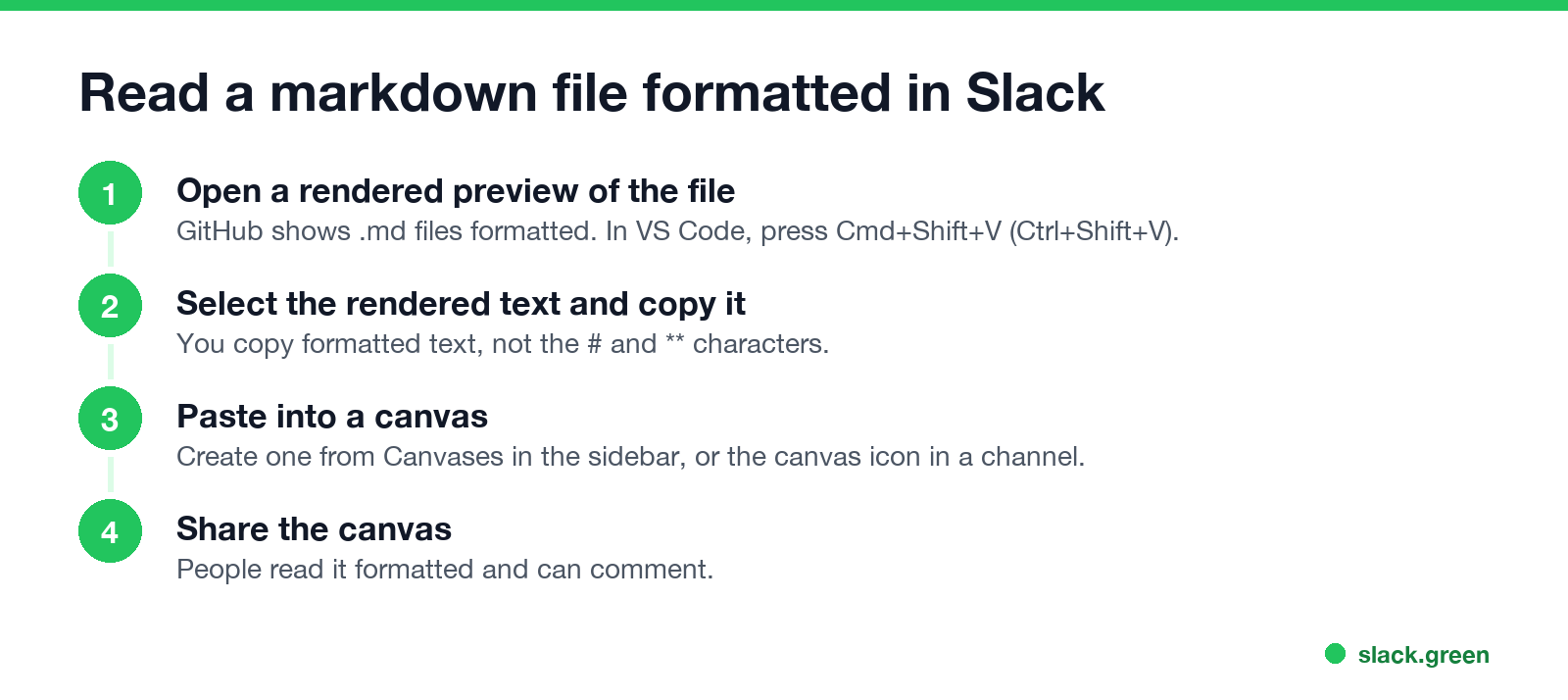
- Open a rendered preview of the file. GitHub shows
.mdfiles formatted. In VS Code, press Cmd+Shift+V (Ctrl+Shift+V on Windows) for the Markdown preview. - Select the rendered text and copy it. You copy formatted text, not the raw symbols.
- Create a canvas: open Canvases in the sidebar, or the canvas icon at the top of a channel, and paste.
- Share the canvas in the channel or DM.
The same copy-the-rendered-text trick works in the message box for short notes, because Slack keeps bold, links and lists from formatted text you paste. Tables and headings do not exist in messages, so long documents belong in a canvas.
Create a canvas from a markdown file with the API
Never appear "away" on Slack again
Cloud-based. No downloads. Works 24/7 even when your laptop is off.
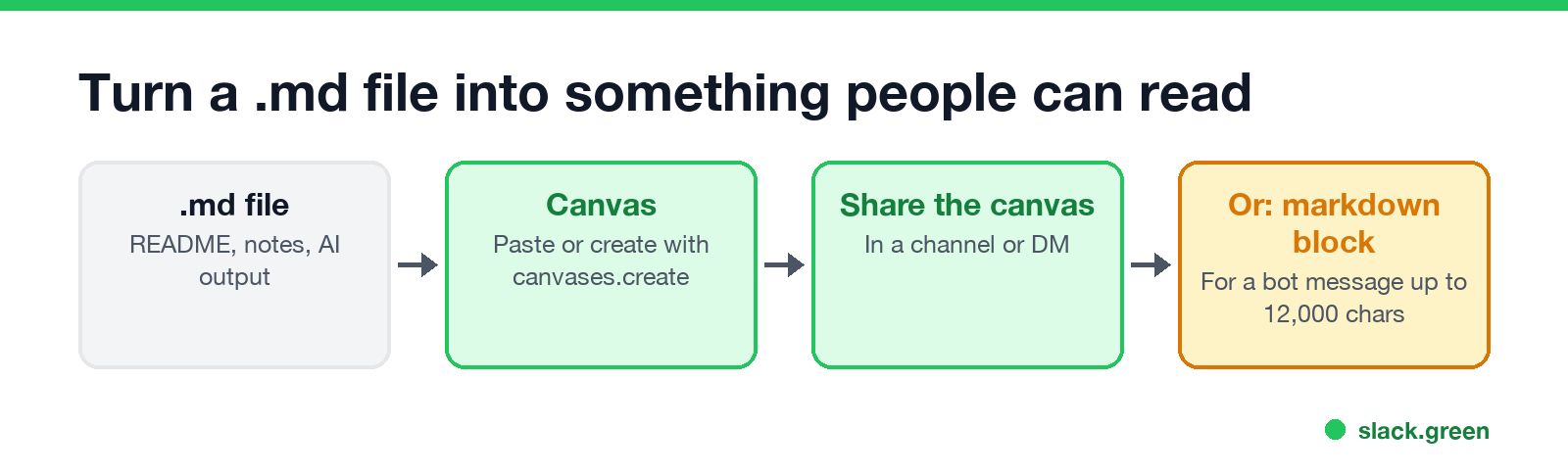
Slack's canvas API takes markdown directly. canvases.create accepts a document_content object with "type": "markdown", up to 1 MiB of text. The supported elements include headings h1 to h3, bold, italic, strikethrough, bulleted and ordered lists, checklists, code blocks, quotes, dividers, links, tables and @mentions.
# pip install slack_sdk ; needs a bot token with the canvases:write scope
from pathlib import Path
from slack_sdk import WebClient

client = WebClient(token="xoxb-your-bot-token")
text = Path("README.md").read_text()

resp = client.canvases_create(
    title="README",
    document_content={"type": "markdown", "markdown": text},
)
print(resp["canvas_id"])
Canvas tables are limited to 300 cells. Block Kit does not work inside canvases, and Slack's docs note that mentions use a slightly different syntax there. To attach the canvas to a channel instead of creating a standalone one, use conversations.canvases.create with the channel ID.
Send markdown as a bot message
For shorter text, such as a changelog or an AI answer, send it in a markdown block and Slack formats it:
{
  "channel": "C0123456789",
  "blocks": [
    { "type": "markdown", "text": "## Release 3.4\n- Faster search\n- **Fixed:** login loop" }
  ]
}
The limit is 12,000 characters for all markdown blocks in one message. The syntax differences between this block and Slack's older mrkdwn are in Slack Block Kit markdown.
Can Slack render HTML or Mermaid?
No. An uploaded .html file shows its source code, and Slack does not run or display the page. A mermaid code block shows as text. The options:
Paste markdown into a normal message
Never appear "away" on Slack again
Cloud-based. No downloads. Works 24/7 even when your laptop is off.
For a few lines of markdown, paste into the message box and press Cmd+Shift+F (Ctrl+Shift+F), Apply markdown formatting. Slack converts bold, links and lists. In the composer's markup mode you can also type [text](link); app and bot messages still need <url|text>. The full walkthrough, with what survives and what does not, is in how to paste ChatGPT into Slack, and the reasons markdown sometimes shows raw are in Slack markdown not working.
FAQ
Can Slack preview markdown files? It previews them as plain text. The markdown is not formatted.
How do I view a markdown file formatted in Slack?
Copy the rendered text from a preview into a canvas, or create the canvas from the file with canvases.create.
Can Slack render HTML? No. Share a link to the hosted page, or a screenshot.
Can Slack render Mermaid diagrams? No. Export the diagram as an image and upload it.
Does a Slack canvas support markdown? Yes. Canvases support headings, lists, tables, checklists and code, and the canvas API takes markdown directly.
Stop Jiggling Your Mouse.
Join hundreds of remote workers who never worry about their Slack status. Set it up once, stay green forever.
Related Articles
Slack Emoji for Approved, Perfect and Sounds Good
The Slack emoji for approved is ✅ :white_check_mark:. For perfect, use 💯 :100: or 🤌 :pinched_fingers:; for sounds good or sure, 👍 :+1: or 👌 :ok_hand:. Every code checked in Slack, what each one means to readers, custom LGTM and SGTM emoji, and a pinned legend for approval channels.
Slack Emoji for OOO, PTO and Days Off
The usual Slack emoji for OOO is 🌴 :palm_tree:, with ✈️ :airplane: for travel and 🗓️ :spiral_calendar_pad: for planned PTO. Enterprise's built-in Out of office status uses ⛔. Codes for vacation, upcoming PTO, sick days, holidays and outages, custom :ooo: and :pto: emoji, and statuses to copy.
Slack Webhook curl Example, Plus Python and Node.js
Send a Slack message with one curl command: POST a JSON body with a text field to your incoming webhook URL, and Slack answers ok. Tested examples for curl, jq, Block Kit, Python with retries and Node.js, how to escape quotes and new lines, and what 400 invalid_payload and 429 mean in code.