
Are Slack Canvases Private? Who Can Open Each Kind, Tested
A Slack canvas is private to the people and channels it is shared with, unless you switch workspace access on. We made a canvas in a public channel, a private channel and a DM, then checked who could open each one.
A Slack canvas is private to the people and channels it is shared with. A new canvas starts with workspace access set to Invite only, so nobody outside that list can open it, even with the link. The exception is a canvas you open to the whole workspace with Anyone in [workspace] can view, comment or edit. We tested this on 4 October 2026 in a free-plan workspace: one canvas in a public channel, one in a private channel and one in a DM, checked in the Slack web app and with a test app whose bot was not a member of any of them.
Who can open each kind of canvas
The bot was our outsider. It had the files:read and canvases:read scopes, so the only thing stopping it was canvas access. files.info and canvases.sections.lookup were our two read checks:
| Canvas | is_public in files.info | Default access for members | Bot outside it |
|---|---|---|---|
| Channel canvas, public channel | true | channel members: write | not_visible |
| Channel canvas, private channel | false | channel members: write | not_visible |
| Canvas in a DM with yourself | false | only you | not_visible |
| Same public canvas, bot joined the channel | true | write | readable, and its canvases.edit worked |
canvases.sections.lookup returned canvas_not_found in every row where files.info said not_visible. So a public channel canvas is not public in the open-to-anyone sense. is_public: true means it lives in a public channel. Anyone can join that channel, and once the bot joined it could read and edit the canvas because channel members get Can edit by default.
A signed-out browser gets nothing. The canvas link (https://<workspace>.slack.com/docs/T.../F...) and the file URL behind it both returned 302 to the workspace sign-in page when we fetched them with no cookies.
The share settings, and what each one changed
Open a canvas, click the three-dot menu at the top right and pick Share this canvas. The dialog lists the people with access, the Channels the canvas is shared to, an Advanced Settings page and the workspace access menu at the bottom. Our workspace is named "Slack", which is why the options read "Anyone in Slack":
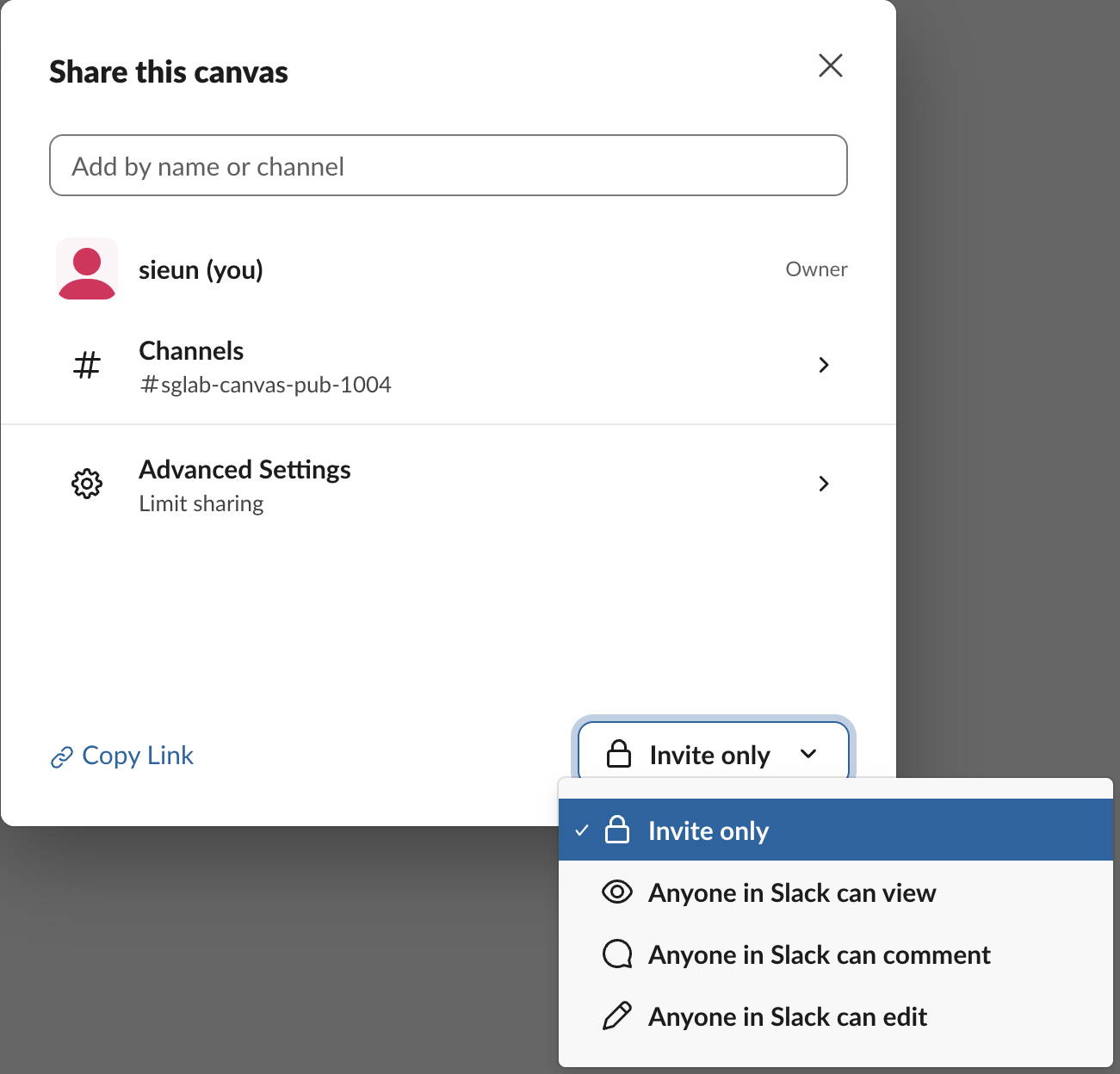
We switched the public channel canvas to Anyone in Slack can view, after the bot had left the channel. files.info then reported "org_or_workspace_access": "read", and the bot, still outside the channel, could read the canvas with access read. Its canvases.edit returned restricted_action. Back on Invite only, the field went back to none and the bot got not_visible again.
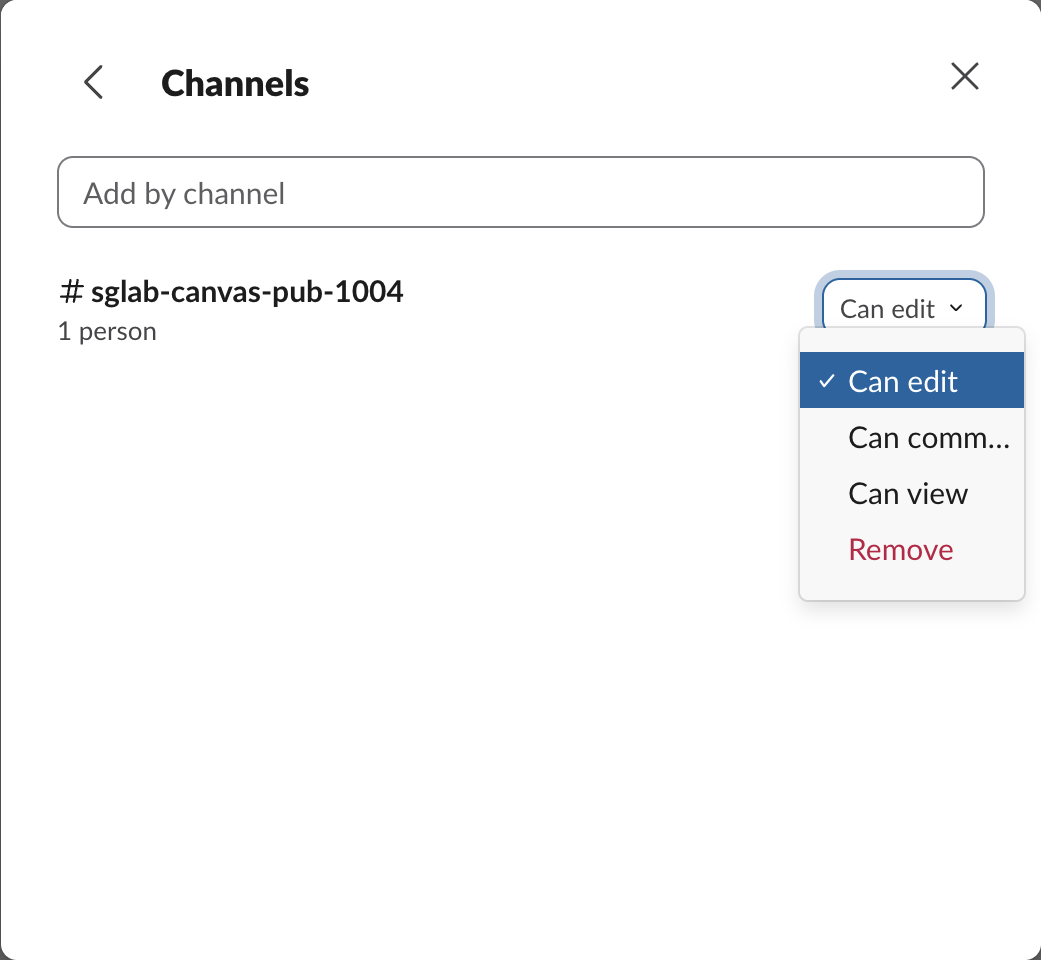
Each channel has its own level under Channels: Can edit, Can comment, Can view or Remove. A channel canvas starts at Can edit for its own channel:
Advanced Settings has one switch, Only owners can share. With it on, people with access cannot share the canvas on to more people or channels.
Never appear "away" on Slack again
Cloud-based. No downloads. Works 24/7 even when your laptop is off.
Sharing a private canvas makes it public
Sharing is where a private canvas stops being private. We gave the private channel's canvas read access in the public channel with canvases.access.set (channel_ids, access_level: "read"). files.info flipped from "is_public": false to true, and the canvas now listed both channels. The share was silent: no message appeared in either channel's history.
The same call works per person. These were the results for the bot on the DM canvas:
| Step | Bot's files.info | Bot's canvases.edit |
|---|---|---|
| No access | not_visible | not tried |
access_level: "read" | access: "read" | restricted_action |
access_level: "write" | access: "write" | ok |
canvases.access.delete | not_visible | not tried |
Removing access was not instant. Right after canvases.access.delete on the private canvas, one files.info still came back ok. The next call, a few seconds later, returned not_visible. The method details are on our Slack canvas API page.
What the free plan allows
On a free workspace you cannot make a standalone canvas at all. canvases.create returned free_teams_cannot_create_standalone_canvases for our user token. Channel canvases and DM canvases did work: conversations.canvases.create made one in the public channel, one in the private channel and one in the DM with ourselves. That means a free-plan canvas always belongs to a conversation and starts with that conversation's members. The other plan limits are in Slack canvas vs lists.
FAQ
Can people outside my workspace see a Slack canvas?
Not by link. A signed-out request to the canvas URL got a 302 to the workspace sign-in page, so the link alone opens nothing.
If I leave a channel, can I still open its canvas?
Only if you have your own access or workspace access is on. After our bot left the public channel, the canvas returned not_visible to it while the canvas was on Invite only, and read while it was on Anyone in Slack can view.
Stop Jiggling Your Mouse.
Join hundreds of remote workers who never worry about their Slack status. Set it up once, stay green forever.
Related Articles
@slack/web-api v8: A Tested Node.js and TypeScript Example
@slack/web-api 8.2.0 runs on Node 20 or newer and sends requests with fetch. We posted, paginated, caught a Slack error and a rate limit in TypeScript, and found that the v7 agent option for proxies is silently ignored in v8.
Slack API in Go With slack-go/slack: A Tested Example
slack-go/slack v0.29.0 is the Go client most people use for the Slack API. We ran a program that posts, reads back and updates a Block Kit message, a Socket Mode bot that answers a mention, and a loop that hit the rate limit, with the output and error types we got.
slack-ruby-client: A Tested Ruby Example, Errors and Limits
slack-ruby-client 3.2.0 is the Ruby gem for the Slack Web API. We installed it, posted, read back, reacted and paginated against a real workspace, and recorded the error classes it raised, including the rate-limit error that a rescue of SlackError does not catch.