
Can DeskTime Detect a Mouse Jiggler? What It Records Instead
DeskTime documents no mouse jiggler detector. A jiggler stops the 3-minute idle timer, but DeskTime still records the app and URL in front every few minutes and can take screenshots, so an hour on one unchanged window shows in the report.
DeskTime has no documented mouse jiggler detector. Its help center describes no check for jiggler apps or automated input, unlike Hubstaff and ActivTrak. A jiggler does stop DeskTime's idle timer, which marks you idle after more than 3 minutes without mouse or keyboard input. That is where the trick ends. DeskTime still records which app and website are in front, in 5-minute blocks, and can take screenshots at random times. An hour of "active" time on one unchanged window is easy to spot in that report, and a screenshot of an empty desktop is proof.
We build Slack Green, which keeps your Slack status active from a server during the hours you set. It runs nothing on your computer and creates no DeskTime activity. We wrote this page because people ask us whether the tools that fake input are safe at work, and the answer differs by tracker.
What DeskTime tracks while a jiggler runs
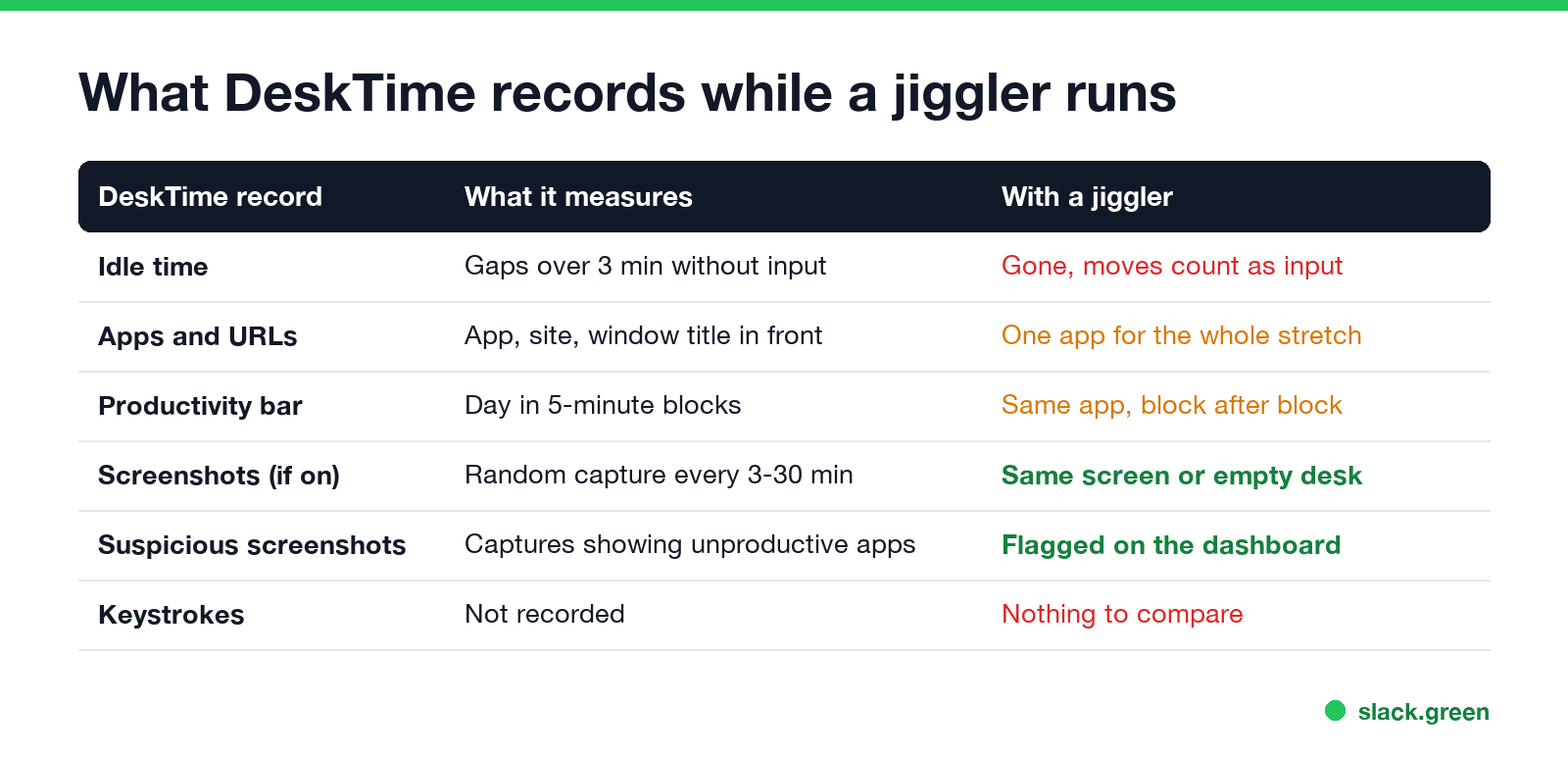
| DeskTime record | What it measures | With a jiggler running |
|---|---|---|
| Idle time | Gaps of more than 3 minutes without input (admins can raise the limit) | Gone. The jiggler's moves count as input. |
| DeskTime time | Tracked active time | Keeps growing while you are away |
| Apps and URLs | The app, website and window title in front, with time spent | One app or one tab for the whole stretch |
| Productivity bar | Your day in 5-minute blocks, colored productive, neutral or unproductive | The same color and the same app, block after block |
| Screenshots (if on) | A capture at a random moment every 3 to 30 minutes | The same screen each time, or an empty desktop |
| Suspicious screenshots | Flags captures that show unproductive apps | Flagged if the window left in front is not a work app |
DeskTime says in its help center that idle time is "a time gap between two fractions of tracked time, which appears when there haven't been any actions on the computer for more than 3 minutes." A jiggler removes those gaps. It does not change the app, the URL, or what a screenshot shows.
Can DeskTime tell a jiggler from real work?
Not directly, as far as its public docs go. DeskTime does not name a check for "simulated input" or a list of jiggler apps. It does not log keystrokes, so it cannot see that the keyboard sat still while the mouse moved.
A person reading the report can tell, though. Three patterns give a jiggler away in DeskTime:
- The productivity bar shows the same app for an hour or more with no change, which rarely happens in real work.
- Screenshots at random times show the same screen, or a cursor in the same spot.
- Time at work looks full, but no project time, no files and no messages came out of it.
Some tools do go further. Hubstaff flags jiggler apps and automated input, and ActivTrak looks for input at regular intervals. If your company adds one of those, or IT watches USB devices, a jiggler is easier to catch. The general methods are in how to detect a mouse jiggler.
Does DeskTime track mouse movement?
Never appear "away" on Slack again
Cloud-based. No downloads. Works 24/7 even when your laptop is off.
DeskTime uses mouse and keyboard activity to decide whether you are active or idle. It does not record where the pointer goes or what you type. So a mouse move of one pixel counts the same as an hour of typing for the idle timer, and neither one appears as content in the report.
That is also why the kind of jiggler matters little. A USB jiggler, a software jiggler and a keyboard jiggler all reset the same timer, and all leave the same flat app timeline behind.
DeskTime screenshots and a jiggler
Screenshots are the part of DeskTime a jiggler cannot touch. When admins turn them on, DeskTime captures the screen at random moments. The interval is 3, 5, 10, 15 or 30 minutes, set for the whole account, a team or one person. Admins also choose the image quality and whether to blur it.
Each capture keeps the time, the app name and its productivity label. DeskTime marks some captures as suspicious and shows them on the manager's dashboard, and it can send a web notification when one appears. Employees can delete their own suspicious screenshots one by one, where the company allows it, but the timestamp and app name stay in the timeline as a "Deleted screenshot" entry.
So if you walk away with a jiggler running, the next random screenshot shows the screen as you left it.
What DeskTime offers for time you are not typing
Most people reach for a jiggler because a meeting, a video or a phone call shows up as idle. DeskTime has settings for exactly that:
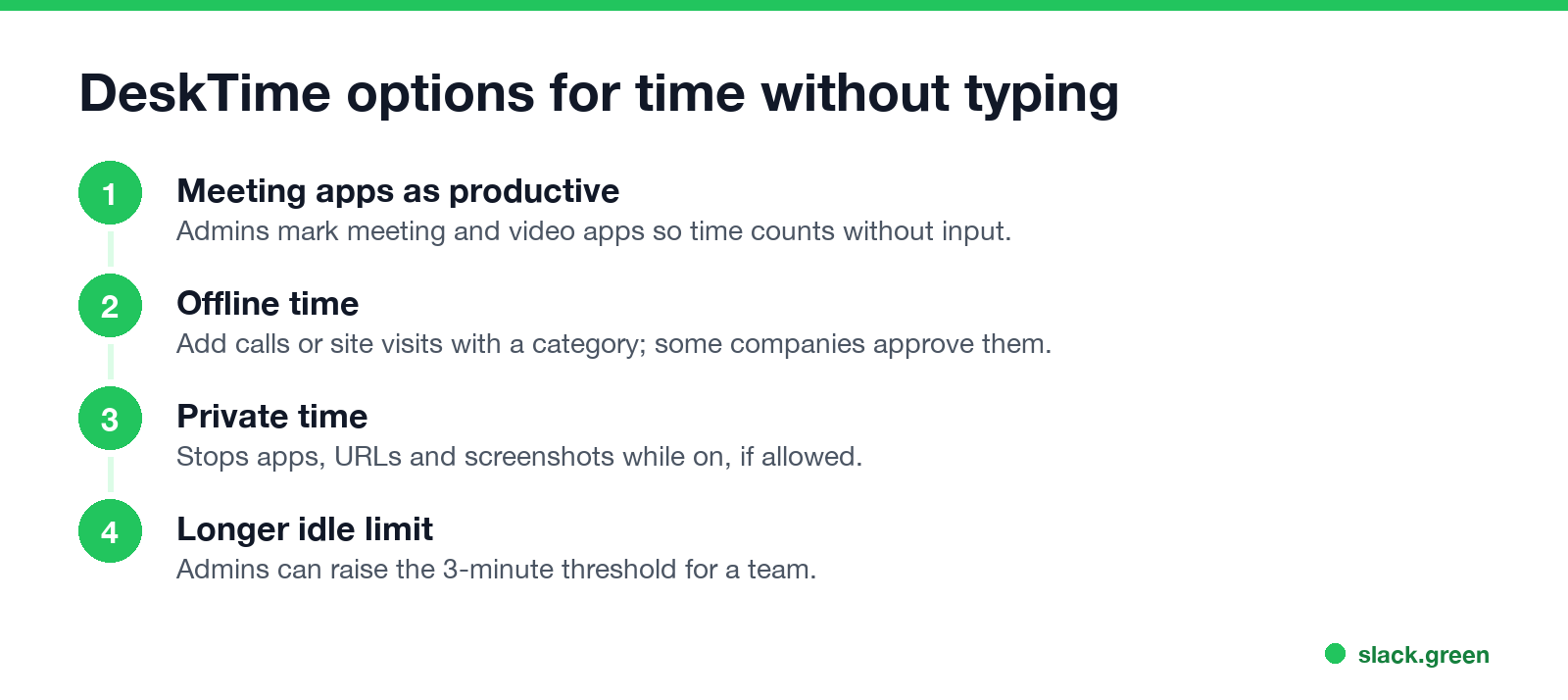
Asking for one of these leaves a record that matches what you did. A jiggler leaves a record that does not.
Jigglers, DeskTime and your Slack status
Never appear "away" on Slack again
Cloud-based. No downloads. Works 24/7 even when your laptop is off.
DeskTime is one tool and Slack presence is another. A jiggler that keeps DeskTime active does not keep Slack green unless the pointer sits over the Slack window, because Slack counts only input inside its own window and marks you away after 10 minutes without it.
If the grey Slack dot is the real problem, you do not need to fake computer activity at all. Slack Green keeps your Slack presence active from a server on your schedule. DeskTime sees nothing from it, so your DeskTime report shows your real day.
DeskTime and mouse jiggler questions
Does DeskTime detect mouse jigglers? It has no documented detector. Its timeline and screenshots still show the pattern a jiggler leaves.
How long before DeskTime shows idle? More than 3 minutes without input by default. Admins can raise that limit.
Can DeskTime see my keystrokes? No. It counts activity to decide active or idle, and records apps, URLs and screenshots, not what you type.
Can I delete DeskTime screenshots? Only suspicious ones, one at a time, and only if your company allows it. The timestamp and app name remain.
Is it legal for my employer to use DeskTime? On a company computer, generally yes, with notice rules that vary by country and state. See is it legal for my employer to monitor me.
Stop Jiggling Your Mouse.
Join hundreds of remote workers who never worry about their Slack status. Set it up once, stay green forever.
Related Articles
KeepingYouAwake vs Amphetamine: Which Mac Keep-Awake App to Use
KeepingYouAwake is a free, open-source menu bar switch that runs Apple's caffeinate for you. Amphetamine is a free App Store app with triggers, schedules and a closed-lid mode. Pick KeepingYouAwake for one click and Homebrew, Amphetamine for automation. Neither keeps Slack or Teams active.
Computer Locks After 15 Minutes? How to Tell If Group Policy Set It
A work laptop that locks after exactly 15 minutes, with screen settings greyed out, is almost always following a policy from IT: the Windows machine inactivity limit, a forced screen saver, or an Intune device lock. Security baselines and PCI DSS ask for 15 minutes. How to see which policy it is, and what you can and cannot change.
How to Keep a Citrix Session Active: Find Which Timeout Logs You Out
A Citrix session can end from four different timers: Windows locking inside the virtual desktop, the Citrix session idle timer, the Citrix Gateway session time-out, and the StoreFront web page timeout. Only input from your own device into the Citrix window resets them. How to tell which one hit you and what keeps each one quiet.