
Computer Locks After 15 Minutes? How to Tell If Group Policy Set It
A work laptop that locks after exactly 15 minutes, with screen settings greyed out, is almost always following a policy from IT: the Windows machine inactivity limit, a forced screen saver, or an Intune device lock. Security baselines and PCI DSS ask for 15 minutes. How to see which policy it is, and what you can and cannot change.
If your work computer locks after exactly 15 minutes, even while you read or watch a video, and the screen timeout options are greyed out, IT set a policy. On Windows it is usually one of three: the Interactive logon: Machine inactivity limit security policy, a forced screen saver with password, or a device lock pushed through Microsoft Intune. Each locks the PC after a set time without keyboard or mouse input, and none can be changed from your Settings app. The number 15 is not random: Microsoft's and CIS's security baselines, and the PCI DSS card payment standard, all use 15 minutes.
You can find out which policy it is with the commands below, without admin rights. Changing it is a request to IT. If the lock bothers you because it turns your chat status Away, the fix may be elsewhere: Slack Green keeps your Slack status active from our servers during the hours you set, locked screen or not.
Signs the lock comes from a policy
- • The Screen and sleep dropdowns show "Some of these settings are managed by your organization."
- • Screen saver settings are greyed out, or the "On resume, display logon screen" box is ticked and cannot be cleared.
- • The PC locks at the same minute every time, and a video or presentation does not stop it.
- • Setting everything to Never in Settings changes nothing.
- • A coworker with the same laptop model locks at the same time.
If none of these match, the cause is more likely a setting you can change, such as Dynamic lock or a short power timeout. Those fixes are in how to stop Windows 11 from locking.
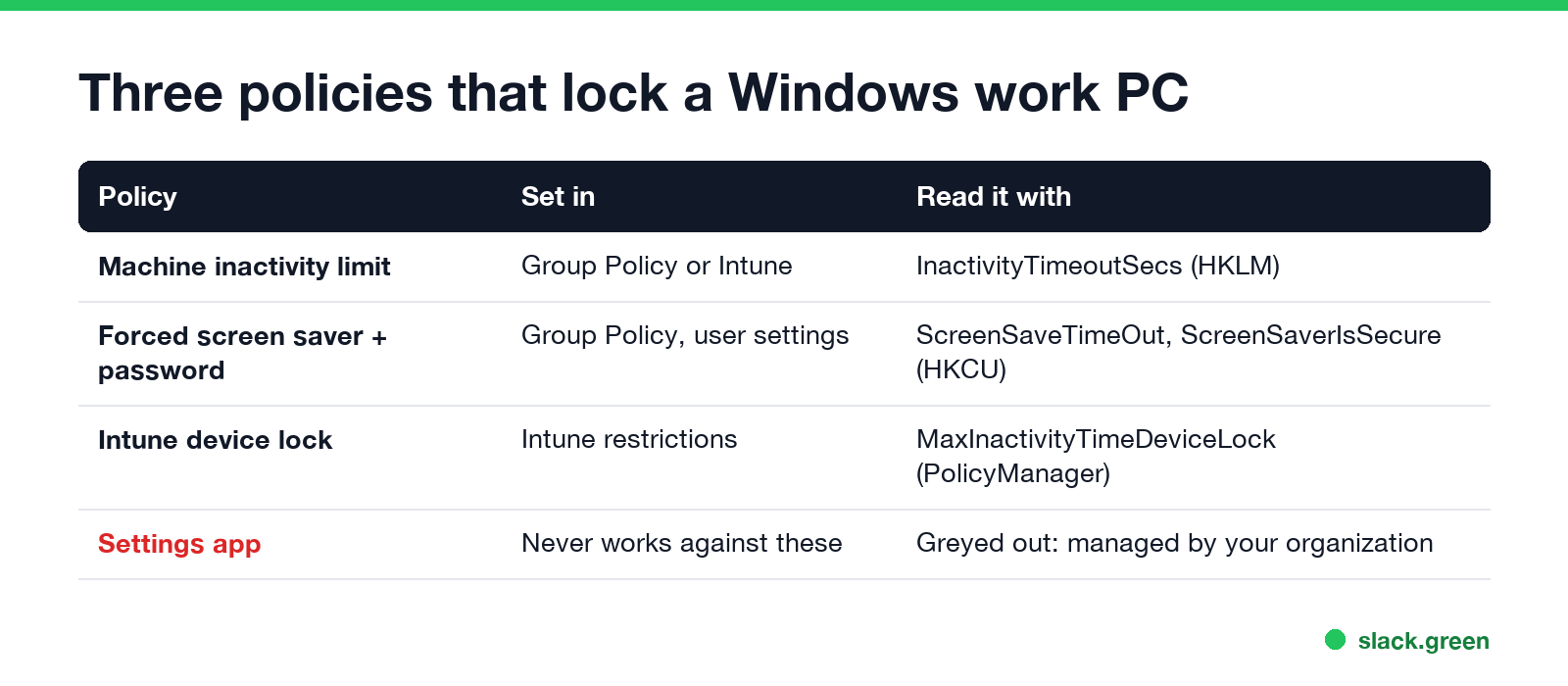
The three policies that lock a work PC
| Policy | Where IT sets it | What you see | Registry value you can read |
|---|---|---|---|
| Interactive logon: Machine inactivity limit | Group Policy, Security Options; or Intune | Locks after N seconds, whatever your power settings say | InactivityTimeoutSecs under HKLM\...\Policies\System |
| Forced screen saver with password | Group Policy, User Configuration, Control Panel, Personalization | Screen saver starts, then the sign-in screen | ScreenSaveTimeOut and ScreenSaverIsSecure under HKCU\Software\Policies\... |
| Intune device lock | Intune device restriction or settings catalog | Locks after N minutes; Settings may show a managed note | MaxInactivityTimeDeviceLock under HKLM\SOFTWARE\Microsoft\PolicyManager |
Power policies can add to this. If IT also forces a short display-off time and requires a password on wake, the PC may lock a few minutes before the 15-minute mark.
Check which policy locks your PC (no admin needed)
Never appear "away" on Slack again
Cloud-based. No downloads. Works 24/7 even when your laptop is off.
Open Command Prompt (Win+R, type cmd, Enter) and run these three lines. Reading these registry keys does not need admin rights.
:: 1. Machine inactivity limit, in seconds
reg query "HKLM\SOFTWARE\Microsoft\Windows\CurrentVersion\Policies\System" /v InactivityTimeoutSecs

:: 2. Screen saver forced by Group Policy
reg query "HKCU\Software\Policies\Microsoft\Windows\Control Panel\Desktop"

:: 3. Intune device lock, if your company uses Intune
reg query "HKLM\SOFTWARE\Microsoft\PolicyManager\current\device\DeviceLock"
How to read the results:
InactivityTimeoutSecs REG_DWORD 0x384 is 900 seconds, which is 15 minutes. 0x258 is 10 minutes, 0x708 is 30 minutes.ScreenSaveActive 1, ScreenSaverIsSecure 1 and ScreenSaveTimeOut 900 mean a forced screen saver that locks after 900 seconds.MaxInactivityTimeDeviceLock value is in minutes, set through Intune.To see whether the PC is managed by Intune at all, open Settings > Accounts > Access work or school. A connected work account with an Info button means the device takes policies from your company's management server.
Why IT sets 15 minutes
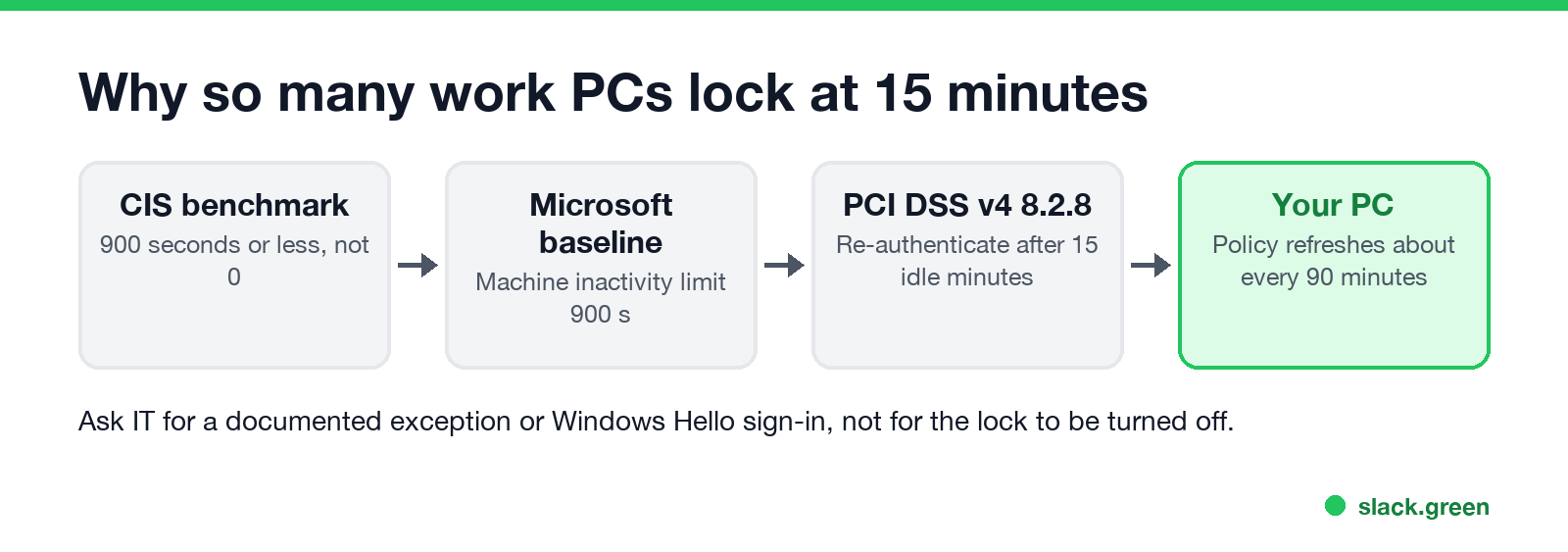
Most companies do not pick the number themselves. They apply a standard:
So asking IT to "turn it off" usually fails. Asking for an exception for a specific role, such as a shared lab display, has a better chance, because the standards allow documented exceptions.
Can you change it yourself?
On a company PC, no, and you should not try. Three reasons:
On your own PC with Windows Pro, the machine inactivity limit is in gpedit.msc under Computer Configuration > Windows Settings > Security Settings > Local Policies > Security Options. Set it to 0 to turn it off. Windows Home has no Group Policy Editor.
What still works on a locked-down laptop
Never appear "away" on Slack again
Cloud-based. No downloads. Works 24/7 even when your laptop is off.
Input tools such as a mouse jiggler reset the idle timer and so stop the lock. They also stop the security control from working, and IT can see them; see can a mouse jiggler be detected. PowerToys Awake and presentation mode do not help here. They block sleep, but they send no input, so the inactivity limit still locks the PC.
Mac: screen lock set by your company
On a managed Mac, the same kind of rule arrives as a configuration profile. Open System Settings > General > Device Management to see the installed profiles. If "Require password after screen saver begins or display is turned off" is greyed out in Lock Screen settings, a profile sets it. Our guide keep a Mac screen from locking covers what you can change on a Mac you own.
A locked screen and your chat status
A locked PC shows Away in Teams at once and Away in Slack almost at once. If the 15-minute lock is the reason coworkers see you as away while you read on paper or take a call, Slack Green keeps your Slack status active on your working hours from our servers. It does not touch the lock, and nothing is installed on the PC.
Screen lock policy questions
Never appear "away" on Slack again
Cloud-based. No downloads. Works 24/7 even when your laptop is off.
Why does my work computer lock after 15 minutes? A security policy from IT, usually the machine inactivity limit set to 900 seconds, as security baselines and PCI DSS require.
Why is my screen timeout greyed out? Your organization manages it through Group Policy or Intune. Windows says so with "Some of these settings are managed by your organization."
Can I bypass the Group Policy screen lock? Not properly without admin rights, and on a work PC you should ask IT instead.
Does a video stop a policy lock? No. The machine inactivity limit counts keyboard and mouse input only.
Stop Jiggling Your Mouse.
Join hundreds of remote workers who never worry about their Slack status. Set it up once, stay green forever.
Related Articles
KeepingYouAwake vs Amphetamine: Which Mac Keep-Awake App to Use
KeepingYouAwake is a free, open-source menu bar switch that runs Apple's caffeinate for you. Amphetamine is a free App Store app with triggers, schedules and a closed-lid mode. Pick KeepingYouAwake for one click and Homebrew, Amphetamine for automation. Neither keeps Slack or Teams active.
How to Keep a Citrix Session Active: Find Which Timeout Logs You Out
A Citrix session can end from four different timers: Windows locking inside the virtual desktop, the Citrix session idle timer, the Citrix Gateway session time-out, and the StoreFront web page timeout. Only input from your own device into the Citrix window resets them. How to tell which one hit you and what keeps each one quiet.
How Long Before Google Chat Shows Away? Idle at 5 Minutes, Away at 10
Google Chat shows you Idle after 5 minutes without activity in Gmail or Chat on a computer, and Away once you have been idle for more than 10 minutes. Losing your connection or a sleeping computer shows Away at once. Neither timer can be changed, by you or by a Workspace admin.