
Mouse Jiggler for Chromebook: What Works on ChromeOS
Windows and Mac jiggler apps do not run on a Chromebook, and a Chrome extension cannot move the real pointer. What works: a USB mouse jiggler, a turntable mouse mover, or no jiggler at all, because ChromeOS can keep the display on by itself. Setup for each, and what they do for Teams and Slack.
A USB mouse jiggler is the mouse jiggler that works on a Chromebook. ChromeOS sets it up as a second mouse with no driver, so the pointer moves and the Chromebook stays awake and unlocked. A turntable mouse mover also works with an external mouse. Software jigglers do not: Windows and Mac apps do not run on ChromeOS, and a Chrome extension cannot move the real pointer. If you only want the Chromebook to stay awake, you do not need a jiggler. Open Settings > Device > Power, set When idle to Keep display on, and turn off Sleep when cover is closed if you work with the lid shut on an external screen.
For Slack, none of these keeps the dot green by itself. On a Chromebook Slack runs in a browser tab, and it counts input only inside that tab. Slack Green keeps your Slack status green from a server during the hours you set, with the Chromebook asleep.
What works on a Chromebook, and what does not
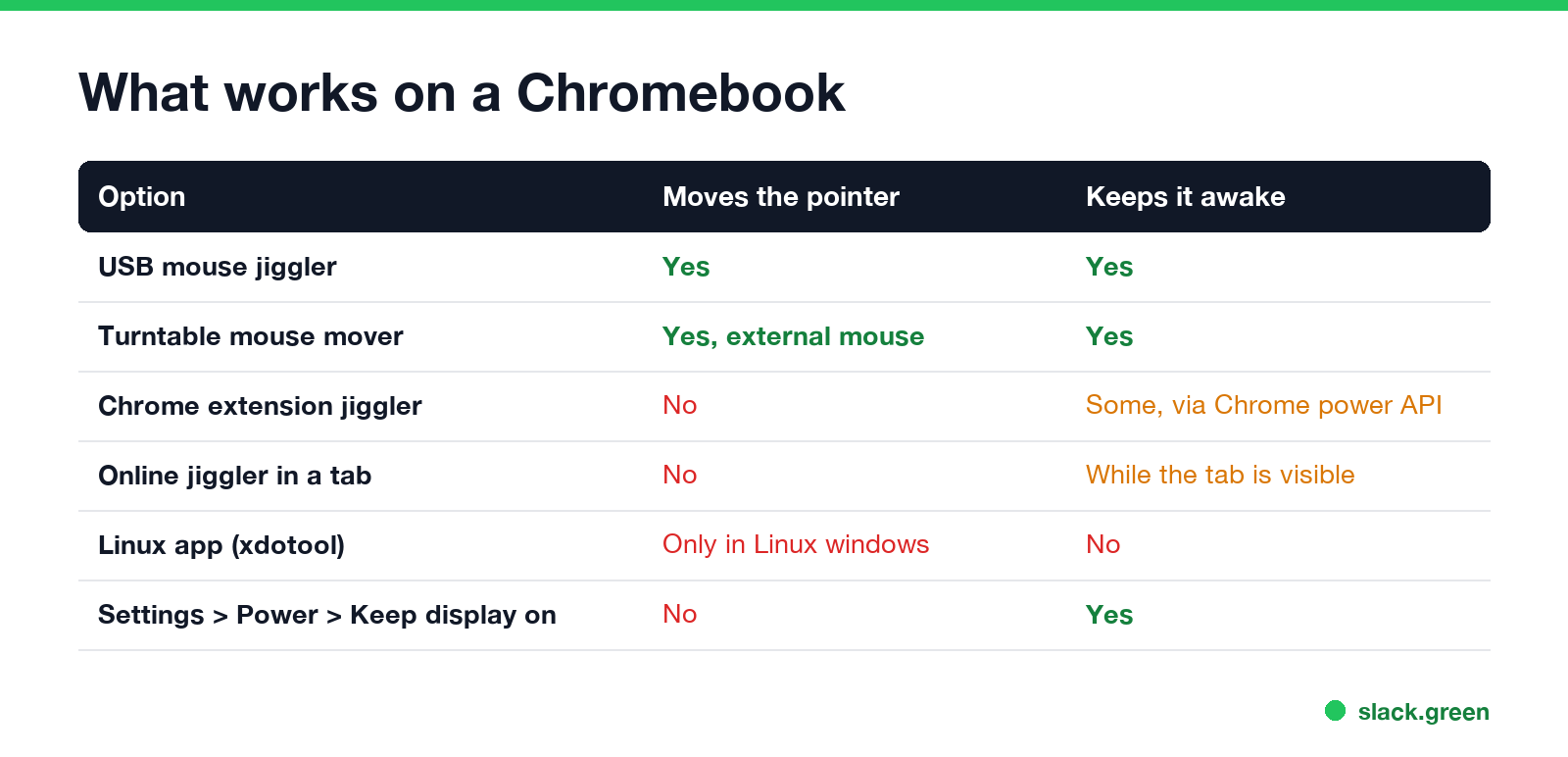
| Option | Moves the real pointer | Keeps the Chromebook awake | Works on a school or work Chromebook |
|---|---|---|---|
| USB mouse jiggler | Yes | Yes | Usually, unless USB devices are blocked |
| Turntable mouse mover | Yes, with an external mouse | Yes | Yes, it connects to nothing |
| Chrome extension "mouse jiggler" | No | Some do, through Chrome's power API | Only if the admin allows extensions |
| Online jiggler in a tab | No | Yes, while the tab is visible | Yes |
Linux app such as xdotool | No, only inside Linux windows | No | Linux is often turned off |
| Settings > Power > Keep display on | No | Yes | If the admin has not locked it |
Web pages and extensions run inside Chrome's sandbox, which does not let them move the system pointer. At most they animate a cursor inside a page or ask Chrome to keep the screen on. ChromeOS's own idle timer never sees them as input.
Use a USB mouse jiggler on a Chromebook
- Plug the jiggler into a USB port. Most Chromebooks have USB-C only, so buy a USB-C jiggler or use a USB-C to USB-A adapter.
- Wait a few seconds. ChromeOS adds it like any mouse, with no prompt.
- Flip its switch if it has one. The pointer moves a pixel or two on its interval, usually under a minute.
- Test it: set When idle to turn the display off, leave the Chromebook alone for 10 minutes, and check the screen is still on.
A school or work Chromebook is managed from the Google Admin console. Admins can block USB devices by type. Plain mice are almost always allowed, since people plug in mice. If the jiggler's light comes on but the pointer never moves, the device is being blocked. How to use a mouse jiggler covers intervals and testing for every kind.
Keep a Chromebook awake without a jiggler
Never appear "away" on Slack again
Cloud-based. No downloads. Works 24/7 even when your laptop is off.
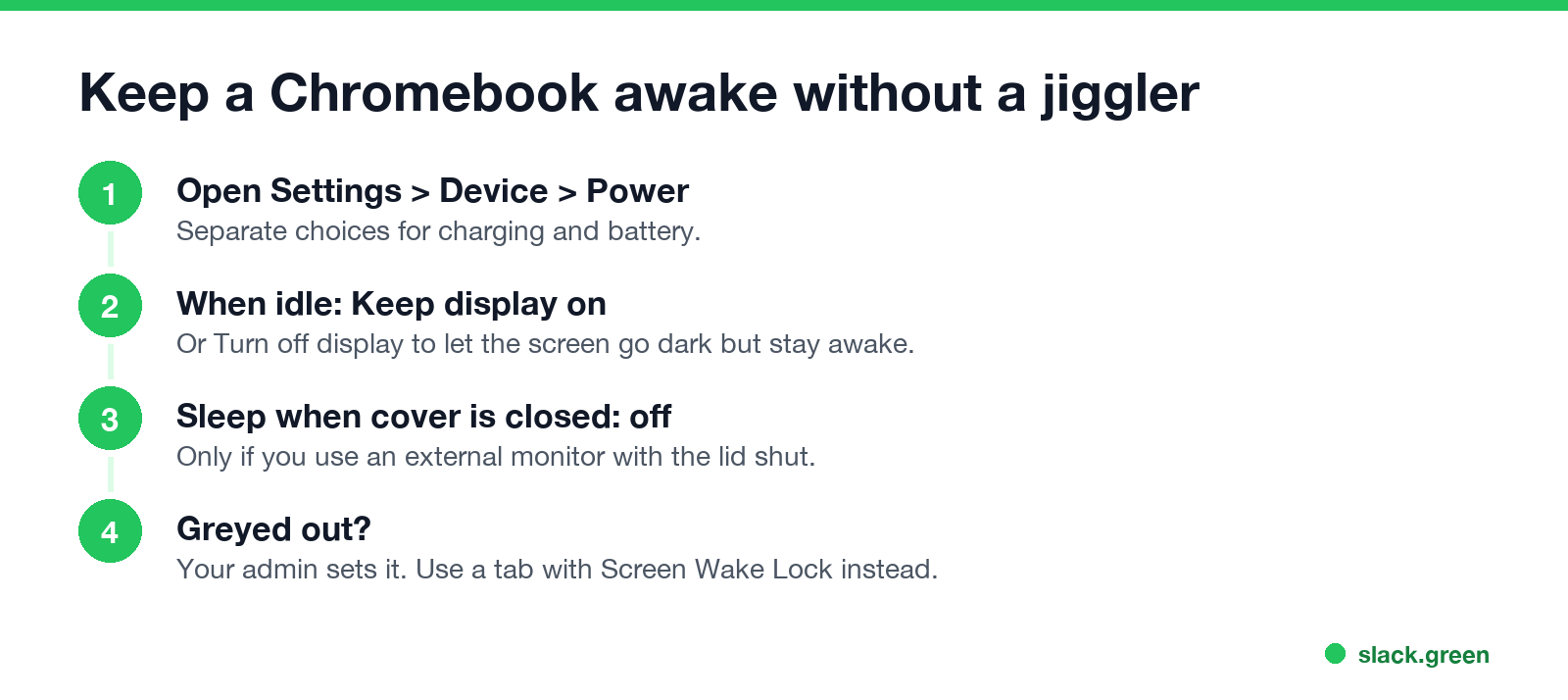
If the goal is a screen that stays on during a download, a long read or a video call, ChromeOS does it without any device:
On a managed Chromebook, these settings may be greyed out, because the admin sets the idle and lock times. Then a browser tab that holds a Screen Wake Lock, such as our online mouse jiggler, keeps the screen on while the tab stays visible, and an extension with Chrome's power permission does the same in the background. The extension route is covered in keep awake Chrome extension.
Does a mouse jiggler keep Teams or Slack active on a Chromebook?
Teams on a Chromebook runs in a browser tab or as the Android app. A web page receives mouse movement only while the pointer is over it, so for Teams in a tab, leave the pointer over the Teams tab while the jiggler runs. The Android app goes Away when it is not on screen, jiggler or not.
Slack in a Chromebook tab is stricter. It counts clicks, keys and scrolling inside the Slack tab only, and marks you away 10 minutes after the last one. A USB jiggler moving the pointer over another window changes nothing for Slack; it helps only when the pointer sits over the Slack tab. How to keep Slack active on a Chromebook covers the tab, the Android app and Chrome's Memory Saver, which can discard an idle Slack tab.
FAQ
Is there a mouse jiggler app for Chromebook? Not one that moves the real pointer. Extensions can keep the screen on, but only a USB jiggler or a physical mover makes ChromeOS see mouse movement.
Do Chromebook mouse jiggler extensions work? They keep the screen awake at best. They cannot move the system pointer, so apps that check for real input do not count them.
How do I stop my Chromebook from going to sleep? Settings > Device > Power, then set When idle to Keep display on, and turn off Sleep when cover is closed.
Stop Jiggling Your Mouse.
Join hundreds of remote workers who never worry about their Slack status. Set it up once, stay green forever.
Related Articles
KeepingYouAwake vs Amphetamine: Which Mac Keep-Awake App to Use
KeepingYouAwake is a free, open-source menu bar switch that runs Apple's caffeinate for you. Amphetamine is a free App Store app with triggers, schedules and a closed-lid mode. Pick KeepingYouAwake for one click and Homebrew, Amphetamine for automation. Neither keeps Slack or Teams active.
Computer Locks After 15 Minutes? How to Tell If Group Policy Set It
A work laptop that locks after exactly 15 minutes, with screen settings greyed out, is almost always following a policy from IT: the Windows machine inactivity limit, a forced screen saver, or an Intune device lock. Security baselines and PCI DSS ask for 15 minutes. How to see which policy it is, and what you can and cannot change.
How to Keep a Citrix Session Active: Find Which Timeout Logs You Out
A Citrix session can end from four different timers: Windows locking inside the virtual desktop, the Citrix session idle timer, the Citrix Gateway session time-out, and the StoreFront web page timeout. Only input from your own device into the Citrix window resets them. How to tell which one hit you and what keeps each one quiet.