
How to Turn Off Reaction Notifications in Slack (and Why There Is No Switch)
Slack's notification settings no longer have a reactions switch. We had a bot react to our messages, then hid the reactions with the Activity filter and the Mentions tab, and tried the old hidden setting.
You cannot turn off reaction notifications in Slack with a setting any more. Preferences > Notifications now says "You'll always see mentions, reactions, and thread replies" in Activity, and it has no box for reactions. What you can do is hide them: in Activity, open the filter, untick Reactions, and the reactions leave the list. The Mentions tab leaves reactions out on its own. On October 23, 2026 we had a test bot react to our messages in Slack's web app and checked each of these.
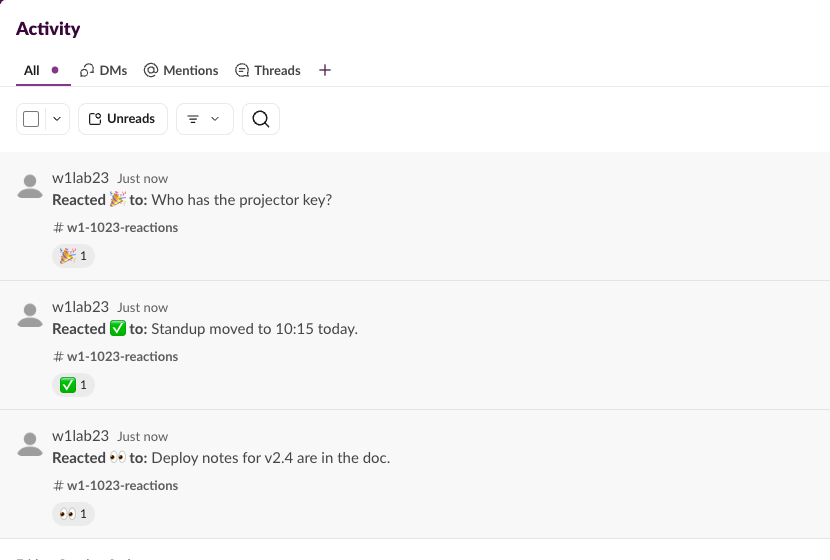
What a reaction does in Slack
We posted three messages in a test channel, and a bot added one emoji to each: eyes, a check mark and a party popper. Each reaction became its own line in Activity > All: "Reacted 🎉 to: Who has the projector key?", with the channel name and the emoji under it. Activity keeps one line per reaction, so a busy channel with many reactions fills the list fast.
The reactions did not raise the number on the Activity icon. The icon showed 1 before the fourth reaction and 1 after it. Slack's own unread counter for reactions, message_reaction in the client.counts API answer, stayed at 0 after four reactions. So a reaction lands in the Activity list, but it does not count as a new item.
We could not test pop-ups or phone pushes. The browser in our test had not given Slack permission to show notifications, and no phone was signed in.
The setting that is gone
Older guides tell you to untick a reactions box in your notification preferences. That box is not there now. This is the Notifications page in the web app on October 23, 2026:
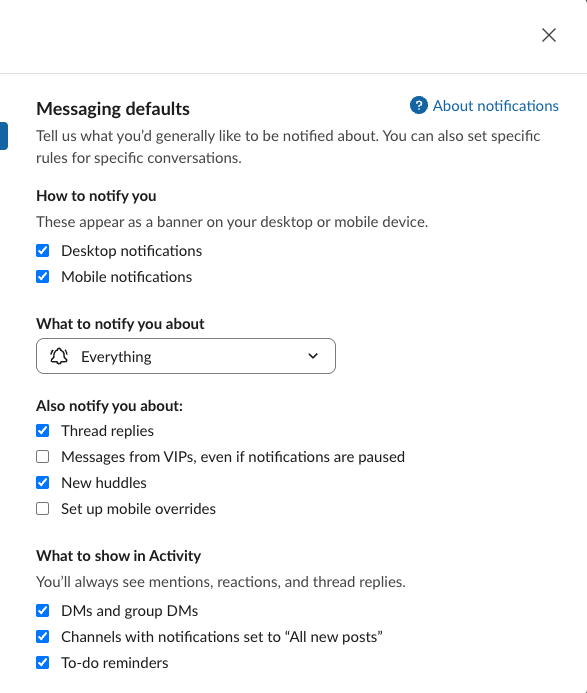
The three boxes under What to show in Activity control DMs, "All new posts" channels and to-do reminders. Reactions are on the fixed list above them, together with mentions and thread replies. The Mobile notifications part of the page has no reactions option either.
Your account still has an old setting called mentions_exclude_reactions. We set it to true through Slack's API, had the bot add a fourth reaction, and opened Activity again. The new reaction was at the top of the list, so the old setting does nothing in the current app. We set it back to false afterwards.
Never appear "away" on Slack again
Cloud-based. No downloads. Works 24/7 even when your laptop is off.
Hide reactions with the Activity filter
- Click Activity in the left rail.
- Click the filter icon next to Unreads.
- Tick every type you want to keep: DMs, Mentions, Threads, Channels set to "all new posts", Invitations, Apps and Reminders. Leave Reactions unticked.
With that filter on, our reaction lines were gone, and the list started with an older webhook post. The filter button showed 10, because Mentions counts as four types (your name, @channel, user groups and keywords), and a Reset link appeared next to it.
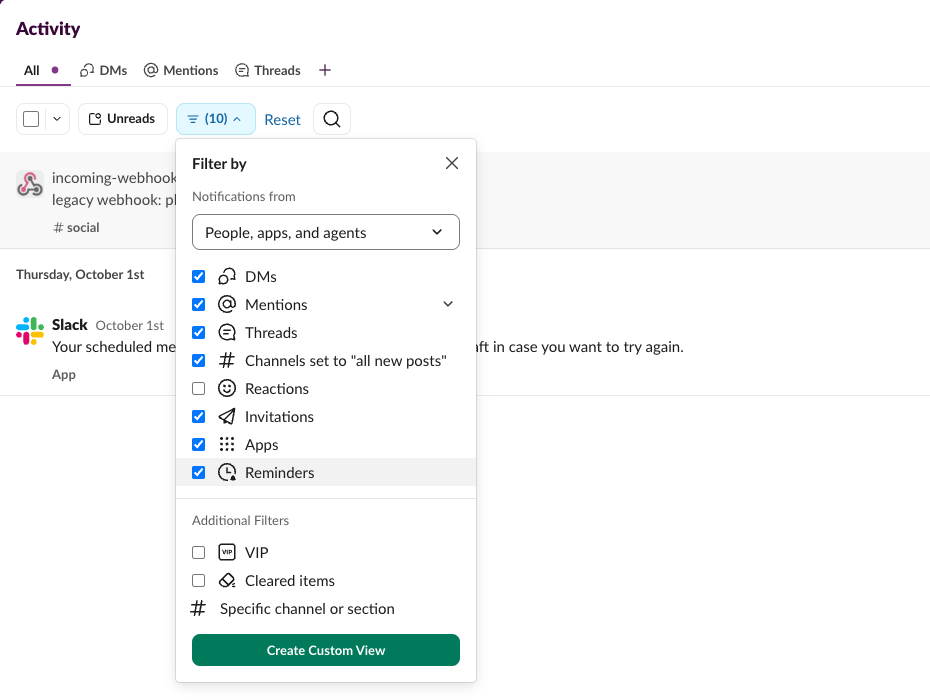
At the bottom of the panel there is a Create Custom View button, which offers to save the filter as its own view. We clicked Reset instead, so we did not check how a saved view behaves. The filter only hides reactions. The reactions still happen, and the author of the message can still see them on the message.
Or use the Mentions tab
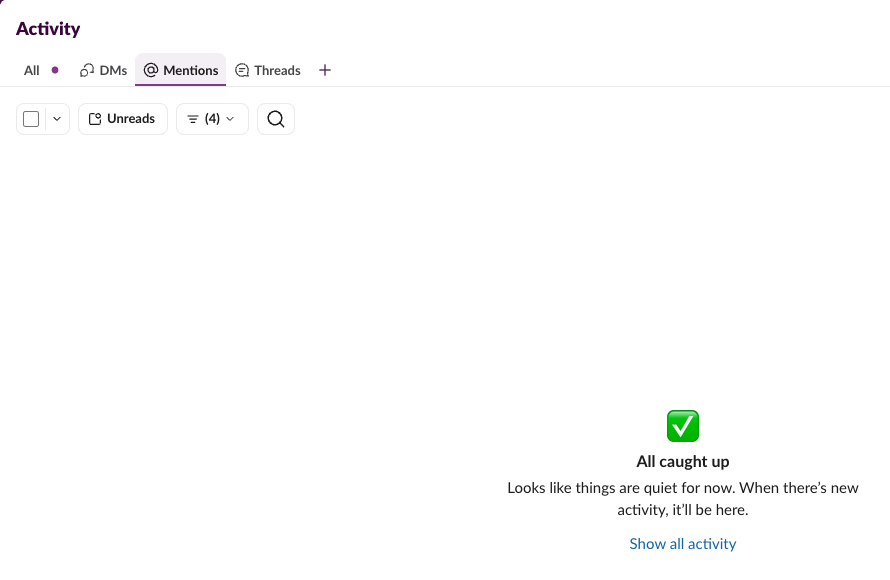
The Mentions tab at the top of Activity shows mentions only. After four reactions it said "All caught up", so the reactions were not in it. If you only want to see when someone needs you, open Activity on Mentions instead of All.
The same tabs hold the other Activity settings, which are explained in the Slack Activity tab guide. If a channel is noisy in general, not only with reactions, muting the channel is the stronger step.
If you build the bot that reacts
A bot adds a reaction with reactions.add and the reactions:write scope, and every call puts one line in the message author's Activity. If your bot uses reactions as status marks, for example a check mark when a job is done, it is cheaper for people to read one threaded reply or one edited message than many reaction lines. The calls are in our Slack reactions API guide.
Stop Jiggling Your Mouse.
Join hundreds of remote workers who never worry about their Slack status. Set it up once, stay green forever.
Related Articles
How to Star a Channel in Slack (and Why Starred Items Seem to Vanish)
Click the star next to the channel name, or right-click a DM and pick Star conversation. We starred a channel and a DM, collapsed the Starred section, and checked what the Free plan allows.
Slack Mark as Read Settings: All 3 Options Tested on 30 Messages
Preferences > Mark as read decides where a channel opens and whether opening it clears the unread. We posted 30 messages and opened the channel under each option, then tried Esc and Shift+Esc.
Slack: Download All Files From a Channel (Script and Test)
Slack has no download-all button for a channel. We uploaded 8 files, checked what the Files tab and search show, and ran a files.list script that saved all 8, after it first found only 4.