
How to Set a Custom Status on Discord, Desktop and Mobile
To set a custom status on Discord, click your profile icon in the lower-left corner, choose Add Status, type up to 128 characters, pick an emoji and a Clear After time, then press Save. On mobile, tap your profile icon and choose Add Status. How to edit or clear it, why it is not showing, and status ideas.
To set a custom status on Discord on desktop or in the browser, click your profile icon in the lower-left corner, choose Add Status, type your status and pick an emoji. Then choose when it clears and press Save. On the mobile app, tap your profile icon in the lower-right corner and choose Add Status. A custom status can be up to 128 characters. It clears after one day unless you pick a different Clear After time.
Custom status is one of several status features we cover. We build Slack Green, which keeps your Slack status active during the hours you set, so we spend a lot of time on how chat apps show who is around. Discord's version is below, and the Slack version is linked at the end.
How to set a custom status on Discord (desktop and browser)
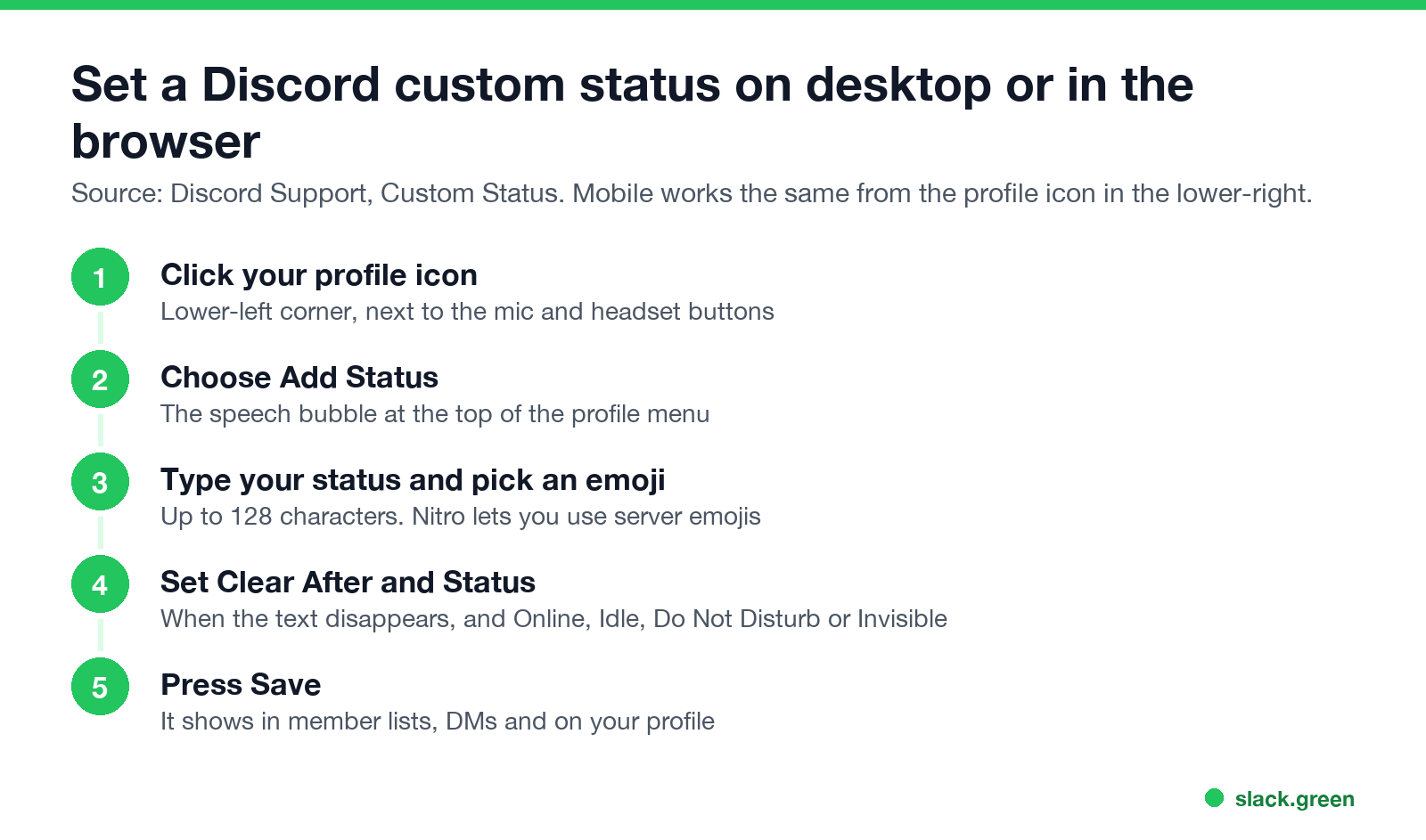
These steps come from Discord Support's Custom Status article and work the same in the desktop app and at discord.com in a browser:
- Click your profile icon in the lower-left corner, next to the mic and headset buttons. Your profile menu opens.
- Click the Add Status bubble at the top of the menu.
- Type your status. Click the emoji icon to add an emoji in front of it. With Nitro or Nitro Basic you can use custom emojis from your servers.
- Open Clear After and choose when the status disappears: 30 minutes, 1 hour, 4 hours, Today, or Don't clear.
- Open Status if you also want to change your online status to Online, Idle, Do Not Disturb or Invisible.
- Press Save.
- Open the Discord app and tap your profile icon in the lower-right corner. You can also long-press it to open the profile menu.
- Tap Add Status, then Set a custom status.
- Type your status and tap the emoji icon to pick an emoji.
- Under Status Duration, choose when it clears.
- Tap Save in the upper-right corner.
Your custom status now shows under your name in server member lists, in DMs and group chats, and on your profile.
How to set a custom status on Discord mobile
Back on the You screen you can change your online status from the Online Status menu. The custom status is the same across devices, so a status set on your phone shows on desktop too.
How to edit or clear a custom status on Discord
Never appear "away" on Slack again
Cloud-based. No downloads. Works 24/7 even when your laptop is off.
On desktop or in the browser, click your profile icon and then your current custom status. Click the pencil icon to edit it, or the trash icon to clear it.
On mobile, tap your profile icon and then Edit Status. Tap the status text to change it, or the x next to it to clear it.
If you only want the status for a short time, set Clear After when you create it. Discord then removes it for you.
Discord custom status not showing
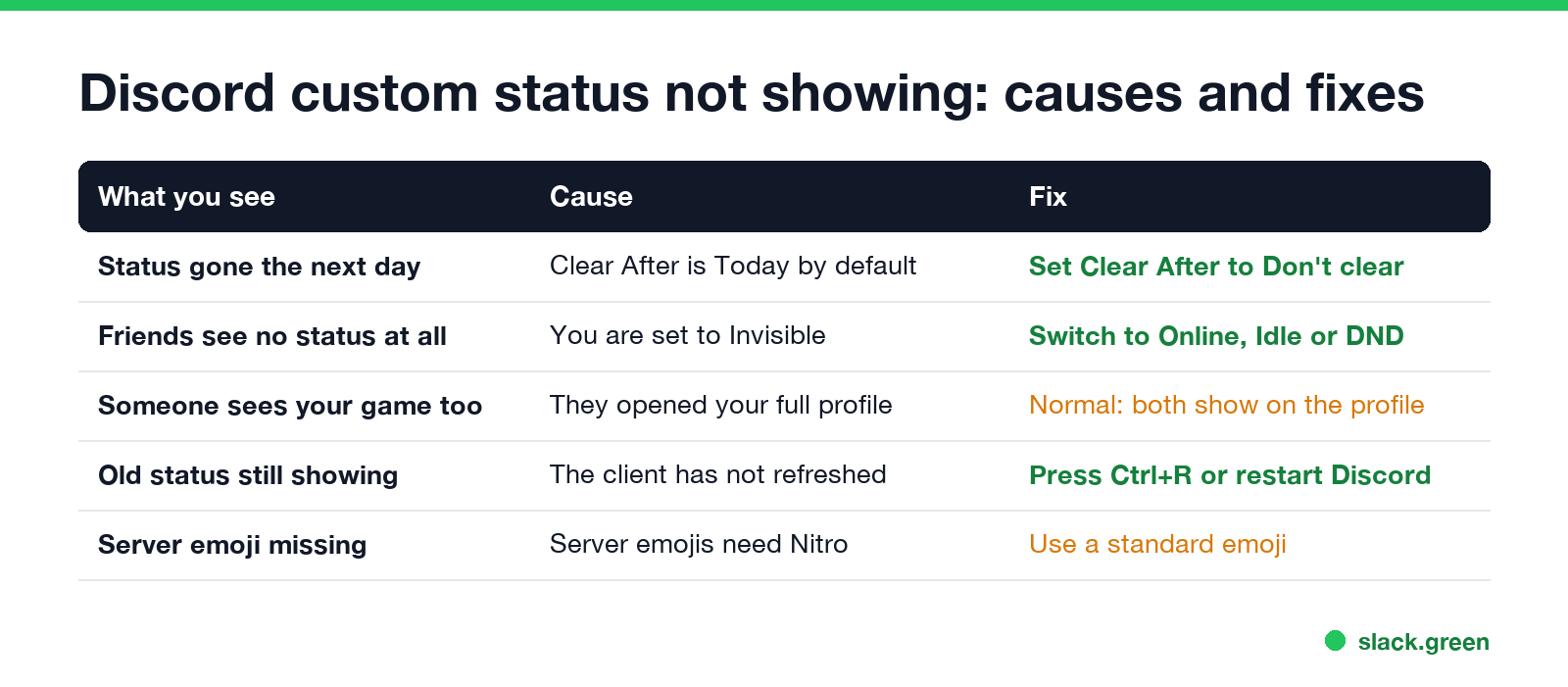
| What you see | Cause | Fix |
|---|---|---|
| The status is gone the next day | Custom statuses clear after one day by default | Set Clear After to Don't clear |
| Friends see no status at all | You are set to Invisible, so you appear offline | Switch to Online, Idle or Do Not Disturb |
| People see your game as well | They opened your full profile | Normal: the custom status wins in member lists and DMs, and the profile shows both |
| An old status still shows | The app has not refreshed | Press Ctrl+R (Cmd+R on Mac) or restart Discord |
| A server emoji is missing | Custom server emojis need Nitro | Use a standard emoji |
Discord's own note on this: custom statuses "override other activity statuses in a server's members list and friends list within direct messages (DMs) and group chats", but activity statuses "will still show when viewing a user's full profile".
What each coloured dot means next to your name is in what does idle mean on Discord. How Invisible differs from being offline is in Discord Invisible vs offline.
Custom status vs a "Playing" status
A custom status is text you type. The "Playing", "Listening to" or "Watching" line comes from activity status, which Discord fills in from the game or app you have open. The two are separate:
If you only want a line of text under your name, the custom status is the simpler choice.
Discord custom status ideas
Never appear "away" on Slack again
Cloud-based. No downloads. Works 24/7 even when your laptop is off.
Short statuses read best in the member list, where long text is cut off. Some that work:
For work chat, funny Slack status ideas has one-line statuses that also fit Discord.
Discord custom status vs Slack status
Slack has the same feature with a few differences. A Slack status has an emoji, up to 100 characters, and a Clear after time, and it can pause notifications. Slack also shows a presence dot that turns grey 10 minutes after your last input in the Slack window, and a custom status does not change that. Steps are in how to change your status on Slack, and how the two apps compare overall is in Slack vs Discord.
FAQ
How do I set a custom status on Discord?
Click your profile icon in the lower-left corner, choose Add Status, type your status, pick an emoji and a Clear After time, and press Save.
How long can a Discord custom status be?
Up to 128 characters. Member lists cut long statuses short, so keep the key words first.
Why does my Discord custom status disappear?
It clears after one day by default. Set Clear After to Don't clear to keep it.
Can people see my custom status if I am Invisible?
No. While you are Invisible you appear offline, and your custom status is hidden.
How do I clear my custom status on Discord mobile?
Tap your profile icon, then Edit Status, then the x next to your status.
Stop Jiggling Your Mouse.
Join hundreds of remote workers who never worry about their Slack status. Set it up once, stay green forever.
Related Articles
Can My Employer See My Browsing If I Use a VPN? It Depends Whose
A personal VPN hides the sites you visit from the office network, but not from monitoring software, a managed browser or IT on a work laptop. The company VPN shows your employer every site it carries. What each setup hides.
Teams Status on Multiple Devices: The Last Device You Used Wins
Signed in to Teams on a computer and a phone? Your status comes from the device you used most recently. That is why a quick look at your phone can turn you Away, and why a phone in your pocket shows Away instead of Offline at night.
Zoom Do Not Disturb: How to Turn It On, Schedule It, and What It Blocks
To turn on Do not disturb in Zoom, click your profile picture, point at your status and choose Do not disturb, then a time from 20 minutes to 24 hours, or Custom for a daily schedule. It blocks pop-up notifications for Zoom Team Chat and Zoom Phone calls. Busy, by contrast, mutes nothing. How the two differ, and how to keep a Zoom meeting free of pop-ups.