
Webex Step Away From Meeting: How It Works and How to Turn It Off
To step away from a Webex meeting, click Step away from the meeting on your video thumbnail, or More options, Step away from meeting. Webex mutes you, turns off your video and shows a hot beverage icon with Stepped away, while you still hear the meeting. How the automatic camera mode works, how to turn it off, and what Extended Away is.
To step away from a Webex meeting, click Step away from the meeting on your own video thumbnail, or click More options (...) and then Step away from meeting. Webex mutes your microphone, turns off your video, and replaces your picture with a hot beverage icon and the text Stepped away, so others know you will be back. You still hear the meeting. Click Back to meeting in the banner at the top of the window to return, and your microphone and video go back to how they were.
The feature works only in the Webex App for Windows and Mac, on meetings that run on the Webex Suite meeting platform. It also has an automatic mode that uses your camera to notice when you leave; you can turn that off. We took every step and setting on this page from Cisco's Webex help articles, read on 28 September 2026.
We build Slack Green, which keeps your Slack status green while you step away from your desk. The Webex side of staying active is in how to keep Webex status active.
How to step away from a Webex meeting
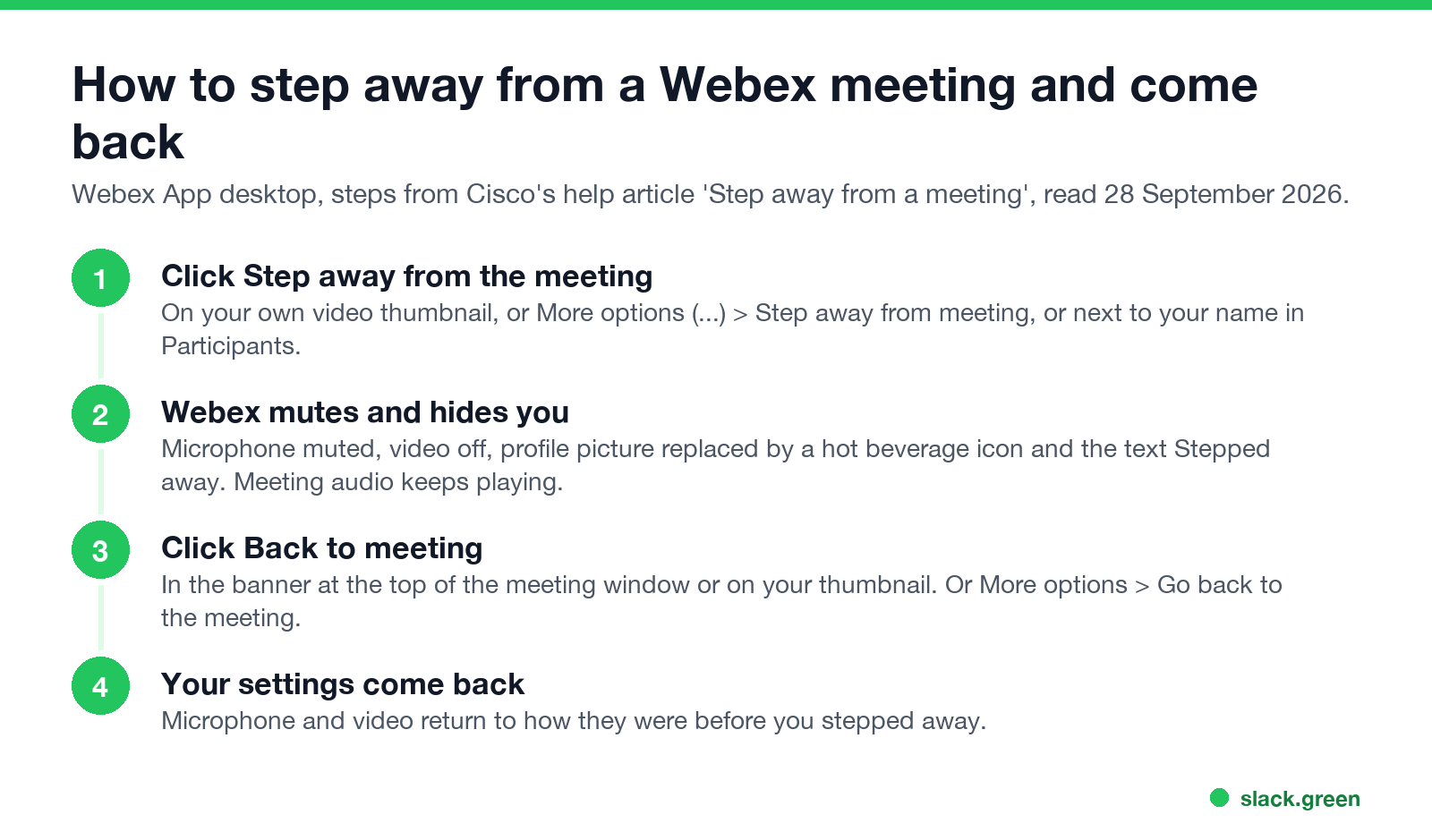
- Click Step away from the meeting on your own video thumbnail. The same option is under More options (...) in the meeting controls, and next to your name in the Participants panel.
- Webex mutes and hides you. Your microphone is muted, your video is off, and other people see a hot beverage icon with Stepped away in place of your picture. The meeting audio keeps playing on your side.
- Click Back to meeting when you return, in the banner at the top of the meeting window or on your thumbnail. Or use More options, Go back to the meeting.
- Check your microphone. Webex restores your microphone and video to how they were before you stepped away, so if you were unmuted before, you are unmuted again.
- • Your setting. In Webex App, click Settings, then Meetings, and check Automatically set status to stepped away.
- • Your company's setting. An administrator setting in Control Hub, Allow Webex to set stepped away status, which Cisco turns on by default. If your admin turned it off, the check box does not appear for you.
- • For yourself: Webex App, Settings, Meetings, uncheck Automatically set status to stepped away. You can still use the manual button.
- • For the whole company (admins): sign in to Control Hub, go to Services, Meetings, Settings, and in Automatically step away from a meeting turn off Allow Webex to set stepped away status, then click Save.
Stepping away does not leave the meeting. You keep your place, the host does not need to admit you again, and you can hear whether someone asks for you.
Automatic stepped away: Webex notices when you leave the camera
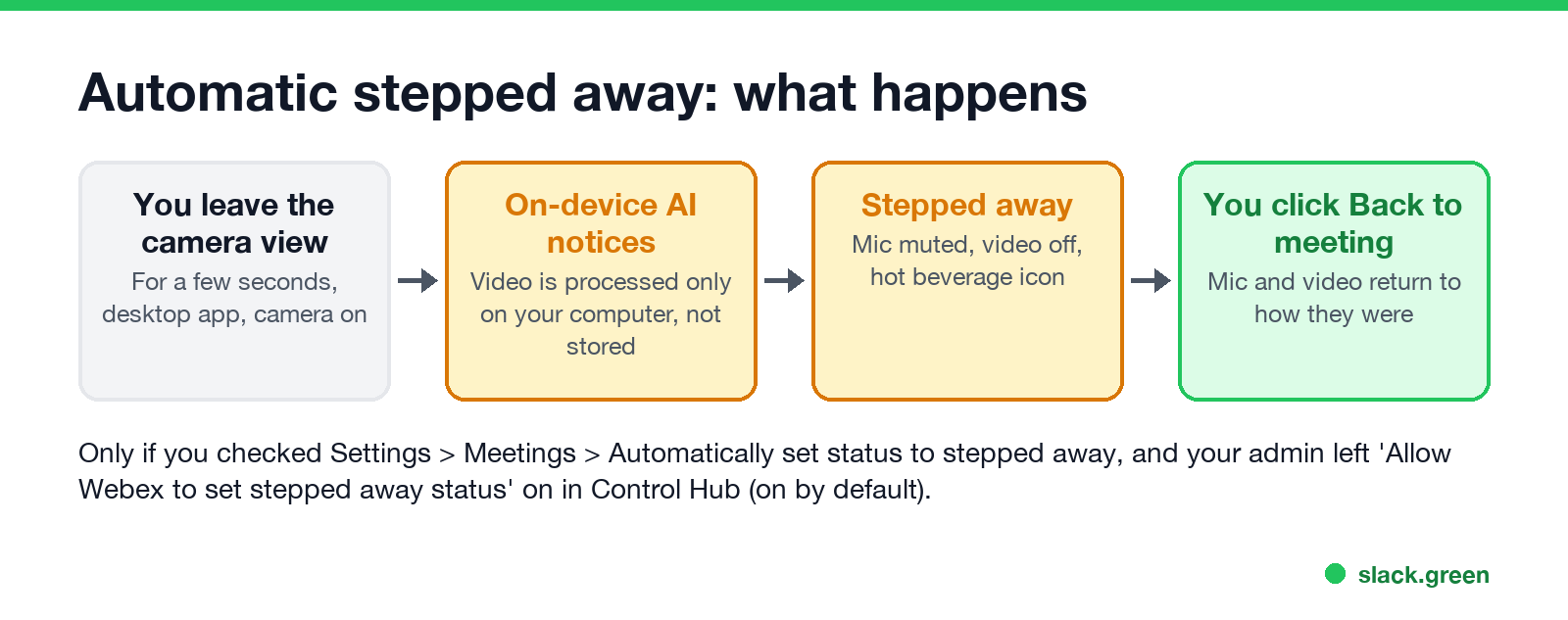
Webex App can switch you to Stepped away on its own when you move out of your camera's view for a few seconds. Cisco says an AI model checks your video feed for a person in front of the camera, and that "processing of your video feed occurs solely on your device and is never stored elsewhere." When it triggers, it does the same as the manual button: microphone muted, video off, hot beverage icon.
The automatic mode runs only when both of these are on:
The first time you walk out of view with the feature available, Webex shows a notification offering to turn it on. Not now or dismissing it does not turn it on; Webex asks once more after the fourth time you leave the camera, then stops asking.
Cisco's own advice: if you walk around or move out of view while you talk, set Stepped away by hand and leave the automatic mode off, or it may mute you mid-sentence.
How to turn off Webex stepped away
Which Webex apps can step away
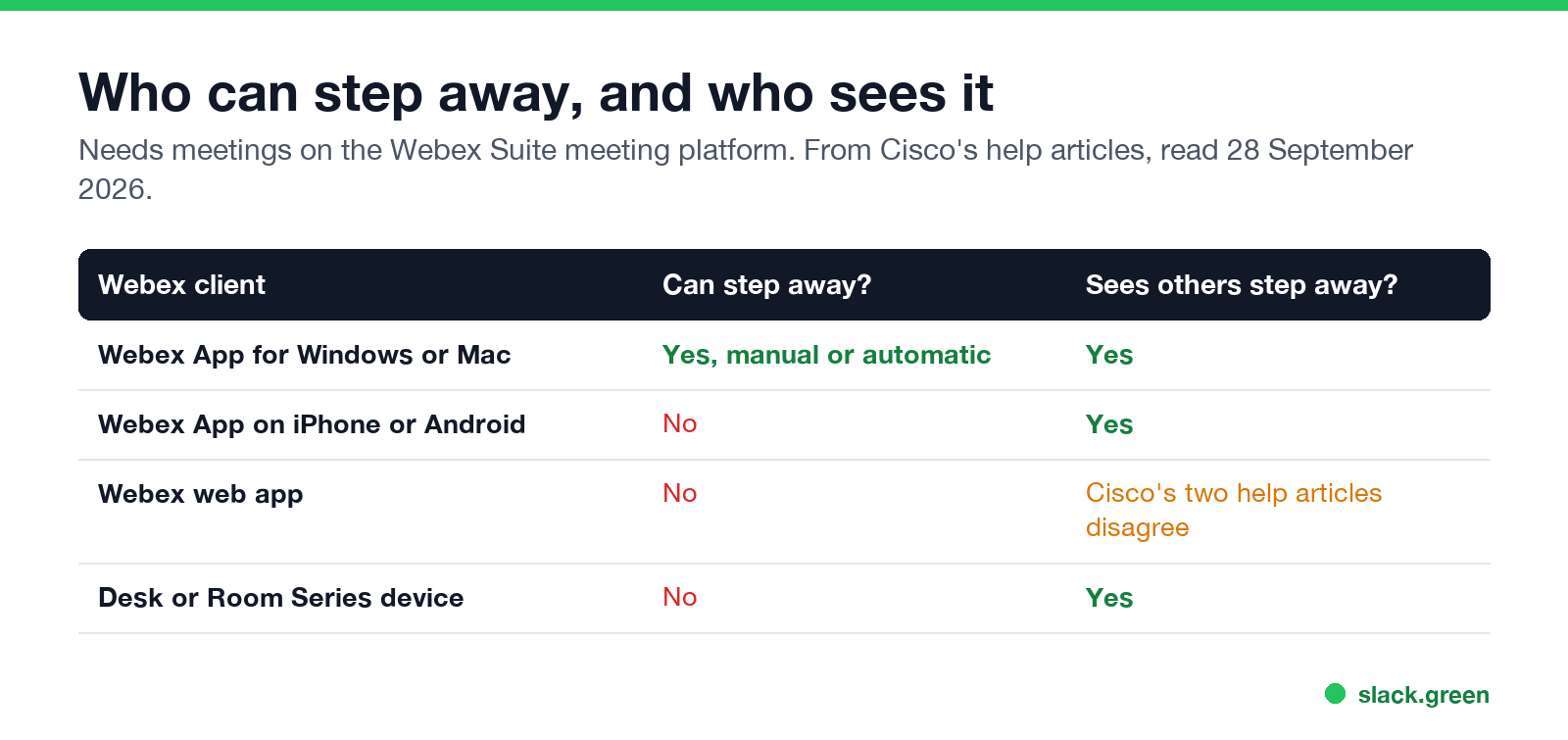
| Webex client | Can step away? | Sees others step away? |
|---|---|---|
| Webex App for Windows or Mac | Yes, manual or automatic | Yes |
| Webex App on iPhone or Android | No | Yes |
| Webex web app | No | Cisco's articles disagree |
| Desk or Room Series device | No | Yes |
Cisco's user article says the web app shows when others step away; its admin article says the web app cannot. If you join from a browser, do not count on seeing the icon.
The feature also needs meetings on the Webex Suite meeting platform. On older meeting sites the button is not there.
Webex Extended Away is a voicemail greeting
"Extended Away" in Webex has nothing to do with meetings. It is a voicemail greeting in Webex Calling for long absences. Callers hear your away message, and while it is on, they cannot leave a voicemail. Cisco's Webex Calling troubleshooting guide describes it as a greeting that plays after the set number of rings and disables "the deposit of new voicemails". For a normal away message, see Webex away message.
Stepped away, Away and your Webex status
Stepped away is shown inside the meeting, on your video tile and in the participants panel. Your presence status across Webex is a separate thing: the green, yellow and red icons explained in Webex status icons meaning. If your status still says you are in a meeting after you left, Webex status stuck in a meeting has the fixes.
The same need exists in other apps. Microsoft Teams has a Be right back status you set by hand; see Teams busy vs in a meeting for how Teams statuses change around calls. Slack has no step-away button. It sets you away 10 minutes after your last input in the Slack window, whether you are in a Webex call or not. You can set a status such as ☕ Back in 5 by hand, or pick one from our free Slack status generator.
FAQ
What does stepped away mean in Webex?
The person clicked Step away from the meeting, or Webex noticed they left the camera view. They are still in the meeting and can hear it, but their microphone is muted and their video is off.
Can people see when I step away in Webex?
Yes. Your picture changes to a hot beverage icon with Stepped away, on your video tile and in the participants panel.
Can I still hear the meeting when I step away?
Yes. Cisco says "when you step away, you can still hear the meeting audio."
Why did Webex set me to stepped away automatically?
You turned on Automatically set status to stepped away and moved out of your camera's view for a few seconds. Turn it off under Settings, Meetings.
Why don't I see the Step away option in Webex?
You are on the web app or a phone, your meeting is not on the Webex Suite meeting platform, or your Webex App is out of date. The feature is in the Webex App for Windows and Mac.
Related Articles
Webex Status Ideas: 35 Custom Statuses Under 75 Characters
35 Webex status ideas you can paste into Set a status: funny ones, meetings, focus time, lunch, out of office and time zones, each under Webex's 75-character limit. How to set a custom status, save five for reuse, and make it clear on its own.
How to Make an Emoji From a Video (Slack and Discord)
To make an emoji from a video, cut 1 to 2 seconds, crop it to a square, scale it to 128 x 128 and save it as a GIF under 128 KB for Slack or 256 KB for Discord. One tested ffmpeg command, the frame rate and color settings that decide the file size, and a free browser tool that shrinks the GIF for you.
How to Make a Custom Emoji for Discord (From Any Image)
To make a custom Discord emoji, crop an image to a square, keep it under 256 KB, name it with letters, numbers and underscores, and upload it with Add Emoji in the emoji picker or Server Settings, Emoji. How to make one from a photo, a GIF or text for free, add animation, and use it in other servers.