
How to Star a Channel in Slack (and Why Starred Items Seem to Vanish)
Click the star next to the channel name, or right-click a DM and pick Star conversation. We starred a channel and a DM, collapsed the Starred section, and checked what the Free plan allows.
To star a channel in Slack, open the channel and click the star to the left of its name at the top. Slack moves the channel out of Channels and into Starred at the top of the sidebar. To star a DM, right-click it in the sidebar and choose Star conversation. Click the star again, or pick Unstar, to undo it. On October 23, 2026 we starred a test channel and a DM in Slack's web app, on a Free-plan workspace, and watched where they went.
Star a channel
- Open the channel.
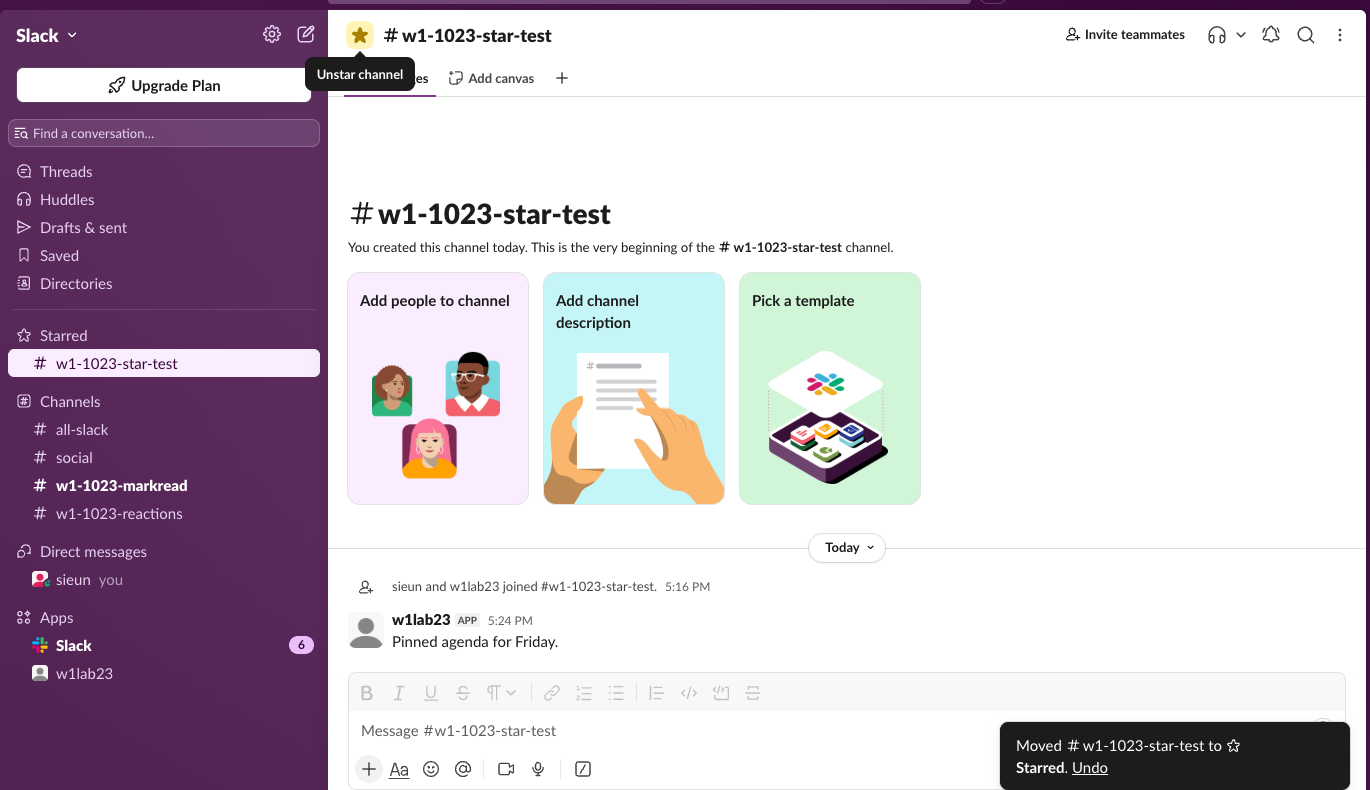
- Click the outline star left of the channel name at the top. Its tooltip reads Star channel.
The star turned yellow, the tooltip changed to Unstar channel, and a message at the bottom right said "Moved # w1-1023-star-test to ☆ Starred" with an Undo link. The channel left the Channels list. A channel is in one place in the sidebar at a time, so starring moves it rather than copying it.
Starred is Slack's name for favorites. There is no separate "favorite channels" feature.
Star a DM
You do not need to open the DM first. We right-clicked our own DM in the sidebar, and the menu offered Star conversation:
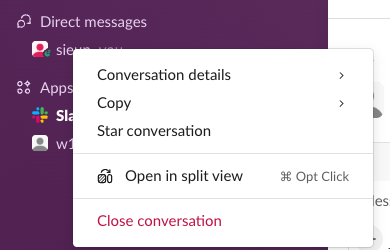
The DM moved from Direct messages up into Starred, above the channel we had starred first:
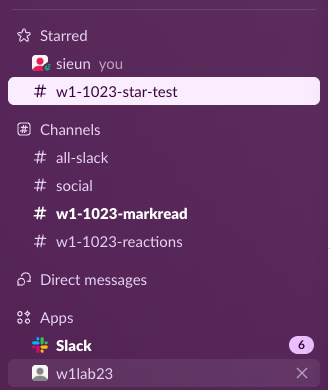
Before we starred anything, the empty Starred section showed the hint "Drag and drop important stuff here", so dragging a channel or DM onto it is a third way. We used the star and the menu, not drag and drop.
Never appear "away" on Slack again
Cloud-based. No downloads. Works 24/7 even when your laptop is off.
Why starred channels seem to disappear
One cause we reproduced is a collapsed Starred section. Clicking the word Starred collapses it. A collapsed Starred section hid every item in it, even after a bot posted a new message in the starred channel. The only sign was that the word Starred turned bold:
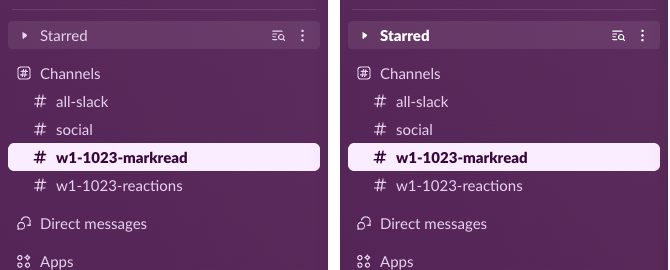
Click Starred once more to open it. Other sidebar causes, such as the setting that hides inactive conversations, are in Slack channels disappeared from sidebar.
The three-dot menu next to Starred also has a Delete section item. We did not click it, so we cannot say what it does to the starred items.
Starred on the Free plan
On the Free plan, Starred is the only sidebar group you can fill yourself. The same three-dot menu shows Create sidebar section with a PAID tag:
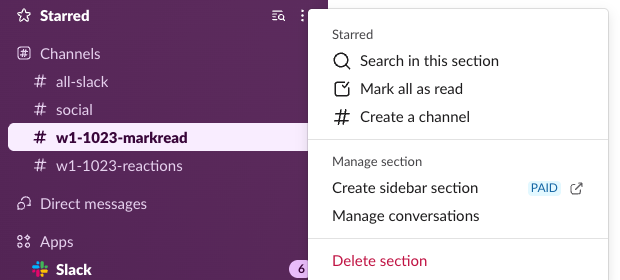
The menu also has Mark all as read for the items in Starred. On a paid plan you can make your own sections next to Starred; Slack sidebar sections shows how they work and what Free keeps.
When we were done, we unstarred the channel with the yellow star and the DM with Unstar conversation in the same right-click menu. Both went back to Channels and Direct messages.
Stop Jiggling Your Mouse.
Join hundreds of remote workers who never worry about their Slack status. Set it up once, stay green forever.
Related Articles
Slack Mark as Read Settings: All 3 Options Tested on 30 Messages
Preferences > Mark as read decides where a channel opens and whether opening it clears the unread. We posted 30 messages and opened the channel under each option, then tried Esc and Shift+Esc.
How to Turn Off Reaction Notifications in Slack (and Why There Is No Switch)
Slack's notification settings no longer have a reactions switch. We had a bot react to our messages, then hid the reactions with the Activity filter and the Mentions tab, and tried the old hidden setting.
Slack: Download All Files From a Channel (Script and Test)
Slack has no download-all button for a channel. We uploaded 8 files, checked what the Files tab and search show, and ran a files.list script that saved all 8, after it first found only 4.