
Slack Green CLI: Self-Hosted Presence From Your Terminal
One binary on your Mac, Linux box, or a $5 VPS holds your Slack presence on a schedule, with your tokens encrypted on your own disk. Install, setup, daemon behavior, and the honest CLI-versus-cloud split.
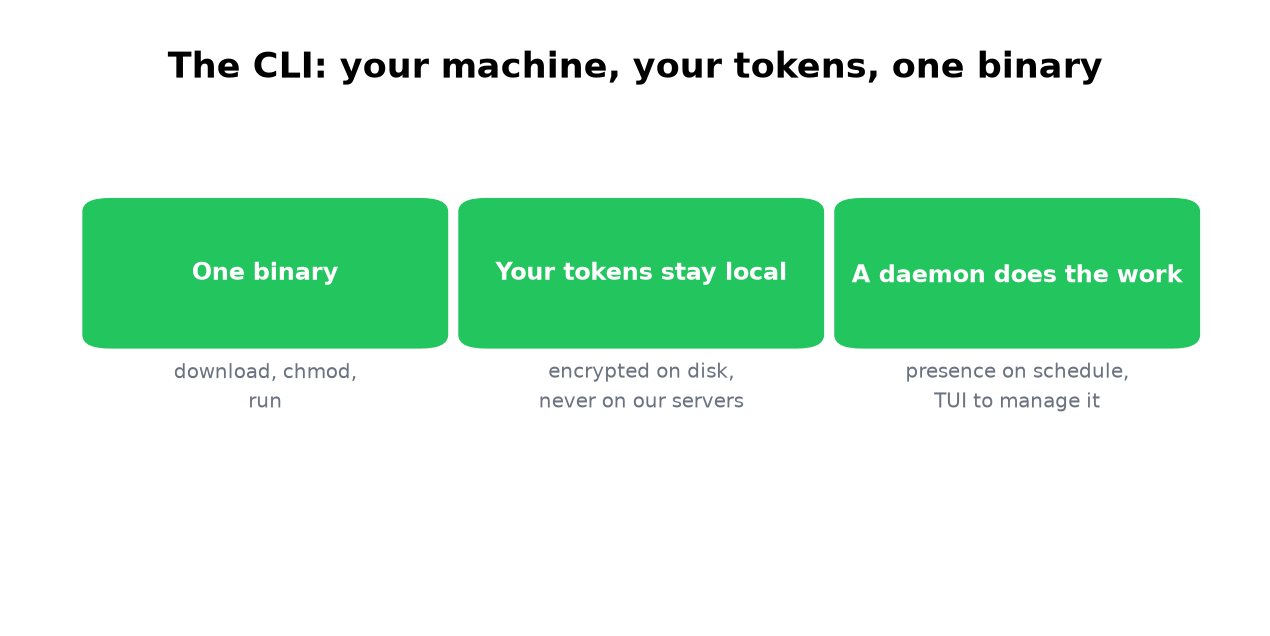
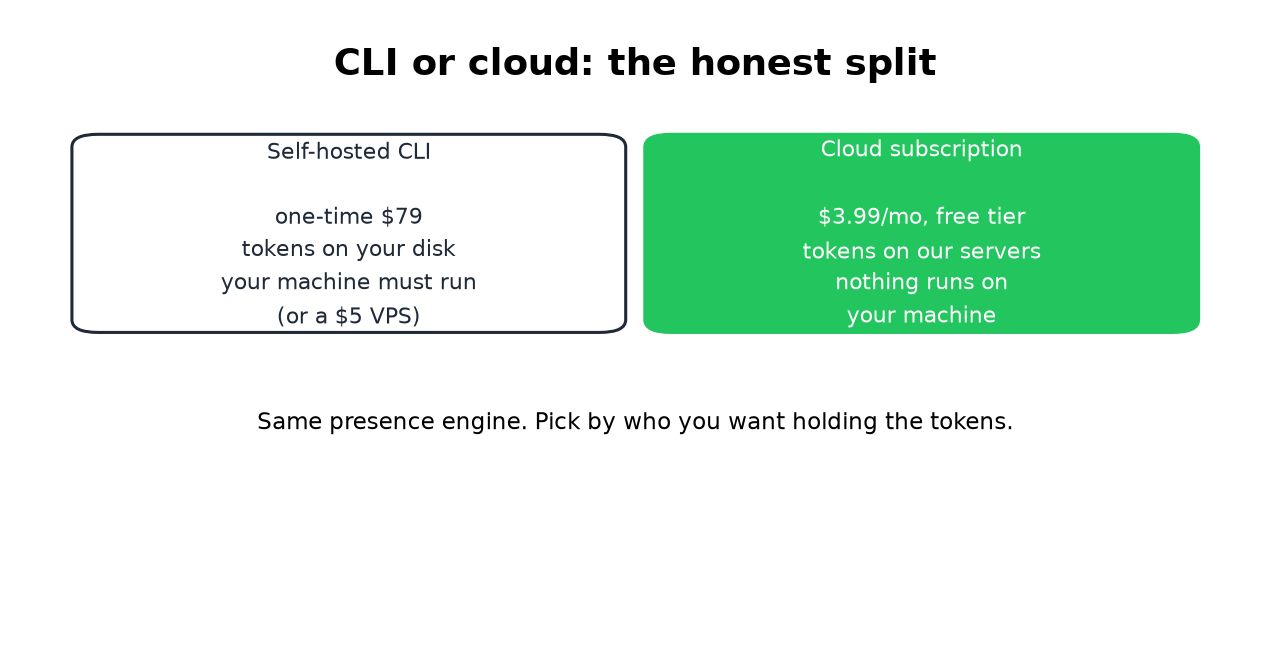
The Slack Green CLI is the self-hosted answer to a fair objection: why hand your session tokens to a service at all? One binary runs on your Mac, Linux box, or a $5 VPS, holds your Slack presence on the schedule you set, and keeps your xoxc/xoxd tokens encrypted on your own disk. One-time $79, no subscription. Where the CLI sits among every option is covered in how to keep Slack active.
Installation
1. Download
Go to Dashboard → CLI and download the binary for your platform:
- • macOS, Apple Silicon (M1+) or Intel
- • Windows, Windows 10+
- • Linux, x64
2. Install the binary
macOS / Linux:
bash
chmod +x ~/Downloads/sg-cli-*
sudo mv ~/Downloads/sg-cli-* /usr/local/bin/sg-cli
If macOS blocks the binary with Gatekeeper:
bash
xattr -d com.apple.quarantine /usr/local/bin/sg-cli
Windows:
Move sg-cli.exe to a directory in your PATH, or run it directly from the download folder.
3. Launch
bash
sg-cli
That's the only command. Everything happens inside the interactive TUI.
First Launch
On first launch, the TUI prompts you to enter your license key (SG-XXXX-XXXX-XXXX-XXXX). You can find this key on your CLI dashboard.
After activation, the app validates your license with the server and starts the background daemon automatically.
Using the TUI
Nunca mais apareça como "ausente" no Slack
Na nuvem. Sem downloads. Funciona 24/7 mesmo com seu notebook desligado.
The TUI is a full-screen terminal interface. It shows your connected workspaces, their presence status, and daemon health.
Keyboard Shortcuts
| Key | Action |
|---|---|
a | Add a new workspace |
d | Delete selected workspace |
p | Pause / Resume selected workspace |
c | Edit schedule for selected workspace |
Enter | Stay online for X hours (override schedule) |
r | Refresh status |
j / ↓ | Move selection down |
k / ↑ | Move selection up |
q | Quit TUI |
Status Bar
The status bar at the bottom shows:
Workspace Cards
Each workspace shows:
Adding a Workspace
Press a to open the Add Workspace modal. You have two options:
Option 1: Chrome Extension Token (recommended)
Option 2: Manual Tokens
Enter your xoxc and xoxd tokens manually. See the token extraction guide for how to find these.
After adding, the TUI automatically opens the schedule editor for the new workspace.
Schedules
Press c on a selected workspace to edit its schedule.
The schedule editor lets you:
w for weekdays, e for every day9am, 9:30, 14:00, or use arrow buttonsOutside of scheduled hours, the daemon pauses the workspace automatically.
How the Daemon Works
Nunca mais apareça como "ausente" no Slack
Na nuvem. Sem downloads. Funciona 24/7 mesmo com seu notebook desligado.
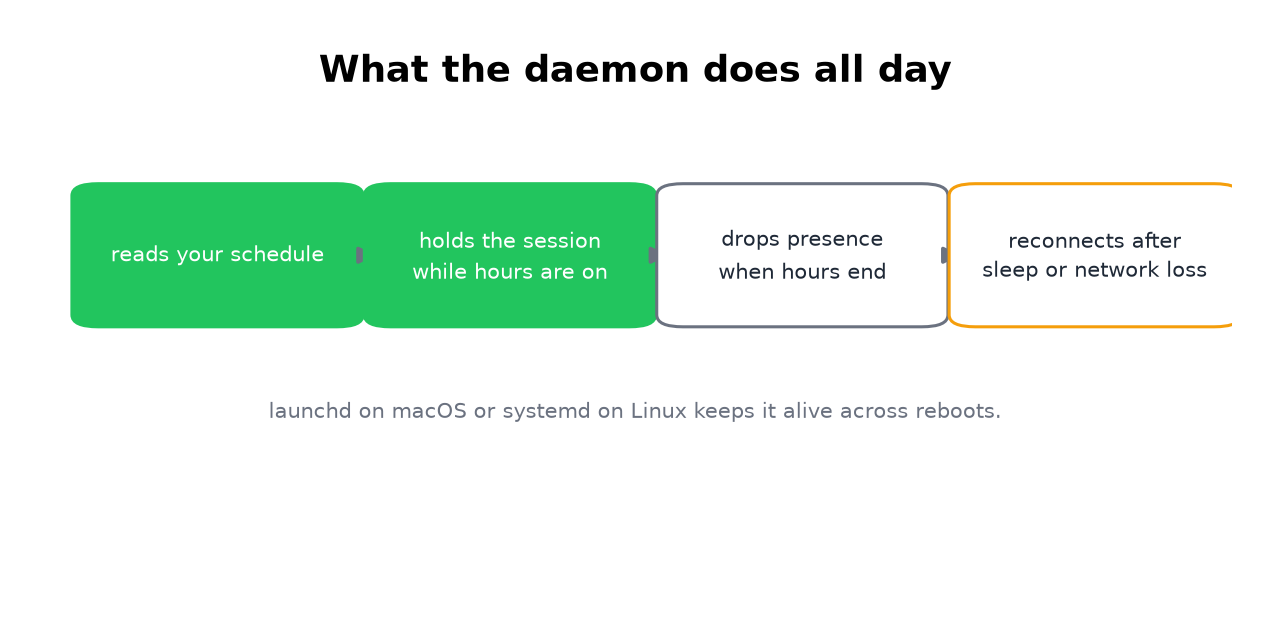
The daemon is a background process that maintains WebSocket connections to Slack.
~/.sg-cli/workspaces.enc (encrypted)~/.sg-cli/status.jsonThe TUI and daemon communicate via a Unix socket. When you add, remove, or modify workspaces in the TUI, the daemon picks up changes immediately.
Device Management
Each license allows one device at a time. Your device is identified by a machine fingerprint (hostname, OS, MAC address, etc.), so restarting your computer does not require re-activation.
To switch devices:
sg-cli on the new device and activatePrivacy
~/.sg-cli/workspaces.enc, encrypted with a machine-specific key~/.sg-cli/config.encFile Locations
Nunca mais apareça como "ausente" no Slack
Na nuvem. Sem downloads. Funciona 24/7 mesmo com seu notebook desligado.
| File | Purpose |
|---|---|
~/.sg-cli/config.enc | Encrypted license config and signing secret |
~/.sg-cli/workspaces.enc | Encrypted workspace tokens and settings |
~/.sg-cli/status.json | Daemon status (readable by TUI) |
~/.sg-cli/daemon.pid | Daemon process ID |
~/.sg-cli/daemon.sock | Unix socket for TUI-daemon communication |
~/.sg-cli/sg-cli.log | Daemon log file |
Running on Startup
The daemon auto-starts when you launch the TUI. To have it start at login without opening the TUI:
macOS (launchd)
Create ~/Library/LaunchAgents/com.slackgreen.cli.plist:
xml


    Label
    com.slackgreen.cli
    ProgramArguments

        /usr/local/bin/sg-cli

    RunAtLoad

    KeepAlive
Load it:
bash
launchctl load ~/Library/LaunchAgents/com.slackgreen.cli.plist
Linux (systemd)
Create ~/.config/systemd/user/sg-cli.service:
ini
[Unit]
Description=Slack Green CLI
After=network.target
[Service]
ExecStart=/usr/local/bin/sg-cli
Restart=always
RestartSec=10
[Install]
WantedBy=default.target
Enable it:
bash
systemctl --user enable sg-cli
systemctl --user start sg-cli
Troubleshooting
"Signing secret missing"
Your local config is out of sync. Fix:
bash
rm -rf ~/.sg-cli
sg-cli
Then re-activate with your license key.
Daemon not connecting
~/.sg-cli/sg-cli.log for errorsr in the TUI to force a refreshToken expired
Slack tokens expire when you log out of Slack in your browser or when Slack rotates cookies. Re-add the workspace with fresh tokens by pressing d to remove the old one, then a to add it again.
macOS Gatekeeper blocks the binary
bash
xattr -d com.apple.quarantine /usr/local/bin/sg-cli
FAQ
Nunca mais apareça como "ausente" no Slack
Na nuvem. Sem downloads. Funciona 24/7 mesmo com seu notebook desligado.
Can I install it with Homebrew?
Not yet. Install is a single binary download, three commands, covered above. If a brew formula lands, this page will carry it.
Is a terminal Slack client the same thing?
No. Tools like slack-term are chat clients for reading and sending messages from the terminal. The Slack Green CLI manages presence only: it keeps your dot green on a schedule and never touches messages.
Can I use my license on multiple computers at the same time?
No. Each license is bound to one device at a time. You can switch devices from the CLI dashboard.
What happens if my computer goes to sleep?
The daemon stops maintaining presence while the computer is asleep. Options:
Does it work with Slack Enterprise Grid?
Yes. The CLI uses browser tokens, which work with all Slack plans including Enterprise Grid.
How do I update to a new version?
Download the latest binary from Dashboard → CLI and replace the old one. Your config and workspaces are preserved.
How is this different from the cloud subscription?
| Cloud ($3.99/mo) | CLI ($79 once) | |
|---|---|---|
| Runs on | Our servers | Your machine |
| Tokens stored | Encrypted on our servers | Local only |
| Workspaces | Up to 3 | Unlimited |
| Scheduling | Built-in web UI | Built-in TUI |
| Setup | Just paste tokens | Download + activate |
Pare de Mexer o Mouse.
Centenas de trabalhadores remotos não se preocupam mais com o status do Slack. Configure uma vez, fique verde para sempre.