
Genesys Cloud Idle Status: What Idle, Away and Not Responding Mean
In Genesys Cloud, Idle is a routing status: you are On Queue and ready, but not working an interaction. It does not mean you are inactive. Away is the status for a locked screen, Not Responding follows a missed alert, and Offline follows an inactivity logout. Here is what sets each one and how to clear it.
In Genesys Cloud, Idle means you are On Queue and able to take interactions, but not working one right now. It is a routing status that the system sets; it does not mean you are inactive or away from your desk. Idle time in reports is the time you spent On Queue waiting for the next call, chat or email. The states that do mean you stopped are Away (set by hand, or by the desktop app when your screen locks), Not Responding (you missed or declined an alert) and Offline (you logged out or hit an inactivity timeout).
We build Slack Green, which keeps a Slack status green during your work hours, and we write about how work apps decide when you are active. Everything below comes from Genesys's own Resource Center articles on presence, routing status and inactivity timeouts.
Idle, Interacting and Not Responding
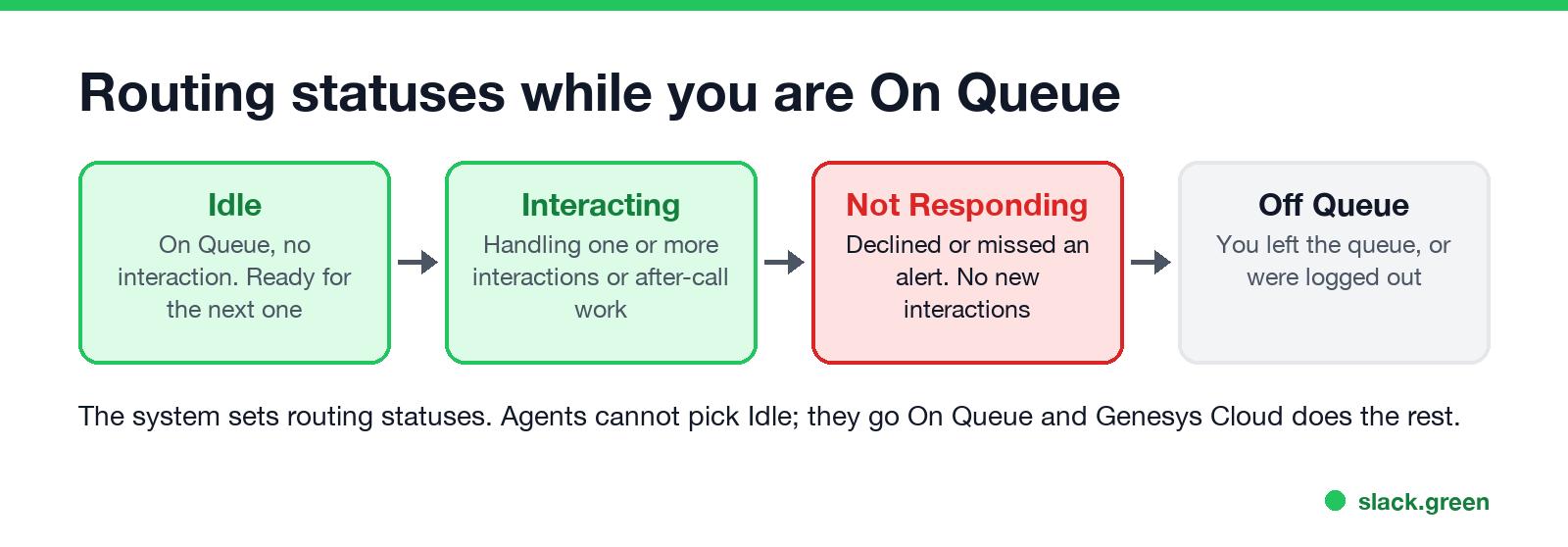
Genesys Cloud has two layers. Your status (Available, Busy, Away, On Queue and the rest) is what you pick. Your routing status is what the system sets while you are On Queue, and you cannot change it directly:
| Routing status | What it means |
|---|---|
| Idle | On Queue, no interaction, ready for the next one |
| Interacting | Handling one or more interactions, or after-call work |
| Communicating | On a non-ACD call that your admin counts like a queue call |
| Not Responding | You declined an interaction or did not accept it in time |
| Off Queue | You are not On Queue |
So "Idle vs Available" comes down to the queue. Available means you can take direct calls and chats but receive nothing from a queue. On Queue and Idle means the queue can route work to you right now. A supervisor who sees a lot of Idle time is seeing agents waiting for work, which usually points to staffing or queue volume, not to agents slacking.
Why Genesys Cloud sets you to Away
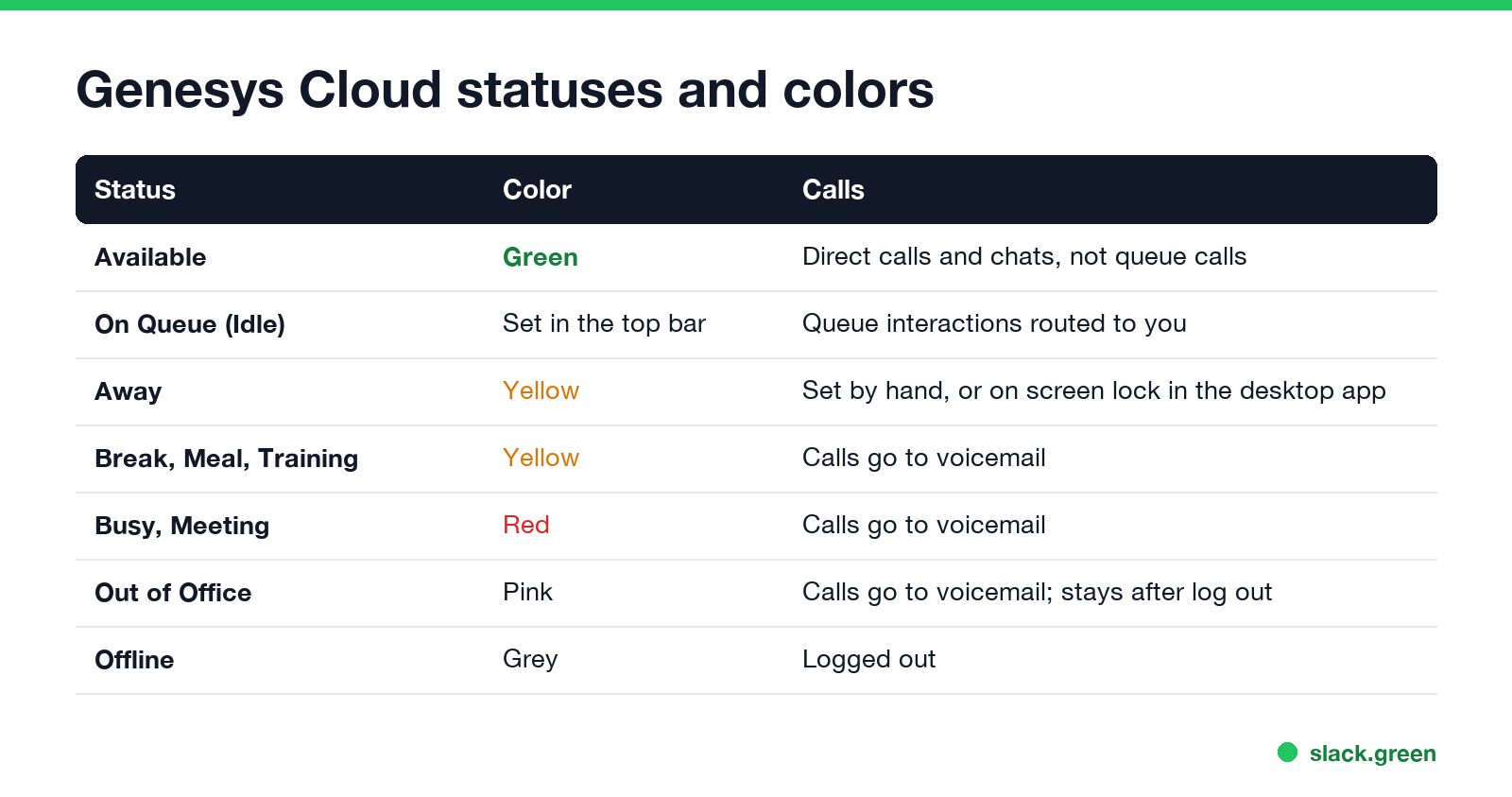
Away is yellow and means you are away from your computer. You can set it by hand. If you use the Genesys Cloud desktop app, it also switches you to Away when your computer screen locks or the screensaver starts. Genesys calls this Away (idle) in some articles, which is where the confusion with the Idle routing status starts.
Two exceptions from Genesys's presence article:
- • On Queue. If you are On Queue and your computer locks, by hand or from inactivity, Genesys Cloud does not change you to Away.
- • A secondary Available status. If you picked a secondary status under Available, locking the computer does not set Away either.
When you are Away, your admin's telephony settings decide whether a direct call goes to voicemail or still rings you. Break, Meal, Training, Busy, Meeting and Out of Office all send incoming calls to voicemail.
If your screen locks too fast for your work, raise the lock time in your operating system, or keep the screen awake. Our online mouse jiggler keeps the screen from locking while its tab is visible, and the settings for each system are in keep computer awake without admin rights. Check your company's rules first; the status history is visible to supervisors.
Not Responding: how to get back to Idle
Genesys Cloud puts you in Not Responding when you decline an interaction or do not accept it within the alert timeout set for the queue. The interaction goes back to the queue. While Not Responding you get no new interactions, but you can finish the ones you already accepted. You stay there until you make yourself eligible again, pick another status, go Off Queue or log out.
To clear it, set yourself On Queue again from the top bar. You drop back to Idle and the next interaction can route to you. If it keeps happening, the usual causes are a headset or WebRTC phone that does not ring, notifications muted on the computer, or an alert timeout that is too short for your workstation.
Never appear "away" on Slack again
Cloud-based. No downloads. Works 24/7 even when your laptop is off.
Offline after an inactivity timeout
Admins can set an automatic inactivity timeout for the whole organization or for groups. After that period without activity, the session token expires. Your status does not turn Offline at that exact moment; it changes on the next request that uses the expired token, and then the login prompt appears. If you were On Queue, you go Off Queue and have to log in and go On Queue again.
Three more timing rules help when a status looks wrong:
Genesys Cloud status compared with Slack and Teams
| App | What "idle" or "away" means | What sets it |
|---|---|---|
| Genesys Cloud | Idle: On Queue and ready. Away: away from the computer | Idle by routing; Away by hand or screen lock in the desktop app |
| Slack | Away: no input in the Slack window | 10 minutes without input in Slack |
| Microsoft Teams | Away: computer idle or locked | About 5 minutes idle, or a locked screen |
| Discord | Idle: yellow moon | About 10 minutes without input on the computer |
Many contact centers run Slack or Teams next to Genesys, so an agent can be Idle in Genesys and away in Slack at the same time. The Slack side is in Slack away status meaning and how long does Slack stay active. Zendesk agents face an idle timer instead; see Zendesk away status. Other phone systems work differently; see 8x8 status icons and RingCentral status stuck in a meeting.
FAQ
Does Idle mean inactive in Genesys Cloud? No. Idle means you are On Queue and waiting for an interaction. Inactive agents show Away, Not Responding or Offline.
What is idle time in Genesys Cloud? The time an agent spends in the Idle routing status: On Queue, able to take interactions, and not working one.
Why did Genesys Cloud set me to Away? You set it, or your screen locked or showed the screensaver while you used the desktop app with a status other than On Queue.
How do I get out of Not Responding in Genesys? Go On Queue again from the top bar. The missed interaction went back to the queue.
Stop Jiggling Your Mouse.
Join hundreds of remote workers who never worry about their Slack status. Set it up once, stay green forever.
Related Articles
Webex Status Ideas: 35 Custom Statuses Under 75 Characters
35 Webex status ideas you can paste into Set a status: funny ones, meetings, focus time, lunch, out of office and time zones, each under Webex's 75-character limit. How to set a custom status, save five for reuse, and make it clear on its own.
How to Use Slack Block Kit Builder: Templates, Preview, Payload
Slack's Block Kit Builder at app.slack.com/block-kit-builder lets you pick a template, add blocks, preview the message on Desktop or Mobile, and copy the JSON payload for a webhook or chat.postMessage. A walk through the current builder, a working deploy message, and the steps to send it.
Wireless Mouse With a Jiggler: How the Built-in Mode Works
A wireless mouse with a jiggler is a normal mouse with a jiggle mode in its firmware: hold the DPI button for about 3 seconds and the cursor moves on its own. Two models in the top results, how they compare with a USB dongle and a mechanical mover, and what they do for Teams and Slack.