
Slack Superscript: What Works, Tested in the Composer and API
Slack has no superscript format. We sent ^2^, <sup>2</sup>, x^2 and Unicode characters from the message box, the API and a Block Kit markdown block: only Unicode rendered raised. Copy-ready characters, and how Slack search treats them.
Slack has no superscript format. The message box has no button or shortcut for it, and neither ^2^ nor <sup>2</sup> turns into raised text, whether you type it, send it through the API, or put it in a Block Kit markdown block. What works is pasting a Unicode superscript character such as ², ³ or ™, which Slack shows like any other letter. We sent each variant to a test channel on 30 September 2026 and screenshotted what arrived.
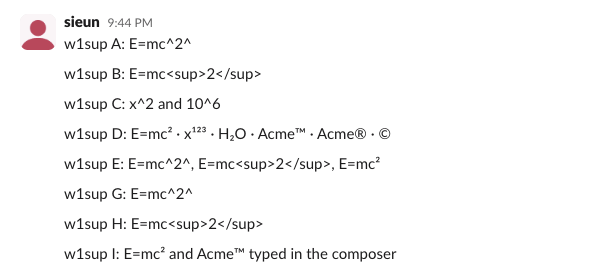
What we sent, and what rendered
Lines A to E went out through chat.postMessage; G to I were typed into the web message box and sent with Enter. The screenshot above shows them as Slack drew them.
| Line | Sent as | Result in Slack |
|---|---|---|
| A, G | E=mc^2^ (Pandoc-style superscript) | literal E=mc^2^ |
| B, H | E=mc<sup>2</sup> (HTML) | literal E=mc<sup>2</sup> |
| C | x^2 and 10^6 | literal carets |
| D, I | E=mc², x¹²³, Acme™, Acme® (Unicode) | raised digits and marks |
| E | all three in a Block Kit markdown block | only the Unicode ² raised |
Bots get no extra option. The markdown block, which does turn **bold** into bold, left ^2^ and <sup>2</sup> as typed:
 bold became bold and the Unicode ² is raised" class="rounded-lg shadow-lg my-8 w-full" />
Rich text has no superscript style either. Adding "superscript": true to a text element's style was refused with invalid additional property: superscript. The formatting Slack does have (bold, italic, strikethrough, code, links) is listed in Slack Block Kit markdown.
Superscript characters to copy
These all rendered in Slack web in our test message:

| Use | Copy |
|---|---|
| Superscript digits | ⁰ ¹ ² ³ ⁴ ⁵ ⁶ ⁷ ⁸ ⁹ |
| Signs and brackets | ⁺ ⁻ ⁼ ⁽ ⁾ ⁿ ⁱ |
| Subscript digits (H₂O, CO₂) | ₀ ₁ ₂ ₃ ₄ ₅ ₆ ₇ ₈ ₉ |
| Ordinals | 1ˢᵗ 2ⁿᵈ 3ʳᵈ 4ᵗʰ |
| Trademark, registered, service mark | ™ ® ℠ |
| Copyright, degree | © ° |
In Slack's font, ™ and ℠ sit small and raised, while ® and © stay full height, as the screenshot shows.
Never appear "away" on Slack again
Cloud-based. No downloads. Works 24/7 even when your laptop is off.
Typing them without copy and paste
- • Mac: Option+2 types ™, Option+R types ®, Option+G types © on a US keyboard. For other digits, press Control+Command+Space and search for "superscript".
- • Windows: hold Alt and type 0178 for ², 0179 for ³, 0185 for ¹, 0153 for ™ or 0174 for ® on the number pad. Win+. opens the emoji and symbol panel.
- • Phone: paste from the table above, or save the characters you use as a text replacement in your keyboard settings.
How Slack search treats superscript
We searched the test channel through Slack's search API and counted the matches:
| Search | Found |
|---|---|
² | 15 messages: the superscript ones, plus every message with a plain 2 in it |
mc2 | 6, including E=mc² typed with the Unicode character |
x123 | the x¹²³ message |
Acme | both Acme™ messages |
™ alone | 0 |
Slack search reads ² as 2, so a colleague who types mc2 still finds your E=mc². A trademark sign on its own is not searchable, but the word it is attached to is.
FAQ
Does Slack support subscript?
Not as formatting. The Unicode subscript digits (H₂O) rendered in our test the same way the superscript ones did.
Does superscript work in a Slack status?
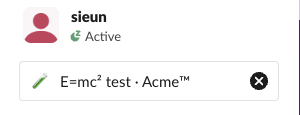
Yes. We set the status text to E=mc² test · Acme™ and the profile menu showed both characters raised:
Why does my ^2^ from ChatGPT or Notion show carets in Slack?
Slack converts only its own markup and a few markdown marks. When pasted text keeps its symbols, the fixes are in Slack markdown not working. For bold, italic and links, the Markdown to Slack converter rewrites markdown into Slack's format before you paste.
Stop Jiggling Your Mouse.
Join hundreds of remote workers who never worry about their Slack status. Set it up once, stay green forever.
Related Articles
Slack chat.scheduleMessage: Limits and Errors We Measured
We called chat.scheduleMessage with a bot token for times from 10 seconds to 121 days ahead, listed and deleted the results, and watched which messages still arrived. The limits, the exact errors, and a delete that returned ok but did not stop the post.
Slack Invite Link Expiration: 30 Days, and How to Check One
Slack invite links expire after 30 days and have no longer option. We made links in a test workspace, deactivated them, and found a signed-out check that tells a live link from a dead one.
Slack Pinned Messages: Where Pins Are Now, and the 100-Pin Limit
In the current Slack desktop and web app, pinned messages sit in a Pins tab at the top of the channel. We pinned, edited, deleted and searched pins in a test workspace, and pinned messages until Slack refused the 101st.