
Slack Pinned Messages: Where Pins Are Now, and the 100-Pin Limit
In the current Slack desktop and web app, pinned messages sit in a Pins tab at the top of the channel. We pinned, edited, deleted and searched pins in a test workspace, and pinned messages until Slack refused the 101st.
To see pinned messages in Slack, open the channel and click Pins in the row of tabs under the channel name, next to Messages and Add canvas. The tab shows up once the channel has at least one pin. To pin a message, hover over it, click the three dots (More actions) and choose Pin to channel. We tested pins in a one-person test workspace on 30 September 2026, in Slack for web, and pinned messages through the API until Slack refused one.
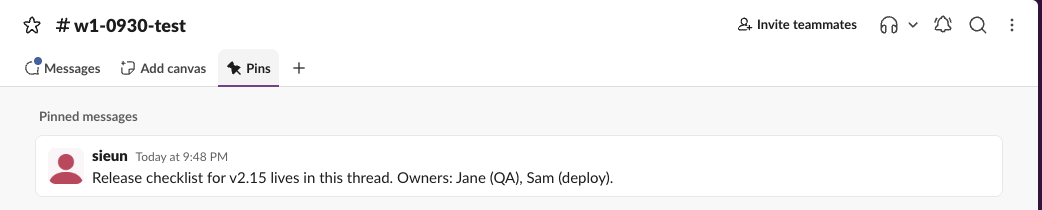
How to pin a message and find it again
- Hover over the message and click More actions (the three dots on the right).
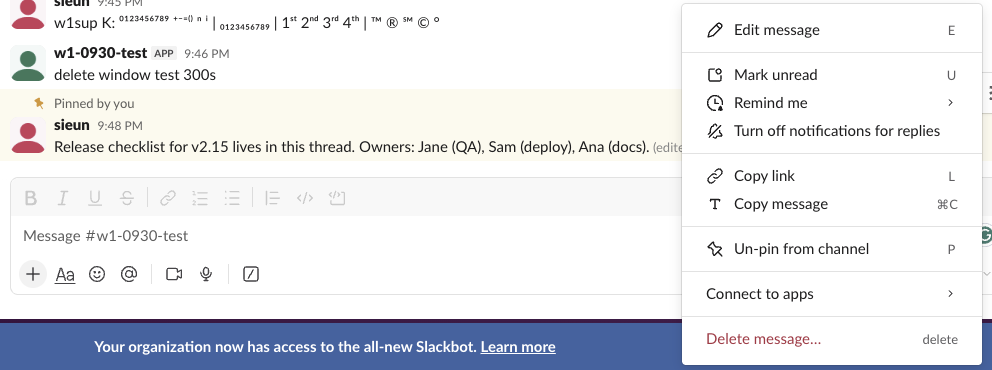
- Choose Pin to channel. With the menu open, pressing P does the same.
- The message gets a yellow background and a "Pinned by you" label in the channel, and appears in the channel's Pins tab.

To unpin, open the same menu. On a pinned message the item reads Un-pin from channel, still on the P key:
Across all channels, type has:pin in the search bar. Add a channel to narrow it: in:#release has:pin. While our script was still pinning, has:pin in that channel found 49 messages when 72 were already pinned, because new pins take a moment to reach the search index. After the run, the same search found all 100.
What we tested, and what happened
| Test | Result |
|---|---|
| Edit a pinned message | Stayed pinned. The Pins tab and pins.list showed the new text, marked "(edited)" |
| Delete a pinned message | Its pin was removed with it: pins.list went from 2 items to 1 |
| Pin a message that is already pinned | Refused with already_pinned |
| Pin message 101 in one channel | Refused with too_many_pins |
has:pin search | Counted all 100 pins once indexed |
So a pinned message never needs re-pinning after an edit. If a pin vanishes, check whether someone deleted the message, which takes the pin with it, or unpinned it.
Never appear "away" on Slack again
Cloud-based. No downloads. Works 24/7 even when your laptop is off.
Slack pin limit: 100 per channel
We posted 110 messages to a new channel with a bot and pinned each one right after posting it. Pins 1 to 100 succeeded; the 101st returned:
{"ok": false, "error": "too_many_pins"}pins.list then reported 100 items. To pin something new in a full channel, unpin an old message first.
Pinning from a script ran into the rate limit three times, after pins 72, 94 and 98. Each time slack_sdk's retry handler waited about 31 seconds, and 100 pins took 168 seconds. More on those waits in Slack API rate limits.
Pins through the API
pins.list returns every pin in a channel, with who pinned it and when. This is the entry for our edited test message:
{
  "type": "message",
  "created": 1790772531,
  "created_by": "U0B7L4YK420",
  "message": {
    "ts": "1790772531.207499",
    "text": "Release checklist for v2.15 lives in this thread. Owners: Jane (QA), Sam (deploy), Ana (docs).",
    "edited": {"user": "U0B7L4YK420", "ts": "1790772576.000000"},
    "pinned_to": ["C0C6GFR9G2C"]
  }
}
A bot pins with pins.add (channel ID plus the message ts) and needs the pins:write scope; pins.list needs pins:read. Our bot was a member of the channel. The bot token guide covers scopes and reinstalling after you add them.
FAQ
What is the difference between pinning and Save for later?
A pin is shared: everyone in the channel sees it in the Pins tab. Save for later is private to you, with an optional reminder; see Slack Save for later.
Can I pin a message in a DM?
Yes. We pinned a message in a DM with ourselves, and the DM got the same Pins tab as a channel.
Stop Jiggling Your Mouse.
Join hundreds of remote workers who never worry about their Slack status. Set it up once, stay green forever.
Related Articles
Slack chat.scheduleMessage: Limits and Errors We Measured
We called chat.scheduleMessage with a bot token for times from 10 seconds to 121 days ahead, listed and deleted the results, and watched which messages still arrived. The limits, the exact errors, and a delete that returned ok but did not stop the post.
Slack Invite Link Expiration: 30 Days, and How to Check One
Slack invite links expire after 30 days and have no longer option. We made links in a test workspace, deactivated them, and found a signed-out check that tells a live link from a dead one.
Set Up Mobile Overrides in Slack: What the Checkbox Changes
Slack's Set up mobile overrides checkbox lets your phone get a different notification level than your computer. We ticked it in every combination and read back the saved settings after each click.