
How to Create a Channel in Slack: Public, Private and API
Click Add channels, then Create a new channel, name it, pick Public or Private and click Create. We created both kinds as a regular member on 18 November 2026, plus two more with conversations.create, and recorded every name error.
To create a channel in Slack, click Add channels under Channels in the sidebar, choose Create a new channel, type a name, click Next, choose Public or Private, and click Create. Slack then asks who to add, and you can skip that step. We did this on 18 November 2026 in the Slack web app as a regular member (not an admin) of a workspace on the Free plan, made one public and one private channel, and then made two more through the API to record the errors a bad name gets.
Step 1: open Create a new channel
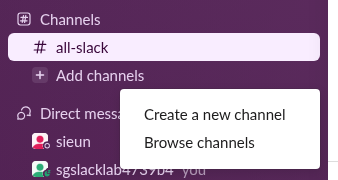
In the sidebar, under Channels, click Add channels. A small menu opens with two items: Create a new channel and Browse channels.
Step 2: name the channel
The Create a channel window has one field. The counter at its right starts at 80, the maximum length. While the field is empty, Slack suggests three prefixes for related channels: help-, proj- and team-.
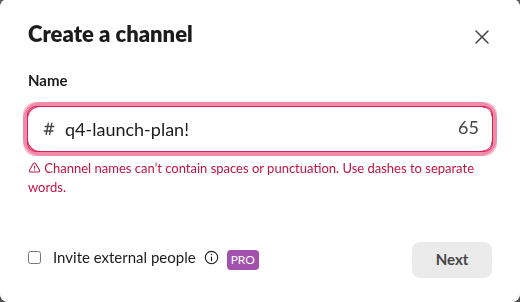
Slack fixes some typing for you. We typed Q4 Launch Plan!, and the field showed q4-launch-plan!: capitals became lowercase and spaces became dashes. The ! stayed, and Slack refused it with a red line under the field:
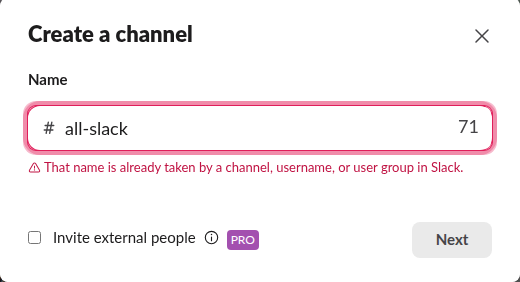
A name that already exists gets a different message. all-slack, the default channel of our workspace, got "That name is already taken by a channel, username, or user group in Slack." So a channel name also cannot match a person's username or a user group handle.
The full list of allowed characters is in our page on Slack channel name rules. In short: lowercase letters, numbers, dashes and underscores, up to 80 characters.
Step 3: choose public or private
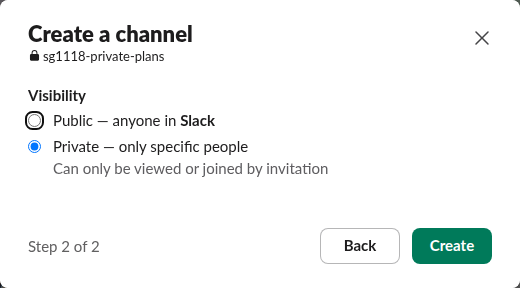
Click Next. Step 2 of 2 asks for Visibility:
- • Public: anyone in the workspace can find and join the channel.
- • Private: "Can only be viewed or joined by invitation." The name gets a lock icon, which is why some people call these locked channels.
Pick with care. Our test member could make a channel private at this step, but a regular member who tries to turn an existing public channel private later gets an error; see how to make a Slack channel private. The differences between the two kinds are in public vs private channels.
Never appear "away" on Slack again
Cloud-based. No downloads. Works 24/7 even when your laptop is off.
Step 4: add people, or skip
Click Create. The channel opens at once, with a window on top that asks who to add:
| Channel type | What the window offers |
|---|---|
| Public | Add all members of Slack (selected by default) or Add specific people, then Done |
| Private | One field, "Enter a name or email", and Skip for now |
If you close the public window, Slack asks "Skip without inviting?" with Back and Skip for Now. We skipped both, so each channel started with only its creator in it.
Templates come after the channel exists
On the Free plan, the create window had no template step. The new channel showed three cards at the top: Add people to channel, Add channel description and Pick a template. The last one opens the template picker:
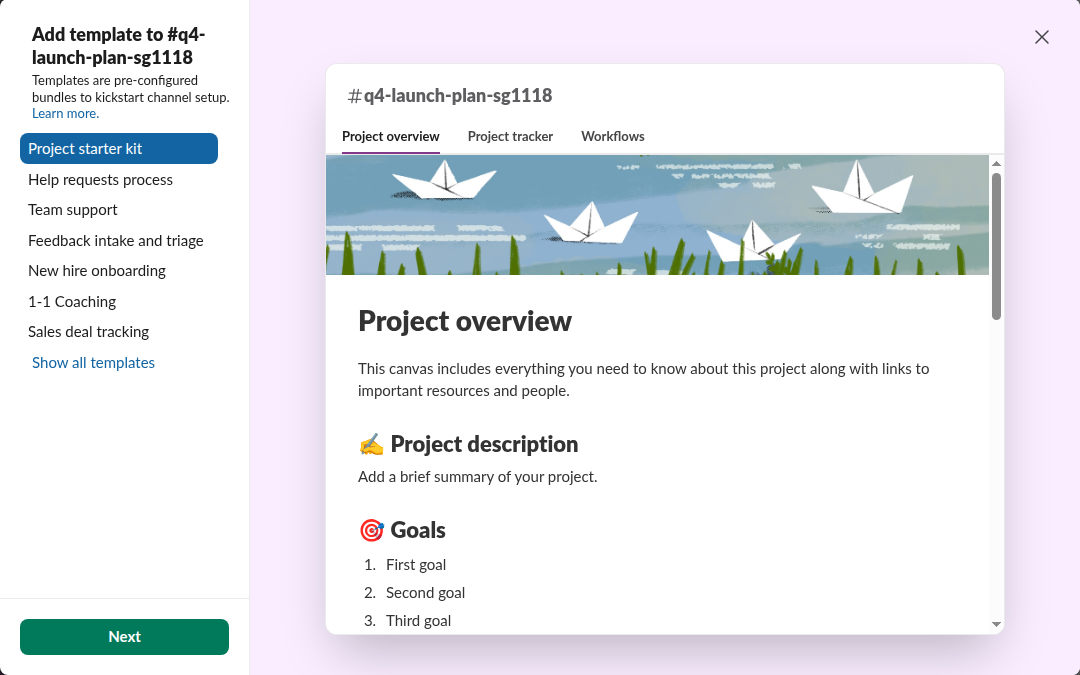
The picker listed Project starter kit, Help requests process, Team support, Feedback intake and triage, New hire onboarding, 1-1 Coaching and Sales deal tracking, plus Show all templates. The Project starter kit preview showed three tabs it adds to the channel: Project overview, Project tracker and Workflows. We closed the picker without adding one.
Is there a temporary channel?
No option in the create window sets an end date. For a short project, create a normal channel and archive it when the work ends. Our page on archiving a Slack channel shows the steps and what an archived channel keeps.
Create a channel with the API
For scripts and bots, conversations.create makes the channel. A bot token needs the channels:manage scope for a public channel and groups:write for a private one.
curl -s https://slack.com/api/conversations.create \
  -H "Authorization: Bearer $SLACK_BOT_TOKEN" \
  -d name=sg1118-api-private -d is_private=true
We called it with a throwaway app's bot token in the same workspace:
name sent | is_private | Answer |
|---|---|---|
sg1118-api-public | false | ok in 501 ms; creator is the bot user |
sg1118-api-private | true | ok in 549 ms |
SG1118-Upper | false | invalid_name_specials |
SG1118 Bad Name! | false | invalid_name_specials |
81 times x | false | invalid_name_maxlength |
all-slack | false | name_taken |
The API does not fix names the way the app does. The app turned capitals into lowercase as we typed, but the API refused SG1118-Upper outright, so lowercase the name in your code first. The member's own web session got the same invalid_name_specials for a name with spaces. A channel the bot creates holds only the bot; add people with conversations.invite.
We archived all four test channels after this run.
Stop Jiggling Your Mouse.
Join hundreds of remote workers who never worry about their Slack status. Set it up once, stay green forever.
Related Articles
How to Add Someone to a Private Channel in Slack
Only current members can add people to a private Slack channel. We tested Add people, /invite and the API, and what a newcomer sees.
How to Change Your Display Name in Slack (Tested)
Change your Slack display name under Profile > Edit. We tested where it shows, which names Slack refuses, and why a change may not stick.
Slack Profile Title: Add a Job Title and Search by It
Your Slack title sits under your name on your profile, and people search can filter by it. We set one on 20 November 2026 as a regular member, searched for it, tried to set it through the API, and read which profile fields a Free workspace has.