
How to Add Someone to a Private Channel in Slack
Only current members can add people to a private Slack channel. We tested Add people, /invite and the API, and what a newcomer sees.
To add someone to a private channel in Slack, open the channel, click the member count in the top right, choose Add people, confirm the history warning, type their name and click Add. Only people already in the channel can do this, because the channel is hidden from everyone else. We ran every step on 20 and 21 November 2026 in a Free test workspace, signed in as a regular member, and added an app to a private channel that already held three messages.
Steps in the Slack app
- Open the private channel. Its name has a lock icon in the sidebar.
- Click the member count next to the headphones icon at the top right. The channel details open on the Members tab.
- Click Add people.
- Slack shows a warning first (see below). Keep Add to the channel selected and click Continue.
- Type a name or an email address, pick the person from the list and click Add.
The warning is the part most guides skip. Slack asks before anyone new sees the channel:
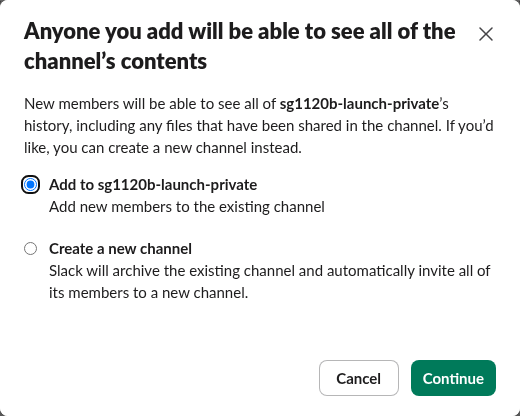
The second option, Create a new channel, archives the current channel and invites its members to a fresh one, so the newcomer starts with an empty history. Pick it when old messages must stay with the original group.
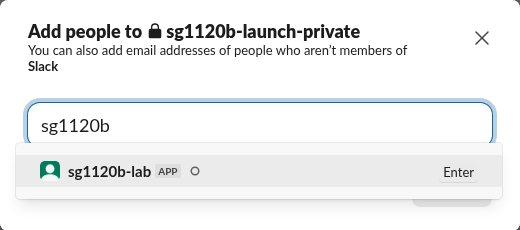
In the next dialog, apps show an APP tag next to their name. The dialog also says you can enter the email address of someone who is not in Slack yet.
Does the new member see old messages?
Yes. We posted three messages on 20 November, added the app on 21 November and read the channel with its token. conversations.history returned all three earlier messages plus the join notice. The channel shows a gray line that names who did the adding:
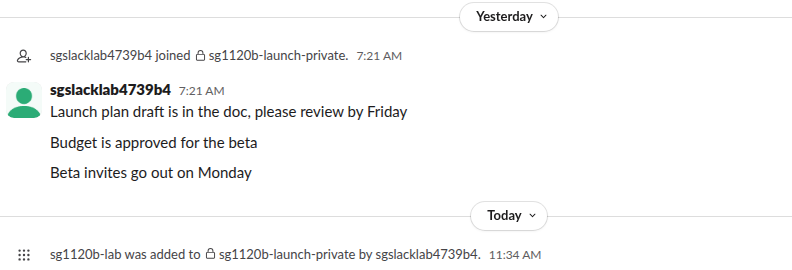
So there is no way to add someone and hide the past from them, other than the new-channel option in the warning.
Other ways to add people, and what we saw
| Method | Where | Result in our test |
|---|---|---|
| Add people in channel details | Members tab | History warning, then the person is added |
/invite @name in the message box | Inside the channel | Added at once; the line read 'rejoined ... by invitation from' because the app had been a member earlier |
conversations.invite API | Any member's token | ok: true |
conversations.join API | The person themselves | channel_not_found: you cannot join a private channel on your own |
We could not tell whether /invite ever shows the history warning, because our app had left the channel minutes before we used it. The Members route showed it every time.
Never appear "away" on Slack again
Cloud-based. No downloads. Works 24/7 even when your laptop is off.
What happens when someone leaves
A person who leaves a private channel cannot come back alone. Our app left with conversations.leave, then tried to join again and to look the channel up:
conversations.leave  -> {'ok': True}
conversations.join   -> {'ok': False, 'error': 'channel_not_found'}
conversations.info   -> {'ok': False, 'error': 'channel_not_found'}
To a non-member the channel does not exist, so a person outside it has to ask a current member to add them. A regular member could also remove people: our member account removed the app with conversations.kick and got ok: true. For the full list of what members can and cannot do in each channel type, see public vs private channels in Slack.
Add someone with the API
Any member's token with the groups:write scope can add a person or an app. This is the call that added our app back, written with requests:
import requests

r = requests.post(
    "https://slack.com/api/conversations.invite",
    headers={"Authorization": "Bearer " + MEMBER_TOKEN},
    data={"channel": "C0123PRIVATE", "users": "U0123NEWBIE"},
    timeout=30,
)
print(r.json()["ok"])  # True
If you are creating the channel from scratch, the Slack channel creation guide covers the private switch, and making a private channel public covers the reverse.
FAQ
Does the person get a notification?
Yes. When our test app added the member account to a channel, the member's Activity tab showed 'channel_join message.
Can I remove someone again?
Yes. Our member account, which is not an admin, removed the app with conversations.kick and got ok: true.
Can I make the new person see only new messages? Not in the same channel. Use Create a new channel in the warning dialog, which archives the old channel and starts a fresh one with the same members.
Stop Jiggling Your Mouse.
Join hundreds of remote workers who never worry about their Slack status. Set it up once, stay green forever.
Related Articles
How to Create a Channel in Slack: Public, Private and API
Click Add channels, then Create a new channel, name it, pick Public or Private and click Create. We created both kinds as a regular member on 18 November 2026, plus two more with conversations.create, and recorded every name error.
How to Change Your Display Name in Slack (Tested)
Change your Slack display name under Profile > Edit. We tested where it shows, which names Slack refuses, and why a change may not stick.
Slack Profile Title: Add a Job Title and Search by It
Your Slack title sits under your name on your profile, and people search can filter by it. We set one on 20 November 2026 as a regular member, searched for it, tried to set it through the API, and read which profile fields a Free workspace has.