
How to Make a Private Slack Channel Public, and Who Can
Open the channel, click its name, go to Settings, and choose Change to a public channel. By default only Workspace Owners, Org Owners and Org Admins can do it. The whole history and every file become visible to the workspace.
To make a private Slack channel public, open the channel on the desktop app, click the channel name in the header, select the Settings tab, scroll down and click Change to a public channel, then confirm with Change to Public. By default only Workspace Owners, Org Owners and Org Admins can do this. Workspace Admins and regular members cannot, so if you do not see the option, ask an Owner. Once the channel is public, anyone in the workspace can find it and read its full history, and files shared in it become public for good.
The steps and rules come from Slack's help article "Convert a channel to private or public". We build Slack Green, a Slack presence tool, and write guides like this for the Slack questions our users ask.
Convert a private channel to public, step by step
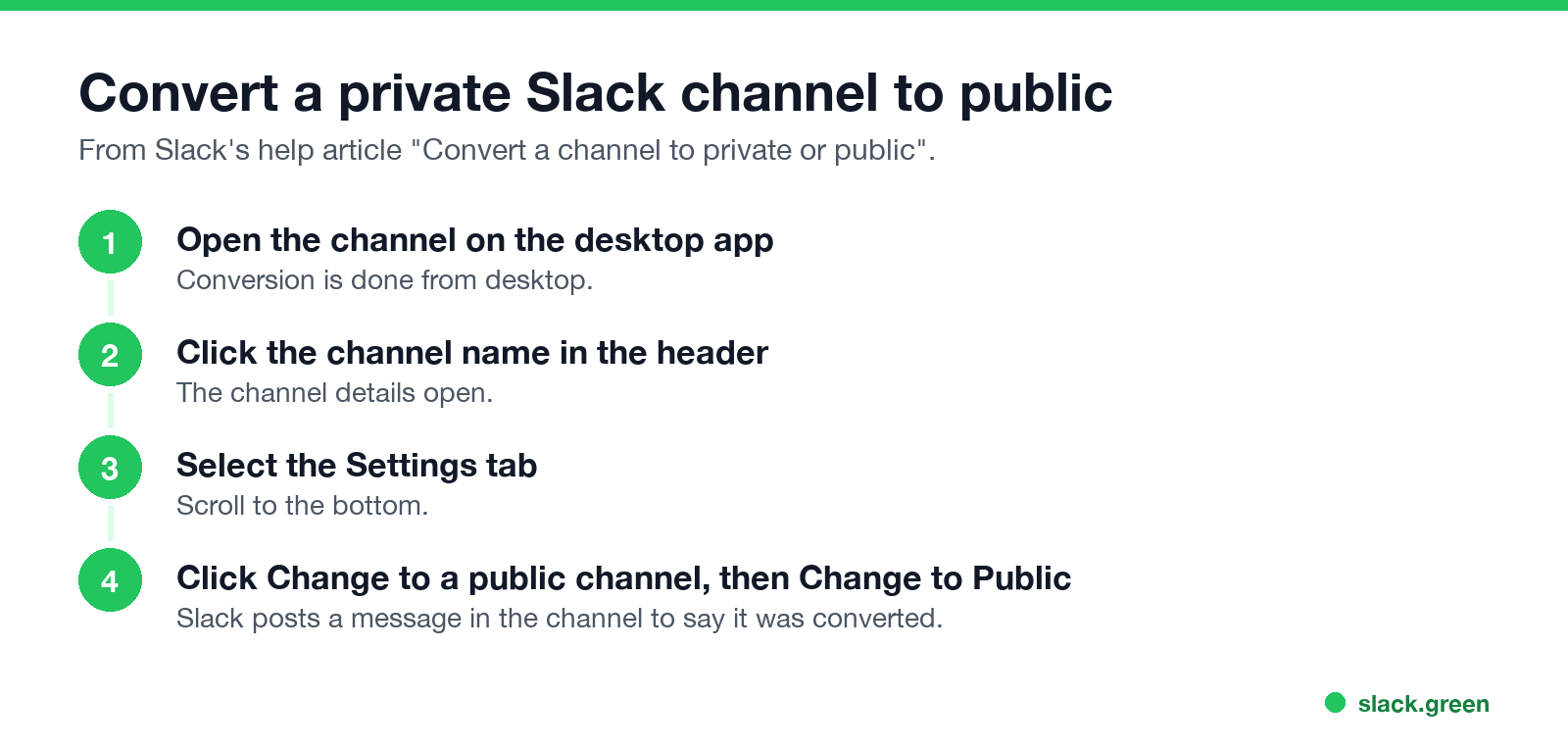
- On the desktop app, open the private channel.
- Click the channel name in the conversation header.
- Select the Settings tab.
- Scroll down and click Change to a public channel.
- Click Change to Public to confirm.
Slack posts a message in the channel to tell members it was converted. The channel keeps its name, members and history.
Who can make a private channel public?
| Action | Who can do it by default |
|---|---|
| Private to public | Workspace Owners, Org Owners and Org Admins |
| Public to private | Workspace Owners and Admins, Org Owners and Admins, and Channel Managers |
Owners can restrict both actions further. That is why a Workspace Admin can make a channel private but not public: making something private narrows access, making it public opens it. The full split between the roles is in Slack workspace Owner vs Admin. The feature is available on all plans.
What changes when a private channel goes public
Never appear "away" on Slack again
Cloud-based. No downloads. Works 24/7 even when your laptop is off.
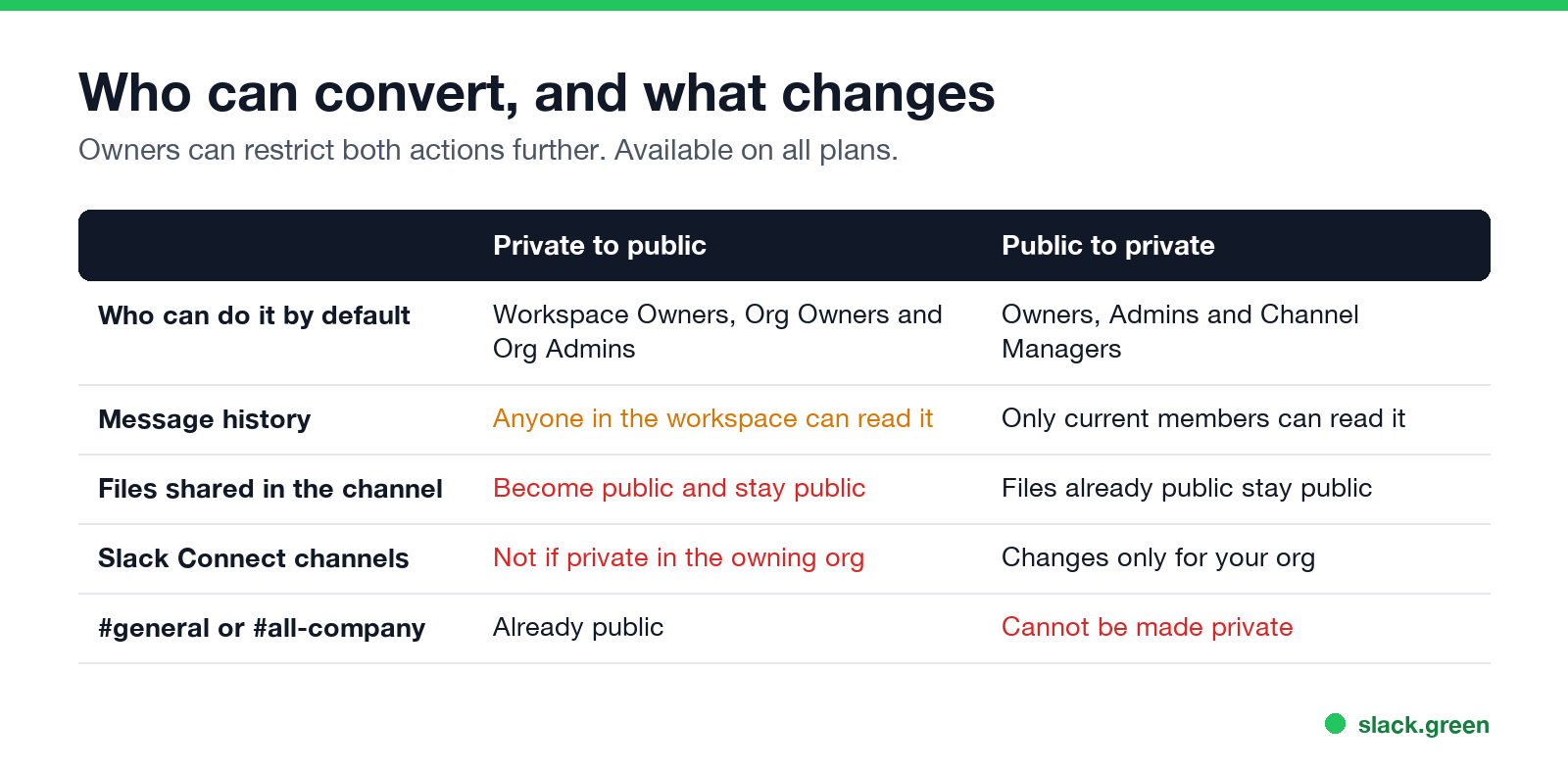
If some of the history should stay private, a cleaner path is to create a new public channel and move only the discussion that belongs there.
How to make a public channel private
Owners, Admins and Channel Managers can do this by default. The #general or #all-company channel cannot be made private. On Business+ and Enterprise, Owners and Admins can also convert channels to private from the channel management tools.
Private channel visibility: who can see what
If a channel you expect has vanished from your sidebar rather than changed type, see Slack channels disappeared from the sidebar.
FAQ
Never appear "away" on Slack again
Cloud-based. No downloads. Works 24/7 even when your laptop is off.
Can you make a private Slack channel public?
Yes. A Workspace Owner, Org Owner or Org Admin can do it from the channel's Settings tab with Change to a public channel.
Why can't I make a Slack channel public?
By default only Owners can. Admins and members do not see the option. Owners can also restrict it further.
Does converting a channel to public show old messages?
Yes. The full history becomes readable by anyone in the workspace who opens the channel.
Can you convert a public Slack channel back to private?
Yes, from the same Settings tab with Change to a private channel. Files that became public stay public.
Are members notified when a channel is converted?
Yes. Slack posts a message in the channel when it is converted.
Stop Jiggling Your Mouse.
Join hundreds of remote workers who never worry about their Slack status. Set it up once, stay green forever.
Related Articles
Slack Lists Tutorial: Create, Organize and Share a List
Slack lists are tables of tasks inside Slack, with fields, assignees, due dates, a board view and a comment thread on every item. How to create a list from scratch or a template, set up fields, turn it into a kanban board, add messages to it, share it, and what the plan limits are.
Slack Jira Integration: Setup, /jira Commands and Notifications
Install the Jira Cloud for Slack app, type /jira connect in a channel to send a Jira space's updates there, /jira notify for personal notifications as DMs, and create work items from any message with More actions. Every /jira command, Jira automation to Slack, and fixes when previews or notifications stop.
How to Create a Slack Workspace, on Desktop or Phone
Go to slack.com/get-started, enter your email, type the confirmation code, and click Create a Workspace. It is free to start, you become the Primary Owner, and it takes about five minutes. Steps for desktop, iPhone and Android, and what to set up next.