
Slack Bookmarks: Where They Are Now, and Why They Disappear
Slack channel bookmarks now live in folder tabs above the messages, not in a bookmarks bar. We added, moved and deleted them in a test channel and through the bookmarks API, and found the delete that hides bookmarks the API still lists.
Slack channel bookmarks are links pinned to the top of a channel for everyone in it. In the current Slack web app there is no bookmarks bar any more. Each bookmark sits in a folder, and each folder is a tab next to Messages, Pins and Files & links. The default folder is called Bookmarks. We tested this on 3 October 2026 in a free-plan workspace, in the Slack web app and with a test app calling the bookmarks.* API methods.
Bookmarks are shared with the channel. If you want a private list of messages for yourself, that is Later, covered on Slack save for later.
Add a bookmark to a channel
- Open the channel and click + at the right end of the tab row.
- Pick Link. (Folder makes an empty folder tab first.)
- Paste the URL. Slack fills Name from the page title, and you can change it.
- Under Folder, keep Bookmarks or pick New folder and type a name.
- Click Add.
- • You are looking for a bar. Old guides and screenshots show bookmarks in a strip under the channel name. In the current web app they are inside the folder tabs. Click Bookmarks (or another folder name) in the tab row.
- • Someone deleted the folder. In channel details, Tabs lists every tab. A folder tab has Rename tab and Delete tab. Deleting it asked "Are you sure you want to delete this folder with 1 item?" and warned that it would "remove saved links for all members of the channel".
- • The tab is hidden. Built-in tabs such as Pins have Hide tab instead of delete, in the same Tabs list.
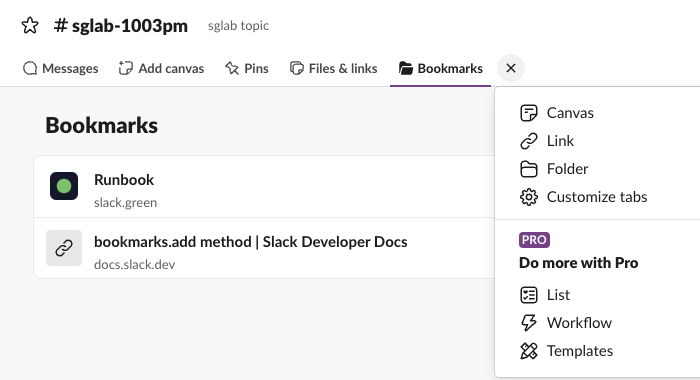
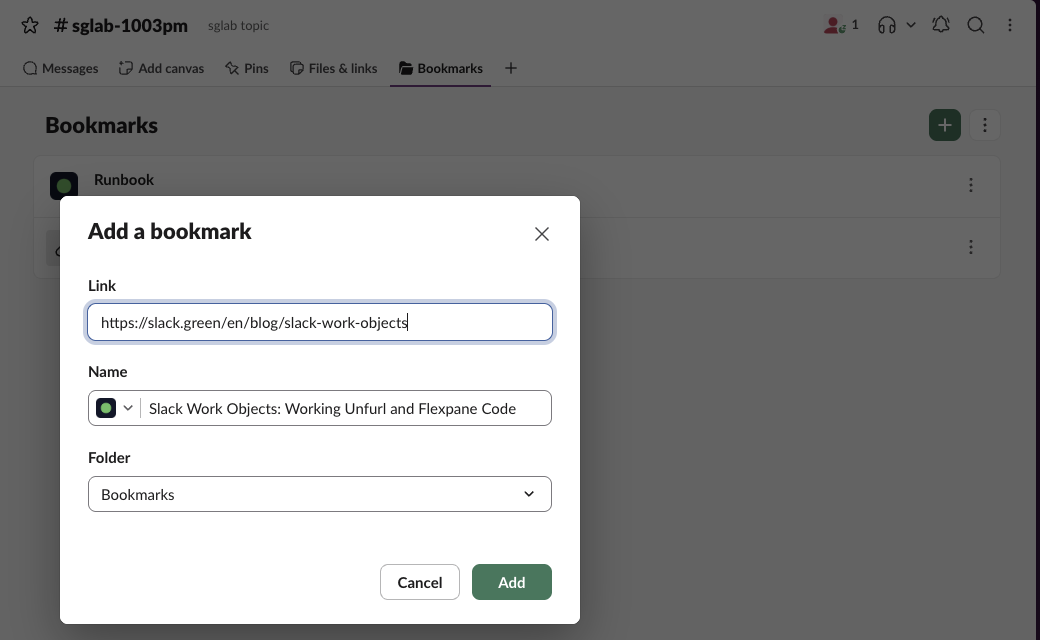
The Folder menu offered only the existing folders and New folder. We found no way to put a link straight on the tab row as its own tab: even the Link item in the tab menu opens this same dialog. A new folder name became a new tab, so our test channel ended up with a Bookmarks tab and a Specs tab. Inside a folder tab, the green + adds a File, a Link or an Upload file.
The Files & links tab is a different thing. It listed the links people had posted in messages, with filters for Files, Media and Links, and none of our bookmarks.
Why your bookmarks are not showing
Three places to check, each seen in our test channel:
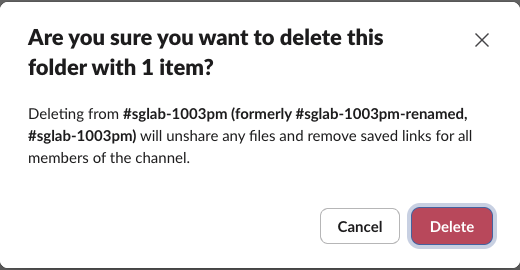
What happened after we clicked Delete did not match the warning. The Bookmarks tab disappeared, but bookmarks.list still returned the bookmark that had been in it, "Runbook (edited)". Then our test app added one new bookmark with no folder. The Bookmarks tab came back, holding both the new one and the "deleted" Runbook:
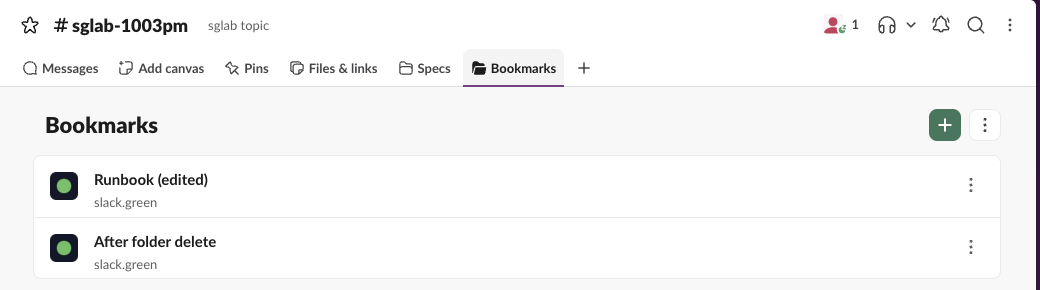
So a deleted default folder can hide bookmarks that still exist. If bookmarks vanished from a channel, add any new bookmark to the default Bookmarks folder and check whether the old ones reappear. Delete the test one after.
Never appear "away" on Slack again
Cloud-based. No downloads. Works 24/7 even when your laptop is off.
The bookmarks API, tested
A bot needs bookmarks:read and bookmarks:write and must be a member of the channel. These are the calls we made with a bot token, with the responses trimmed:
bookmarks.add {"channel_id": "C0C6HQAM8JV", "title": "Runbook", "type": "link", "link": "https://slack.green/en/blog/slack-events-api-event-types"}
-> {"ok": true, "bookmark": {"id": "Bk0C6FP4588J", "title": "Runbook", "type": "link", "icon_url": "https://slack.green/apple-touch-icon.png", "rank": "U", "date_created": 1791012120, ...}}| Call | Result |
|---|---|
bookmarks.add, type link, valid URL | ok, bookmark appears in the Bookmarks folder, icon taken from the site |
bookmarks.add with link "not a url" | invalid_link |
bookmarks.add type link with no link | invalid_arguments |
bookmarks.add type folder | invalid_arguments |
bookmarks.add with a 300-character title | invalid_arguments |
bookmarks.add with parent_id of a folder made in the UI | ok, it showed up in that folder tab |
bookmarks.edit new title | ok, date_updated set |
bookmarks.remove, then the same ID again | ok, then not_found |
bookmarks.add in a channel the bot is not in | not_in_channel |
Two gaps to know before you build on it:
bookmarks.list with the bot token returned only the links, flat, with no parent_id field. The same call from a user session included parent_id for links in a custom folder. Neither listed the folders.bookmarks.list (parent_id of a link inside it) to add into it.A bookmark is not a pin. Pins mark messages in the channel; see Slack pinned messages.
Questions
Do bookmarks need a paid plan? No. Link bookmarks and folders worked on our free workspace. The tab menu marked List, Workflow and Templates as Pro.
Do other members see my bookmarks? Yes. Channel bookmarks and folder tabs are shared with everyone in the channel, and the delete warning says so.
Stop Jiggling Your Mouse.
Join hundreds of remote workers who never worry about their Slack status. Set it up once, stay green forever.
Related Articles
Slack All Unreads: Turn It On, Shortcuts, and Clear Everything
Slack's Unreads view collects every unread message on one page. We turned it on, opened it with Cmd+Shift+A, cleared one channel with Esc and the whole workspace with Shift+Esc, and read Slack's own unread counts before and after each step.
Slack Mute a Channel Without Hiding It: The Setting, Tested
In current Slack, muting a channel also hides it from the sidebar until you turn off one checkbox in Preferences. We muted a test channel, had a bot post and then @mention us in it, and recorded what the sidebar, the badge and Activity showed each time.
Slack Work Objects: A Working Unfurl, Flexpane and the Errors We Hit
We built a Work Object unfurl for a fake ticket tracker in a free Slack workspace: the manifest setting, the chat.unfurl metadata that rendered the card, the entity_details_requested event behind the flexpane, and every error on the way.