
ActivTrak Idle Time: Active, Passive and Inactive Explained
ActivTrak has no single idle timer. After 2 minutes without keyboard or mouse input, your time turns from Active to Passive, and after 5 more minutes it turns Inactive and stops counting. Both limits are set by your company's admin. What each state means for your productivity numbers, and what a locked screen, a meeting or a jiggler does to them.
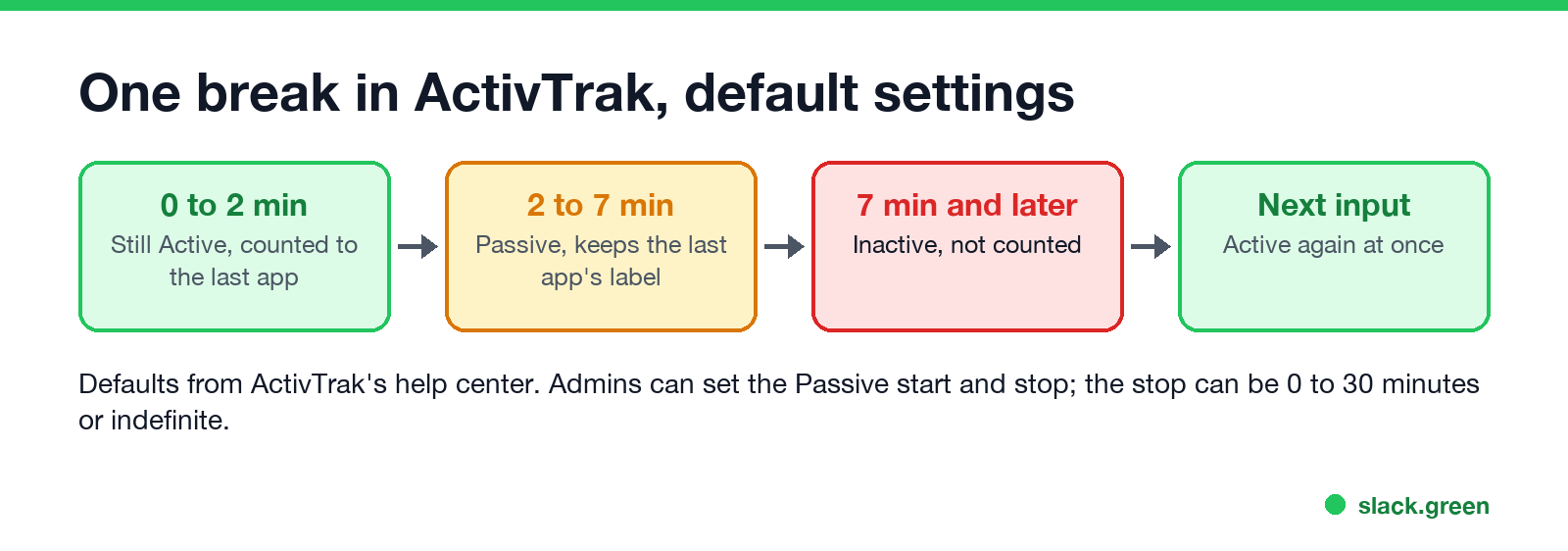
ActivTrak does not use one idle timer. It sorts your screen time into three states. Active is time with keyboard or mouse input. After 2 minutes with no input, your time turns Passive, and those first 2 minutes still count toward the app you were using. After 5 more minutes of Passive time, 7 minutes in all, your time turns Inactive and ActivTrak stops counting until you touch the keyboard or mouse again. Those are ActivTrak's defaults; your company's admin can move both limits, and every change is written to ActivTrak's security audit log. A locked or sleeping computer is recorded separately as Passive Locked.
ActivTrak and Slack do not share a clock. Slack marks you away 10 minutes after your last input in the Slack window, whatever ActivTrak records. Slack Green keeps your Slack status green from a server during the hours you set, and creates no input on your computer, so it does not change your ActivTrak time.
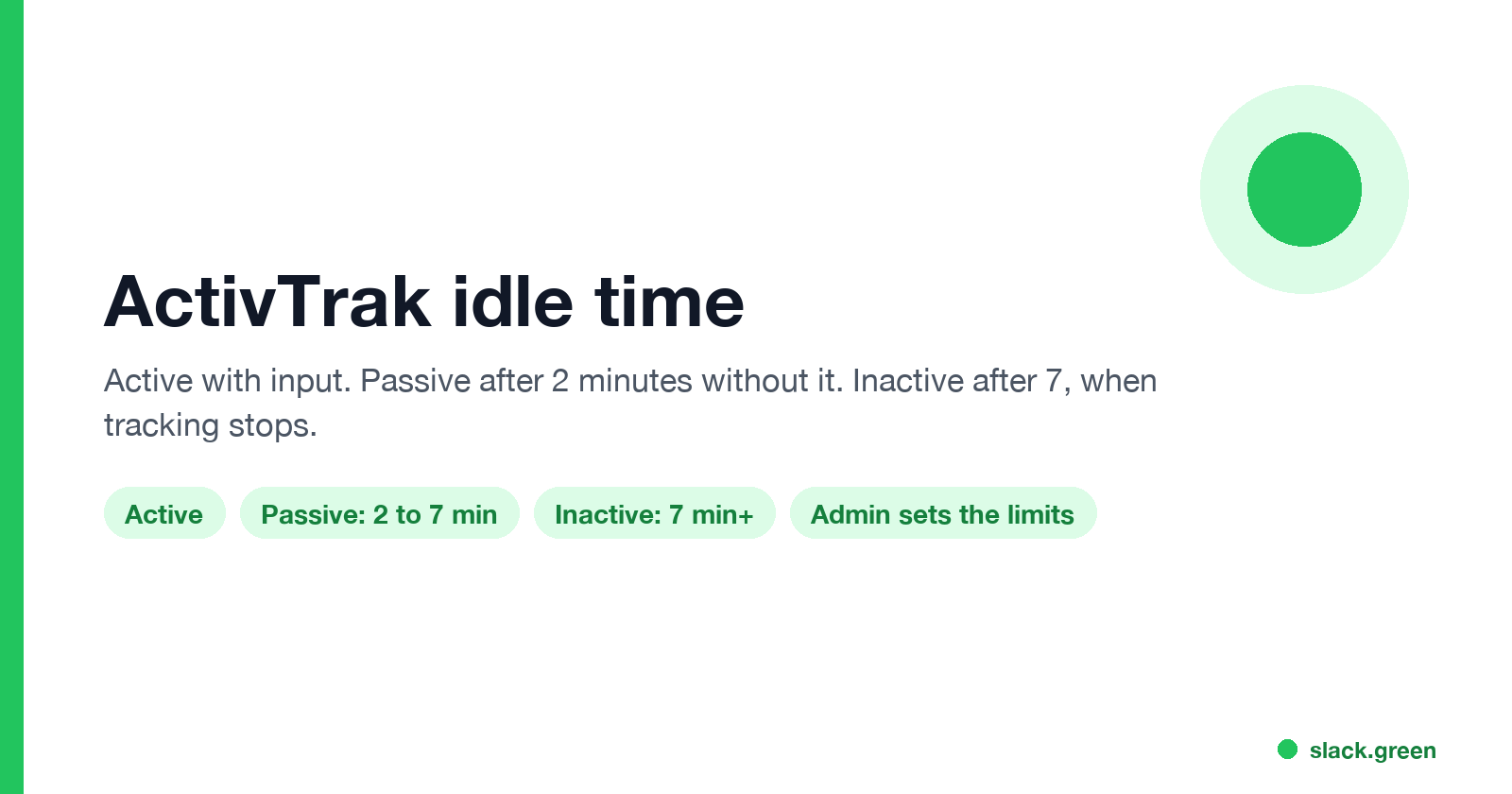
Active, Passive and Inactive time in ActivTrak
| State | What it means | Default timing | Counted in reports? |
|---|---|---|---|
| Active | You are using the keyboard or mouse | From each input | Yes |
| Passive | No input, but recently active | From 2 to 7 minutes after the last input | Yes, in summary views |
| Inactive | Passive time has run out | From 7 minutes after the last input | No, a gap on the timeline |
| Passive Locked | The computer is locked or asleep | While locked | Shown separately |
ActivTrak's help center gives an example: a person steps away from Excel, which the company rated Productive, for 8 minutes with a 3-minute start and 10-minute stop. The first 3 minutes count as Productive Active and the next 5 as Productive Passive. They came back before the stop, so they had no Inactive time at all.
Passive time keeps the label of the last thing you did. Go quiet in Gmail, rated Productive, and the Passive minutes count as Productive Passive. Go quiet on YouTube and they count as Unproductive Passive.
Why ActivTrak counts Passive time at all
ActivTrak's reasoning: reading, a call on the phone, a colleague at your desk and a training video are work without input. So it keeps a few minutes of that time rather than dropping it. It also stops after the Passive limit, because once you have been silent that long, it "cannot determine exactly what they are doing." So a long read or a 30-minute phone call shows as a few Passive minutes and then Inactive time.
Two other settings change this:
- • Offline Meetings. If the company turns it on and the time is a meeting on your calendar, ActivTrak fills Inactive time during that meeting with meeting time.
- • The Active Time cap. By default ActivTrak stops counting Active time after 60 minutes on a single activity. A person, or a jiggler, sitting on one window for hours does not collect hours of Active time.
How Passive time affects your productivity numbers
Never appear "away" on Slack again
Cloud-based. No downloads. Works 24/7 even when your laptop is off.
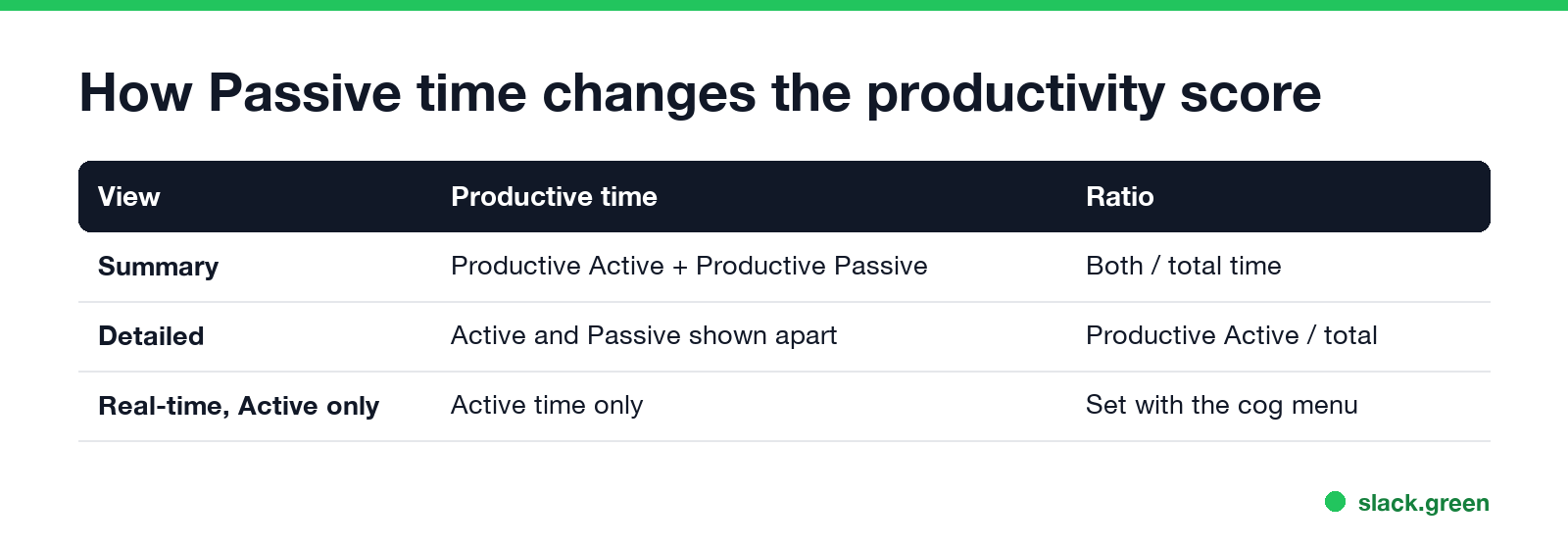
ActivTrak reports have two views:
| View | Productive time counts | Productivity ratio |
|---|---|---|
| Summary | Productive Active plus Productive Passive | (Productive Active + Productive Passive) / total time |
| Detailed | Active and Passive shown apart | Productive Active / total time |
So the same day can show two different productivity scores depending on which view your manager opens. Real-time views can also be set to use Active Time only.
Who sets the ActivTrak idle limits
An admin sets them in Settings > Account Configuration > Data > Passive Time Settings (start and stop) and Active Time Settings. The stop can be 0 to 30 minutes or indefinite. Three things follow from ActivTrak's documentation:
If your numbers look low, ask which limits your company uses. A 1-minute start and a short stop turn every pause to think into Inactive time.
Does a mouse jiggler beat ActivTrak idle time?
It keeps the Active state going, but ActivTrak looks for that. Its detection flags repetitive input, known jiggler software and long stretches on one screen, and newer agents drop that time from standard reports as white gaps. The checks, thresholds and what managers see are in can ActivTrak detect a mouse jiggler. What employers can see more broadly is in how do employers monitor remote workers and how to tell if you are being monitored at work.
FAQ
Never appear "away" on Slack again
Cloud-based. No downloads. Works 24/7 even when your laptop is off.
How long before ActivTrak says I am idle? By default, 2 minutes without input makes your time Passive, and 7 minutes makes it Inactive. Your company can change both.
Does ActivTrak count Passive time as productive? Yes, in summary views, if the last thing you did was rated Productive. Detailed views count only Active time as productive.
Does locking my computer count as idle in ActivTrak? It is recorded as Passive Locked, apart from normal Passive time.
Stop Jiggling Your Mouse.
Join hundreds of remote workers who never worry about their Slack status. Set it up once, stay green forever.
Related Articles
KeepingYouAwake vs Amphetamine: Which Mac Keep-Awake App to Use
KeepingYouAwake is a free, open-source menu bar switch that runs Apple's caffeinate for you. Amphetamine is a free App Store app with triggers, schedules and a closed-lid mode. Pick KeepingYouAwake for one click and Homebrew, Amphetamine for automation. Neither keeps Slack or Teams active.
Computer Locks After 15 Minutes? How to Tell If Group Policy Set It
A work laptop that locks after exactly 15 minutes, with screen settings greyed out, is almost always following a policy from IT: the Windows machine inactivity limit, a forced screen saver, or an Intune device lock. Security baselines and PCI DSS ask for 15 minutes. How to see which policy it is, and what you can and cannot change.
How to Keep a Citrix Session Active: Find Which Timeout Logs You Out
A Citrix session can end from four different timers: Windows locking inside the virtual desktop, the Citrix session idle timer, the Citrix Gateway session time-out, and the StoreFront web page timeout. Only input from your own device into the Citrix window resets them. How to tell which one hit you and what keeps each one quiet.