
How to Change Your Slack Workspace Name: Where It Is, the 50-Character Limit, and What Updates
We renamed a free-plan Slack workspace and watched what changed: the sidebar, the search box and the default icon updated in an open tab within seconds, and the URL stayed the same.
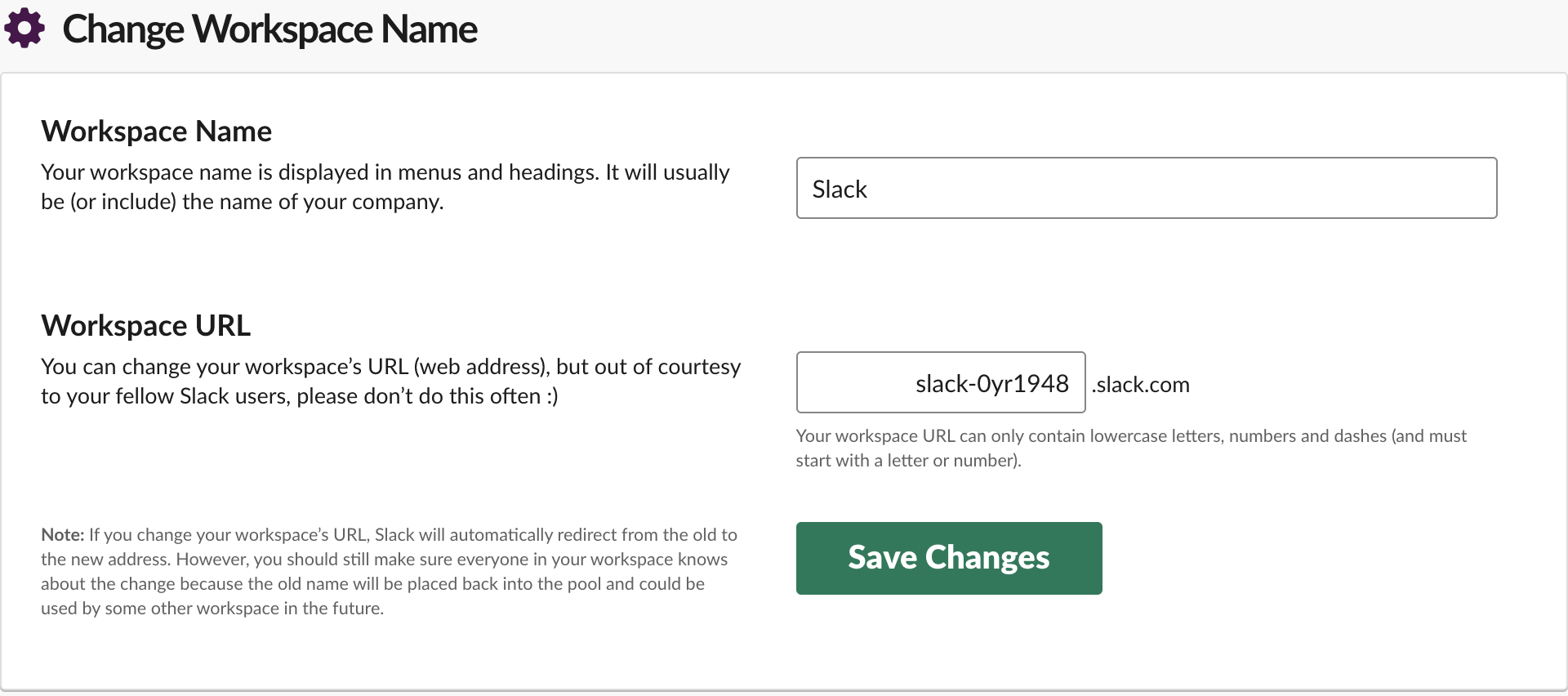
To change a Slack workspace name, click Admin in the left rail, then Edit workspace > Name and URL. Type the new name in the Workspace Name box and click Save Changes. The page sits under Admin, so it is meant for workspace owners and admins; our owner account opened it. On 7 October 2026 we renamed our free-plan test workspace several times and watched the API and an open Slack tab after each save. The new name showed in the open tab's sidebar and search box within about 7 seconds, without a reload, and the workspace URL did not change.
Where the setting is
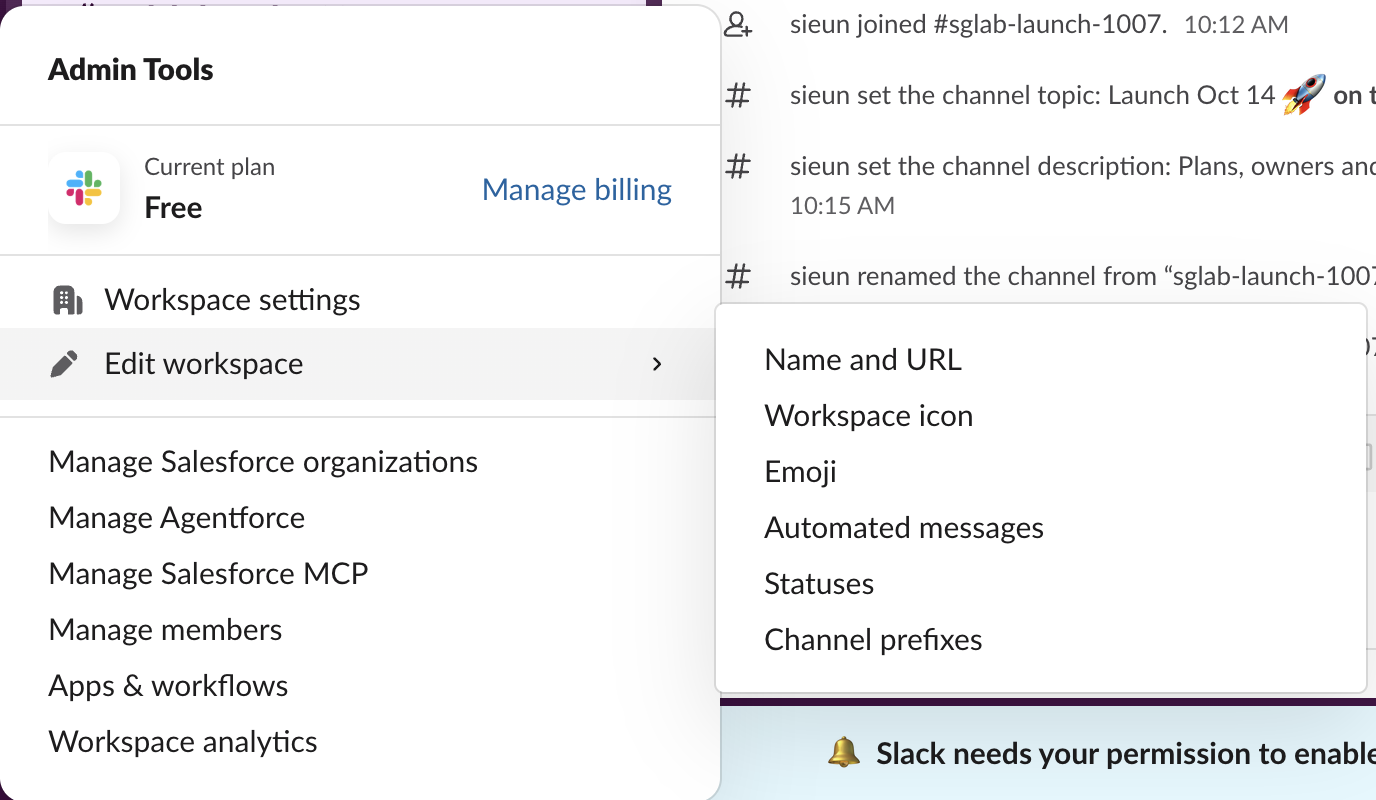
In the current Slack web app the old "Tools & settings > Admin tools" entry only says "Admin tools and settings have moved. You can now access them directly from the sidebar." The path that worked for us:
- Click Admin at the bottom of the left rail.
- Hover Edit workspace.
- Click Name and URL.
The same form is at https://<your-workspace>.slack.com/admin/name, and the admin settings page links to it from the Workspace Name & URL row ("Change Workspace Name & URL"). If you only need to find your workspace name, it is the bold name at the top of the sidebar; the Admin page also shows it in the line "Your workspace name is ... and your URL is ...".
The name and the URL sit on one form, but you can change one without the other. We changed only the name every time. The URL box kept slack-0yr1948, and after each save team.info returned the same domain. Slack's note under the URL box explains what happens if you do change the URL: Slack redirects the old address to the new one for a while, but the old name goes back into the pool and another workspace can take it later.
What changed after we saved
We kept a second Slack tab open on a channel and checked it and the API team.info call every few seconds after clicking Save.

| Place | Updated? | When |
|---|---|---|
team.info name | Yes | at the first check, 7 s after Save |
| Sidebar header in an open tab | Yes, no reload | same check, 7 s |
| Search box placeholder ("Search ...") | Yes, no reload | same check |
| Default workspace icon | Yes: the letter S became NT | same check |
| Admin pages | Yes, with "Your changes have been saved." | at once |
| Workspace URL | No | domain unchanged |
| Message in #all-slack or from Slackbot | None posted | checked right after |
The icon change surprised us. A workspace with no uploaded icon gets a grey tile with letters from its name, so renaming "Slack" to "Northwind Test 1007" turned the tile from S into NT. team.info still reported the same stock image (ava_0006) for that workspace, so the letters are drawn by the app, not stored. If people find your workspace by its tile in the workspace switcher, upload a real icon; our workspace icon test covers sizes and crops.
Slack did not announce the rename anywhere we could see. Nothing was posted in #all-slack, and no Slackbot message arrived. Members find out when they look at the sidebar, so tell them in a channel if the name change matters. We did not check email notices, and we did not test the desktop or mobile apps, because our test workspace is only signed in on the web.
Never appear "away" on Slack again
Cloud-based. No downloads. Works 24/7 even when your laptop is off.
Limits and errors
| What we entered | Result |
|---|---|
A normal name (Northwind Test 1007) | Saved |
Accents and an emoji (Café Ünïcode 🚀) | Saved, shown as typed |
One character (a) | Saved |
| 50 characters | Saved |
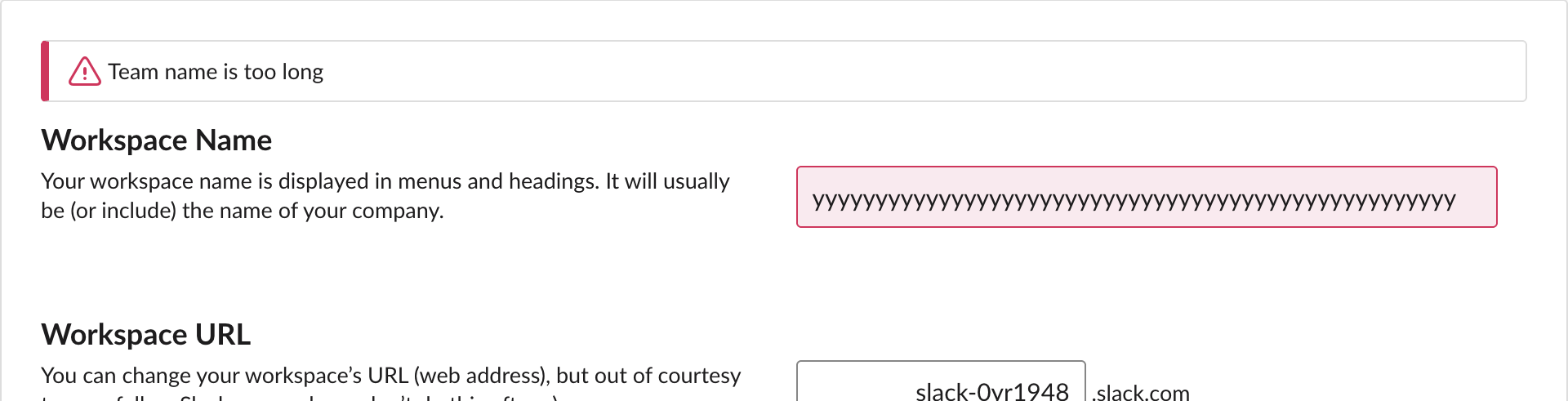
| 51 characters | "Team name is too long" |
| Empty, or only spaces | Save Changes button greyed out |
The name box has a 50-character limit in the page itself, so when you type, it stops at 50. We filled it with a script to get past that, and the server rejected 51 and 60 characters with the same message. The URL box allows 21 characters and only lowercase letters, numbers and dashes, starting with a letter or number; we did not save a URL change, because other people use our test workspace's address.
FAQ
Can a regular member change the workspace name? The Name and URL page is under Admin, which our owner account could open. We had no member-only account to test with, so check with your workspace owner if you do not see the Admin button.
Stop Jiggling Your Mouse.
Join hundreds of remote workers who never worry about their Slack status. Set it up once, stay green forever.
Related Articles
Slack API in Postman: A 16-Request Collection We Ran With Newman, and the Errors It Catches
How to call the Slack Web API from Postman with a bearer token and variables, plus a 16-request collection we ran against a real workspace with newman: 16 requests, 17 assertions, 0 failures, and the five mistakes it checks.
Slack Spell Check Not Working: The Setting, and the Grammarly Conflict We Measured
Slack has one spell check switch, under Preferences > Language & region. In our test browser it was on, yet Slack web showed no red underlines: the Grammarly extension had set spellcheck to false on the message box. How to check yours.
Slack Block Kit Input Block: Modal Fields, state.values and Inline Errors, Tested
We opened a modal with seven input blocks in a test workspace and captured every payload: what Slack checks before your app sees anything, the exact view_submission state.values, response_action errors, dispatch_action, and input blocks in messages.