
Does Teams Show When You Are Typing? Yes, and You Cannot Turn It Off
Yes. When you type in a Microsoft Teams chat, the other people see three animated dots and your name. Teams has no setting to turn the typing indicator off, for users or admins; Microsoft's moderators confirmed it in 2026. Read receipts are a separate feature that you can turn off. How the indicator works, how to write without showing it, and why the dots sometimes go missing.
Yes. When you type in the message box of a Microsoft Teams chat, the other people in that chat see three animated dots and your name, for example "Alex is typing". The dots go away soon after you stop typing or when you send. Teams has no setting to turn the typing indicator off. A Microsoft moderator on Microsoft Q&A wrote in 2026 that "there isn't a verified or supported setting to disable it" and called it "a product decision rather than a configurable option". Admins have no policy for it either.
What you can turn off is a different feature, read receipts, the eye icon that shows you read a message. To keep the dots from appearing, write the message somewhere else and paste it in.
Slack has its own typing indicator, with its own rules; see Slack typing indicator. In Slack the signal people check most is the green dot, which turns grey after 10 minutes without input in the Slack window. Slack Green keeps that dot green during the working hours you set, from the cloud.
How the Teams typing indicator works
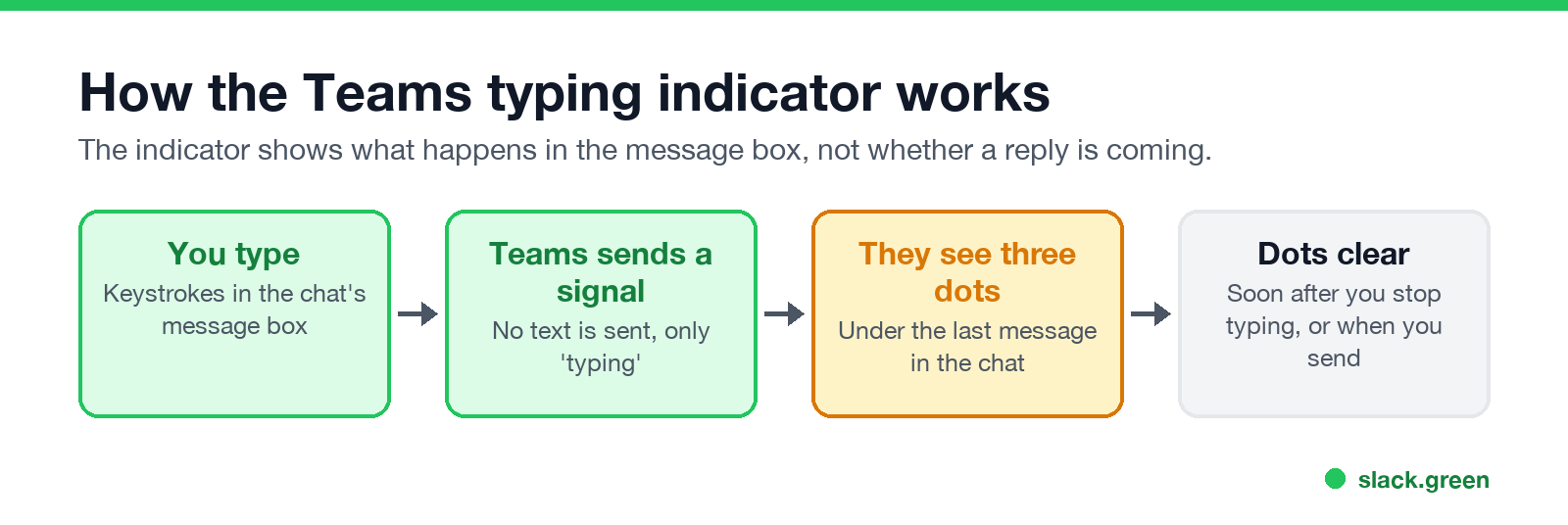
- You press keys in the message box of a one-to-one or group chat.
- Teams sends a "typing" signal to the others in the chat. It does not send the text.
- They see three animated dots and your name under the last message.
- The dots clear soon after you stop, or when you send.
The indicator reflects keystrokes in the box, nothing more. It does not mean a message is coming. People type, delete and walk away, and the dots still showed for a while. One Q&A user described another side effect: after you send, the cursor returns to the message box, and the next stray key press shows the dots again.
What Teams shows others while you chat
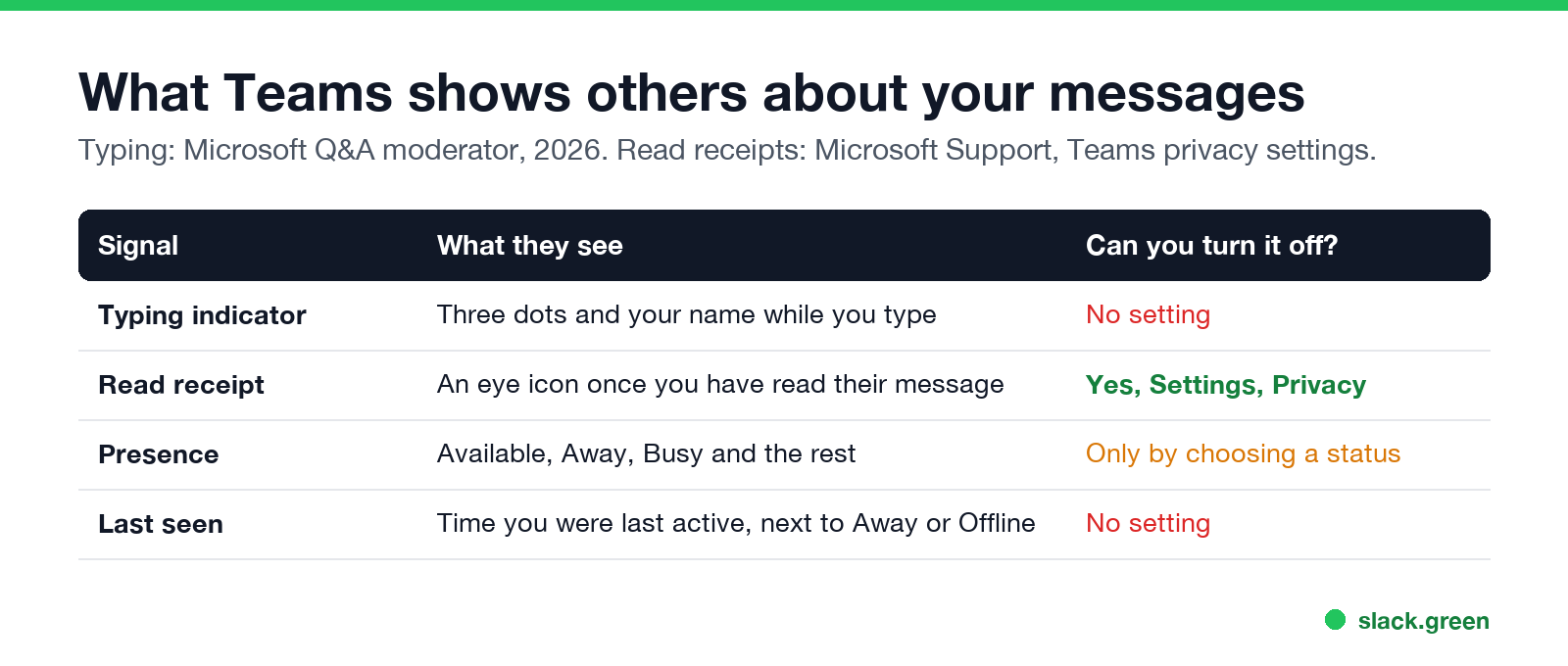
| Signal | What they see | Can you turn it off? |
|---|---|---|
| Typing indicator | Three dots and your name while you type | No |
| Read receipt | An eye icon once you have read their message | Yes, in Settings, Privacy |
| Presence | Available, Away, Busy and the rest | Only by choosing a status |
| Last seen | The time you were last active, next to Away or Offline | No |
Read receipts are on by default in one-to-one chats and small group chats. To turn yours off, select Settings and more (the three dots next to your picture), Settings, Privacy, and switch off Read receipts. With them off, you also stop seeing when others read your messages. Admins can force them on or off for everyone in the Teams messaging policy.
The other two are covered in Microsoft Teams status icons meaning and what does Last seen mean on Teams.
How to type in Teams without showing the dots
Never appear "away" on Slack again
Cloud-based. No downloads. Works 24/7 even when your laptop is off.
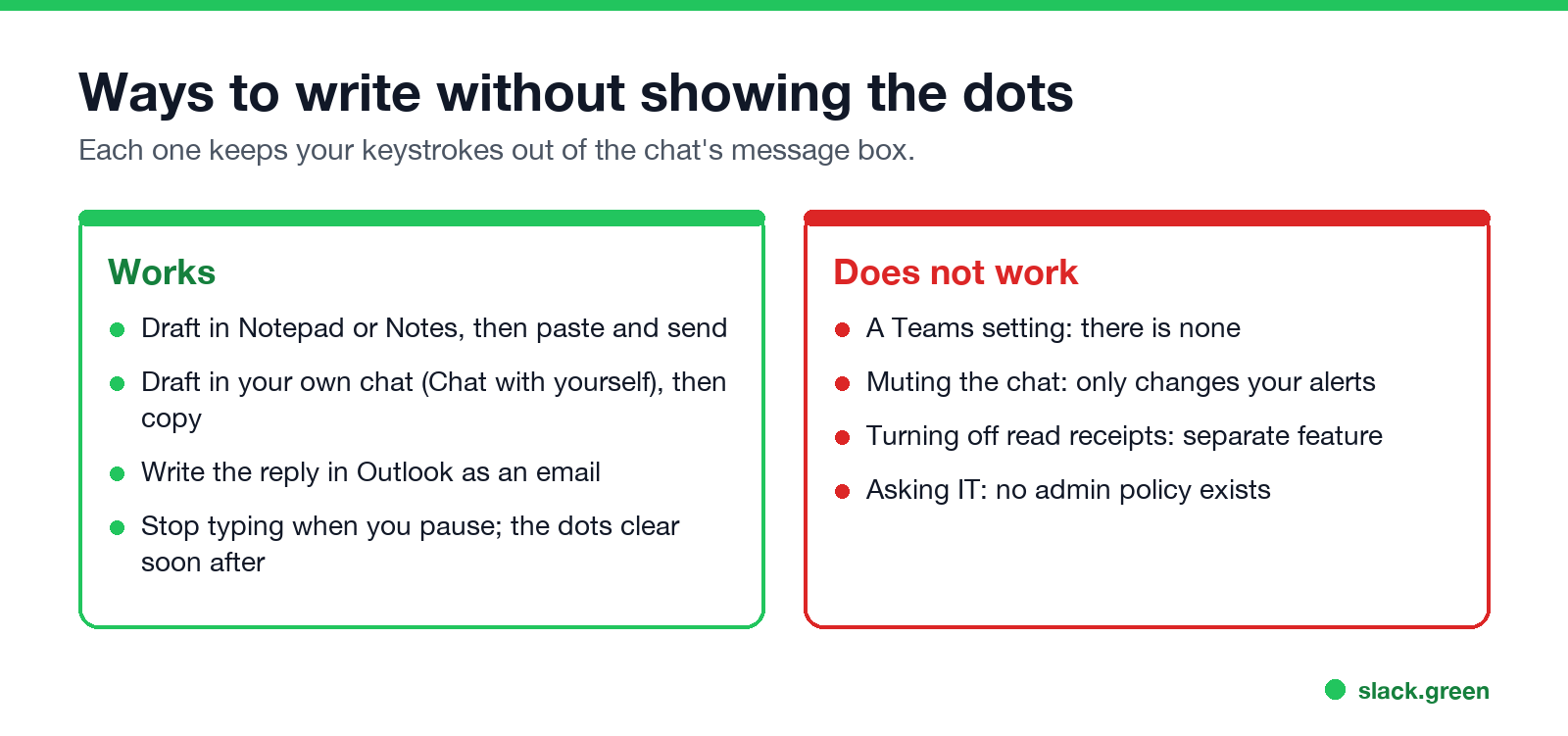
With no setting, the only way is to keep your keystrokes out of that chat's message box:
What does not work: Appear offline changes your status, and Microsoft does not say it hides typing; muting a chat only changes your own alerts; turning off read receipts is a separate feature. If you want fewer signals overall, how to appear offline on Teams covers what that status hides and what it does not.
Teams typing indicator not working
If you no longer see the dots when others type, a Microsoft moderator on Q&A points to one cause on Windows: the Animation effects setting. The dots are an animation, and with it off they may not appear.
Other things to check: the other person may be typing on a slow connection or in a different chat, or Teams needs an update. Signing out and back in clears most stuck states.
Can your manager see what you type before you send?
No. The typing signal carries no text. Drafts stay on your device until you send. Sent messages, including edits and deletions, are kept by your company's retention policies and can be searched by admins, as covered in can my employer see deleted Teams messages. Keystroke logging is a separate question about monitoring software on the computer, not about Teams.
Quick answers
Never appear "away" on Slack again
Cloud-based. No downloads. Works 24/7 even when your laptop is off.
Does Teams show typing in group chats? Yes, the same three dots with the name of the person typing.
Does Teams show when you are typing on mobile? Yes. The Teams app on iPhone and Android sends and shows the same indicator.
Can someone see that I started typing and then deleted it? They see the dots while you type and then see them disappear. They never see the text.
Is there a Teams admin setting for the typing indicator? No. The messaging policy covers read receipts, editing, deleting and other chat features, but not typing.
Stop Jiggling Your Mouse.
Join hundreds of remote workers who never worry about their Slack status. Set it up once, stay green forever.
Related Articles
Can My Employer See My Browsing If I Use a VPN? It Depends Whose
A personal VPN hides the sites you visit from the office network, but not from monitoring software, a managed browser or IT on a work laptop. The company VPN shows your employer every site it carries. What each setup hides.
Teams Status on Multiple Devices: The Last Device You Used Wins
Signed in to Teams on a computer and a phone? Your status comes from the device you used most recently. That is why a quick look at your phone can turn you Away, and why a phone in your pocket shows Away instead of Offline at night.
Zoom Do Not Disturb: How to Turn It On, Schedule It, and What It Blocks
To turn on Do not disturb in Zoom, click your profile picture, point at your status and choose Do not disturb, then a time from 20 minutes to 24 hours, or Custom for a daily schedule. It blocks pop-up notifications for Zoom Team Chat and Zoom Phone calls. Busy, by contrast, mutes nothing. How the two differ, and how to keep a Zoom meeting free of pop-ups.