
Slack Forward Multiple Messages: No Multi-Select, 3 Workarounds Tested
Slack forwards one message at a time. We checked the message menu, shift-click and the forward dialog, then tested three ways to move 10 messages at once: a thread, a copied range, and a script that posts links.
You cannot forward multiple messages at once in Slack. Each message has its own Forward message button, and the forward dialog holds exactly one message. There is also no way to select several messages: the message menu has no Select item, and shift-click does nothing. We checked this in the Slack web app (not the desktop or mobile apps) on 6 October 2026 in our free-plan test workspace, with 10 test messages in one channel. Then we tried three ways to get all 10 to another channel. The best one depends on whether the messages are already in a thread.
What Slack offers for one message
Hover a message and the toolbar shows Forward message... (the curved arrow). The More actions menu (three dots) has Edit message, Mark unread, Add to saved, Add a reminder, Turn off notifications for replies, Copy link, Copy message, Pin to channel, Connect to apps and Delete message. Nothing in it selects a message for a group action.
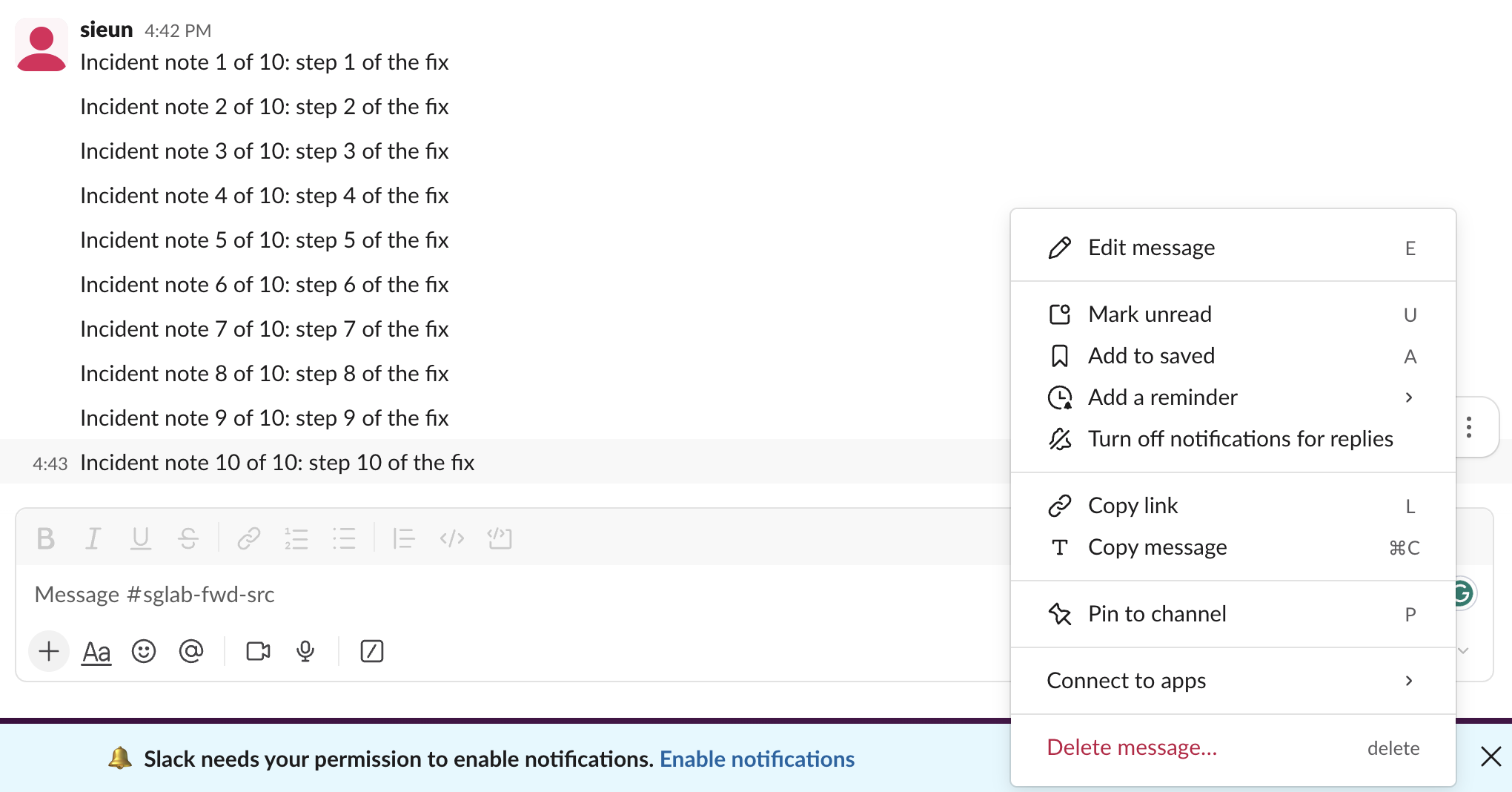
We also held Shift and clicked message 3, then message 7. Nothing was selected, and no toolbar for a group action appeared. The forward dialog is titled "Forward this message". It shows one message under the search box, with Copy Link, Forward and Schedule for later, and has no button to add another message. Forwarding 10 messages this way means opening that dialog 10 times: hover, click the arrow, pick the channel, click Forward, for each message.
Workaround 1: forward the thread, not the messages
If the messages are replies in one thread, forward the thread's first message. We posted a parent message with 10 replies and forwarded the parent to another channel. The forwarded post showed the parent text only, labelled "Thread in #sglab-fwd-src", with no replies and no reply count. Clicking that label opened the original thread with all 10 replies in the side panel.
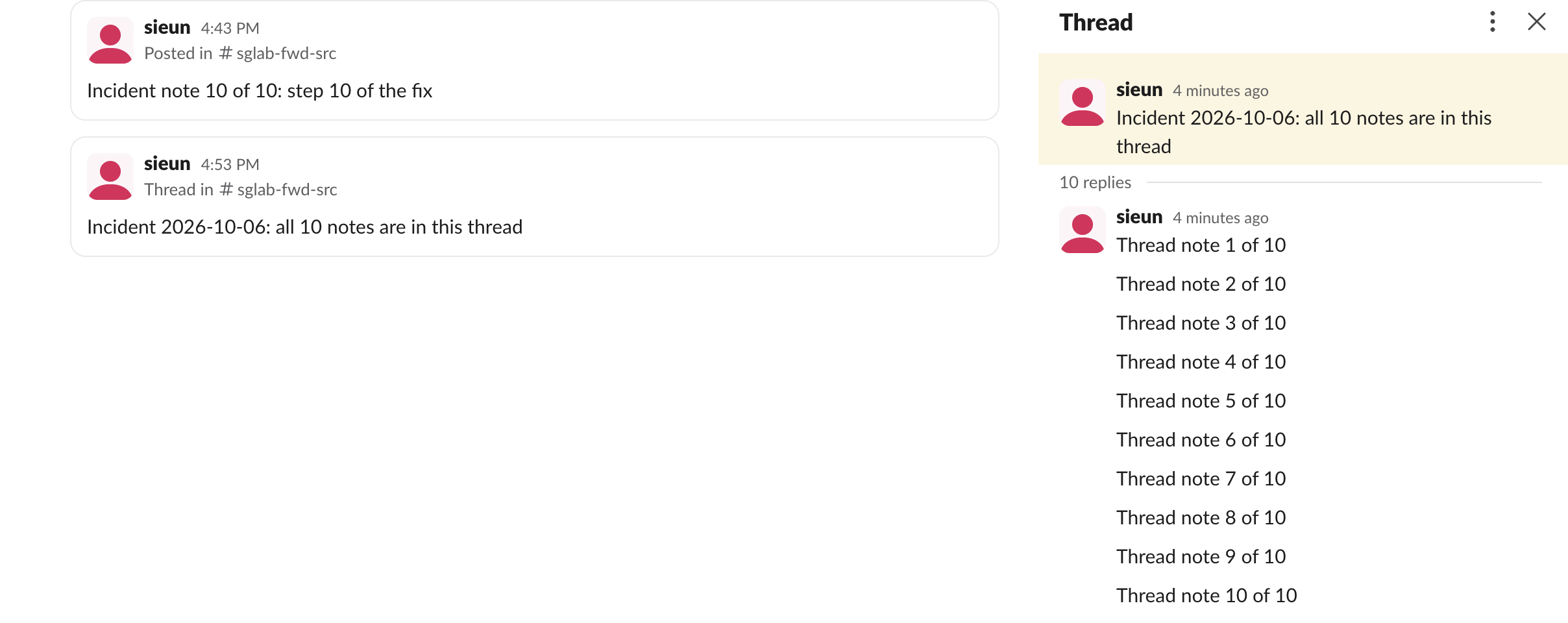
This is one forward instead of 10, and the replies stay readable in context. The catch: the forward links back to the source. A reader has to be able to open the source channel to see the replies. Our test workspace has one member, so we could not check what someone outside a private source channel sees. If the messages are not in a thread yet, this does not help, because Slack cannot move existing messages into a thread.
Never appear "away" on Slack again
Cloud-based. No downloads. Works 24/7 even when your laptop is off.
Workaround 2: select the text of a range and copy it
You can drag across messages to select their text, as on any web page. We pressed the mouse on the first word of message 1 and released after message 10. All 10 were highlighted, and the selection held 456 characters.
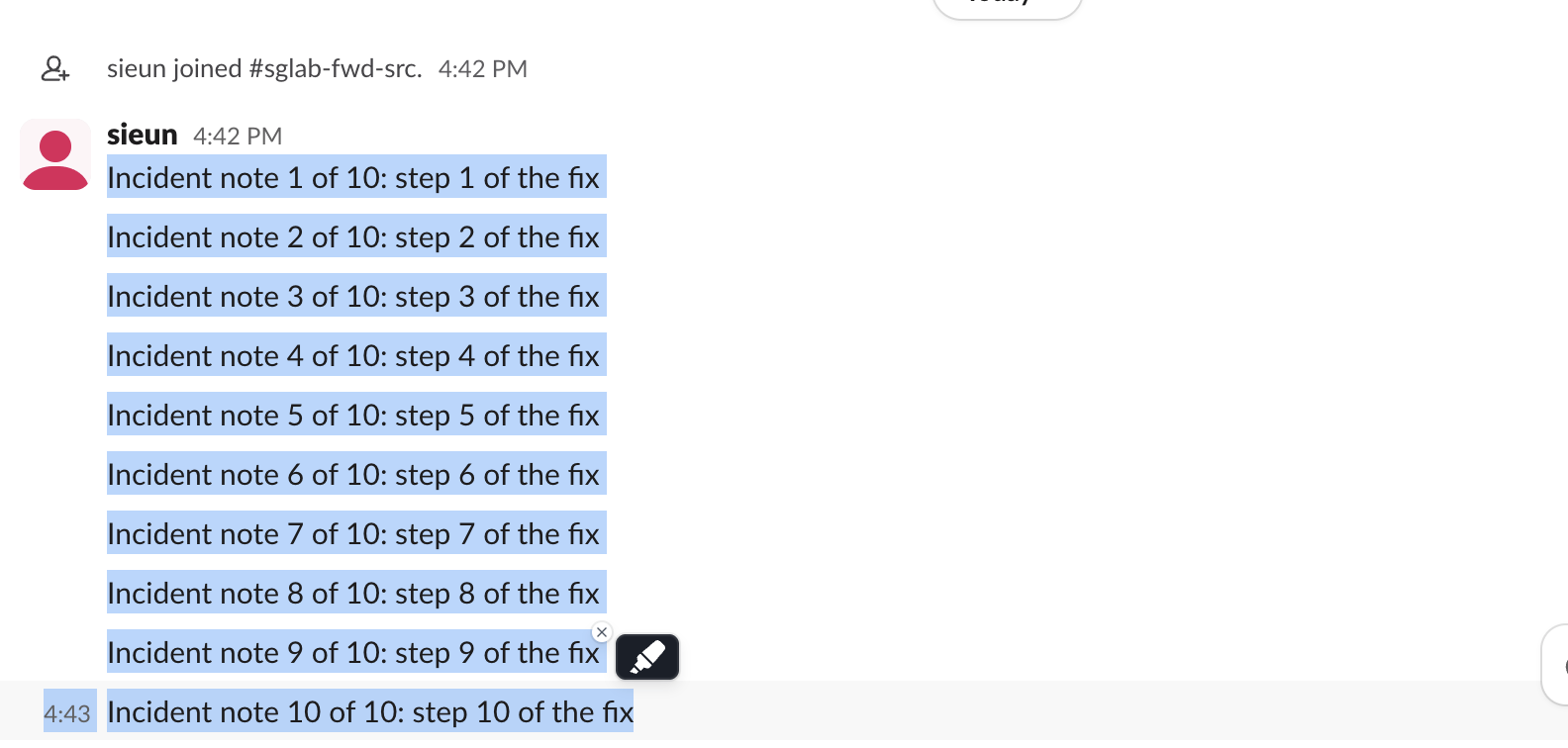
The selection includes more than the messages. Between the lines it held the hover time stamps, 4:42 and 4:43, as separate lines:
Incident note 1 of 10: step 1 of the fix
4:42
Incident note 2 of 10: step 2 of the fix
4:42
Incident note 3 of 10: step 3 of the fix
...
Incident note 10 of 10: step 10 of the fix
Paste it into a message, a canvas or a document, and delete the time lines if you do not want them. This is the fastest way to move the words, but the copy is plain text: it has no link back to the original messages, and replies, reactions and files are lost.
Workaround 3: post the message links with a script
chat.getPermalink returns the link of any message, and Slack shows a preview when you post a message link. This script reads the last 10 messages of one channel and posts all 10 links as one message in another:
import os, time, requests

TOKEN = os.environ["SLACK_TOKEN"]          # bot or user token with channels:history and chat:write
SOURCE, TARGET = os.environ["SOURCE_CHANNEL"], os.environ["TARGET_CHANNEL"]
H = {"Authorization": f"Bearer {TOKEN}"}

start = time.time()
hist = requests.get("https://slack.com/api/conversations.history", headers=H,
                    params={"channel": SOURCE, "limit": 10}, timeout=30).json()
msgs = [m for m in reversed(hist["messages"]) if not m.get("subtype")][-10:]
lines = []
for m in msgs:
    link = requests.get("https://slack.com/api/chat.getPermalink", headers=H,
                        params={"channel": SOURCE, "message_ts": m["ts"]}, timeout=30).json()["permalink"]
    lines.append(f"<{link}|{m['text'][:40]}>")
r = requests.post("https://slack.com/api/chat.postMessage", headers=H, timeout=30,
                  json={"channel": TARGET, "text": "10 messages from #sglab-fwd-src:\n" + "\n".join(lines)}).json()
print("ok:", r["ok"], "links:", len(lines), "seconds:", round(time.time() - start, 1))
Output:
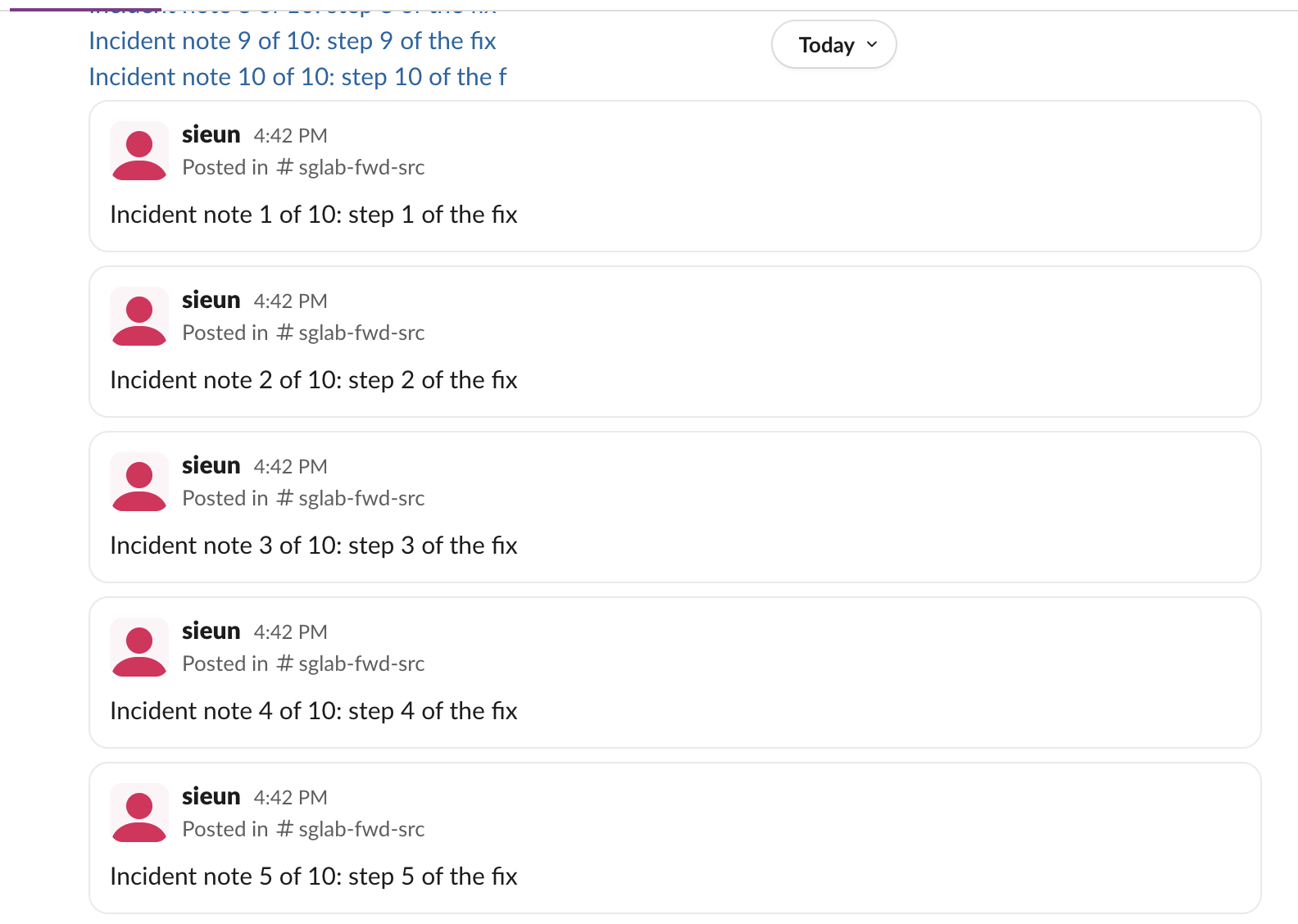
ok: True links: 10 seconds: 24.2The post held 10 links, but Slack showed a preview card for only the first 5. Links 6 to 10 stayed plain blue text, and the API returned 5 attachments with is_share: true. If you want a card for every message, post at most 5 links per message. Our permalink guide explains the link format and who can open one.
Which way to pick
| Way | Steps for 10 messages | Keeps a link to the source | Shows the full text |
|---|---|---|---|
| Forward one by one | 10 dialogs | yes | yes, 10 posts |
| Forward the thread parent | 1 dialog | yes | replies open from the link |
| Drag-select and copy | 1 drag and paste | no | yes, plus time stamps |
| Script with permalinks | 1 run | yes | first 5 as cards |
For a single message, quoting it is another option when you want to reply to it in a new place.
Stop Jiggling Your Mouse.
Join hundreds of remote workers who never worry about their Slack status. Set it up once, stay green forever.
Related Articles
Export a Slack Canvas to PDF or Markdown: What Works, Tested
Slack has no download or export button for canvases. We checked every menu on a test canvas, used Print canvas for PDF, and turned the API's HTML download into clean Markdown with a script we ran.
Send a Slack Message From PowerShell: Webhook, Bot Token and Files
Working PowerShell for Slack: Invoke-RestMethod to a webhook, chat.postMessage with a bot token, Block Kit, and a file upload. Every script was run in PowerShell 7.6.6 against a real Slack workspace, with its output.
Slack App Name Change: Why the Bot Name Does Not Update, Tested
We renamed a Slack app and its bot user eight times in a test workspace. Which names changed, how fast Slack showed them, the App Home edit that never reached Slack, and the exact validation messages.