
Slack File Size Limit: 1 GB Is Exactly 1,073,741,824 Bytes, Tested
We uploaded files of 50 MB, exactly 1 GiB and 1 GiB plus one byte to Slack through its upload API. The limit is 1,073,741,824 bytes, and a failed upload can still leave a broken file behind.
The largest file you can upload to Slack is 1 GB, and that means 1 GiB: 1,073,741,824 bytes. On 7 October 2026 we uploaded test files to a free-plan Slack workspace through Slack's upload API and in Slack for web. A file of exactly 1,073,741,824 bytes went through and could be downloaded again. A file one byte larger was refused: Slack for web showed "File too large" and the API answered invalid length. Slack's help page gives this one limit for all files.
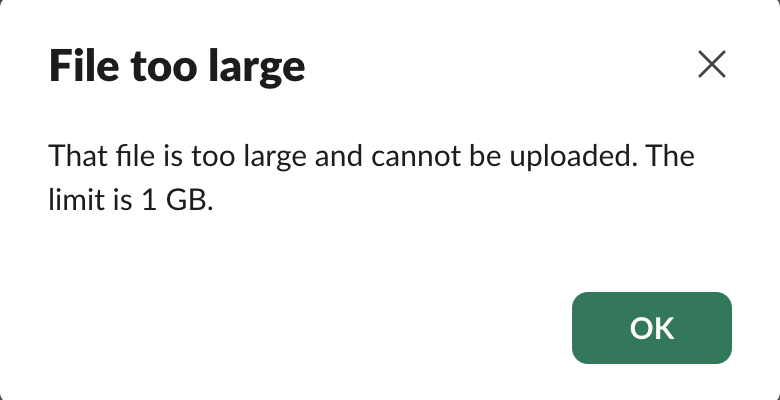
What Slack for web shows
In Slack for web, the check runs before any upload starts. We pasted a file of 1,073,741,825 bytes into a channel's message box, and the dialog above came up at once: "File too large. That file is too large and cannot be uploaded. The limit is 1 GB." Nothing was sent. A file of exactly 1,073,741,824 bytes pasted the same way was accepted: it appeared in the message box and the blue "Uploading" bar started counting. We removed it before it finished.
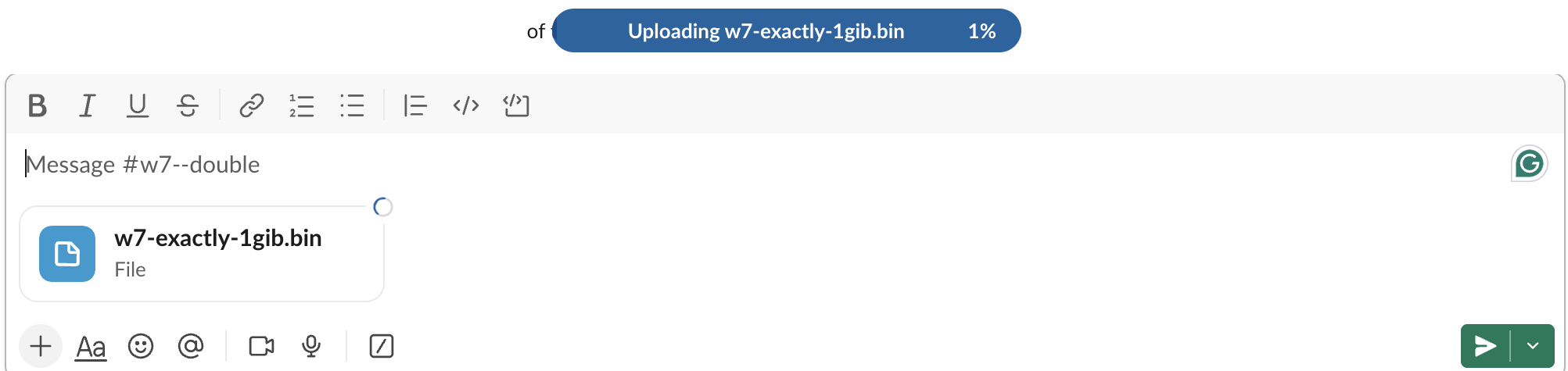
So the app and the API stop at the same byte. The app says so before you wait; the API takes your bytes first and refuses about 30 seconds later.
What we uploaded through the API
Each file went through the three upload steps Slack uses for apps: files.getUploadURLExternal to get an upload address, a POST of the bytes to that address, and files.completeUploadExternal to finish. We used a bot token in our test workspace on the Free plan.
| File size (bytes) | Upload step | Time | Can it be downloaded? |
|---|---|---|---|
| 52,428,800 (50 MiB) | 200 OK - 52428800 | 9.2 s | Yes |
| 1,073,741,824 (1 GiB) | 200 OK - 1073741824 | 151 s | Yes, full size |
| 1,073,741,825 (1 GiB + 1 byte) | 400 invalid length | 30 s | No: 403 |
| 1,074,790,400 (1 GiB + 1 MiB) | 400 invalid length | 29 s | No: 403 |
So "up to 1GB", as Slack's help page puts it, is the binary gigabyte. macOS Finder counts in decimal and shows the largest allowed file as 1.07 GB; Windows File Explorer shows the same file as 1.00 GB.
Slack did not refuse the large files right away. Our connection sent bytes for about 30 seconds before the 400 invalid length came back, so on a slow line you may watch most of the progress bar fill before the error.
Asking for an upload address never checks the size
files.getUploadURLExternal takes a length argument with the file size. We asked for upload addresses with lengths of 1 GiB + 1, 2 GiB, 10 GiB, 100 GiB and 9,007,199,254,740,992 bytes: every call returned ok: true and an upload address. Only 0 and -1 failed, with invalid_arguments. The size check happens when the bytes arrive, not before, so an app cannot ask Slack up front whether a file is too large. Check the size yourself before you start; our page on the files.upload replacement covers the three steps in full.
Never appear "away" on Slack again
Cloud-based. No downloads. Works 24/7 even when your laptop is off.
A failed upload still leaves a file behind
The finish step did not notice the failed upload. For the 1 GiB + 1 byte file, files.completeUploadExternal returned ok: true and a file ID, and files.info listed the file with its full size of 1,073,741,825 bytes. Downloading it returned HTTP 403. When we passed a channel_id in the finish call, the file was not posted to the channel, and files.info showed no shares. A normal 5 MiB file sent the same way, to the same channel, a minute earlier, was posted at once.
We also sent a length that did not match the file:
Declared length | Bytes sent | Upload answer | Result |
|---|---|---|---|
| 1,048,576 | 2,097,152 | 200 OK - 1048576 | File kept, cut to the first 1,048,576 bytes, no warning |
| 2,097,152 | 1,048,576 | 500 internal error: s3_upload | completeUploadExternal ok, file not downloadable |
If you write upload code, check the HTTP status of the upload POST and stop on anything but 200. ok: true from the finish step does not mean the file is usable. Code that ignores the upload status ends up with files that look fine in files.list and fail when someone opens them.
How to send a file larger than 1 GB
Slack's help page "Add files to Slack" says "You can add files up to 1GB in size" and lists no plan that raises it. Our Free-plan workspace hit the limit at exactly that size. The options are to make the file smaller, split it, or send a link.
Splitting works with tools already on a Mac or Linux machine. We split a 1,074,790,400-byte file into two parts under the limit and checked that joining them gave back the same bytes:
split -b 1000m bigfile.bin part-
ls -l part-*
# part-aa  1048576000
# part-ab    26214400
cat part-* > rejoined.bin && cmp rejoined.bin bigfile.bin && echo SAME
# SAME
Each part uploads as its own file, and the person receiving them runs the cat line. For a video, re-encoding at a lower bitrate is easier for the receiver than split parts. For anything people need to open without tools, upload it to cloud storage and post the link.
FAQ
Is the limit different for videos or images? We tested only binary files. Slack's help page gives one limit, 1GB, for all files, and the limit we hit was a byte count, not a file-type check.
Does the Free plan have a lower limit? No. Our test workspace is on the Free plan, and the 1 GiB file uploaded.
Do huge uploads count against storage on the Free plan? We stored a 1 GiB file and several smaller ones in our Free-plan workspace within one hour and got no storage warning or error.
Stop Jiggling Your Mouse.
Join hundreds of remote workers who never worry about their Slack status. Set it up once, stay green forever.
Related Articles
Slack Bot Scopes: The Scope Each API Method Needs, Measured on 44 Methods
We gave a Slack bot one scope, called 44 common Web API methods, and read the needed field of every missing_scope error. Then we added the scopes and called them again. The table shows which scope clears each method.
Slack Dark Mode: Where the Setting Is, and Which Custom Emoji Disappear
Slack's dark mode is under Preferences > Appearance > Color Mode, with Light, Dark and System. We switched modes in Slack web with three test emoji and measured which ones vanish.
Slack Activity Tab: What Lands There, the Filters, and Why You Cannot Hide It
The Activity tab collects mentions, reactions, thread replies, reminders and DMs in one feed. We sent a mention and a /remind to a test account and opened every Activity setting in Slack web.