
Slack files.upload Deprecated: The 3-Step Upload That Replaces It
files.upload now returns method_deprecated. Use files.getUploadURLExternal, POST the bytes, then files.completeUploadExternal, or files_upload_v2 in the SDK. Tested with curl and Python, including two silent failures.
Slack's old files.upload method is retired. On 29 September 2026 our bot, with the files:write scope, called it and got {"ok": false, "error": "method_deprecated"}. The replacement takes three calls: files.getUploadURLExternal returns an upload URL and a file ID, you POST the file's bytes to that URL, and files.completeUploadExternal shares the file to a channel. The Python and Node SDKs wrap all three in one call, files_upload_v2 in Python and filesUploadV2 in Node. Below is the curl version we ran, the Python version, and two mistakes that return ok: true and still give you a broken or missing file.
What files.upload returns now
With a token that has only chat:write, both the old and new methods fail on the scope first:
{"ok": false, "error": "missing_scope", "needed": "files:write", "provided": "chat:write"}After we added files:write and reinstalled, files.upload returned:
{"ok": false, "error": "method_deprecated"}The Python SDK's old files_upload() hits the same wall. slack_sdk 3.44.1 printed a warning to use files_upload_v2(), then raised SlackApiError with method_deprecated. If an old plugin or script reports that error, it still calls files.upload, and updating it is the only fix. Adding scopes will not help.
The 3-step upload with curl
This is the script we ran. It uploads a 41-byte CSV to a channel:
TOKEN=$SLACK_BOT_TOKEN; CH=C0C4RQXFPAT; F=report.csv
LEN=$(wc -c < "$F" | tr -d ' ')

# 1. ask for an upload URL
S1=$(curl -s -X POST https://slack.com/api/files.getUploadURLExternal \
  -H "Authorization: Bearer $TOKEN" -d filename=report.csv -d length=$LEN)
URL=$(echo "$S1" | python3 -c 'import json,sys;print(json.load(sys.stdin)["upload_url"])')
FID=$(echo "$S1" | python3 -c 'import json,sys;print(json.load(sys.stdin)["file_id"])')

# 2. send the bytes
curl -s -X POST "$URL" -F filename=@$F

# 3. finish and share to the channel
curl -s -X POST https://slack.com/api/files.completeUploadExternal \
  -H "Authorization: Bearer $TOKEN" \
  -H 'Content-Type: application/json; charset=utf-8' \
  -d "{\"files\":[{\"id\":\"$FID\",\"title\":\"report.csv\"}],\"channel_id\":\"$CH\",\"initial_comment\":\"uploaded with the 3-step flow\"}"
What each step printed (upload URL shortened):
step 1
{"ok": true, "upload_url": "https://files.slack.com/upload/v1/CwABAAAAXAoAASZgcNSg6rYjCg...", "file_id": "F0C5B99LWLU"}
step 2
HTTP 200, body: OK - 41
step 3
{"ok": true, "files": [{"id": "F0C5B99LWLU", "title": "report.csv"}]}
Step 1 requires length, the file size in bytes. Leaving it out returned invalid_arguments with the message [ERROR] missing required field: length. Step 2 answers with plain text, OK - followed by the number of bytes Slack kept. Step 3 takes channel_id (not channels) and a files array, so you can share several uploaded files in one message. The file ID is created in step 1; the file is not visible to anyone until step 3.
The same upload in Python with files_upload_v2
import os
from slack_sdk import WebClient
client = WebClient(token=os.environ["SLACK_BOT_TOKEN"])
r = client.files_upload_v2(
    channel="C0C4RQXFPAT",
    file="report.csv",
    title="report.csv (v2)",
    initial_comment="files_upload_v2",
)
print(r["files"][0]["id"])
Our run returned ok: True and file ID F0C4S7G940P, and the file showed in the channel as the second upload in the screenshot below. The v2 function takes channel, singular, where the old one took channels.
Never appear "away" on Slack again
Cloud-based. No downloads. Works 24/7 even when your laptop is off.
Two uploads that return ok and are still wrong
We tried two mistakes on purpose. Neither returned an error.
The first: ask for length=10, then send all 41 bytes. Step 2 answered OK - 10, step 3 answered ok: true, and the file in Slack was cut at 10 bytes. The third upload in the screenshot is that file; the header row ends at signu:
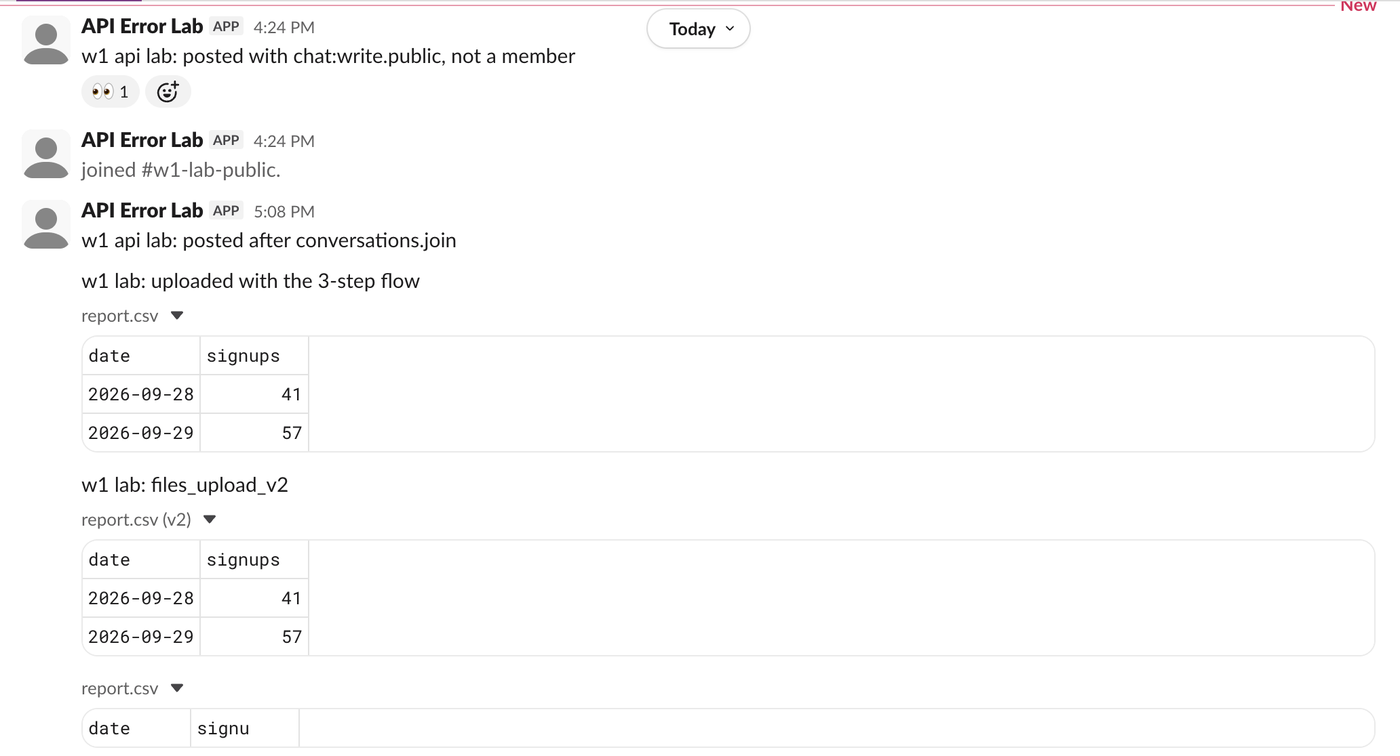
So compute length from the bytes you send, not from a string length before encoding. For UTF-8 text with non-ASCII characters the two differ.
The second: skip step 2 and call files.completeUploadExternal anyway. It returned ok: true. The file never appeared in the channel, and files.info on its ID returned file_not_found. If uploads "succeed" but nothing shows up, check that step 2 ran and that its body says OK - followed by your byte count.
Uploading from other tools
- • GitHub Actions:
slackapi/slack-github-actionhas afiles.uploadV2method; the workflow is in how to send a Slack message from GitHub Actions. - • Incoming webhooks cannot upload files. They post text and blocks only. To attach a file you need a bot token with
files:write, which Slack bot token walks through. - • A private channel needs the bot as a member first, or step 3 fails like any other post; see channel_not_found.
FAQ
Does files_upload_v2 need a different scope from files.upload?
No. Both asked for files:write in our test.
Can I upload into a thread?
Yes. We passed thread_ts to files.completeUploadExternal, and conversations.replies on the parent message then listed the file as a reply. files_upload_v2 takes the same thread_ts argument.
Why did my old integration stop uploading?
If its logs show method_deprecated, it still calls files.upload. Update the library or plugin to a version that uses the 3-step flow.
Stop Jiggling Your Mouse.
Join hundreds of remote workers who never worry about their Slack status. Set it up once, stay green forever.
Related Articles
Slack Member ID: Where to Copy It, and What the U Means
A Slack member ID is the U... code that identifies a person. Copy it from their profile under the three-dot menu, or look it up with users.info and users.list. Tested in two workspaces, with the ID formats we found.
Slack API Rate Limits: What We Hit, and the 429 You Get Back
Slack answers too many calls with HTTP 429 and a Retry-After header. We burst chat.postMessage, conversations.history and an incoming webhook from an internal app and logged every response: where the 429s started, the bodies, and a retry loop that never hit one.
Slack channel_not_found: 7 Causes We Reproduced, With Fixes
channel_not_found means Slack cannot see the channel with the token you used: a wrong ID, a name that does not exist, a private channel the bot is not in, or a channel in another workspace. Each case tested on a real bot.