
Slack File Block: Post Remote and Uploaded Files in Block Kit
A Slack file block shows a file card inside a message. It takes source "remote" plus an external_id or file_id, and the file must exist first. We added remote files with files.remote.add, posted them in file blocks, and tried the mistakes, on 7 November 2026.
A Slack file block is a Block Kit block of "type": "file" that shows a file card inside a message. It does not upload anything. It points at a file Slack already knows about, so you first register the file with files.remote.add (a "remote file" that lives on your server) and then post a block with "source": "remote" and that file's external_id. On 7 November 2026 we did this with a bot token on a Free workspace, added a preview image, put three file blocks in one message, and sent the mistakes on purpose. The calls, the answers and a screenshot of the result are below.
Step 1: register the file with files.remote.add
The app needs the remote_files:write scope. This call registers a PDF that lives on another site:
curl -s https://slack.com/api/files.remote.add \
  -H "Authorization: Bearer $SLACK_BOT_TOKEN" \
  -d external_id=sg1107-report-1 \
  -d external_url=https://example.com/reports/q4.pdf \
  -d title="Q4 report (remote file)" \
  -d filetype=pdf
Slack answered ok: true with a file object: an ID starting with F, "mode": "external", "is_external": true, "size": 0 and our external_id. external_id is your own key for the file. You use it to update, share or remove the file later, so make it something you can look up.
Step 2: post it in a file block
{
  "channel": "C0123ABCD",
  "text": "Q4 report",
  "blocks": [
    { "type": "file", "source": "remote", "external_id": "sg1107-report-1" }
  ]
}
The post went through, and the block Slack stored had gained a file_id and the full file object. Using "file_id": "F0..." in place of external_id also worked.
Add a preview image
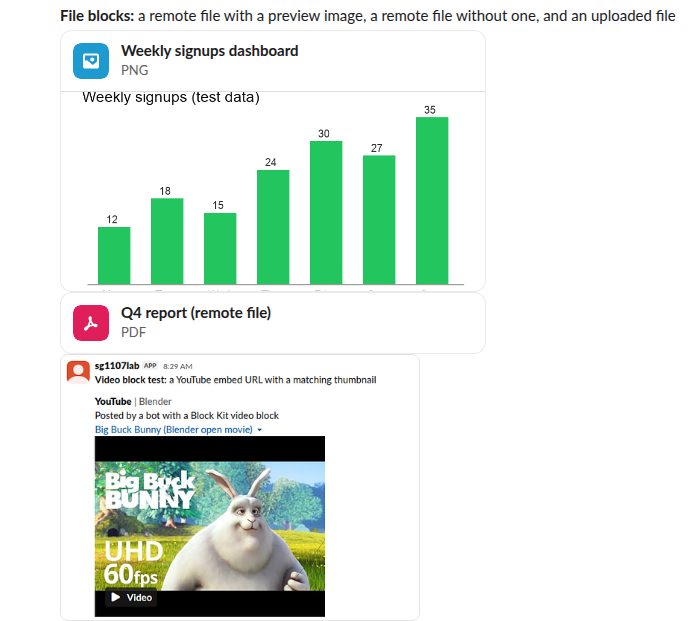
files.remote.add takes an optional preview_image, sent as a multipart upload. With one, the card shows the image under the file name. Without one, Slack shows only an icon and the file type. Here are both, plus an ordinary uploaded file, as three file blocks in one message:
curl -s https://slack.com/api/files.remote.add \
  -H "Authorization: Bearer $SLACK_BOT_TOKEN" \
  -F external_id=sg1107-dash-2 \
  -F external_url=https://example.com/dashboards/signups \
  -F title="Weekly signups dashboard" \
  -F filetype=png \
  -F preview_image=@chart.png
Never appear "away" on Slack again
Cloud-based. No downloads. Works 24/7 even when your laptop is off.
Uploaded files work too
A file uploaded with the current two-step upload (files.getUploadURLExternal, then files.completeUploadExternal with no channel) can also go in a file block, but only with "source": "remote":
| Block we sent | Result |
|---|---|
{"type":"file","source":"remote","file_id":"<uploaded file>"} | Posted; the image showed as in the screenshot |
{"type":"file","source":"local","file_id":"<uploaded file>"} | must be a valid enum value [json-pointer:/blocks/0/source] |
{"type":"file","source":"hosted","file_id":"<uploaded file>"} | must be a valid enum value [json-pointer:/blocks/0/source] |
So remote is the only value Slack accepts for source, whatever kind of file it is. If you are moving off the old upload call, our page on the files.upload retirement shows the two-step upload this relies on.
Errors we got
| What we sent | Error |
|---|---|
No source | missing required field: source [json-pointer:/blocks/0] |
An external_id we never registered | file not found [json-pointer:/blocks/0/file_id] |
source set to local or hosted | must be a valid enum value [json-pointer:/blocks/0/source] |
All three came back as invalid_blocks. Note the second one: the pointer says file_id even though we sent external_id, because Slack looks the file up first. Our guide to the invalid_blocks error has more of these.
File block or files.remote.share?
files.remote.share (scope remote_files:share) posts the remote file to a channel as its own message, with no text or other blocks around it. It answered ok, and files.remote.info then listed that message and our file-block message under the file's shares, so both count as places the file was shared. Use the file block when the file belongs inside a message you build, next to a section or a context block. For a plain image, an image block needs no file record at all.
FAQ
Can I upload a file inside the file block itself?
No. The block only references a file that exists. Upload or register it first, then post the block.
How do I remove a remote file?
Call files.remote.remove with the same external_id. It answered ok: true for our test file.
Does the file block open the file in Slack?
For a remote file, Slack set the file's url_private to the external_url we registered, so the card leads to your server, where the file stays.
Stop Jiggling Your Mouse.
Join hundreds of remote workers who never worry about their Slack status. Set it up once, stay green forever.
Related Articles
Slack Video Block: Which URLs Work, Tested With Real Errors
A Block Kit video block needs video_url, thumbnail_url, title and alt_text, and its video_url must be an embeddable player URL on a domain your app claims. We made 26 posts with a bot token on 7 November 2026; a YouTube /embed/ URL worked with no setup, and every other host needed claimed unfurl domains plus a reinstall.
ngrok for a Slack Bot: What It Needs, and Two Free Alternatives Tested
A Slack bot on localhost needs a public HTTPS URL for events and slash commands, or Socket Mode. We tried ngrok 3.39.13 with no account (ERR_NGROK_4018), a Cloudflare quick tunnel and Socket Mode on 8 November 2026, timed the replies, and broke the tunnel URL on purpose.
Slack Java SDK: Post, Read History and Run a Bolt App (Tested 1.54.0)
The Slack Java SDK is com.slack.api:slack-api-client for Web API calls and com.slack.api:bolt for apps. We ran version 1.54.0 with Gradle on 8 November 2026: chat.postMessage, conversations.history with a cursor, a Socket Mode Bolt app and a Kotlin Block Kit post, plus the silent failure in ctx.say.