
How to Copy or Duplicate a Slack Canvas
Slack canvases have no Duplicate button. To copy one, select all, copy, and paste into a new canvas, or copy it by API. We tested both on October 28, 2026: headings and lists came through, but links to sections still pointed at the old canvas.
Slack has no button to duplicate a canvas. The canvas menu we checked on October 28, 2026 had 14 items, and none of them was Duplicate, Make a copy or Convert to a template. To copy a canvas, click inside it, press Cmd + A (Mac) or Ctrl + A (Windows) and Cmd/Ctrl + C, then open a new canvas and paste. Headings, lists and links came through in our test. If you want the same canvas in a second channel rather than a copy, use Share this canvas or Add existing canvas instead.
What the canvas menu offers
Open the three dots at the top right of a canvas:
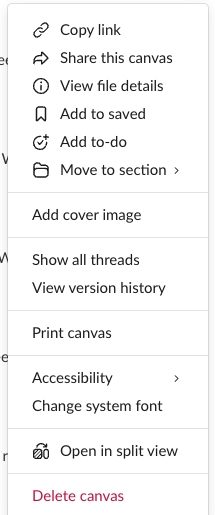
Copy link copies a link to the same canvas. Share this canvas posts that same canvas to another channel or person. Neither makes a second canvas: an edit in one place shows everywhere.
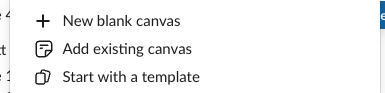
The Add canvas button in a channel works the same way. Add existing canvas adds a tab for a canvas that already exists; only New blank canvas and Start with a template make a new one:
Copy a canvas by hand
- Open the canvas and click anywhere in the text.
- Press Cmd + A, then Cmd + C (Ctrl on Windows).
- Go to the channel or DM for the copy, click Add canvas, then New blank canvas.
- Click in the new canvas and press Cmd + V.
- Give the copy a title.
We copied a canvas with a contents list, 18 paragraphs, an H1 and six H2 headings, and pasted it into a new channel canvas. Then we downloaded both canvases through Slack's API and compared them:
| Part of the canvas | In the pasted copy |
|---|---|
| H1 and H2 headings | Kept |
| Bulleted list | Kept |
| Paragraph text | Kept |
| Bold text | Kept |
| Links to sections of the old canvas | Kept, but still pointing to the old canvas |
| Section IDs | New ones |
| Outline at the left edge | Rebuilt from the headings |
The links are the trap. A contents list made of section links (see Slack canvas table of contents) keeps working in the copy, but every link opens the original canvas. Relink them in the copy, or delete the original only after you have.
Copy a canvas as Markdown
The copy holds two formats. As plain text, which you get when you paste into a plain text editor, headings lost their # signs and bullets became *:
Contents

* Goals
* Timeline
* Owners
* Risks
* Launch checklist
* Retro notes


Background

Background paragraph 1. This plan replaces the September draft and keeps the same owners, dates and budget lines for each team.
The HTML version on the clipboard kept <h2>, <ul> and the links, so an editor that reads HTML should keep more; we did not test one. For real Markdown, the API route below or exporting a Slack canvas works better.
Never appear "away" on Slack again
Cloud-based. No downloads. Works 24/7 even when your laptop is off.
Copy a canvas with the API
This Python script reads one canvas and creates a copy in another channel. It needs a bot token with files:read, canvases:read and canvases:write, and it uses only the standard library:
import os, sys, json, re, html, urllib.request, urllib.parse
from html.parser import HTMLParser

TOKEN = os.environ["SLACK_BOT_TOKEN"]

def api(method, **params):
    req = urllib.request.Request("https://slack.com/api/" + method,
        data=urllib.parse.urlencode(params).encode(),
        headers={"Authorization": "Bearer " + TOKEN})
    with urllib.request.urlopen(req, timeout=30) as r:
        return json.load(r)

class ToMarkdown(HTMLParser):
    """Turn Slack's canvas HTML into the markdown canvases.create accepts."""
    def __init__(self):
        super().__init__(); self.out = []; self.prefix = ""; self.href = None; self.list = []
    def handle_starttag(self, tag, attrs):
        a = dict(attrs)
        if tag in ("h1", "h2", "h3"): self.out.append("\n" + "#" * int(tag[1]) + " ")
        elif tag == "p": self.out.append("\n")
        elif tag in ("ul", "ol"): self.list.append(tag)
        elif tag == "li": self.out.append("\n" + ("1. " if self.list and self.list[-1] == "ol" else "- "))
        elif tag == "b": self.out.append("**")
        elif tag == "i": self.out.append("_")
        elif tag == "lnk": self.href = a.get("href"); self.out.append("[")
    def handle_endtag(self, tag):
        if tag in ("h1", "h2", "h3", "p"): self.out.append("\n")
        elif tag in ("ul", "ol"): self.list.pop(); self.out.append("\n")
        elif tag == "b": self.out.append("**")
        elif tag == "i": self.out.append("_")
        elif tag == "lnk": self.out.append("](" + self.href + ")")
    def handle_data(self, data): self.out.append(data)
    def markdown(self): return re.sub(r"\n{3,}", "\n\n", "".join(self.out)).strip() + "\n"

source, target_channel = sys.argv[1], sys.argv[2]
info = api("files.info", file=source)["file"]
req = urllib.request.Request(info["url_private"], headers={"Authorization": "Bearer " + TOKEN})
with urllib.request.urlopen(req, timeout=30) as r:
    page = r.read().decode()
p = ToMarkdown(); p.feed(page)
md = p.markdown()
print("source:", source, info["title"], len(page), "bytes of HTML")
print("headings:", len(re.findall(r"^#{1,3} ", md, re.M)), "links:", md.count("]("))
res = api("conversations.canvases.create", channel_id=target_channel,
          document_content=json.dumps({"type": "markdown", "markdown": md}))
print("create:", res.get("ok"), res.get("canvas_id") or res.get("error"))
We ran it on our test canvas with a second channel as the target:
$ python3 copy_canvas.py F0CCUDJEYJD C0CCUBEE249
source: F0CCUDJEYJD Untitled 7240 bytes of HTML
headings: 8 links: 6
create: True F0CCLAV18LB
The copy opened in the second channel with the contents list and all eight headings:
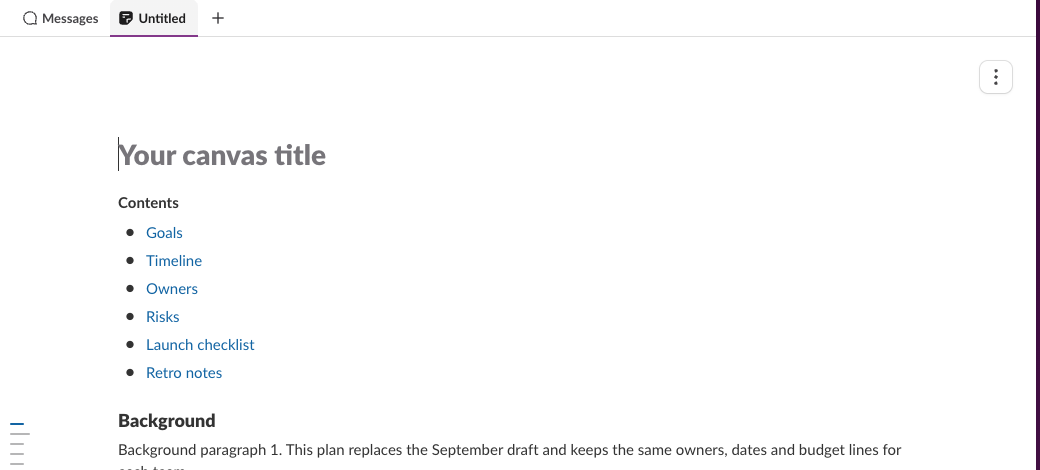
As with the paste, the section links in the copy still pointed to the original: clicking Risks in the copy opened the old canvas. A channel holds one channel canvas, and Slack's docs list a channel_canvas_already_exists error for conversations.canvases.create, so pick a channel without one. The script's converter handles headings, paragraphs, lists, bold, italic and links; table cells would come out as plain text, and embedded files are lost. More API details are in the Slack canvas API guide.
FAQ
Can I save a canvas as a template on the Free plan?
Slack's help says to open the three-dot menu and choose Convert to a template, then start new canvases from it, which is another way to reuse one canvas many times. That item was not in the menu of our channel canvas on the Free plan, so we could not test it.
Stop Jiggling Your Mouse.
Join hundreds of remote workers who never worry about their Slack status. Set it up once, stay green forever.
Related Articles
Slack Canvas Shortcuts: Keyboard Keys, the / Menu and Dates
Slack canvases have their own keyboard shortcuts: Cmd + Option + 1 to 3 for headings, Cmd + Shift + 7, 8 and 9 for lists and checklists, and / for an insert menu that adds dates and reminders. We pressed every formatting shortcut in a real canvas on October 28, 2026.
Slack Canvas Table of Contents: The Built-in Outline and Section Links
Every Slack canvas already has a table of contents: hover the short lines at the left edge and a list of all headings opens. For a contents list inside the canvas, copy a link to each heading and paste them as a list. We tested both on October 28, 2026.
Does Slack Collapse Long Messages? When Show More Appears
Slack shows a normal message in full, however long it is: a 40-line message and a 3,900-character message both showed with no Show more link in our October 28, 2026 test. Show more appears only on legacy attachments from apps, at 6 lines or about 700 characters.