
Slack Status for a Power Outage: What to Write (Tested)
Seven Slack status lines for a power cut or internet outage, how to set one from your phone, and what our test showed about expiry and the 100-character limit.
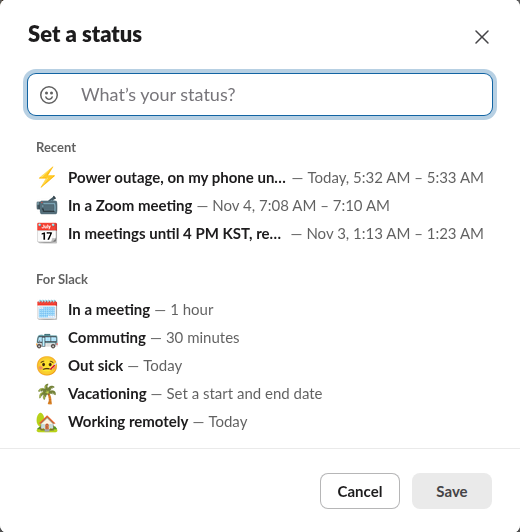
For a power outage, set your Slack status from your phone with the ⚡ emoji, the reason and how to reach you, such as ⚡ "Power outage, on my phone until it is back", and set it to clear on its own so it does not outlive the outage. With the power out your computer is off, so Slack soon shows you as away unless the phone app is open; Slack Green keeps you active from a server while the computer is off, asleep, locked or closed, 7 days free, no card.
We set that exact status on 22 November 2026 in a Free test workspace and timed what Slack did with it. The results are below, after the status lines.
Slack status lines for a power or internet outage
Each line names the problem, says how you can still be reached, and fits well under Slack's 100-character limit.
| Situation | Emoji | Status text | Clear it after |
|---|---|---|---|
| Power out, still reachable | ⚡ :zap: | Power outage, on my phone until it is back | 4 hours |
| Power out, not reachable | 🔌 :electric_plug: | No power at home, offline until it is back | Today |
| Storm or planned power cut | ⛈️ :thunder_cloud_and_rain: | Power cut from the storm, back when it returns | Today |
| Internet down | 📡 :satellite_antenna: | Internet down, replies from my phone | 4 hours |
| On a phone hotspot | 📶 :signal_strength: | On a hotspot, camera off and slow uploads | Today |
| Working from somewhere else | ☕ :coffee: | Power out at home, working from a café | Today |
| Power back | 🔋 :battery: | Power back, catching up on messages | 1 hour |
Leave out the detail nobody needs, such as your provider or the street, and say when people should expect you only if you know it. If your manager needs more, a direct message does that better than a status. For more lines by occasion, our Slack status generator builds them with the emoji and duration filled in, and Slack status examples collects lines for every other day.
How to set it from your phone
- Open the Slack app and tap You at the bottom.
- Tap Update your status.
- Type the text, tap the smiley to pick ⚡, and choose when the status should clear.
- Tap Save.
- • Other people see the emoji next to your name on every message. Hovering it shows the full text and the end time:
- • Slack clears it on time. Our first check after the expiry, 7 seconds past it, already found the status empty, and the ⚡ was gone from the message in the web app.
- • 101 characters is one too many. The API refused a 101-character status with
too_long, so keep the text to 100 characters or fewer. - • It stays one click away. After it cleared, the status box listed it under Recent with the time it ran, so the next outage takes one tap:
On a computer that still has battery, click your profile picture, then Update your status, and set Duration before you save.
What our test showed
We saved ⚡ "Power outage, on my phone until it is back" with an expiry 90 seconds ahead, posted a message, and then read the profile through Slack's API every few seconds.

If you do not know when the power comes back, pick Today as the duration instead of a fixed time. A status that clears too early is worse than one you clear yourself, and how Slack's Clear after works shows each option.
FAQ
Does Slack change my status when my computer loses power? No. The status text stays as you set it. Only the dot next to your name changes, from active to away, once Slack sees no active app.
Should I pause notifications too? Only if you are not working. If you are answering from your phone, leave notifications on, so the people you told to message you actually reach you.
Related Articles
Auto Clicker vs Mouse Jiggler: Which Keeps You Active, and the Risks
A mouse jiggler moves the pointer; an auto clicker clicks wherever the pointer sits. Both keep Teams and the screen awake, but an auto clicker can click the wrong thing, and fixed-interval clicks are exactly what monitoring tools flag.
Automatic Slack Status Updates: 3 Triggers We Built and Timed on a Mac
Slack's own automatic statuses cover huddles, focus mode and working hours. For anything else you need users.profile.set and a trigger. We built a schedule, a file and an app-launch trigger on macOS and timed each one.
Wireless Mouse With a Jiggler: How the Built-in Mode Works
A wireless mouse with a jiggler is a normal mouse with a jiggle mode in its firmware: hold the DPI button for about 3 seconds and the cursor moves on its own. Two models in the top results, how they compare with a USB dongle and a mechanical mover, and what they do for Teams and Slack.