
Automatic Slack Status Updates: 3 Triggers We Built and Timed on a Mac
Slack's own automatic statuses cover huddles, focus mode and working hours. For anything else you need users.profile.set and a trigger. We built a schedule, a file and an app-launch trigger on macOS and timed each one.
To update your Slack status automatically, you need two parts: a call to Slack's users.profile.set method with a user token, and a trigger that runs it. On 5 October 2026 we built three triggers on a Mac (a daily schedule, a file that changes, and an app that starts or quits) and timed how long each took to change the status in our free-plan test workspace. The status changed 0.4 to 5.4 seconds after the trigger. A status does not change your green or away dot, and Slack Green keeps that dot green from a server on the hours you pick, even with the laptop closed, free for 7 days with no card.
Slack sets a few statuses on its own. Under Preferences > Availability, Automatic statuses can set one while you are in a huddle, in focus mode, or outside your working hours. Slack's Google Calendar and Outlook Calendar apps set "In a meeting" from your calendar; we did not connect them, because both need an OAuth login to a calendar account. The calendar sync guide covers that route. Everything else needs a script.
The one call every trigger makes
All three triggers run this script. It needs a user token (xoxp-) from a Slack app with the users.profile:write user scope, saved in a file only you can read. A bot token does not work: users.profile.set with our xoxb- token returned {"ok": false, "error": "not_allowed_token_type"}.
#!/bin/bash
# setstatus.sh ":emoji:" "text" minutes   (minutes 0 = no expiry; empty text clears)
TOKEN=$(cat "$HOME/.slack-status-token")
EMOJI="$1"; TEXT="$2"; MIN="${3:-0}"
EXP=0; [ "$MIN" -gt 0 ] && EXP=$(( $(date +%s) + MIN * 60 ))
curl -s -m 10 https://slack.com/api/users.profile.set \
  -H "Authorization: Bearer $TOKEN" \
  -H "Content-Type: application/json; charset=utf-8" \
  -d "{\"profile\":{\"status_text\":\"$TEXT\",\"status_emoji\":\"$EMOJI\",\"status_expiration\":$EXP}}"
status_expiration is a Unix time in seconds, and Slack clears the status itself when it passes. An expiration already in the past is accepted: our status with an expiration 60 seconds back was set, then cleared 14 seconds later. An emoji code that does not exist in the workspace fails with profile_status_set_failed_not_valid_emoji, and nothing changes. Setting the status by API has the other profile fields.
An automated status changes the text next to your name, but Slack still turns your dot away 10 minutes after your last keyboard or mouse input. A server-side tool keeps your Slack dot green with no input, even with the laptop closed or the phone locked.
Trigger 1: a daily schedule with launchd
macOS runs scheduled jobs through launchd. This LaunchAgent sets ":spiral_calendar_pad: Standup" for 3 minutes every day at 16:16. Save it in ~/Library/LaunchAgents/ and load it with launchctl bootstrap gui/$(id -u) <file>:
<?xml version="1.0" encoding="UTF-8"?>
<!DOCTYPE plist PUBLIC "-//Apple//DTD PLIST 1.0//EN" "http://www.apple.com/DTDs/PropertyList-1.0.dtd">
<plist version="1.0">
<dict>
  <key>Label</key><string>local.slack.status.standup</string>
  <key>ProgramArguments</key>
  <array>
    <string>/Users/you/bin/setstatus.sh</string>
    <string>:spiral_calendar_pad:</string>
    <string>Standup</string>
    <string>3</string>
  </array>
  <key>StartCalendarInterval</key>
  <dict><key>Hour</key><integer>16</integer><key>Minute</key><integer>16</integer></dict>
</dict>
</plist>
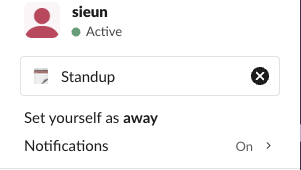
It fired at 16:16:05.4, not on the minute, and the status was readable through users.profile.get 0.3 seconds later. Slack's web app showed it next to the name and in the profile menu:
Apple's launchd.plist manual says a calendar job missed during sleep runs when the Mac wakes, so a laptop closed at 9:00 sets the 9:00 status late. We did not test the sleep case.
Trigger 2: a file that changes
A WatchPaths LaunchAgent runs a script whenever a file changes. Any app that can write a text file can then set your status: another script, a Shortcuts action, an editor. Ours reads one line in the form :emoji:|text|minutes:
#!/bin/bash
# on_file.sh, started by launchd when ~/slack-status/now.txt changes
IFS='|' read -r EMOJI TEXT MIN < "$HOME/slack-status/now.txt"
"$HOME/bin/setstatus.sh" "$EMOJI" "$TEXT" "${MIN:-0}"
The plist is the one above with <key>WatchPaths</key><array><string>/Users/you/slack-status/now.txt</string></array> in place of StartCalendarInterval. We wrote three statuses into the file:
| Write | launchd started the script after | Status visible in the API after |
|---|---|---|
| Working from home, 5 min | 0.55 s | 1.28 s |
| Coffee break, 5 min (17 s later) | 0.29 s | 0.36 s |
| Out today, 5 min (9 s later) | 2.24 s | 2.39 s |
The third write waited because launchd does not start the same job again within 10 seconds of its last start (its default ThrottleInterval). Two changes inside 10 seconds still both land, the second one late.
Trigger 3: an app that starts or quits
To show "In a call" while a meeting app runs, a small loop checks for the process every 5 seconds. Run it as a LaunchAgent with RunAtLoad and KeepAlive set to true. We tested it with a stand-in process named zoom.us, the process name of Zoom's Mac app, because we had no Zoom call to join:
#!/bin/bash
# watch_app.sh zoom.us   -> status "In a call" while the app runs
APP="${1:-zoom.us}"; WAS=0
TOKEN=$(cat "$HOME/.slack-status-token")
while true; do
  if pgrep -xq "$APP"; then NOW=1; else NOW=0; fi
  if [ "$NOW" = 1 ] && [ "$WAS" = 0 ]; then
    "$HOME/bin/setstatus.sh" ":headphones:" "In a call" 60
  elif [ "$NOW" = 0 ] && [ "$WAS" = 1 ]; then
    CUR=$(curl -s -m 10 https://slack.com/api/users.profile.get -H "Authorization: Bearer $TOKEN" \
          | grep -o '"status_text":"[^"]*"')
    if [ "$CUR" = '"status_text":"In a call"' ]; then "$HOME/bin/setstatus.sh" "" "" 0; fi
  fi
  WAS=$NOW; sleep 5
done
Measured over two runs: the status appeared 1.8 and 5.0 seconds after the app started, and cleared 3.0 and 1.1 seconds after it quit. The spread is the 5-second check interval.
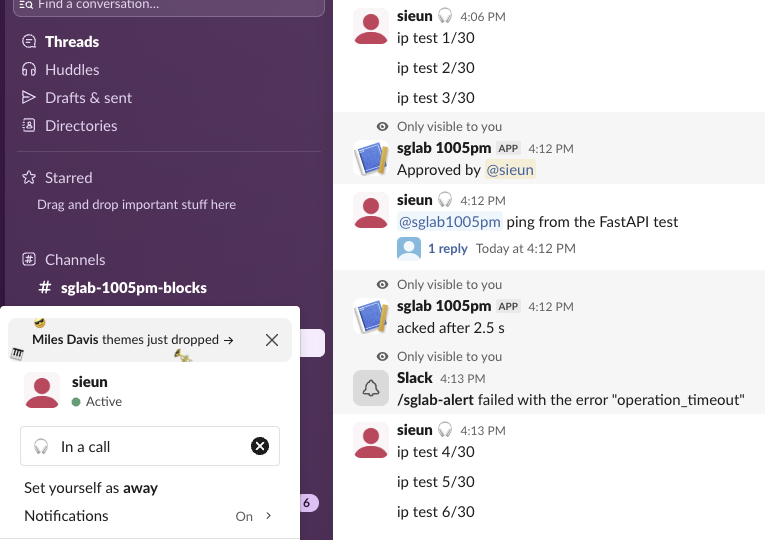
The users.profile.get check before clearing is there because our first version did not have it. During one test call we set "Writing the Q4 plan" by hand, and when the app quit the script wiped it. With the check, the script left the hand-set status alone and logged it, and on the next call it cleared its own "In a call" as before. The 60-minute expiration is a safety net: if the Mac sleeps mid-call, Slack still clears the status.
What we did not automate
- • Wi-Fi network, screen lock and macOS Focus. These triggers change the state of the Mac itself, and our test machine was in use, so we did not switch networks, lock the screen or toggle Focus. The same
setstatus.shworks from any of them. - • Presence. A status does not change the green or away dot.
users.setPresenceonly switches between auto and away. A server-side tool keeps the dot green when that is what you need, which is a different job from a status. - • Zapier and similar tools. We did not test them. Our guide to scheduling a Slack status compares the ways to set one ahead of time.
FAQ
Will an automatic status overwrite one I set myself?
Yes, unless your script checks first. Ours did overwrite a hand-set status until we added the users.profile.get check.
Related Articles
Can You See Slack Status History? No, Here Is What Exists
No. Slack shows your active or away dot and your custom status only as they are right now, and keeps no history of either that coworkers or admins can open. Admins on paid plans see a last active date and sign-in logs. How to keep your own status log with the Slack API, from today on.
Slack: Get Notified When Someone Comes Online (No Built-In Alert)
Slack has no alert for when a coworker becomes active. No preference, Workflow Builder trigger or profile button does it. You can watch their green dot, send a message they will see when they return, or run a short script that checks users.getPresence every minute and DMs you.
Phone Jiggler: Why a Phone Wiggler Won't Keep Teams Green
A phone jiggler rocks your phone back and forth. That adds steps in a pedometer app, but it does not keep the screen awake or Teams and Slack green, because phones count touches, not motion. Here is what each kind of phone jiggler does and what works instead.