
Slack Focus Mode: How It Works and What Others See
Slack focus mode is a desktop feature you turn on from the sidebar. It turns Slack grayscale, replaces numbered badges with dots, pauses notification sounds (VIPs optional) and sets your status to In focus mode for 30 minutes, 1 hour, 2 hours or until you turn it off. How it differs from pausing notifications, and what it does not change.
Slack focus mode is a setting in Slack on desktop that quiets Slack while you work. To turn it on, click focus mode in the sidebar; click it again to turn it off. While it is on, Slack turns grayscale, new activity shows as a small dot instead of a red numbered badge, conversation names stop showing in bold, notification sounds pause (except from VIPs, if you allow them), and your status changes to In focus mode. It lasts 30 minutes, 1 hour, 2 hours, or until you turn it off.
Focus mode does not change your presence. The green dot still follows Slack's usual rule: you go away 10 minutes after your last input in the Slack window. If your focus time happens in another app, Slack will show you away before the session ends. We build Slack Green, which keeps your Slack status green during your working hours from our servers, so you can focus somewhere else and still look available.
How to turn on focus mode in Slack
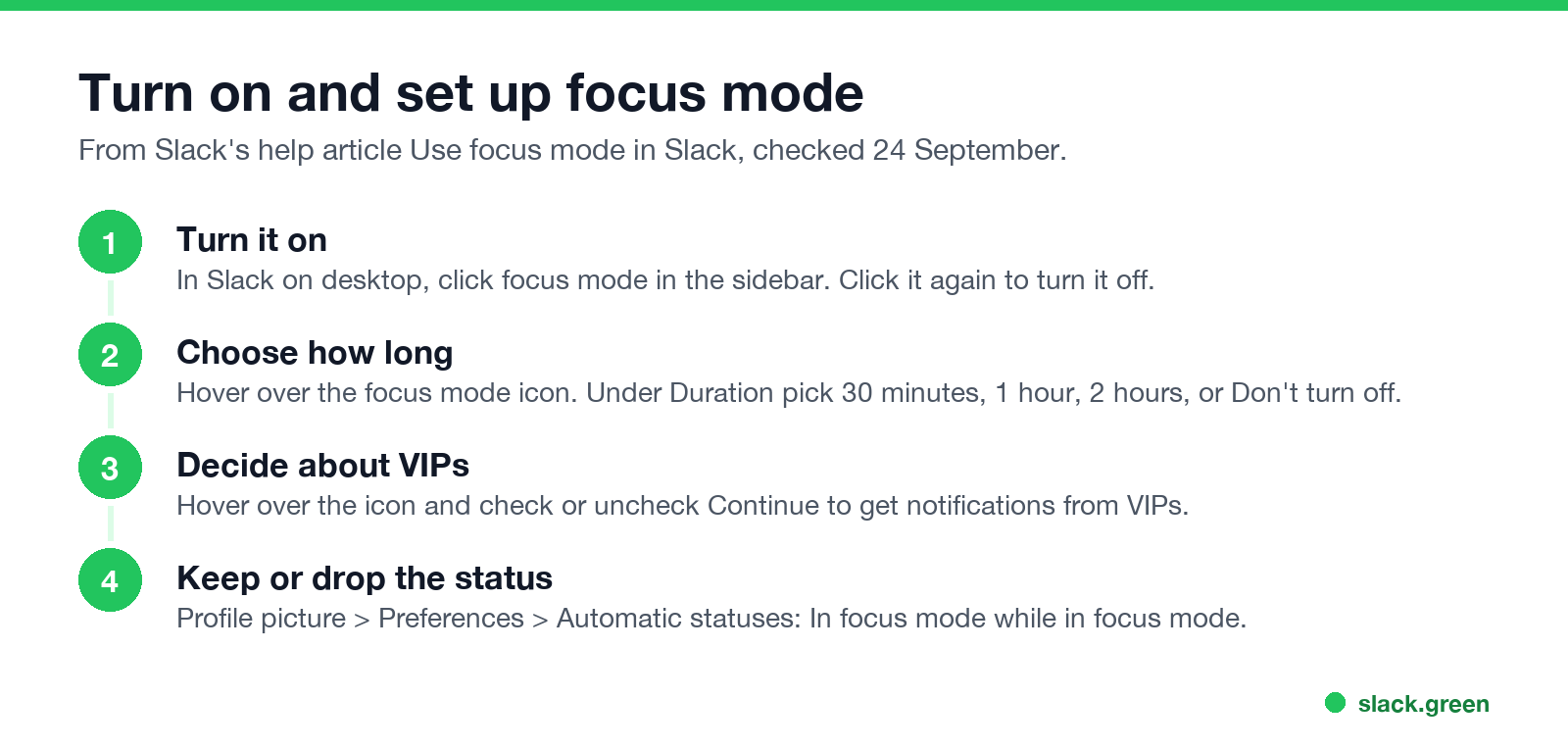
- Open Slack on your computer.
- Click focus mode in the sidebar. Slack switches to grayscale.
- To change how long it lasts, hover over the focus mode icon and choose a Duration: 30 minutes, 1 hour, 2 hours, or Don't turn off.
- To decide about VIPs, hover over the icon and check or uncheck Continue to get notifications from VIPs.
- To end it early, click focus mode again.
- • Your sidebar is quieter. The theme turns grayscale, so badges are no longer red or your theme color. Channels, DMs and tabs with new activity get a subtle dot instead of a number, and their names are not bold. Hover over a conversation or tab to see the count.
- • Sounds pause. Notification sounds stop, except from VIPs if you kept that box checked.
- • Your status says In focus mode. People who look at your name see that your replies may be slow. If you already have a status set, Slack leaves it alone.
- • Your presence does not change. Focus mode is not Away and not Offline. Your dot is green while you are active in Slack and turns away after 10 minutes without input in the Slack window, as always. The rules are in how Slack decides when you're away.
These steps are from Slack's help article "Use focus mode in Slack", read on 24 September. The article describes focus mode for Slack on desktop. On your phone, use Pause notifications instead.
What changes while focus mode is on
Turn off the automatic In focus mode status
Never appear "away" on Slack again
Cloud-based. No downloads. Works 24/7 even when your laptop is off.
If you want focus mode's quiet sidebar without telling everyone, turn off the automatic status:
Focus mode vs pause notifications vs a custom status
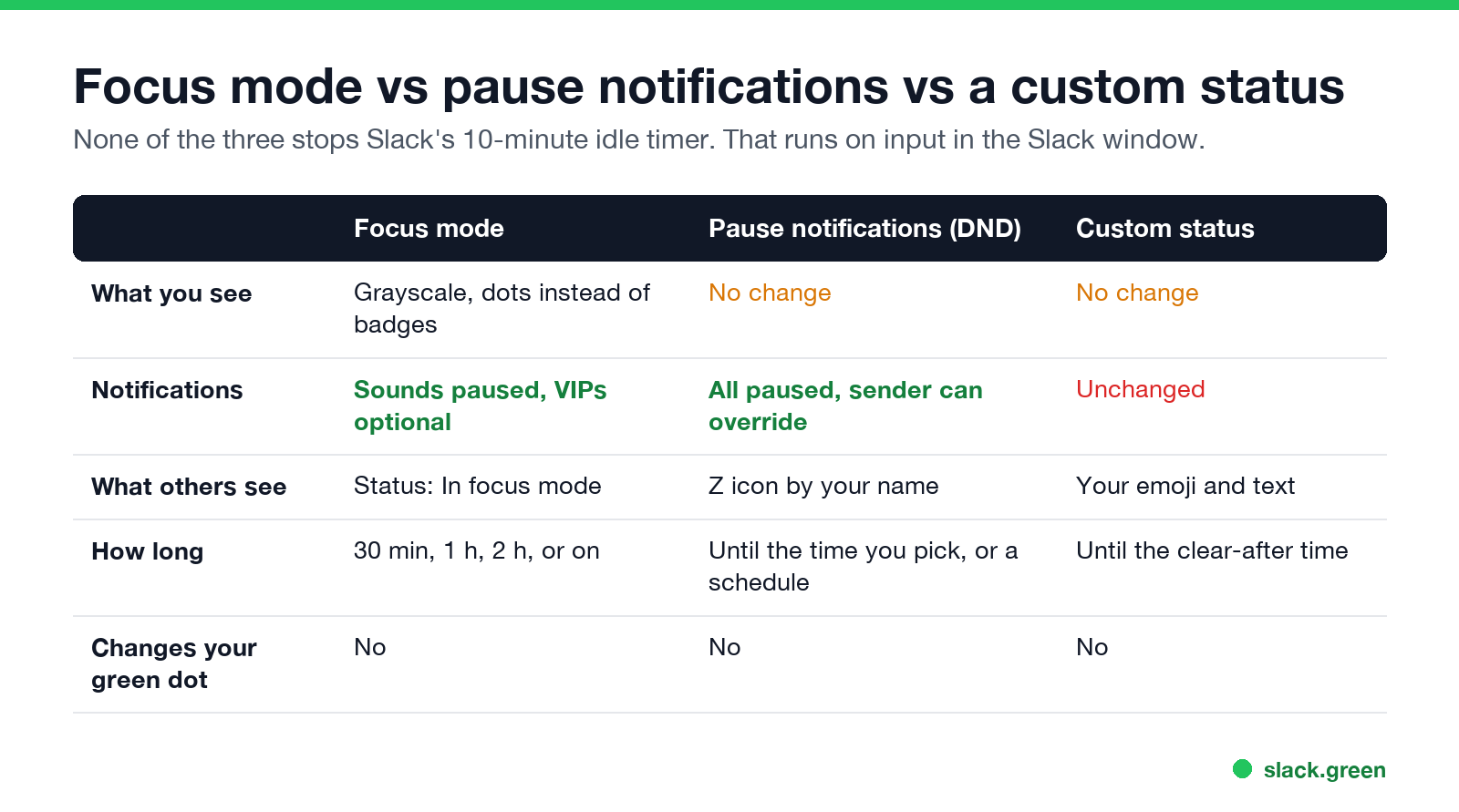
| Focus mode | Pause notifications (Do Not Disturb) | Custom status | |
|---|---|---|---|
| What you see | Grayscale sidebar, dots instead of badges | No change | No change |
| Notifications | Sounds paused, VIPs optional | All paused; a sender can override once a day | Unchanged |
| What others see | Status: In focus mode | A Z icon next to your name | Your emoji and text |
| How long | 30 min, 1 h, 2 h, or until you turn it off | Until the time you pick, or on a daily schedule | Until the clear-after time |
| Where | Desktop | Desktop and mobile | Desktop and mobile |
| Changes your green dot | No | No | No |
Use focus mode for a block of deep work at your desk when you still want VIPs to reach you.
Use pause notifications when you want nothing at all, on every device, or quiet hours every evening. Setup and schedules are in Slack Do Not Disturb.
Use a custom status when you want to say what you are doing and for how long, such as a heads-down status. See below.
A heads-down status in Slack
Before focus mode, people set a heads-down status by hand. It still works on every device:
Wording ideas are in Slack status examples. To set focus blocks ahead of time, see how to schedule your Slack status.
How to focus with Slack
Never appear "away" on Slack again
Cloud-based. No downloads. Works 24/7 even when your laptop is off.
A few settings do more for focus than any one mode:
FAQ
What is Slack focus mode?
A desktop setting that turns Slack grayscale, replaces badges with dots, pauses notification sounds except from VIPs, and sets your status to In focus mode for a time you choose.
Where is focus mode in Slack?
In the sidebar of Slack on desktop. Click it to turn it on or off, and hover over its icon for duration and VIP settings.
Does Slack focus mode show as away?
No. Your status text says In focus mode, but your presence dot follows your activity in Slack, as usual.
Can people see that I am in focus mode?
Yes, through the automatic In focus mode status. Turn it off under Preferences, Automatic statuses.
Is focus mode the same as Do Not Disturb?
No. Pause notifications stops all notifications on every device and shows a Z by your name. Focus mode quiets the desktop sidebar and sounds and keeps VIPs optional.
Stop Jiggling Your Mouse.
Join hundreds of remote workers who never worry about their Slack status. Set it up once, stay green forever.
Related Articles
How to Keep Skype Status Active: Skype for Business Idle Timers
To keep your Skype for Business status active, open Options, Status, and raise both idle timers, Inactive and then Away, from 5 minutes to as much as 360 minutes each. Consumer Skype shut down on May 5, 2025 and Skype for Business Online in 2021, so for most people the real question is now Teams. What still works, status icons, Outlook, and status not updating.
Is It Legal for My Employer to Monitor Me? US, EU and UK Rules
In the US it is mostly legal for an employer to monitor company devices, accounts and premises, often without asking. The limits are state notice laws in New York, Connecticut and Delaware, consent rules for audio recording and biometrics, bans on cameras in restrooms, and your personal devices. The EU, UK and parts of Canada and Australia add notice and proportionality rules.
Can My Employer See My Personal Email on My Work Computer?
Your employer cannot sign in to your Gmail, and doing so without permission can break the Stored Communications Act. But on a work computer, screenshot and keystroke monitoring, browser history, HTTPS inspection and Outlook's local cache can all expose personal email. Work email is fully visible, deleted messages included. Case by case, with what to do.