
Statuspage Slack Integration: Get Status Page Updates in Slack
Subscribe a Slack channel to a vendor's Statuspage in five clicks, or poll the public API with a script. Both tested, with the scopes Slack asked for.
To get a service's Statuspage updates in Slack, open its status page, click Subscribe to Updates, pick the Slack icon, click Subscribe via Slack, choose a channel and click Allow. Atlassian's Statuspage app then posts that service's incident updates in the channel under the service's own name. We subscribed a channel to GitHub's status page this way on 22 November 2026; the whole flow took under a minute and needed no admin.
If the status page has no Slack option, you can poll its public API with a short script instead. We ran one against GitHub's and Cloudflare's pages, and both methods are below.
Subscribe a Slack channel to a status page
- Open the status page, for example githubstatus.com.
- Click Subscribe to Updates at the top right and choose the Slack icon (the menu also has email, SMS, webhook and RSS on most pages).
- Click Subscribe via Slack. Slack's permission page opens.
- Under Channel for webhook, pick the channel that should get the updates.
- Click Allow. You land back on the status page.
Here is what Slack asked for on our test workspace:
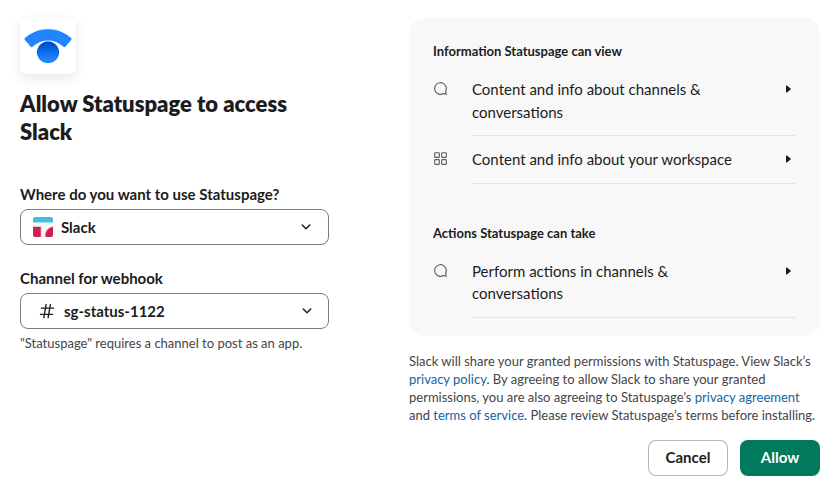
The permission request listed these scopes: incoming-webhook, chat:write, chat:write.public, chat:write.customize, channels:join, channels:read, groups:read, team:read, app_mentions:read and im:history. The chat:write.customize scope is why posts show up as GitHub Status with GitHub's logo instead of as 'Statuspage'. Our account was a regular member of a Free workspace, and Slack installed the app without asking an admin; a workspace that limits app installs sends the request for approval instead.
Within seconds the channel got two lines: Slack's note that the integration was added, and the first post from the page:

Each subscription is per status page and per channel. To follow GitHub and Vercel, you run the flow on both pages. To stop, click Unsubscribe in that first post or under any update.
How fast the updates arrive
We left the subscription running from 22 to 25 November 2026. GitHub had two incidents in that time, and the channel got 10 posts, one per update. Each post names the stage, links the incident, repeats the update text and ends with a View all updates button and an Unsubscribe link:
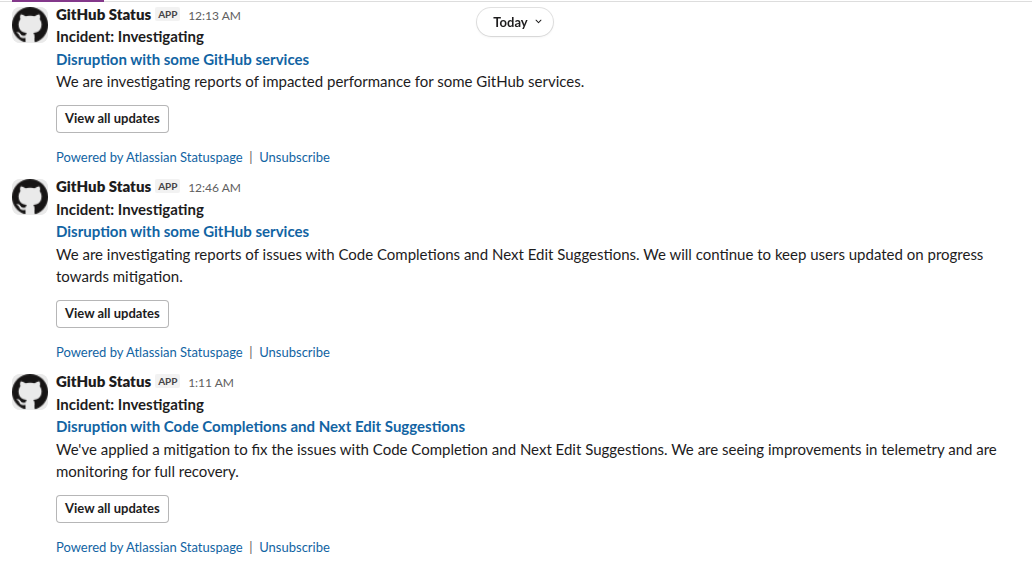
We compared each post's Slack timestamp with the update's created_at time in GitHub's status API. The posts arrived 5 to 12 minutes after the update, 8 minutes at the median, and one update came in twice, 2 minutes apart. That is quick enough to stop a team from debugging its own code during a vendor outage, but too slow for anything you would page someone on.
Which status pages offer Slack
The page owner decides which options appear in the subscribe menu, so not every Statuspage page has the Slack button. We read the subscribe menu of 11 well-known pages on 22 November 2026:
| Status page | Slack button | Webhook | RSS / Atom | Public API |
|---|---|---|---|---|
| GitHub | Yes | Yes | Yes | Yes |
| Vercel | Yes | Yes | Yes | Yes |
| Anthropic | Yes | Yes | Yes | Yes |
| Zoom | Yes | Yes | Yes | Yes |
| Twilio | Yes | Yes | Yes | Yes |
| Netlify | Yes | Yes | Yes | Yes |
| DigitalOcean | Yes | No | Yes | Yes |
| Yes | No | Yes | Yes | |
| Discord | No | Yes | Yes | Yes |
| npm | No | No | Yes | Yes |
| Atlassian | No | No | Yes | Yes |
Where the button is missing, the RSS feed still works with Slack's RSS app; in our Slack RSS feed test Slack fetched a feed every 20 minutes, so expect up to that delay. The public API is the other way in.
Never appear "away" on Slack again
Cloud-based. No downloads. Works 24/7 even when your laptop is off.
Post status updates yourself with the Statuspage API
Every Statuspage page answers /api/v2/incidents.json without a key. This script reads one or more pages, posts each incident update it has not seen yet, and remembers what it posted in a small JSON file. It needs a bot token with chat:write and the bot in the channel; our guide to the Slack bot token shows how to get one.
import html
import json
import os
import re
import sys

import requests

SLACK_TOKEN = os.environ["SLACK_BOT_TOKEN"]  # xoxb- token with chat:write
CHANNEL = os.environ["SLACK_CHANNEL"]
PAGES = sys.argv[1:]  # e.g. https://www.githubstatus.com
STATE_FILE = "seen_updates.json"
COLORS = {"investigating": "🔴", "identified": "🟠", "monitoring": "🟡", "resolved": "🟢"}

seen = set(json.load(open(STATE_FILE))) if os.path.exists(STATE_FILE) else set()
posted = 0
for page in PAGES:
    data = requests.get(page + "/api/v2/incidents.json", timeout=20).json()
    name = data["page"]["name"]
    for incident in reversed(data["incidents"][:3]):
        for update in reversed(incident["incident_updates"]):
            if update["id"] in seen:
                continue
            seen.add(update["id"])
            body = html.unescape(re.sub(r"<br\s*/?>", "\n", update["body"]))
            text = f"{COLORS.get(update['status'], '⚪')} *{name}: {incident['name']}*\n*{update['status'].title()}*: {body[:500]}"
            r = requests.post(
                "https://slack.com/api/chat.postMessage",
                headers={"Authorization": "Bearer " + SLACK_TOKEN},
                json={
                    "channel": CHANNEL,
                    "unfurl_links": False,
                    "text": text,
                    "blocks": [
                        {"type": "section", "text": {"type": "mrkdwn", "text": text}},
                        {"type": "context", "elements": [{"type": "mrkdwn", "text": f"<{incident['shortlink']}|View incident> · {update['created_at']}"}]},
                    ],
                },
                timeout=20,
            ).json()
            posted += r["ok"]
            if not r["ok"]:
                print("Slack error:", r["error"])
json.dump(sorted(seen), open(STATE_FILE, "w"))
print(f"checked {len(PAGES)} pages, posted {posted} new updates, {len(seen)} seen in total")
We ran it with the token and channel in environment variables and two pages as arguments:
SLACK_BOT_TOKEN=xoxb-... SLACK_CHANNEL=C0123456789 \
  python status_to_slack.py https://www.githubstatus.com https://www.cloudflarestatus.com
checked 2 pages, posted 24 new updates, 24 seen in totalThe first run posts the recent history: 24 updates from the 3 newest incidents on each page. A second run right after posted nothing, because every update id was already in seen_updates.json:
checked 2 pages, posted 0 new updates, 24 seen in totalEach update became one message with a colored dot for its stage (investigating, identified, monitoring, resolved), the update text and a link back to the incident:
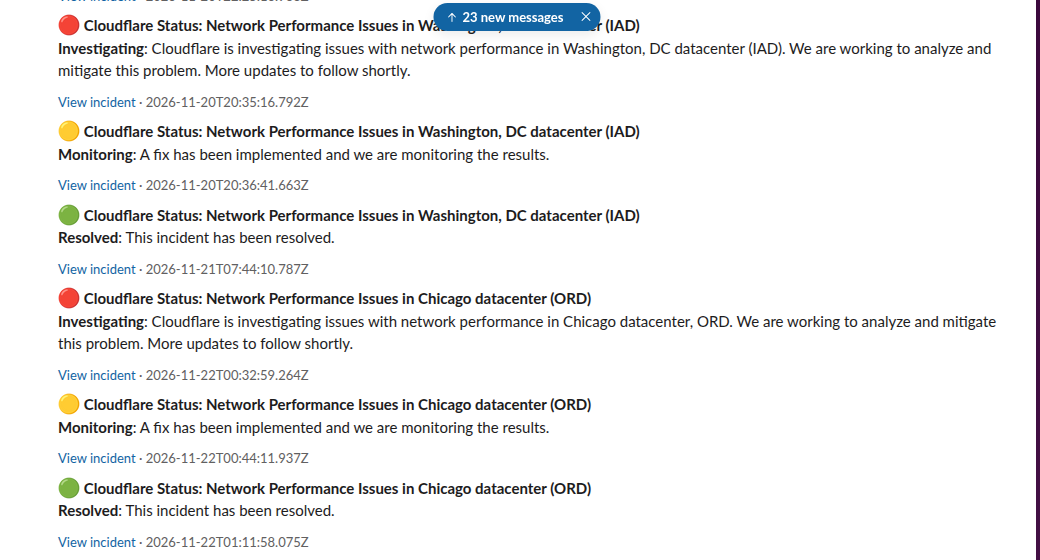
Run it from cron or a scheduled CI job every few minutes. The delay is then at most one interval, and it works for pages whose owner turned the Slack button off, such as Discord's, npm's and Atlassian's own. If you would rather post with a webhook URL and no bot, swap the chat.postMessage call for a POST to the webhook; sending Slack messages from GitHub Actions shows that variant.
Button or script?
| Subscribe via Slack | Your own script | |
|---|---|---|
| Setup | 5 clicks, no code | Bot token, a host or CI schedule |
| Pages | Only pages with the Slack button | Any Statuspage page |
| Message format | Fixed, under the service's name | Yours to change |
| Several services in one message | No | Yes |
| Delay in our test | 5 to 12 minutes after the update | One poll interval |
| Remove | Unsubscribe link under every post | Stop the job |
For one or two vendors with the button, the built-in subscription is the right call. For a list of vendors in one #vendor-status channel, or vendors without the button, the script is less work in the long run.
FAQ
Does the Statuspage Slack integration need a paid Slack plan? No. We installed it as a regular member of a Free workspace.
Can I subscribe to my own company's Statuspage in Slack? Yes, if your page has Slack subscriptions turned on in its subscriber settings; the flow is the same as for GitHub's page.
Stop Jiggling Your Mouse.
Join hundreds of remote workers who never worry about their Slack status. Set it up once, stay green forever.
Related Articles
Slack RSS Feed: How to Add One, and How Often It Checks
Install Slack's free RSS app, click Add RSS integration, paste the feed URL and pick a channel, or type /feed subscribe in the channel. In our test on October 31 Slack checked the feed every 20 minutes, and items already in the feed were never posted.
How to Add an App to Slack and to a Channel (Tested on Free)
Click Agents & tools, then Apps, open the app and click Add to Slack, then Allow. Then add it to each channel from the channel's Agents & apps tab. Screenshots from a Free workspace on October 31, 2026.
How to Make a Poll in Slack: Emoji Polls, Poll Apps and What We Found
Slack has no poll button. Post the question with one emoji per option and let people react, or install a poll app. We ran an emoji poll, counted it with Slack's API, and tried to install Simple Poll on a Free workspace.