
How to Mute Someone on Slack: DMs, Hide Person and What Still Shows
Slack has no mute button for a person across all of Slack. You can mute your DM with them, which stops notifications but still shows a number badge, or use Hide person. We muted a DM and tested what still came through on October 28, 2026.
To mute someone on Slack, open your direct message with them and click the bell icon at the top right of the conversation. Slack mutes that DM at once, with no menu, and shows a crossed-out bell next to it in the sidebar. This mutes the conversation, not the person: their messages in channels and group DMs are not affected. In our test on October 28, 2026, a muted DM still showed a number badge for every new message, so muting stops notifications, not the unread count.
Mute a DM
- Open the DM with the person.
- Click the bell icon at the top right, next to the three dots.
- The bell turns into a crossed-out bell. Click it again to unmute.
We muted a DM with a test app in a Free workspace. The crossed-out bell showed in the conversation header right away:

Slack's help page on muting says that for a DM with one person the bell mutes it directly, while a group DM offers Mute and hide. On the phone, tap the name at the top of the DM, then Settings & Details, and turn on Mute.
What a muted DM still shows
With the DM muted, we moved to another channel and had the app send two more DMs, the second one with an @mention of us. The DM stayed in the sidebar, greyed out with the crossed-out bell, and the badge went to 1, then 2:
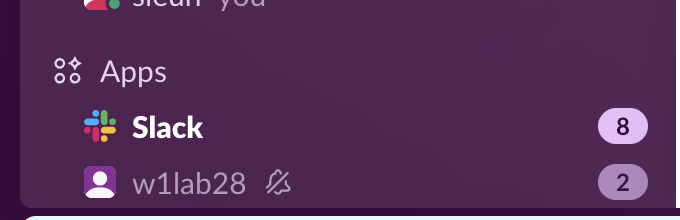
Slack's own count for the DM read 2 mentions. That matches Slack's help, which says numbered badges still appear on muted conversations "if you're mentioned or receive a DM". In a DM every message counts. Desktop pop-ups were turned off in our test browser, so we could not watch for banners; Slack's help says muting stops notifications for the conversation.
| What happens in a muted DM | Result in our test |
|---|---|
| Crossed-out bell in header and sidebar | Yes |
| DM greyed out in the sidebar | Yes |
| Number badge for new messages | Yes, 1 then 2 |
| @mention inside the muted DM | Counted in the badge |
| Messages from the same person in channels | Not affected (Slack help) |
Never appear "away" on Slack again
Cloud-based. No downloads. Works 24/7 even when your laptop is off.
Hide a person: the stronger option
Slack also has Hide person, announced on Slack's blog in July 2023 and described there as "a powerful mute button". Per that post, hiding someone hides their name and profile, mutes push notifications from them in DMs, group messages, threads and mentions, and puts their messages behind a click-through warning. They are not told. DMs from them still show a message counter, and you can click Show anyway.
We could not test Hide person: our test workspace has only one human member, and the option is for people, not apps, so we cannot show where it sits in today's menus.
Mute their channel messages
Slack has no way to mute one person's messages inside a channel. You can mute the whole channel, which Slack mute a channel tests, or use Hide person above. If what bothers you is that they can see your status, that is a different setting: see hide your Slack status from one person.
FAQ
Does the person know I muted our DM?
No. Muting is a personal notification setting. Nothing in the other person's view changes.
Can I mute a DM for an hour only?
Slack's help describes Temporarily mute for channels (one hour or until tomorrow). In our DM, the bell muted with one click and offered no time menu.
Can I block someone on Slack?
Not in the usual sense. Hide person is the closest option. For harassment, contact your workspace owner or admin, who can remove the person from the workspace.
Stop Jiggling Your Mouse.
Join hundreds of remote workers who never worry about their Slack status. Set it up once, stay green forever.
Related Articles
Turn Off 'Joined the Channel' Messages in Slack (Tested)
Workspace owners and admins turn off join and leave messages in Settings & permissions, Channel Join & Leave Messages. It works on the Free plan. We switched it on and off on October 28, 2026: with it off, leaves posted nothing, but joins in a small channel still showed.
How to Turn Off Huddles in Slack: Channel, Notifications and Sounds
To stop huddles in one channel, open the channel's Settings and set Huddles to No. To stop huddle alerts for yourself, untick New huddles in Preferences > Notifications. We tested both in a Free workspace on October 28, 2026.
How to Edit Frequently Used Emojis in Slack (and Quick Reactions)
Slack has no button to edit or clear Frequently Used emoji; the list follows what you pick. You can set the three one-click reactions in Preferences > Messages & media. We tested both on October 28, 2026.