
Can You Hide Your Slack Status From One Person?
No. Slack has one presence value and one custom status per person, and everyone in your workspace sees the same one. Hide a person only hides them from you; they still see your dot. What each workaround shows that person, and what still gives you away.
No. You cannot hide your Slack status from one person. Slack keeps one presence value for each member, active or away, and one custom status, and it shows the same ones to everyone in the workspace. There is no invisible-to-one-person setting and no way to block a coworker. Slack's Hide a person feature works the other way round: it hides that person from you, while they still see your green or grey dot and your status. The only way to look away to that person is to look away to everyone.
If the problem is the opposite, a dot that turns grey while you are working, Slack Green keeps your Slack status active during the hours you set, from the cloud, with no app running on your computer.
Why Slack cannot show different people a different status
Slack's developer documentation describes presence as a single value: "A user can have one of two possible presence values, active or away." You are active when at least one Slack app is connected and you are not marked away. You go away automatically after 10 minutes with no activity, or when you set yourself away. Your custom status, the emoji and text next to your name, is a field on your profile. Anyone in the workspace who can see your profile can see it, and apps with the right permission can read it.
Neither value has a list of who may see it. So there is nothing to set per person, and nothing an admin can set per person either. How Slack picks the value in the first place is in how does Slack decide when you're away.
What Hide a person does, and what it does not
To use Hide a person, open the person's profile, click the three dots, choose Hide [name], then Hide This Person. According to Slack's help center:
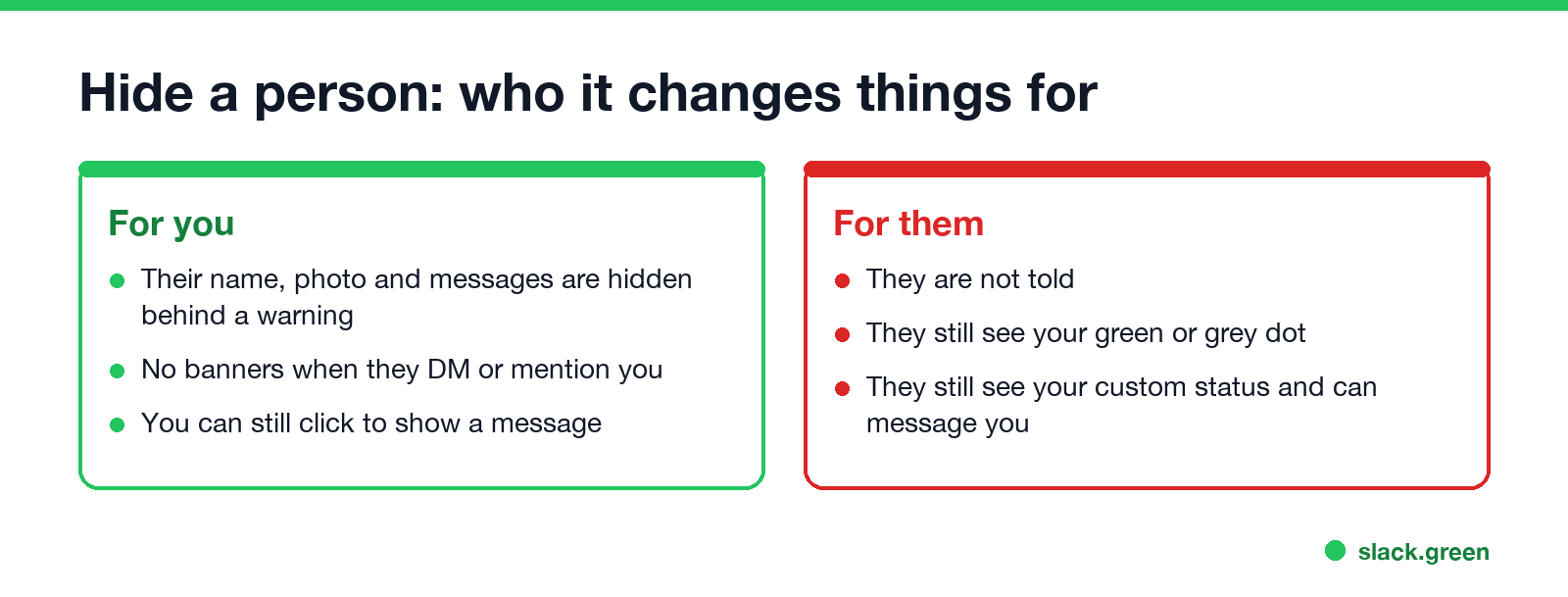
- • their name, photo and messages are hidden from you in most places, behind a warning you can click through;
- • you get no banner notifications when they DM or mention you, though the conversation still shows an unread badge;
- • they are not notified, and Slack's announcement says workspace admins cannot see whom you hide.
Slack calls it "one way, meaning the hidden person will continue to see all messages as normal." That includes your presence and your custom status. Hiding someone does not make you invisible to them.
What that person sees, option by option
Never appear "away" on Slack again
Cloud-based. No downloads. Works 24/7 even when your laptop is off.
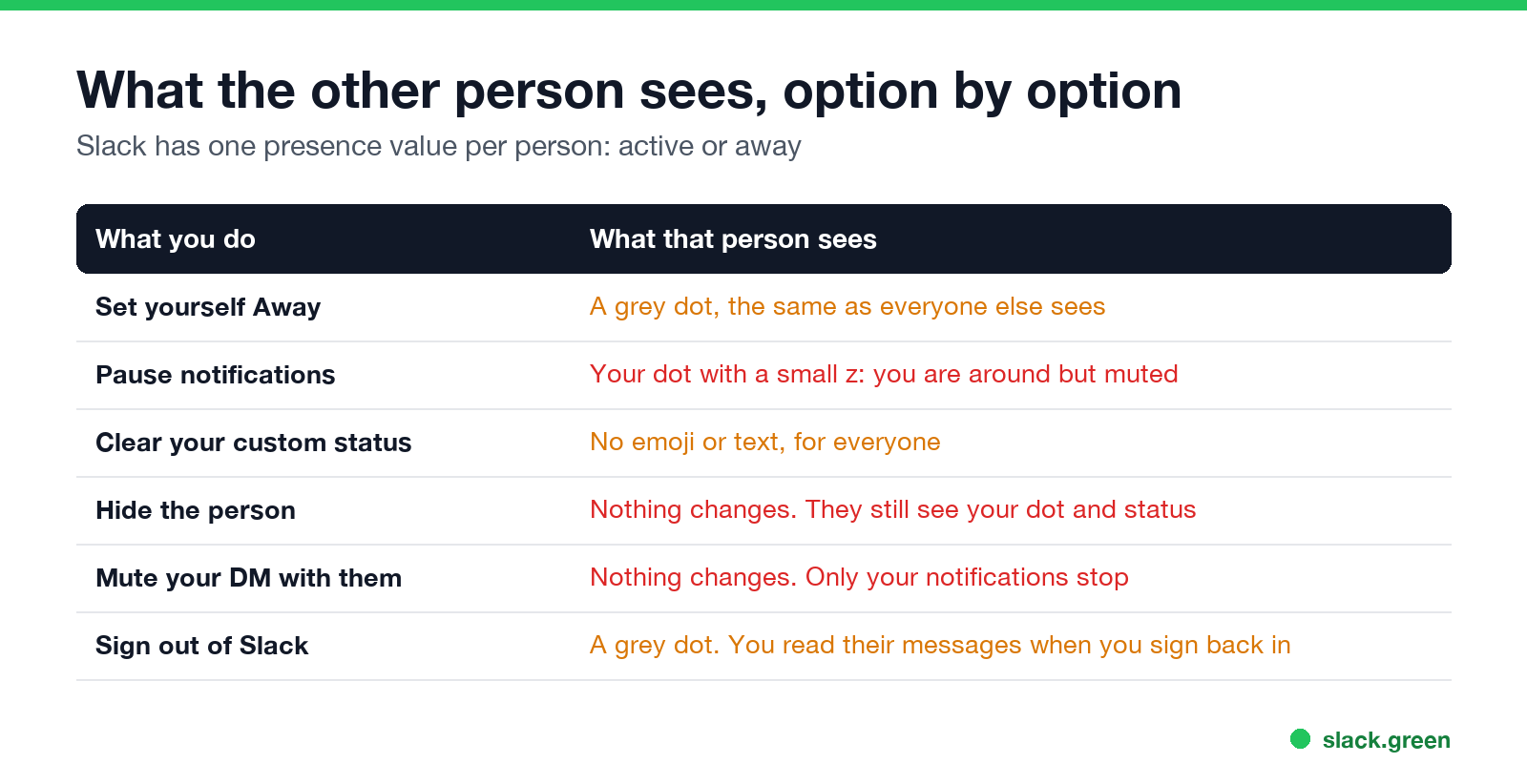
| What you do | What that one person sees | Who else it affects |
|---|---|---|
| Set yourself Away | A grey dot | Everyone |
| Pause notifications | Your dot with a small z | Everyone |
| Clear your custom status | No emoji or text | Everyone |
| Hide the person | No change | Only you |
| Mute your DM with them | No change | Only you |
| Sign out of Slack | A grey dot | Everyone, and you miss messages until you sign in |
The closest match to "appear offline to one person" is to set yourself Away: click your profile picture and choose Set yourself as away. That person sees the same hollow grey dot as when you are signed out. So does everyone else. Steps for desktop and phone, and how long it lasts, are in how to appear offline on Slack.
Pausing notifications is the wrong tool if you want to hide. It adds a small z to your dot for everyone, which tells people you are there and chose not to be disturbed. What the z means is in Slack green dot with a z.
What still shows you are there, even while Away
A grey dot hides your presence, not your activity. That one person can still see:
Slack has no read receipts and no "last seen" time, so opening their message tells them nothing. More on that in does Slack show last seen.
If one person is the problem
Other apps work differently
Never appear "away" on Slack again
Cloud-based. No downloads. Works 24/7 even when your laptop is off.
Webex lets you hide your online status from everyone or from people you choose; see how to hide your online status on Webex. Microsoft Teams and Discord have the same limit as Slack, one status for everyone, covered in how to appear offline on Teams and how to appear offline to one person on Discord.
FAQ
Can I block someone from seeing my status on Slack? No. Slack has no block for members of your workspace. Hide a person only hides them from you.
If I hide someone on Slack, can they still see when I'm online? Yes. They see your green or grey dot and your custom status as before, and they are not told you hid them.
Can I appear offline to one person on Slack? No. Setting yourself Away makes you look offline to everyone in the workspace.
Can my manager see that I set myself away? They see a grey dot, the same one shown when you are signed out. Slack does not label a manual Away.
Can admins see who I have hidden? No, according to Slack's announcement of the feature. Hidden people are a personal setting.
Stop Jiggling Your Mouse.
Join hundreds of remote workers who never worry about their Slack status. Set it up once, stay green forever.
Related Articles
How to Change Sleep Settings on a Mac (Ventura to Tahoe)
On macOS Ventura and newer, the Mac's sleep timer is its display timer: set it in System Settings > Lock Screen, under Turn display off on battery and on power adapter when inactive. The Mac sleeps about a minute after the display turns off, unless you turn on Prevent automatic sleeping in Battery > Options, or in Energy on a desktop Mac. Every setting, where it lives by macOS version, and the pmset commands.
Caffeine vs KeepingYouAwake: Which Mac Keep-Awake Cup to Use
Caffeine and KeepingYouAwake are both free, open-source coffee cups for the Mac menu bar. KeepingYouAwake runs on macOS 10.13 and newer, wraps Apple's caffeinate, and can let the display sleep or stop on low battery. Caffeine needs macOS 14.6 and adds an optional cursor nudge that keeps Teams green. Which to pick.
Can My Employer See My Google Chat Messages? Yes, in Vault
On a work Google account, yes. Workspace admins can search, export and keep your Google Chat DMs, group chats and spaces with Google Vault, often including messages you deleted. Messages sent with history off are not covered: they disappear after 24 hours. A personal Google account is out of your employer's reach.