
RingCentral Status Stuck on In a Meeting? Turn Off Calendar Presence
RingCentral usually shows In a meeting when you are not in one because Calendar presence is on: it shows In a meeting for every event on a connected calendar, whether you join or not. How to turn it off, the other four causes (Teams presence sync, a meeting that never ended, another RingCentral app, old events), and what each presence icon means.
If RingCentral says you are In a meeting when you are not, the usual cause is Calendar presence. With it on, RingCentral shows In a meeting whenever a connected Microsoft 365, Google or Apple calendar has an event scheduled, "regardless of whether you're actually in the meeting", in RingCentral's own words. To turn it off, open Settings, Calendars and contacts in the RingCentral app and switch off Calendar presence. If that is already off, check Microsoft Teams presence sync, a RingCentral Video meeting that never ended, and your other RingCentral apps.
We took the steps and quotes from RingCentral's support article "Setting your presence indicator in the RingCentral app", read on 28 September, plus RingCentral community threads where users report the same problem.
Presence rules differ by app. In RingCentral you go offline after 15 minutes of inactivity; in Slack, after 10 minutes without input in the Slack window. We build Slack Green, which keeps a Slack dot green from our servers during the hours you set. It does not change RingCentral.
Why RingCentral says In a meeting when you are not
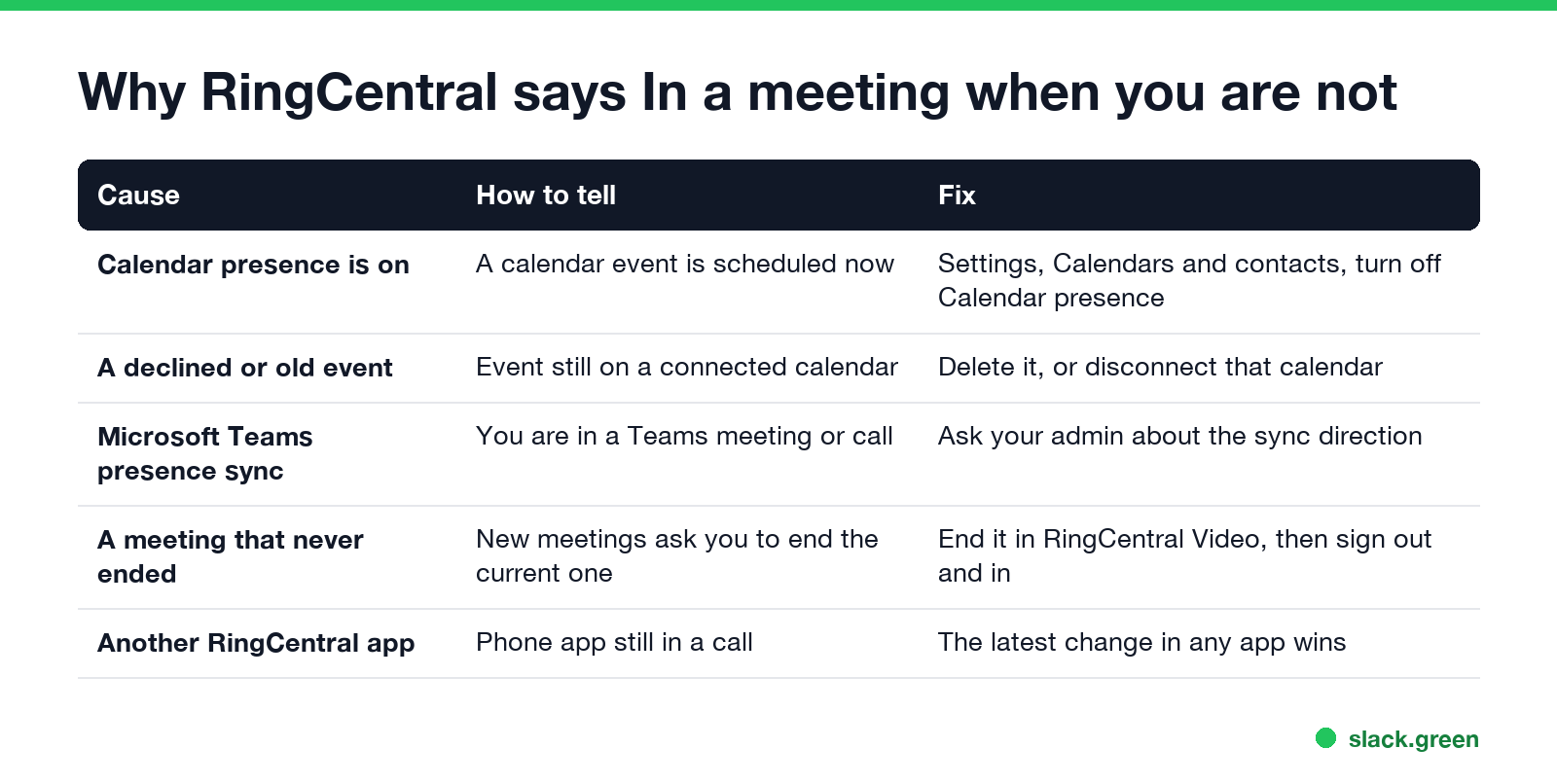
| Cause | How to tell | Fix |
|---|---|---|
| Calendar presence is on | An event is on your calendar right now | Turn off Calendar presence, or clean up the calendar |
| A declined, cancelled or all-day event | The event still sits on a connected calendar | Delete it, or disconnect that calendar |
| Microsoft Teams presence sync | You are in a Teams meeting, or Teams thinks you are | Check the sync with your admin |
| A RingCentral meeting that never ended | Starting a new meeting asks you to end the current one | End it, then sign out and back in |
| Another RingCentral app | The phone app or a desk phone is still on a call | The latest change in any RingCentral app wins |
A community post describes the calendar case well: the status changes to In a meeting with "no meeting, nothing on calendar, not on call or video", and after being set back to Available it flips again later. When that happens, look for an event on a calendar you forgot was connected, such as a shared or secondary Google calendar.
How to turn off Calendar presence
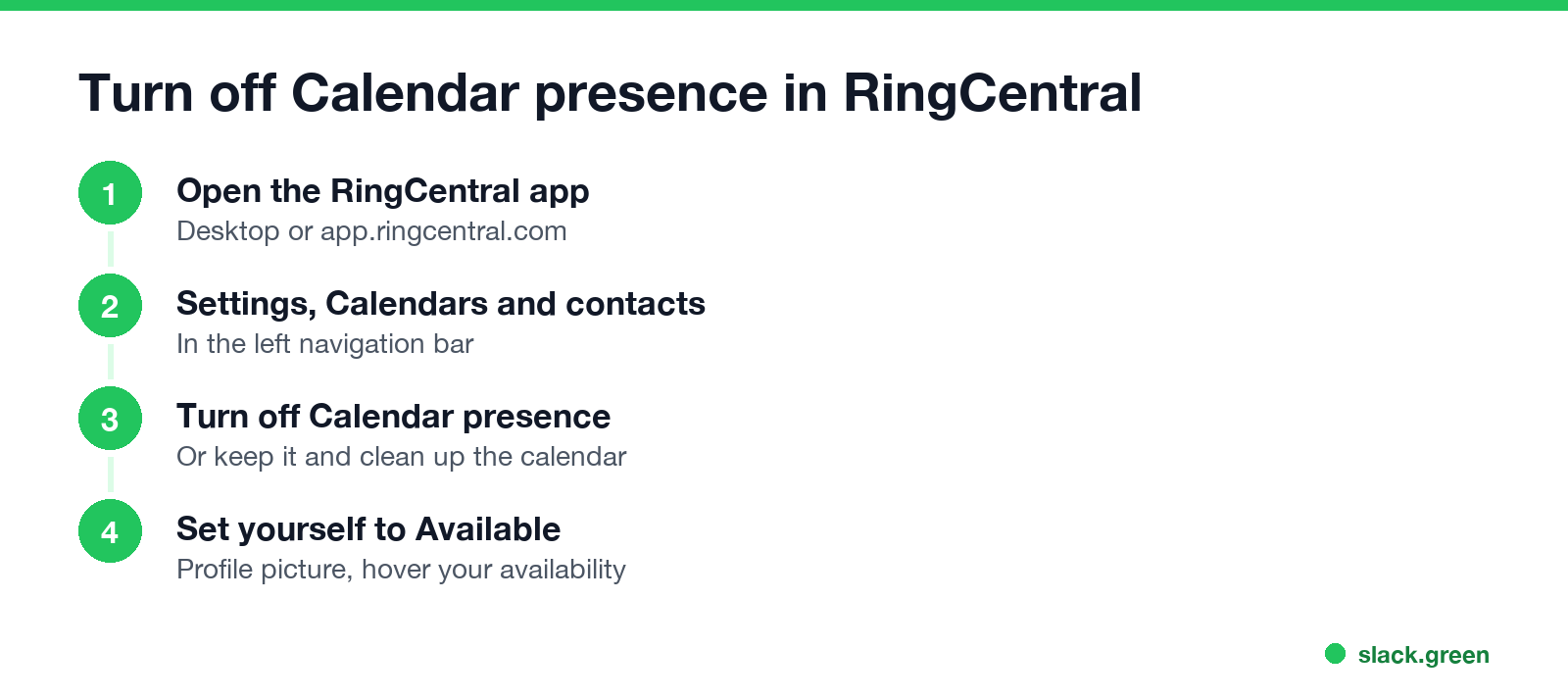
- Open the RingCentral app on your desktop, or go to app.ringcentral.com.
- In the left navigation bar, go to Settings, then Calendars and contacts.
- Turn off Calendar presence.
- Click your profile picture at the top left, hover over your current availability, and choose Available.
If you want to keep Calendar presence for real meetings, leave it on and remove the events that cause the false status: declined invites, cancelled events that still show, and "focus time" blocks. You can also disconnect one calendar and keep the other.
Other fixes when the status will not change
Never appear "away" on Slack again
Cloud-based. No downloads. Works 24/7 even when your laptop is off.
RingCentral presence icons and idle time
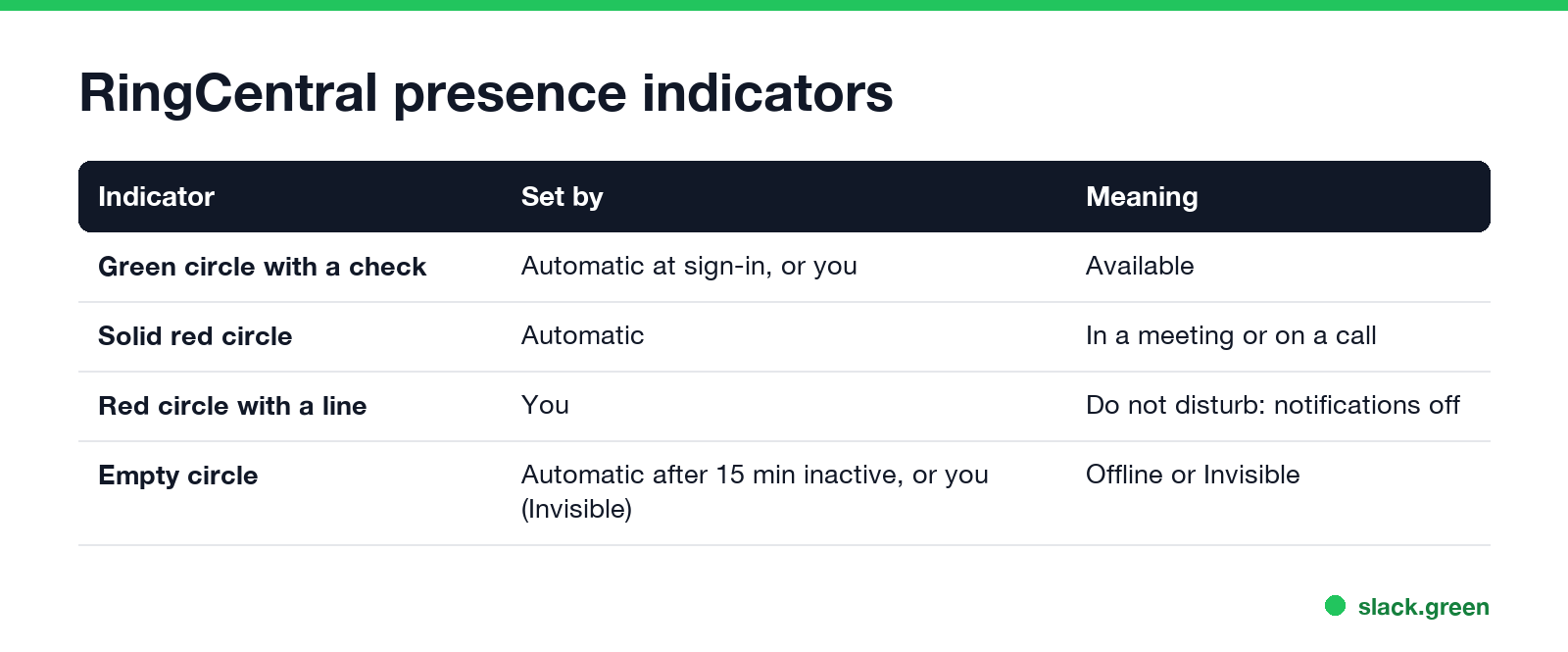
| Icon | Set by | Meaning |
|---|---|---|
| Green circle with a check mark | Automatic at sign-in, or you | Available |
| Solid red circle | Automatic | In a meeting or on a call |
| Red circle with a horizontal line | You | Do not disturb: notifications off in all RingCentral apps |
| Empty circle | Automatic, or you (Invisible) | Offline, signed out, inactive for 15 minutes, or Invisible |
RingCentral idle time is 15 minutes: the app shows you as offline after at least 15 minutes of inactivity. A RingCentral ideas post asking to make that time configurable, or to turn it off, had 108 votes and the status "Under Review" when we read it. There is no user setting to change it today.
Check your RingCentral presence with the API
If you want to see which part of your presence is stuck, the RingCentral Presence API returns each piece separately. You need an app with the ReadPresence permission and an access token:
curl -s "https://platform.ringcentral.com/restapi/v1.0/account/~/extension/~/presence" \
  -H "Authorization: Bearer $RC_ACCESS_TOKEN"
The response has presenceStatus (the computed status others see), userStatus (what you picked), telephonyStatus (for example NoCall) and dndStatus. If userStatus is Available but presenceStatus is busy, something else, such as a calendar event or a synced app, is setting it. We did not run this call; the fields come from RingCentral's developer guide "Detecting User Presence".
RingCentral status message and away message
Never appear "away" on Slack again
Cloud-based. No downloads. Works 24/7 even when your laptop is off.
The RingCentral app's presence menu has Available, Do not disturb and Invisible; there is no "away" choice. For time off, set call handling instead: in the app go to Settings, Phone, Incoming call rules and add a custom rule that sends calls to voicemail or a coworker with a greeting. For wording that tells people when you are back, our free status generator has out-of-office lines that fit any app.
Teams has its own version of this problem; see Teams status stuck on busy and Teams busy vs in a meeting.
FAQ
Why does RingCentral say I am in a meeting when I am not?
Usually Calendar presence: it shows In a meeting for any event on a connected calendar, even if you do not join.
How do I get RingCentral out of In a meeting status?
Turn off Calendar presence in Settings, Calendars and contacts, then set yourself to Available.
How long before RingCentral shows me offline?
After at least 15 minutes of inactivity in the app.
Can I change the RingCentral idle time?
No. A request to make it configurable is under review on RingCentral's ideas site.
Does RingCentral sync presence with Microsoft Teams?
Yes, if your admin set it up. The sync direction your admin chose decides which app follows which.
How do I set an away message in RingCentral?
Use a custom incoming call rule with a greeting in Settings, Phone, Incoming call rules.
Stop Jiggling Your Mouse.
Join hundreds of remote workers who never worry about their Slack status. Set it up once, stay green forever.
Related Articles
Slack Emoji for Approved, Perfect and Sounds Good
The Slack emoji for approved is ✅ :white_check_mark:. For perfect, use 💯 :100: or 🤌 :pinched_fingers:; for sounds good or sure, 👍 :+1: or 👌 :ok_hand:. Every code checked in Slack, what each one means to readers, custom LGTM and SGTM emoji, and a pinned legend for approval channels.
Tips for Working Across Time Zones: 10 Habits That Work
Working across time zones works when the team writes things down, keeps a short overlap window for live talk, says the zone with every time, and lets tools deliver messages in each person's working hours. Ten habits, a follow-the-sun handoff note, the Slack settings that help, and a script that shows your team's local times.
Slack Webhook curl Example, Plus Python and Node.js
Send a Slack message with one curl command: POST a JSON body with a text field to your incoming webhook URL, and Slack answers ok. Tested examples for curl, jq, Block Kit, Python with retries and Node.js, how to escape quotes and new lines, and what 400 invalid_payload and 429 mean in code.