
Slack Canvas API: What Works on a Free Workspace, Tested
We created a channel canvas with the Slack API, wrote markdown into it, found sections and edited them, then read it back. The free-plan errors, the markdown that rendered and the mention syntax that did not.
The Slack canvas API has two create methods. canvases.create makes a standalone canvas, and conversations.canvases.create makes the canvas tab of a channel. Both take markdown in document_content. You change a canvas with canvases.edit, find a section with canvases.sections.lookup, and read it back as a file. We ran each call on 1 October 2026 in a test workspace on the free plan, with a bot token that had canvases:write, canvases:read and files:read.
Creating a canvas on the free plan
| Call | Token | Response |
|---|---|---|
canvases.create | bot | {"ok": false, "error": "free_teams_cannot_create_standalone_canvases"} |
canvases.create | user | {"ok": false, "error": "free_teams_cannot_create_standalone_canvases"} |
conversations.canvases.create | bot | {"ok": true, "canvas_id": "F0C5FC820DD"} |
conversations.canvases.create, same channel again | bot | {"ok": false, "error": "free_team_canvas_tab_already_exists"} |
On a free workspace, an app can make one canvas per channel and no standalone ones. Our bot had created the channel, so it was a member. The plan limits are in our Slack free plan page.
Which markdown renders
We sent this as {"type": "markdown", "markdown": "..."} to conversations.canvases.create. U0B7L4YK420 is our user and C0C5QG3TQKV the channel:
# Release checklist
Intro paragraph with **bold**, _italic_, ~strike~ and `code`.
## Steps
- First bullet
- Second bullet
- Nested bullet
1. Numbered one
2. Numbered two
- [ ] Open task
- [x] Done task
| Owner | Status |
| --- | --- |
| Ana | Ready |
| Ben | Blocked |
> A quote line
```
code block line
```
Mention:  and channel 
Link: [slack.green](https://slack.green)
---
:rocket: emoji shortcodeHeadings, bold, italic, inline code, nested bullets, numbered lists, both checklist states, the table, the quote and the code block all rendered:
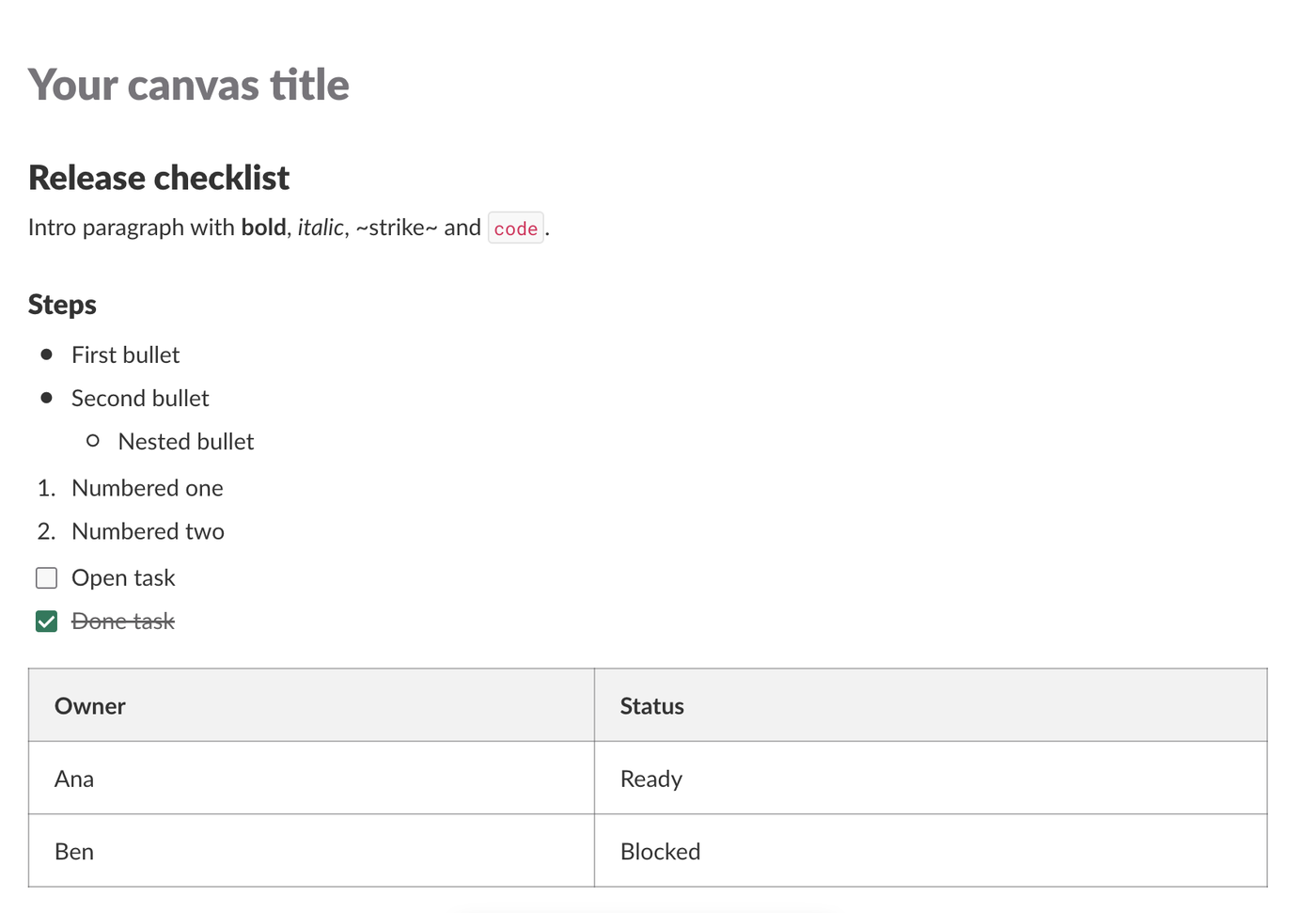
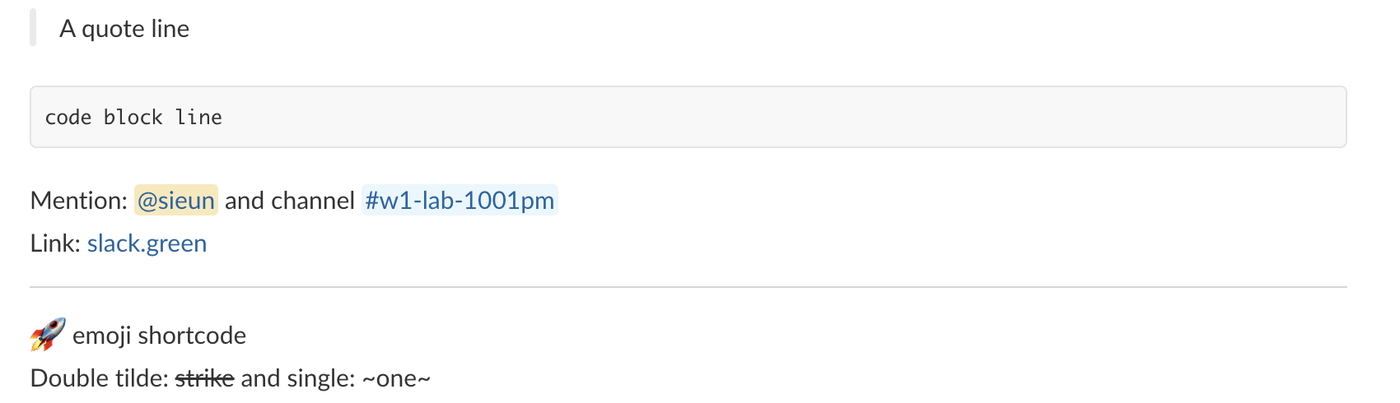
The rest also worked: the  mention became a user chip, the same form with # and the channel ID a channel link, :rocket: an emoji, and --- a divider. One thing did not. ~strike~ with single tildes stayed as text. We then added a line with canvases.edit, and ~~strike~~ with double tildes was struck through:
The H1 in the markdown did not become the canvas title. The channel tab said "Untitled" and the canvas showed the grey "Your canvas title" placeholder until we called canvases.edit with {"operation": "rename", "title_content": {"type": "markdown", "markdown": "Release checklist"}}. After that the tab and files.info both showed "Release checklist".
Never appear "away" on Slack again
Cloud-based. No downloads. Works 24/7 even when your laptop is off.
Find a section and edit it
canvases.edit works on section IDs, and canvases.sections.lookup finds them. This is the script we ran:
import os
from slack_sdk import WebClient

client = WebClient(token=os.environ["SLACK_BOT_TOKEN"])
CANVAS = "F0C5FC820DD"

found = client.canvases_sections_lookup(
    canvas_id=CANVAS,
    criteria={"section_types": ["h2"], "contains_text": "Steps"},
)
print("lookup:", found["sections"])

section_id = found["sections"][0]["id"]
resp = client.canvases_edit(
    canvas_id=CANVAS,
    changes=[{
        "operation": "insert_after",
        "section_id": section_id,
        "document_content": {"type": "markdown", "markdown": "Owner: <@U0B7L4YK420>, due **Friday**\n"},
    }],
)
print("edit:", resp["ok"])
Output:
lookup: [{'id': 'temp:C:fFTaa2fcad6da73f73f95545f589'}]
edit: True
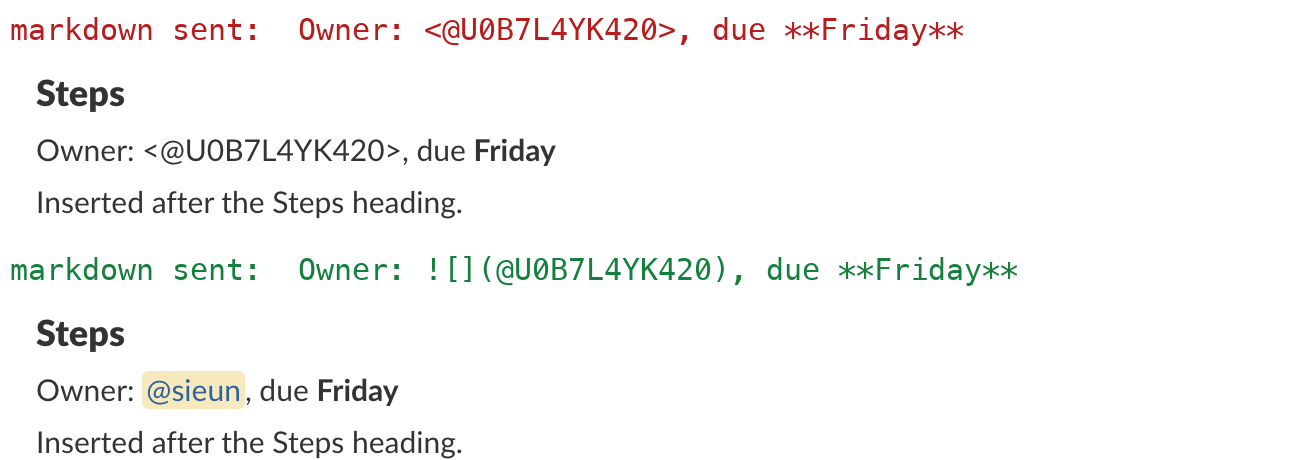
The edit returned ok, but the mention did not work. In a canvas, <@U0B7L4YK420> is shown as typed. We replaced the line with the canvas form , and Slack showed a user chip:
What we learned about sections and edits:
- • Every list item, table cell and paragraph is its own section.
contains_text: "Numbered"returned two IDs, one per numbered item. - •
section_types: ["any_header"]returned the two headings: {"ok": true, "sections": [{"id": "temp:C:fFTc6bb24f0fb5082b28ea5ba58a"}, {"id": "temp:C:fFTaa2fcad6da73f73f95545f589"}]}. - • An empty
criteriaobject returnsinvalid_argumentswith[ERROR] must have minimum 1 properties [json-pointer:/criteria]. - •
replaceon the ID of the table cell "Ben" changed only that cell. The table stayed a table. - • Two changes in one
canvases.editcall returned[ERROR] no more than 1 items allowed [json-pointer:/changes]. Send one change per call.
Read the canvas back
files.info with the canvas ID returned "filetype": "quip", "mimetype": "application/vnd.slack-docs" and "pretty_type": "Canvas". A GET on its url_private_download, with the bot token in the Authorization header, returned text/html, not markdown. The section IDs from the lookup are the element IDs in that HTML:
<h2 id="temp:C:fFTaa2fcad6da73f73f95545f589">Steps</h2><p id="temp:C:fFT2e289a04b273e9b1f1ce392e8" class="line">Inserted after the Steps heading.</p>The mention comes back as <a>@U0B7L4YK420</a>, a user ID with no name. To turn the canvas back into markdown, parse that HTML yourself.
For the canvas editor's own shortcuts, which differ from the API's markdown, see Slack canvas formatting. For tables typed by hand, see how to make a table in Slack.
FAQ
Can the canvas API post Block Kit?
No. We sent canvases.edit with "document_content": {"type": "blocks", ...} and got invalid_arguments with [ERROR] failed to match exactly one allowed schema [json-pointer:/changes/0/document_content]. Markdown is the only content type. Use a message for Block Kit.
Stop Jiggling Your Mouse.
Join hundreds of remote workers who never worry about their Slack status. Set it up once, stay green forever.
Related Articles
Slack Interactivity Payload: Real block_actions JSON and response_url Limits
We clicked a button, a static_select and a datepicker in Slack on 1 October 2026 and logged the block_actions payloads our app received. Then we measured response_url: 5 posts, then used_url; it worked at 29:50 and was dead at 30:10.
Slack unfurl_links and unfurl_media: What Each Flag Does, Tested
We posted a web page, a YouTube video and an image with every combination of unfurl_links and unfurl_media on 1 October 2026, then built a custom preview with link_shared and chat.unfurl. The flags do not split the way the names suggest.
Slack Scheduled Message Didn't Send? 5 Cases We Tested
We scheduled five messages for 4:40 PM on 1 October 2026, then archived, left and deleted their channels and deleted a thread parent before the send time. Two sent, three never did, and Slack gave no notice about the three.