
How to Appear Offline on Slack, and What Still Gives You Away
Click your profile photo, then Set yourself as away. Your dot turns hollow grey, the same dot people see when you are signed out. Steps for desktop and phone, what admins see, and five things that still show.
To appear offline on Slack, click your profile photo and choose Set yourself as away. Your green dot turns into a hollow grey dot. That is the same dot people see when you are signed out, so nobody can tell the two apart. Slack has no "last seen" time and no label that says you chose Away.
Slack has no setting called invisible mode, so many people think you cannot hide. The Away toggle does the same job. You look offline, and your messages and notifications keep arriving. We tested the Away toggle in the Slack web app on 30 September 2026, including what happens when you post and when you reopen Slack. The screenshots below are from that test.
How to appear offline on Slack
On desktop or in the browser:
- Click your profile photo at the bottom of the sidebar.
- Click Set yourself as away.
- Your dot changes from filled green to hollow grey at once, in every channel and DM.
- Tap You in the bottom tab bar, or your profile photo.
- Tap Set yourself as away.
- • Posting did not bring us back. We set ourselves away, then typed and sent a message. Four seconds later Slack's API still returned
presence: awaywithmanual_away: true, and the profile still said Away. - • Reloading Slack kept us away, but Slack asked. After a reload, Slack showed a box titled "Set yourself to active?" with No Thanks and Set to Active. We clicked No Thanks and stayed away. One click on Set to Active ends your cover, so read the box before you click.
- • Set yourself as away. The dot goes grey. Notifications, DMs, and mentions still reach you.
- • Pause notifications. The dot does not change. Slack adds a snooze Z to it, which everyone can see. Details are in what the Z on a Slack dot means.
- • Quit Slack on every device. You are really offline, and nothing reaches you until you open Slack again.
- The typing line. When you type in a DM or channel, the other person sees "is typing" under the message box.
- Posts and reactions. Every message and emoji reaction you add has a time on it.
- Huddles. If you join a huddle, you appear in its member list.
- The snooze Z. Pausing notifications puts a Z on your dot. If you want to look offline, leave notifications alone.
- Other workspaces. A second workspace still shows you green until you set Away there too.
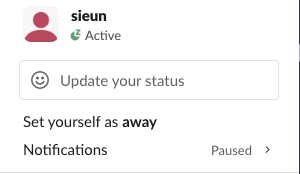
You can also type /away in any message box. In our test it set us away, and typing /away again set us back to active.
On the iPhone or Android app:
To come back, open the same menu and click Set yourself as active.
Manual Away sticks. Slack's developer documentation says a manual away status "will persist between connections", and our test matched it:

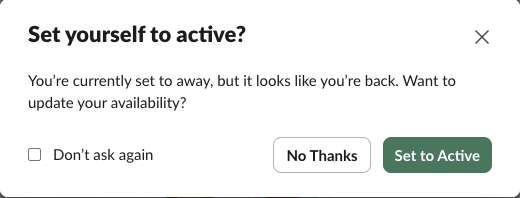
The box has a Don't ask again checkbox. Only Set yourself as active, Set to Active in that box, /away typed again, or an app you gave access to your account turns you green again.
Away applies to the workspace you set it in. If you are signed in to two workspaces, set Away in each one.
What your team sees: Away vs offline
Slack shows the same grey dot for every state that is not active:
| Your real state | Dot teammates see | Can they tell which one it is? |
|---|---|---|
| Using Slack now | Filled green dot | Not needed |
| In Slack, set yourself as away | Hollow grey dot | No |
| No input in Slack for 10 minutes | Hollow grey dot | No |
| Slack closed or signed out | Hollow grey dot | No |
There is no "away since 2:14 PM" and no icon for "chose to look offline". For the full list of dots and symbols, see how Slack active status works. For the timer that makes you grey without asking, see how Slack decides when you're away.
Away, pause notifications, or quit: which one to use
People mix up three tools. Only one of them looks offline and keeps you reachable.
A common case from r/Slack: someone on call wants to look offline to the sales team and to customers in shared channels, but still wants a sound when their own team @mentions them. Away does that. Leave notifications on, and check that your notification schedule does not pause them after hours (Preferences, then Availability, under Allow notifications). If you do pause notifications, add your team to your VIP list so their messages still come through.
What still gives you away
Away hides your dot. It does not hide what you do in Slack.
To send a message without breaking your cover, schedule it. Our guide to scheduling Slack messages has the steps.
Never appear "away" on Slack again
Cloud-based. No downloads. Works 24/7 even when your laptop is off.
Can you appear offline to one person?
No. Slack's developer documentation describes presence as one value per member: "A user can have one of two possible presence values, active or away." Your custom status is one field on your profile. Neither has a list of who may see it, so there is nothing to set per person, for you or for an admin. Set yourself as away, and that one person sees the grey dot, and so does everyone else.
Slack's Hide a person feature works the other way round. Open the person's profile, click the three dots, choose Hide [name], then Hide This Person. Slack's help center says their name, photo and messages are then hidden from you behind a warning you can click through, and you get no banner notifications when they DM or mention you, though the unread badge stays. They are not told, and Slack's announcement says admins cannot see whom you hid. Slack calls it "one way, meaning the hidden person will continue to see all messages as normal", and that includes your dot and your custom status.
| What you do | What that one person sees | Who else it affects |
|---|---|---|
| Set yourself as away | A grey dot | Everyone |
| Pause notifications | Your dot with a small z | Everyone |
| Clear your custom status | No emoji or text | Everyone |
| Hide the person | No change | Only you |
| Mute your DM with them | No change | Only you |
| Sign out of Slack | A grey dot | Everyone, and you miss messages until you sign in |
If one person is the problem, pick the tool for what they do. Hide them or mute the DM if you want fewer messages from them. Set a notification schedule, covered in Slack Do Not Disturb, if they ping you after hours; it shows a z to everyone during those hours. If they watch your dot, Slack has no per-person fix: put your working hours in your custom status or talk to your manager. Harassment goes to your workspace admin or HR, because Hide a person is not a block. Webex is the exception among work chat apps: it can hide your status from people you choose, see how to hide your online status on Webex.
Can your boss tell you are online?
Not in real time.
away as soon as you set Away.Your employer can still read exported messages and channel history, and any monitoring software on a company laptop works outside Slack. Away hides your dot and nothing else. For what Slack itself records, see does Slack track mouse movement. If you mean Slack with no internet connection, see Slack offline mode.
The opposite problem: staying green while you work
Most people want to look offline now and then. The daily problem is the reverse: Slack marks you away while you are working. Slack turns you grey after 10 minutes with no input in the Slack window, so reading a document or coding in another app makes you look gone.
Slack has no setting for this side. Set yourself as active only clears a manual Away; after that the idle timer applies again. Mouse jigglers move a pointer that Slack does not watch. How to keep Slack active compares the methods that work. Slack Green keeps your dot green on a schedule you pick, such as your working hours, with nothing installed and the laptop shut. When the schedule ends you go away as usual, so you still choose when you look offline.
FAQ
Does Slack have an invisible mode?
Not by that name. Set yourself as away does the same thing. You look like an offline user and still receive everything. You have to turn it on and off yourself. Discord does have an Invisible status; see Slack vs Discord, and for why it cannot hide you from one person only, how to appear offline to one person on Discord.
Does Slack show when you were last online?
No. Slack has no last-seen time in profiles or DMs. Admin analytics show the last active date on paid plans, never a time. The details are in does Slack show last seen.
Stop Jiggling Your Mouse.
Join hundreds of remote workers who never worry about their Slack status. Set it up once, stay green forever.
Related Articles
Slack Block Kit Builder: How to Use It, Templates, Payload
Slack's Block Kit Builder at app.slack.com/block-kit-builder lets you pick a template, add blocks, preview the message on Desktop or Mobile, and copy the JSON payload for a webhook or chat.postMessage. A walk through the current builder, a working deploy message, and the steps to send it.
Wireless Mouse With a Jiggler: How the Built-in Mode Works
A wireless mouse with a jiggler is a normal mouse with a jiggle mode in its firmware: hold the DPI button for about 3 seconds and the cursor moves on its own. Two models in the top results, how they compare with a USB dongle and a mechanical mover, and what they do for Teams and Slack.
Does Discord Notify When You Change Your Status?
Switching between Online, Idle and Do Not Disturb sends no notification. But friends on the Discord mobile app can get a push when you come online, set a new custom status, or start a game, and you cannot stop Discord from sending it. They can turn it off on their side; you can go Invisible.