
How to Use a Mouse Jiggler: App, USB and Turntable Setup
Set up a software jiggler, a USB jiggler or a turntable mouse mover in a few minutes, pick an interval shorter than your shortest idle timer, and test it before you walk away. Why a working jiggler still lets Slack go away, and the five reasons one stops working.
To use a mouse jiggler, install and start it (an app), plug it into a USB port (a USB jiggler), or set your mouse on it and switch it on (a turntable mover). Then set it to move more often than your shortest idle timer, which is about 5 minutes for Microsoft Teams, and test it before you walk away by setting your screen to turn off after 1 minute. If the screen stays on and Teams stays green for 10 minutes, it works. In the Arkane Mouse Jiggler app on Windows the switch is the Jiggling? box; on a Mac, Jiggler sits in the menu bar.
One thing a jiggler cannot do is keep Slack active from the background. Slack counts input only inside its own window, so the pointer has to move over Slack while Slack is in front. Slack Green keeps your Slack status green from a server during the hours you set, with no jiggler.
Set up each kind of mouse jiggler
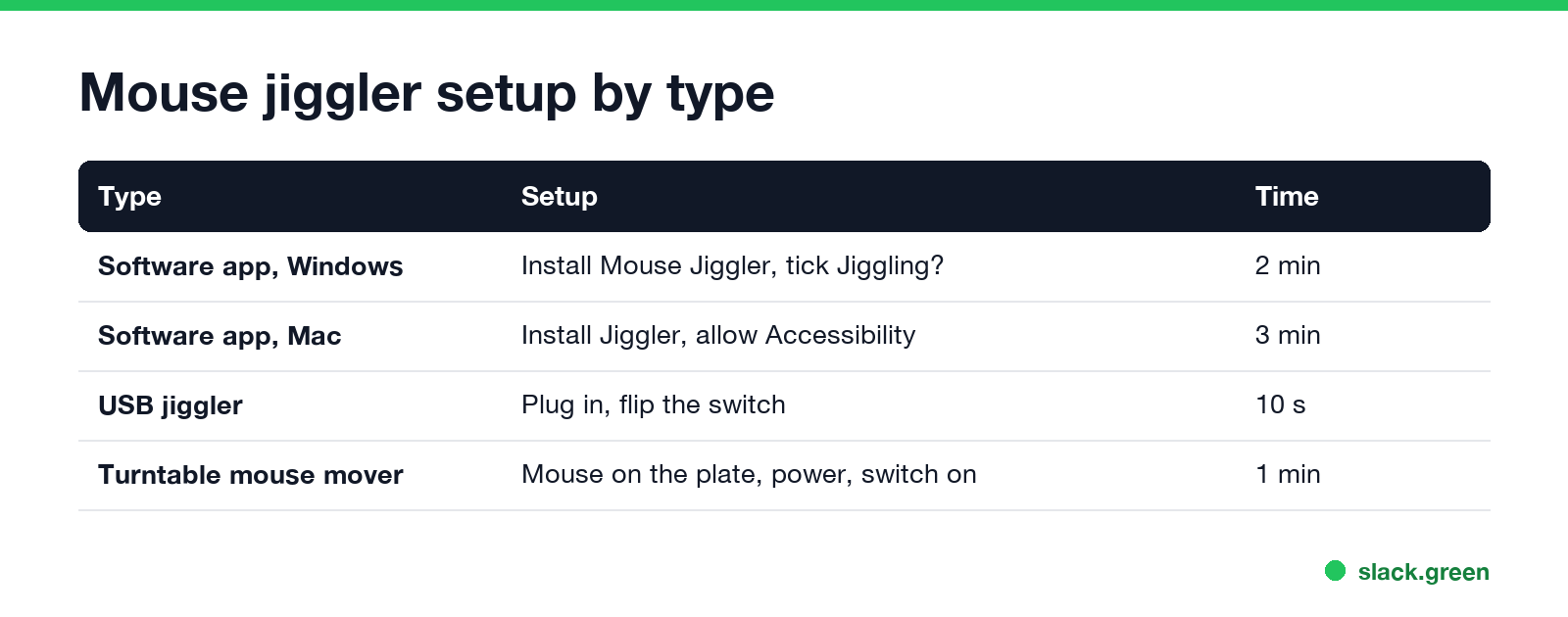
| Type | Setup | Time | Needs |
|---|---|---|---|
| Software app (Windows) | Install Mouse Jiggler, tick Jiggling? | 2 minutes | Permission to run apps |
| Software app (Mac) | Install Jiggler, allow Accessibility, turn on jiggling | 3 minutes | Accessibility permission |
| USB jiggler | Plug in, flip the switch if it has one | 10 seconds | A free USB port |
| Turntable mouse mover | Set the mouse on the plate, power it, switch on | 1 minute | An optical mouse, a USB charger |
A software jiggler on Windows
- Install Mouse Jiggler by Arkane Systems:
winget install ArkaneSystems.MouseJiggler, or download the zip from its GitHub releases page. - Run
MouseJiggle.exeand tick Jiggling?. - Open Settings... and set the interval to 60 seconds, the default.
- Minimise it to the notification area.
- Install Jiggler from Stick Software (
brew install --cask jiggler) or download it. - Open it and allow it in System Settings > Privacy & Security > Accessibility when macOS asks.
- Click its menu bar icon and turn jiggling on.
- In its settings, choose when it starts, for example after 2 minutes idle.
- • Switch or single button: on and off.
- • Mode button on some models: cycles between an invisible move of one pixel and a visible move, or between intervals. The LED colour or blink count shows the mode; the leaflet in the box lists them.
- • Programmable models: set the interval and the hours with a companion app once, then they run without it.
It pauses while you use the mouse and starts again after one interval with no movement. The modes, the command-line flags and running it at startup are in Mouse Jiggler for Windows.
A software jiggler on a Mac
Without the Accessibility permission a Mac jiggler runs but moves nothing. More Mac options, including App Store apps and a Terminal script, are in mouse jiggler for Mac.
A USB mouse jiggler
Plug it into a USB port. The computer sets it up as a second mouse with no driver. Most models light an LED while they work and have a switch or a button:
On a laptop with only USB-C ports, buy a USB-C model or use an adapter. A hub works too.
A turntable mouse mover
Put the mouse on the plate with the sensor over the turning part, power the mover from a USB charger or batteries, and switch it on. Use an optical or laser mouse; a trackpad or trackball does not work. Keep the mouse centred, or the pointer drifts to one edge over an hour. Mouse mover vs mouse jiggler explains when this kind is the better choice.
Pick the right interval
The interval must be shorter than the shortest idle timer you are trying to beat:
| Timer | Default | Interval that works |
|---|---|---|
| Microsoft Teams Away | About 5 minutes | 1 to 4 minutes |
| Windows screen off on battery | Often 3 to 5 minutes | Under 3 minutes |
| macOS display sleep on battery | Can be 2 minutes | 60 seconds |
| Company lock policy | Set by IT, often 5 to 15 minutes | Under the policy time |
| Slack away | 10 minutes of no input in Slack | Only counts over the Slack window |
A 60-second interval covers all of them. Shorter than that adds nothing and moves the pointer while you read.
Test it before you walk away
Never appear "away" on Slack again
Cloud-based. No downloads. Works 24/7 even when your laptop is off.
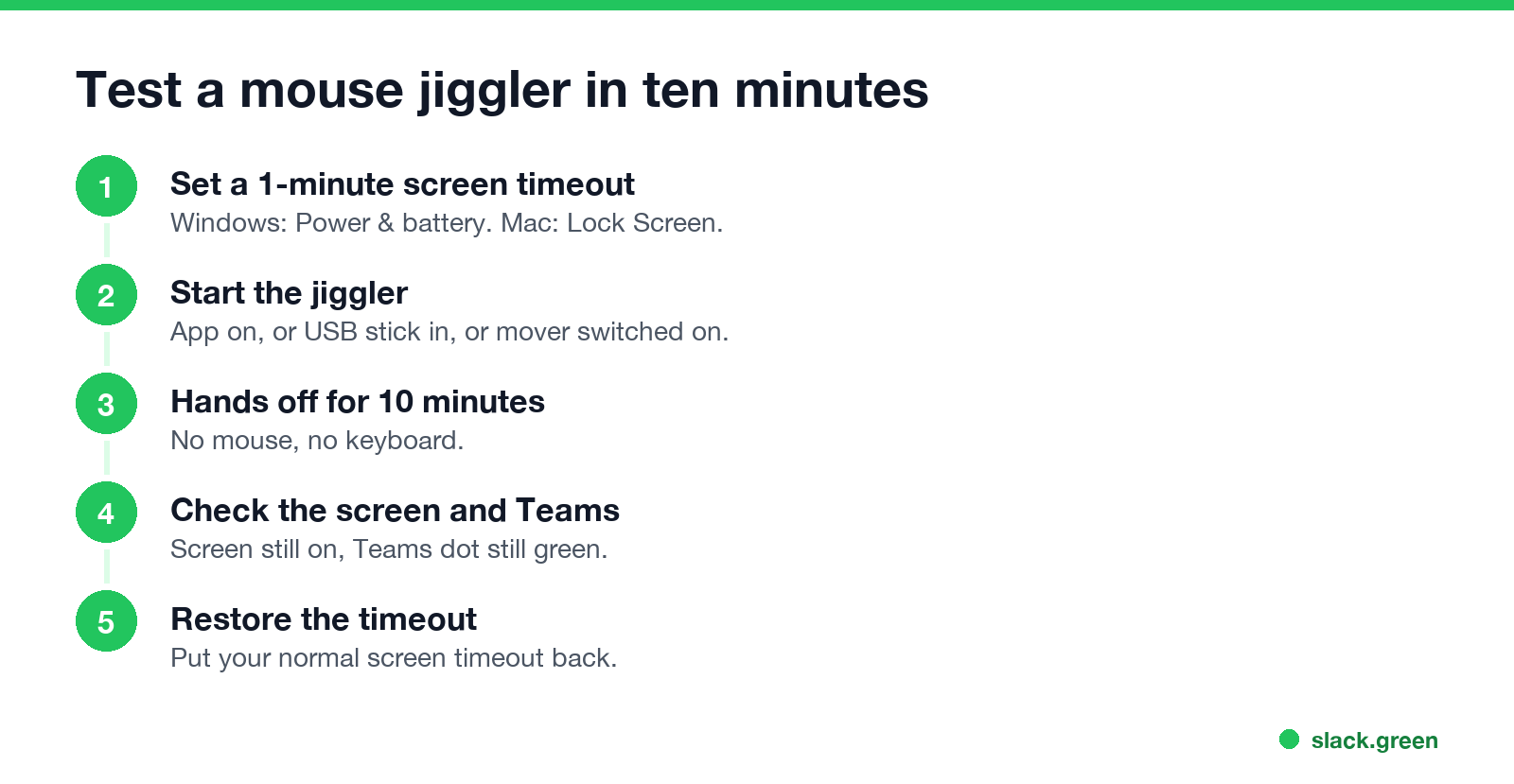
If the screen went dark, the jiggler did not reach the computer: see the next section.
Why a mouse jiggler stops working
For Slack, a working jiggler still lets you go away after 10 minutes unless Slack is the window under the pointer. How to keep Slack active lists the ways that work, and can a mouse jiggler be detected covers what a work computer can see.
FAQ
How do I enable mouse jiggle? In Arkane's Mouse Jiggler, tick the Jiggling? box. On a Mac, turn it on from the Jiggler menu bar icon. A USB jiggler starts when you plug it in.
Does a mouse jiggler need to be on all the time? Only while you want the computer to stay awake. Unplug it or untick it when you are back, or use a model with a schedule.
Can I use a mouse jiggler while I work? Yes. The apps pause while you move the mouse, and USB models move by a pixel or two, which you barely notice.
Stop Jiggling Your Mouse.
Join hundreds of remote workers who never worry about their Slack status. Set it up once, stay green forever.
Related Articles
KeepingYouAwake vs Amphetamine: Which Mac Keep-Awake App to Use
KeepingYouAwake is a free, open-source menu bar switch that runs Apple's caffeinate for you. Amphetamine is a free App Store app with triggers, schedules and a closed-lid mode. Pick KeepingYouAwake for one click and Homebrew, Amphetamine for automation. Neither keeps Slack or Teams active.
Computer Locks After 15 Minutes? How to Tell If Group Policy Set It
A work laptop that locks after exactly 15 minutes, with screen settings greyed out, is almost always following a policy from IT: the Windows machine inactivity limit, a forced screen saver, or an Intune device lock. Security baselines and PCI DSS ask for 15 minutes. How to see which policy it is, and what you can and cannot change.
How to Keep a Citrix Session Active: Find Which Timeout Logs You Out
A Citrix session can end from four different timers: Windows locking inside the virtual desktop, the Citrix session idle timer, the Citrix Gateway session time-out, and the StoreFront web page timeout. Only input from your own device into the Citrix window resets them. How to tell which one hit you and what keeps each one quiet.