
How to Edit Frequently Used Emojis in Slack (and Quick Reactions)
Slack has no button to edit or clear Frequently Used emoji; the list follows what you pick. You can set the three one-click reactions in Preferences > Messages & media. We tested both on October 28, 2026.
You cannot edit or clear the Frequently Used emoji list in Slack. There is no setting for it; the list changes as you use emoji in the emoji picker. What you can edit is the row of three one-click reactions that appears when you hover over a message: open Preferences, then Messages & media, tick Show one-click reactions on messages, choose Custom, and click each of the three boxes to pick an emoji. We tested both on October 28, 2026 in a Free workspace, and the test showed that reactions added from outside the picker do not move an emoji into Frequently Used.
Change your three quick reactions
- Click your profile picture, then Preferences.
- Click Messages & media and scroll to Emoji.
- Tick Show one-click reactions on messages.
- Choose Custom, then click a box and pick an emoji.
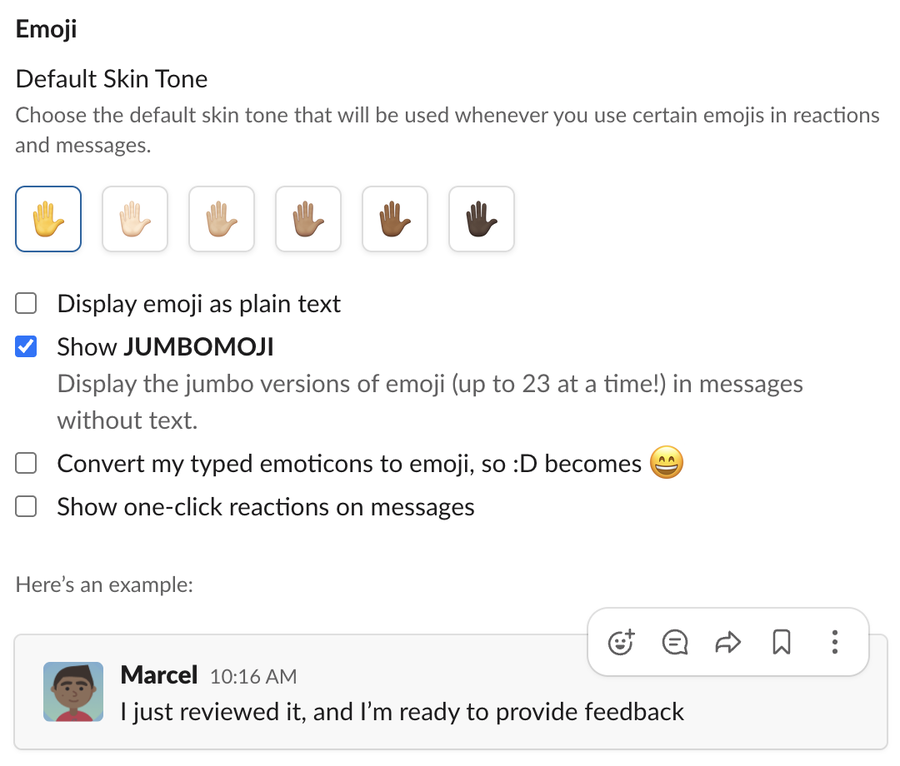
In our account the option was off, so hovering over a message showed only the standard tools:
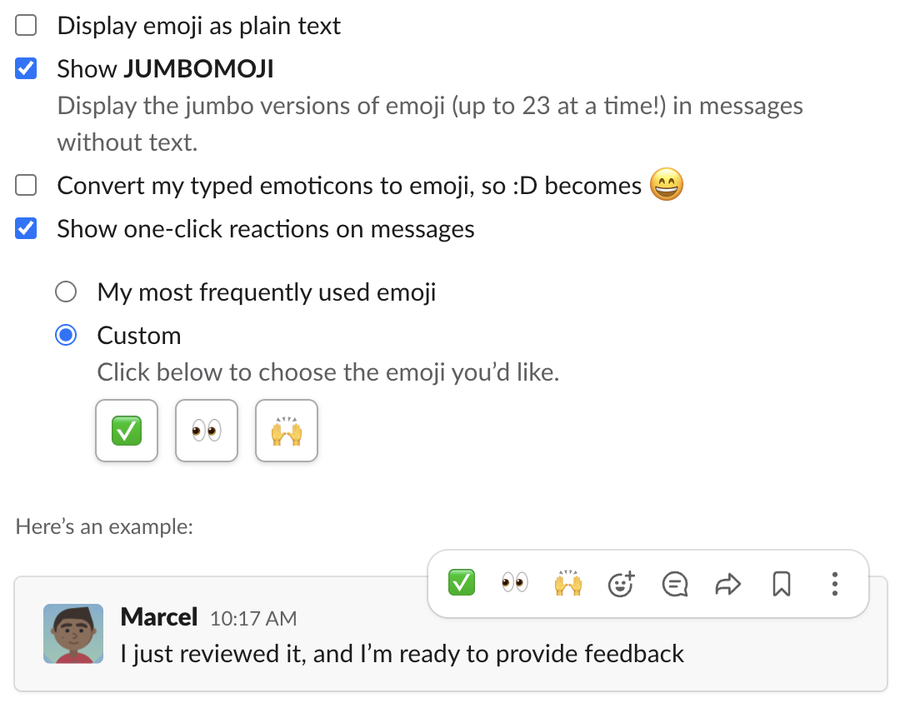
When we ticked it, Slack chose Custom and filled the three boxes with the workspace defaults, a check mark, eyes and raised hands. The example message showed the same three in its hover toolbar:
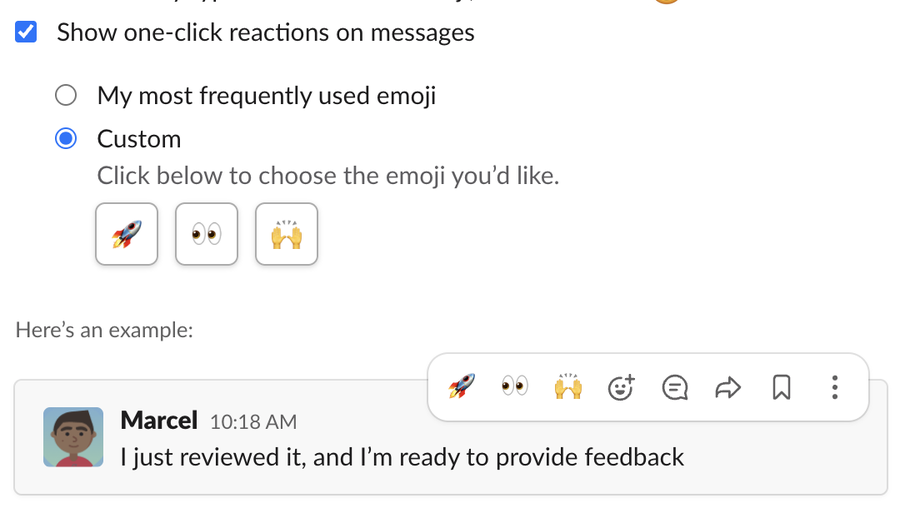
We clicked the first box, searched for rocket and picked it. The change saved at once, with no Save button, and the example updated:
The defaults come from your workspace. Owners and admins set them for everyone, and your Custom choice overrides them for you only.
"My most frequently used emoji" is the other choice
The same setting has a second option, My most frequently used emoji, with the note "The emoji shown will change based on your usage." With it selected, our example showed thumbs up, eyes and the hourglass:
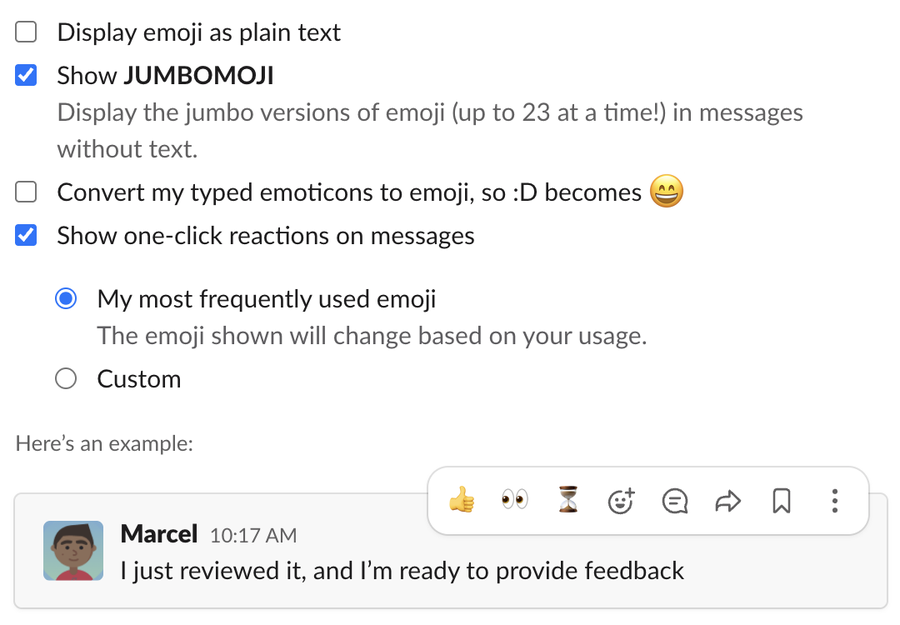
That was not simply our three most-used emoji by count. Slack's saved usage counts for our account had the check mark at 8 and the hourglass at 5, yet the hourglass made the list. Slack appears to weight recent use, not only totals.
Never appear "away" on Slack again
Cloud-based. No downloads. Works 24/7 even when your laptop is off.
What fills Frequently Used: our test
We wanted to know whether reacting with an emoji many times pushes it into Frequently Used.
reactions.add API. Slack's saved count for rocket went from 6 to 16, more than any other emoji in the account. The picker's Frequently Used row did not change: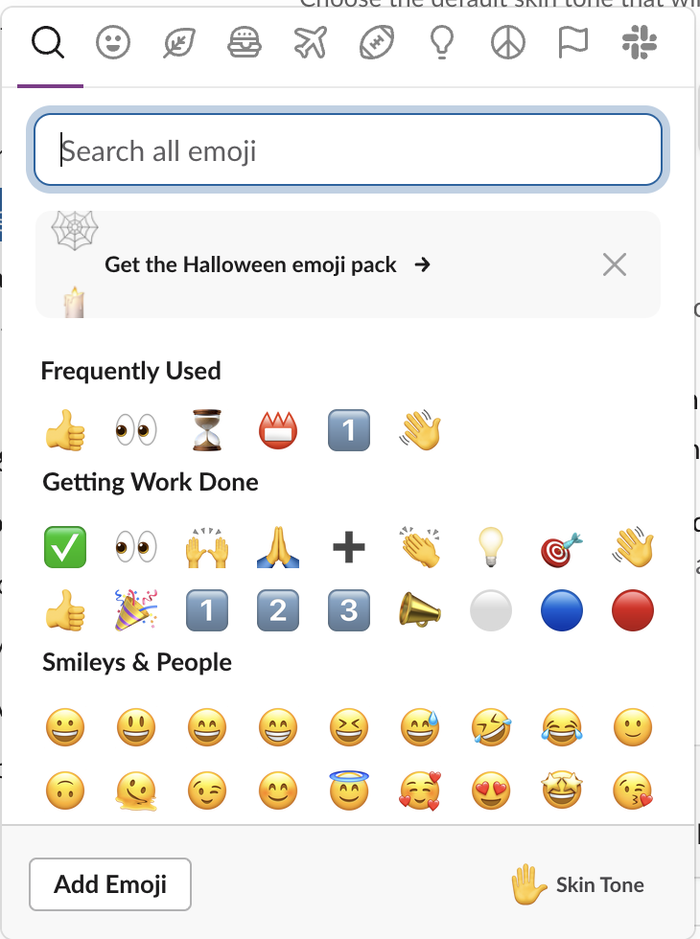
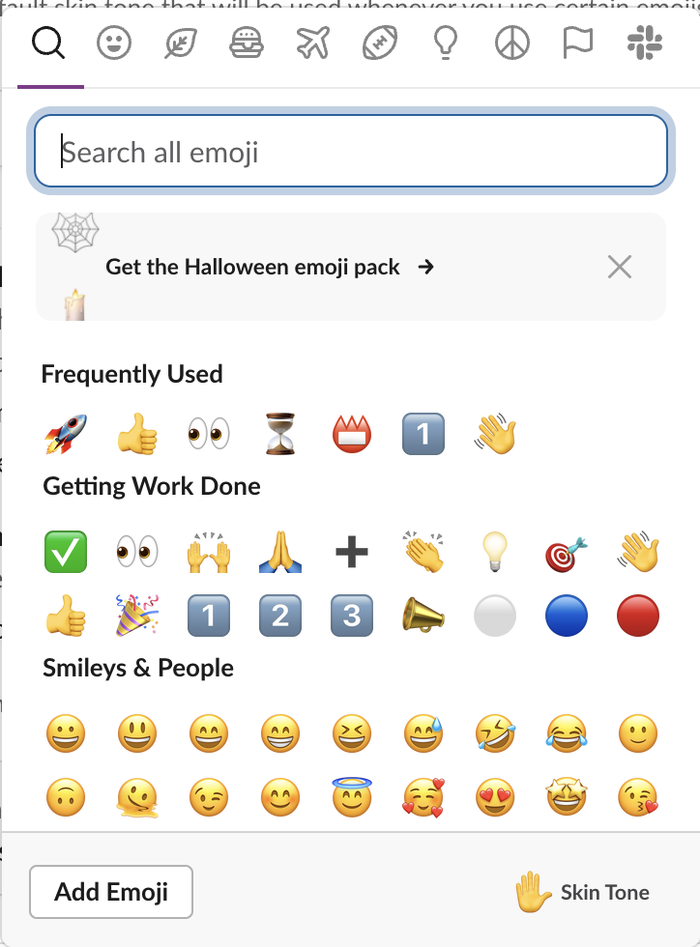
So Frequently Used follows what you pick in the Slack app you are using, not the totals stored with your account. If an emoji you no longer want sits there, the only way to push it out is to use other emoji for a while.
Other emoji settings on the same pane
The Emoji section of Messages & media also has the default skin tone, Display emoji as plain text, Show JUMBOMOJI (big emoji in messages with no text) and Convert my typed emoticons to emoji. For skin tones, see how to change emoji skin tone in Slack. For reacting in general, including the keyboard and +:emoji: ways, see how to react to a message in Slack. To add your own emoji to the picker, make one with our Slack emoji maker.
FAQ
Can I remove one emoji from Frequently Used?
No. We found no remove or clear option in the picker or in Preferences. The row changes only as you use other emoji.
Do my quick reaction choices sync to my phone?
They are saved to your account, not to the browser. We set them in the web app and read them back from the account's saved preferences. We did not check the mobile apps.
Can I have more than three quick reactions?
No. The setting has exactly three boxes.
Stop Jiggling Your Mouse.
Join hundreds of remote workers who never worry about their Slack status. Set it up once, stay green forever.
Related Articles
Turn Off 'Joined the Channel' Messages in Slack (Tested)
Workspace owners and admins turn off join and leave messages in Settings & permissions, Channel Join & Leave Messages. It works on the Free plan. We switched it on and off on October 28, 2026: with it off, leaves posted nothing, but joins in a small channel still showed.
How to Mute Someone on Slack: DMs, Hide Person and What Still Shows
Slack has no mute button for a person across all of Slack. You can mute your DM with them, which stops notifications but still shows a number badge, or use Hide person. We muted a DM and tested what still came through on October 28, 2026.
How to Turn Off Huddles in Slack: Channel, Notifications and Sounds
To stop huddles in one channel, open the channel's Settings and set Huddles to No. To stop huddle alerts for yourself, untick New huddles in Preferences > Notifications. We tested both in a Free workspace on October 28, 2026.