
Slack Export Viewer: Open a Slack Export ZIP in Your Browser (2 Free Tools Tested)
A Slack export is a ZIP of JSON files. We exported our Free workspace, looked inside the ZIP, and opened it with slack-export-viewer and slackdump view to compare how each shows threads, reactions and apps.
To view a Slack export, install the open-source viewer with pip install slack-export-viewer and run slack-export-viewer -z export.zip. It serves the export as a Slack-like web page on your own computer, by default at http://localhost:5000. A Slack export is a ZIP of JSON files, one folder per channel and one file per day, so without a viewer you are reading raw JSON. On October 26, 2026 we exported our Free test workspace and opened the ZIP with slack-export-viewer and with slackdump view, a second free viewer.
Get the export
Owners and admins run it from Admin > Import & export data > Export. On our Free workspace the page listed what is included, "Messages and file links sent in public channels" and "App activity", and what is not: private channels, DMs, and editing and deletion logs.
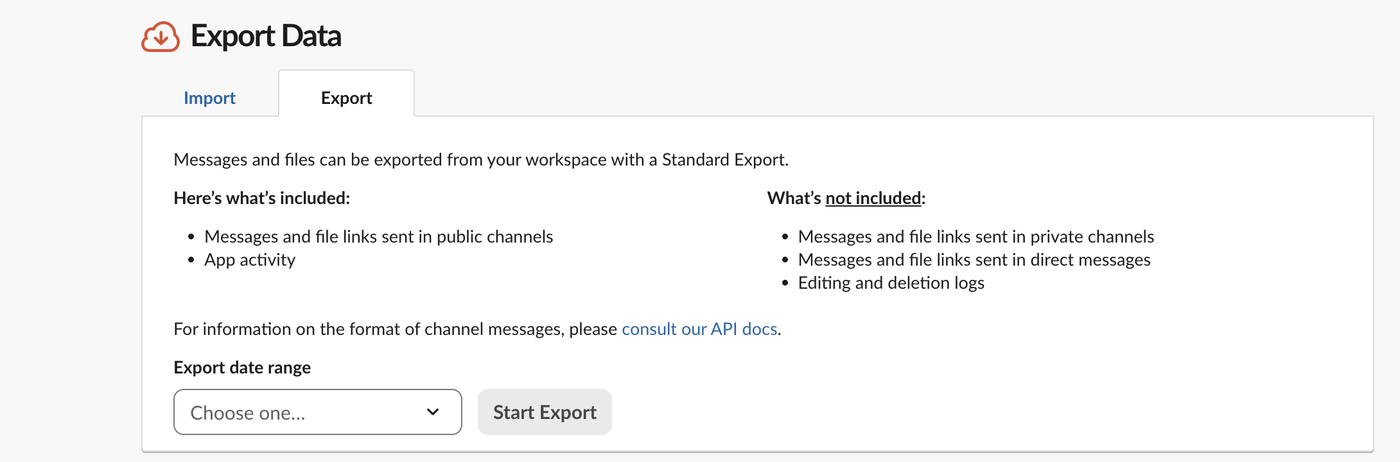
We picked Last 24 hours and clicked Start Export. The other choices were Last 7 days, Last 30 days, Entire history and a specific range. Slack said it would email us when the file was ready; within three minutes the page showed Ready for download (12KB), and a note that exports can only be made once per hour:
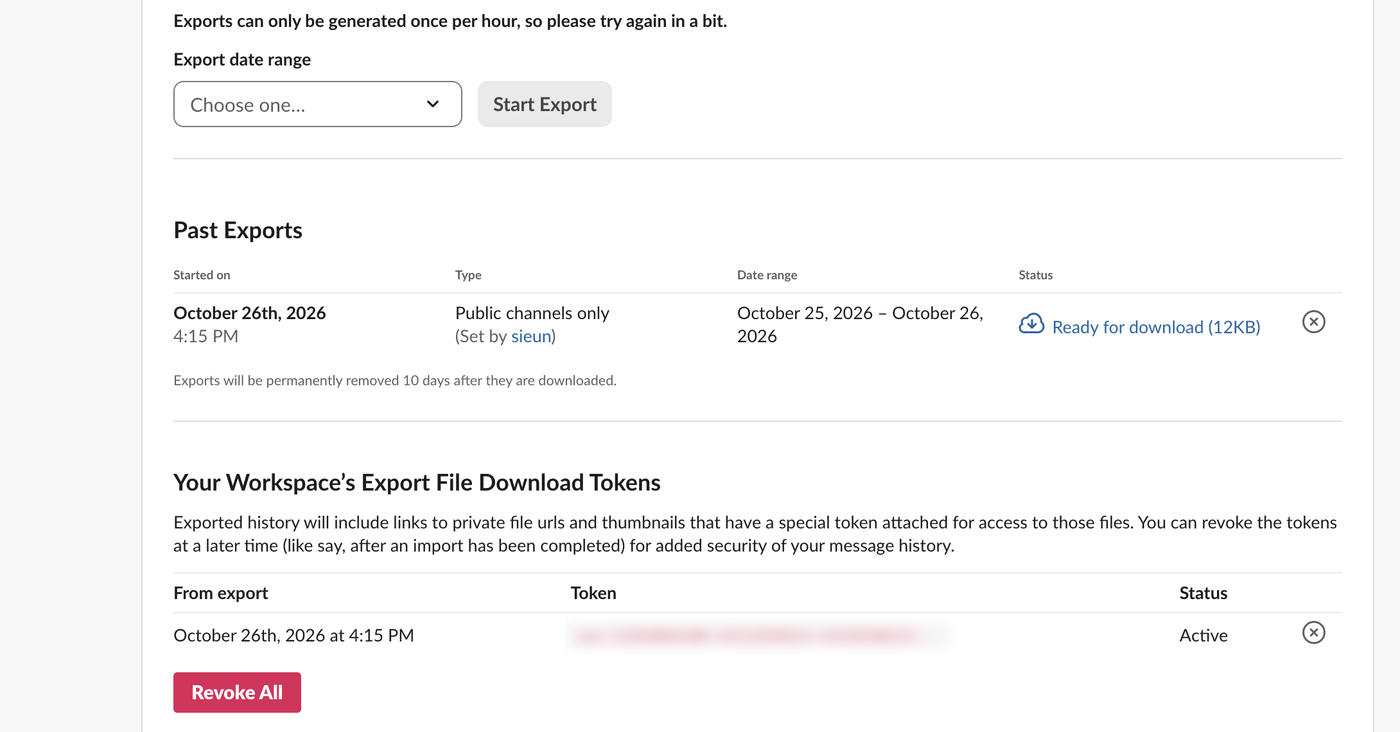
Each export also creates an export file download token. File links in the export carry that token, so anyone with the JSON can open the files. When you are done with the export, click the x next to the token to revoke it. We revoked ours and removed the export afterwards.
What is inside the ZIP
Our 12 KB file held:
w1-1026-members/2026-10-26.json
w1-1026-poll/2026-10-26.json
channels.json
users.json
integration_logs.json
canvases.json
lists.json
huddle_transcripts.json
file_conversations.json
.slack-manifest.json
Only channels with messages in the date range get a folder; our other public channels had none. channels.json lists each channel with its members, users.json holds profiles, and .slack-manifest.json holds a SHA-256 checksum and a signature for the export. One message from the channel file, shortened:
{
 "user": "U0B7L4YK420",
 "type": "message",
 "ts": "1792998942.158569",
 "text": "Kickoff notes are in the shared drive.",
 "team": "T0B7JBCDKC1",
 "user_profile": {
  "real_name": "sieun",
  "display_name": "",
  "name": "sieun"
 }
}
A thread reply is a message in the same day file with a thread_ts that points at its parent (1792998942.467029 in ours). Reactions are stored on the message with the user IDs of everyone who reacted.
slack-export-viewer (Python)
python3 -m venv sev && sev/bin/pip install slack-export-viewer
sev/bin/slack-export-viewer -z export.zip -p 5051 --no-browser
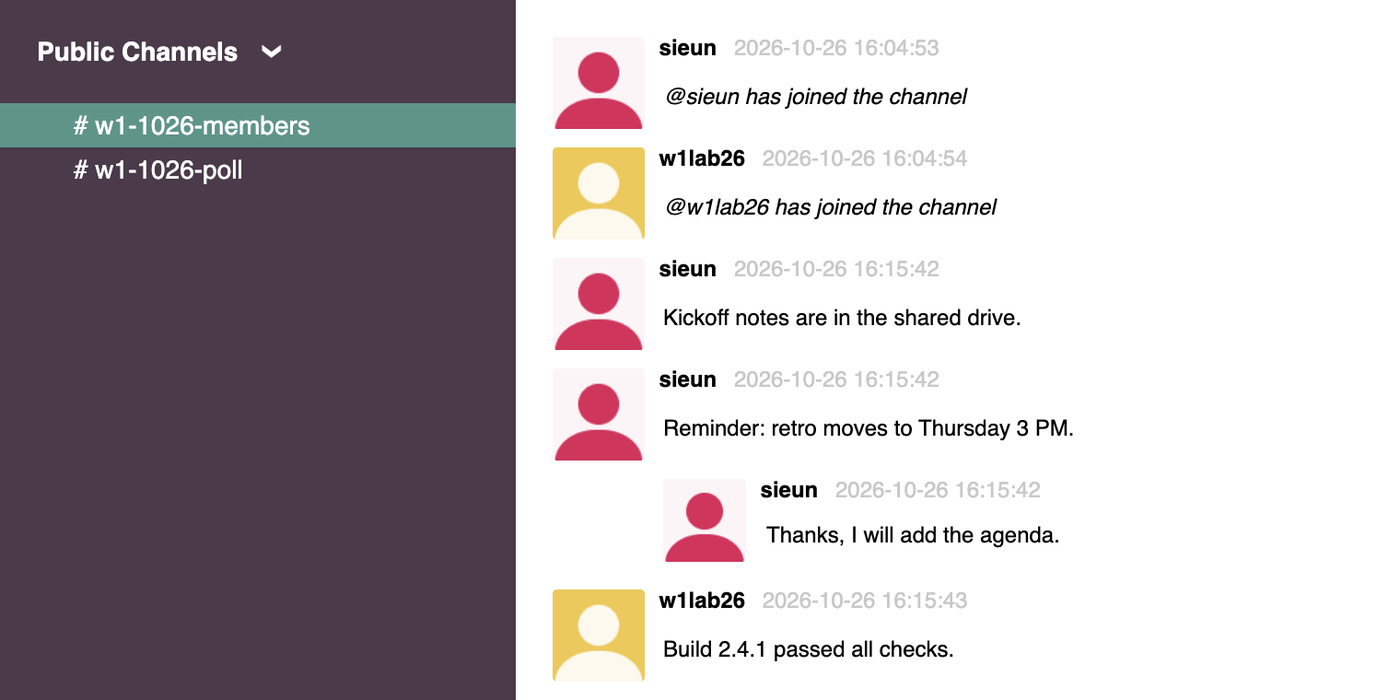
It unpacked the ZIP to a temporary folder and started a local server. Our channel looked like this. The thread reply sits indented under its parent, and the app's message shows with the app's name:
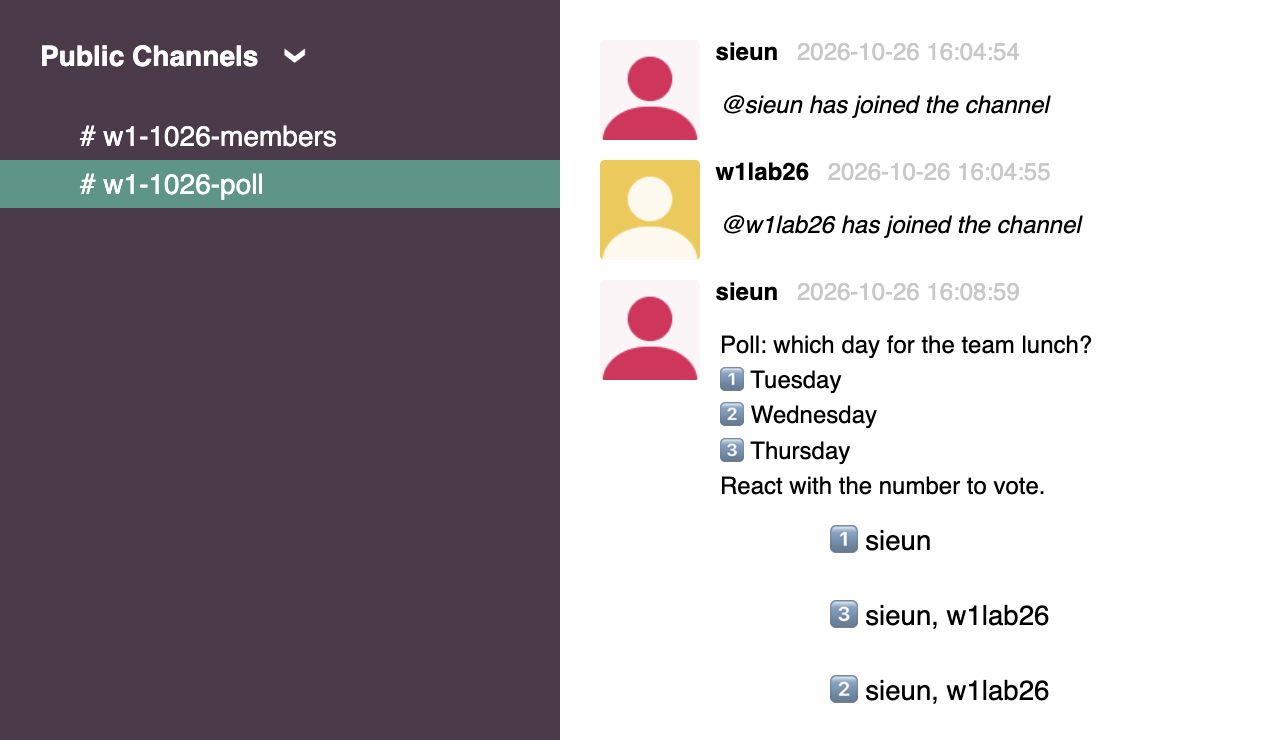
Reactions appear as a list under the message, with the names of the people who reacted:
Useful options: --html-only -o folder writes static HTML files you can zip and share, --show-dms includes DMs when the export has them, and --channels limits it to named channels. It is a Python package from PyPI, so on Windows you install it with pip the same way; we ran it on a Mac.
Never appear "away" on Slack again
Cloud-based. No downloads. Works 24/7 even when your laptop is off.
slackdump view (Go)
Slackdump is better known as an export tool for people without admin rights, but version 4.5.2 also opens a standard export:
brew install slackdump
slackdump view -listen 127.0.0.1:5052 export.zip
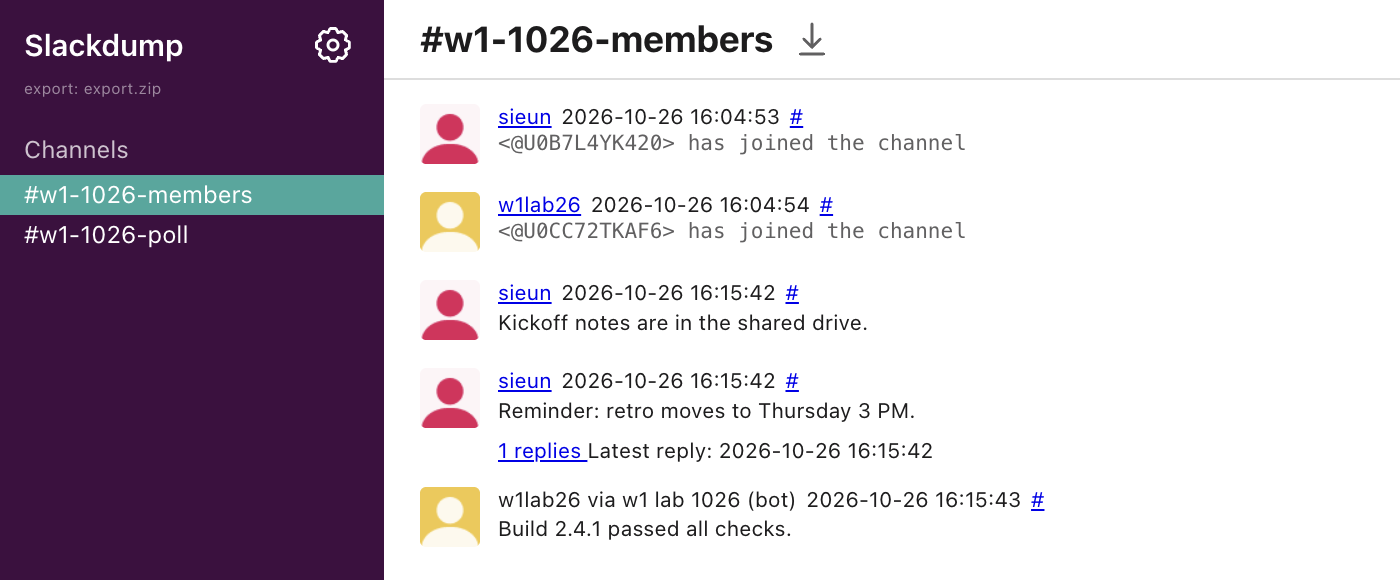
It opened our default browser by itself, so expect a new tab. The thread showed as a 1 replies link instead of an inline reply, and the app's message was labelled "w1lab26 via w1 lab 1026 (bot)":
Which viewer to use
| slack-export-viewer | slackdump view | |
|---|---|---|
| Install | pip install slack-export-viewer | brew install slackdump or a release binary |
| Threads | Replies shown inline under the parent | Collapsed behind a "replies" link |
| Apps and bots | App name | App name plus "via app (bot)" |
| Static HTML to share | Yes, --html-only | No, it runs as a local server |
| Opens a browser by itself | Not with --no-browser | Yes |
For reading an export page by page, slack-export-viewer was the closer match to Slack. If you already use slackdump to save messages, its viewer saves you a second install.
FAQ
Can a Slack export include private channels and DMs? Not a standard export on the Free plan; the export page lists them under "What's not included". How to export Slack messages without admin covers the ways to save your own DMs.
Do these viewers upload my export anywhere?
Both ran as servers on our own computer (localhost and 127.0.0.1). Images and avatars still load from Slack's servers through the links in the JSON.
Stop Jiggling Your Mouse.
Join hundreds of remote workers who never worry about their Slack status. Set it up once, stay green forever.
Related Articles
Slack Analytics on the Free Plan: What Owners Can See and Export
On a Free workspace, Admin > Analytics shows one overview page and an Export button with daily message counts. Channel, file and member analytics need a paid plan. We opened every tab and read the CSV.
How to Make a Poll in Slack: Emoji Polls, Poll Apps and What We Found
Slack has no poll button. Post the question with one emoji per option and let people react, or install a poll app. We ran an emoji poll, counted it with Slack's API, and tried to install Simple Poll on a Free workspace.
Slack Sign In on Mobile With a QR Code: Where It Is and What the Code Holds
Click your workspace name in Slack on a computer and choose Sign in on mobile to get a QR code for the phone app. We decoded the code to see what it holds and opened it three times to see whether it changes.