
Slack General Channel: What You Can and Cannot Change (Tested)
Slack's general channel (#all-<workspace> in new workspaces) can be renamed and limited to admins, but not archived, deleted, left or made private. We tried each as the workspace owner on October 29, 2026.
Slack's general channel is the one channel every member of a workspace is in, and it is the only place @everyone works. New workspaces name it #all- plus the workspace name (ours is #all-slack); older ones call it #general. As the workspace owner, you can rename it and choose who may post in it. You cannot archive it, delete it, leave it or make it private. We tried each of these in a Free workspace on October 29, 2026, through the channel settings and through Slack's API.
What you can and cannot do with the general channel
| Action | In channel settings | Through the API | Result |
|---|---|---|---|
| Rename it | Edit next to Channel name | conversations.rename returned ok | Works |
| Limit who can post | Posting permissions, Edit | not tested | Works; 4 options |
| Archive it | No button | cant_archive_general | Blocked |
| Delete it | No button | not available to us | Blocked |
| Make it private | No button | internal_error | Blocked |
| Leave it | No Leave channel button | cant_leave_general | Blocked |
The quickest way to see it is to open the channel settings of the general channel next to those of any other channel. Click the channel name at the top of the channel, then the Settings tab:
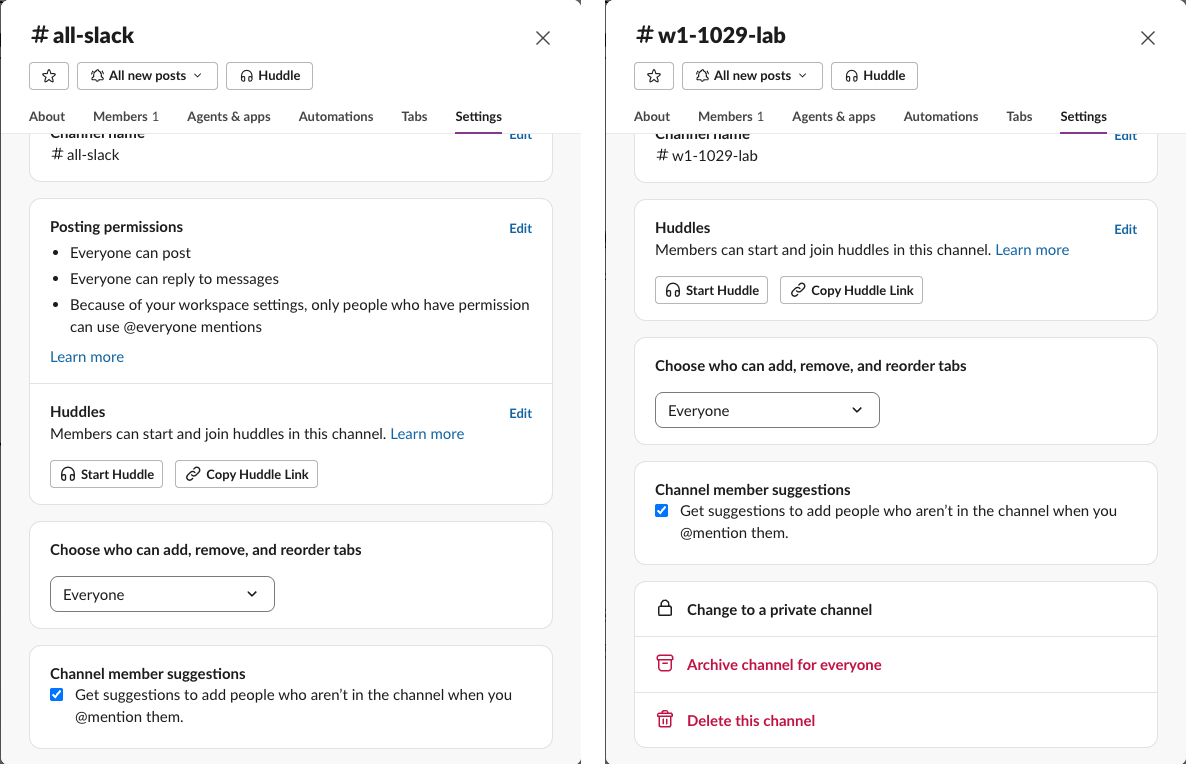
On the left, #all-slack ends after Channel member suggestions. On the right, our test channel has three more rows at the bottom: Change to a private channel, Archive channel for everyone and Delete this channel. The general channel gets one row the other lacks: Posting permissions. On our Free plan, that section did not appear in any other channel.
Rename the general channel
Open the channel name, click Edit next to Channel name, type the new name and save. It worked for us as the workspace owner, and Slack posted a line in the channel each time:
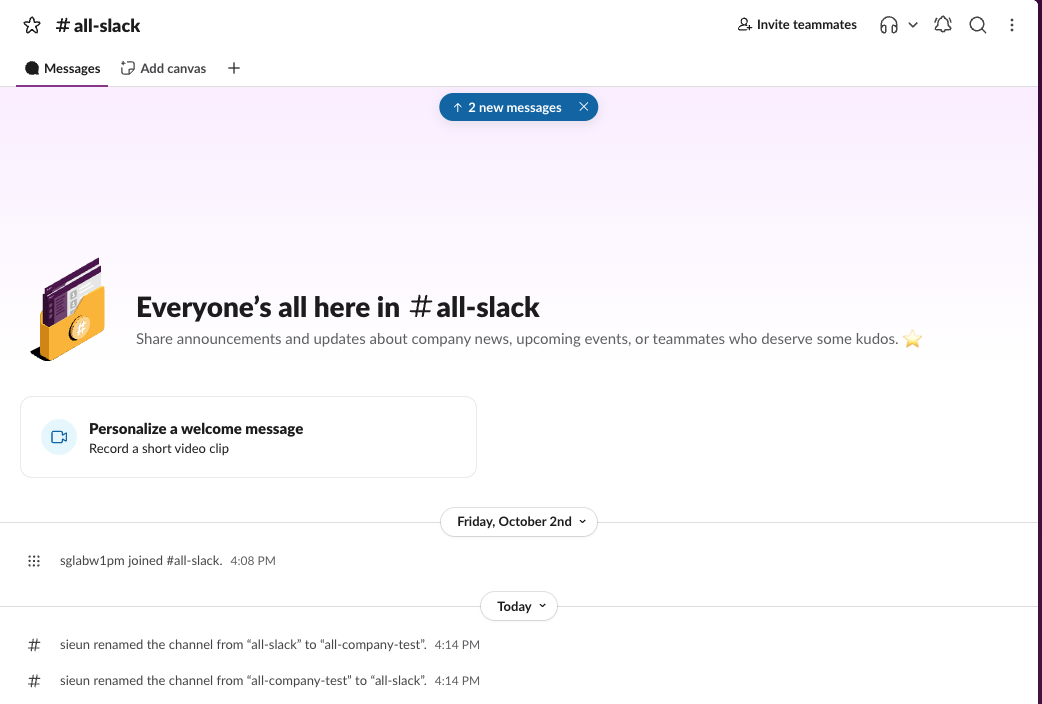
We renamed #all-slack to #all-company-test and back; both lines stayed in the channel until we deleted them. Renaming changes only the name. The channel ID stays the same, so links, bots and integrations that point at the channel keep working. You can even name it plain general: our Slack channel name rules test found that name free in a workspace that started with #all-slack.
Limit who can post in the general channel
In the Settings tab, click Edit next to Posting permissions:
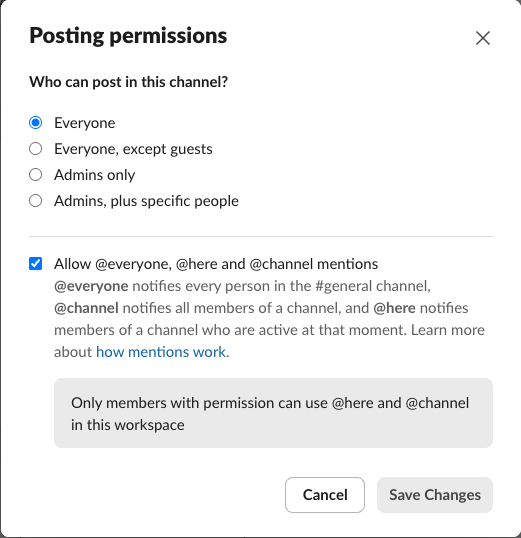
The four choices are Everyone, Everyone, except guests, Admins only and Admins, plus specific people. Pick Admins only to turn the channel into an announcements feed that members read but do not post in. The summary in the settings tab also says who can reply to messages; ours read Everyone can reply to messages. The checkbox under it controls whether @everyone, @here and @channel are allowed there; how @everyone, @channel and @here work covers who each one notifies. We looked at these options and closed the dialog without saving.
Never appear "away" on Slack again
Cloud-based. No downloads. Works 24/7 even when your laptop is off.
Why you cannot archive, delete or leave it
Slack keeps the general channel because it is the one place every member is guaranteed to be. That is also why the API errors are specific: archiving returned cant_archive_general, and leaving returned cant_leave_general. Removing ourselves returned cant_kick_self, the same as in any channel.
The About tab shows it too. In a normal channel, Leave channel sits under Created by. In the general channel it is not there:
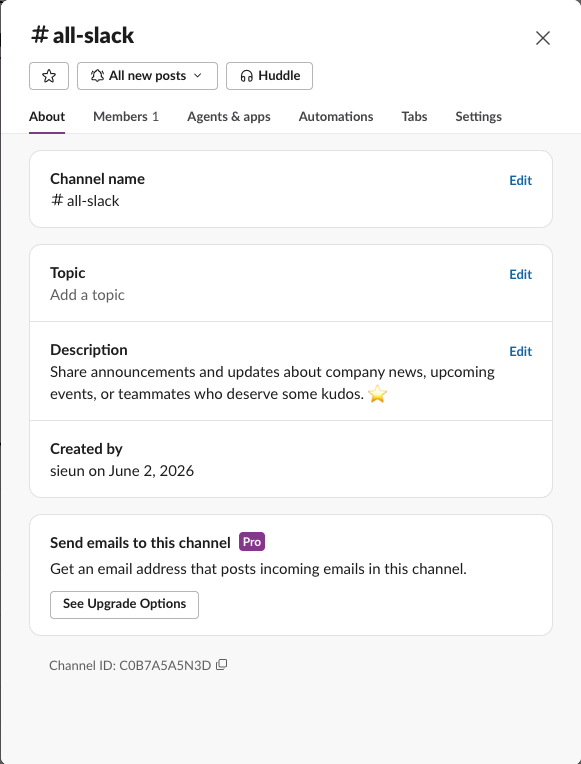
If you want the channel out of the way, mute it from its notification menu (the All new posts button in the screenshot) or move it to a collapsed sidebar section; Slack sidebar sections shows how. If people should stop posting there, change Posting permissions instead of trying to archive it. For every other channel, how to archive a Slack channel and how to leave several channels at once still apply.
How to find the general channel
If you cannot find #general, look for #all- at the top of your channel list; Slack used that name for our workspace when it was made. Two other signs: it is the channel whose About tab has no Leave channel button, and it is the only channel where the @ menu offers @everyone. A bot can find it with conversations.list, where the general channel has "is_general": true and every other channel has false.
FAQ
Can I make a different channel the general channel?
Not that we found. Channel settings had no option to move the general role to another channel, and renaming the existing one is how you give it a different name.
Do guests see the general channel?
Our workspace has no guests, so we did not test it. The Everyone, except guests posting option shows that Slack treats guests separately there, and does Slack notify when you leave a channel notes that single-channel guests cannot leave their one channel.
Is the general channel public?
Yes, and it stays that way: there is no Change to a private channel row in its settings. Use a separate private channel for anything that should not reach the whole workspace.
Stop Jiggling Your Mouse.
Join hundreds of remote workers who never worry about their Slack status. Set it up once, stay green forever.
Related Articles
Can You Embed HTML or Video in a Slack Canvas? We Tested 8 Links
A Slack canvas cannot embed raw HTML or an iframe. Paste a link and choose Card instead: YouTube played inside the card and Spotify showed its player, while Vimeo and Google Sheets did not. Tested October 29, 2026.
Slack Canvas Examples: 3 Canvases to Copy, Plus Slack's 18 Templates
Three Slack canvas examples you can paste in as Markdown (weekly update, meeting notes, onboarding checklist), the 18 templates Slack offers on the Free plan, and what broke when we pasted each one on October 29, 2026.
Slack Canvas Shortcuts: Keyboard Keys, the / Menu and Dates
Slack canvases have their own keyboard shortcuts: Cmd + Option + 1 to 3 for headings, Cmd + Shift + 7, 8 and 9 for lists and checklists, and / for an insert menu that adds dates and reminders. We pressed every formatting shortcut in a real canvas on October 28, 2026.