
Open a Slack Thread in a New Window or Full View: What Works
In the Slack web app, a thread opens in the side panel. Its menu offers Open in split view, which keeps the thread on screen while you move to other channels. We tested every option on October 28, 2026.
To open a Slack thread in its own window, use the Slack desktop app: open the thread, click the three dots at the top of the thread panel, and choose Open in new window. In Slack in a browser that item is not there. The same menu offers Open in split view, which pins the thread to the right side of the screen while you move to other channels. We tested both the menu and thread links in a Free workspace on October 28, 2026.
The thread menu in the browser
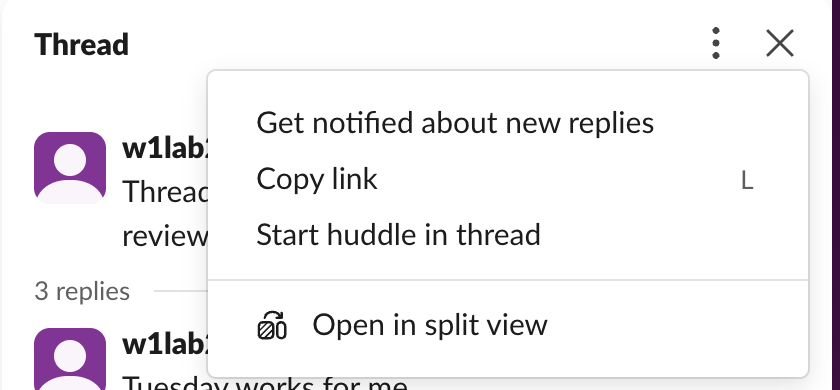
We posted a parent message with three replies from a test app, opened the thread, and clicked the three dots at the top of the panel. The menu had four items:
| Menu item | What it does |
|---|---|
| Get notified about new replies | Follows the thread, so replies show in Threads and notify you |
| Copy link | Copies a link to the thread (shortcut L while the menu is open) |
| Start huddle in thread | Starts a huddle tied to this thread |
| Open in split view | Moves the thread into its own pane that stays put |
There was no Open in new window item in the browser. Slack's help page on separate windows lists that item for threads "from your desktop", which means the desktop app. We did not test the desktop app in this run.
Split view: the thread stays while you move
We clicked Open in split view. The panel header changed from Thread to Thread # w1-1028-lab, which names the channel the thread belongs to. Then we clicked a different channel in the sidebar. The main view moved to #all-slack, and the thread stayed open on the right with its reply box:
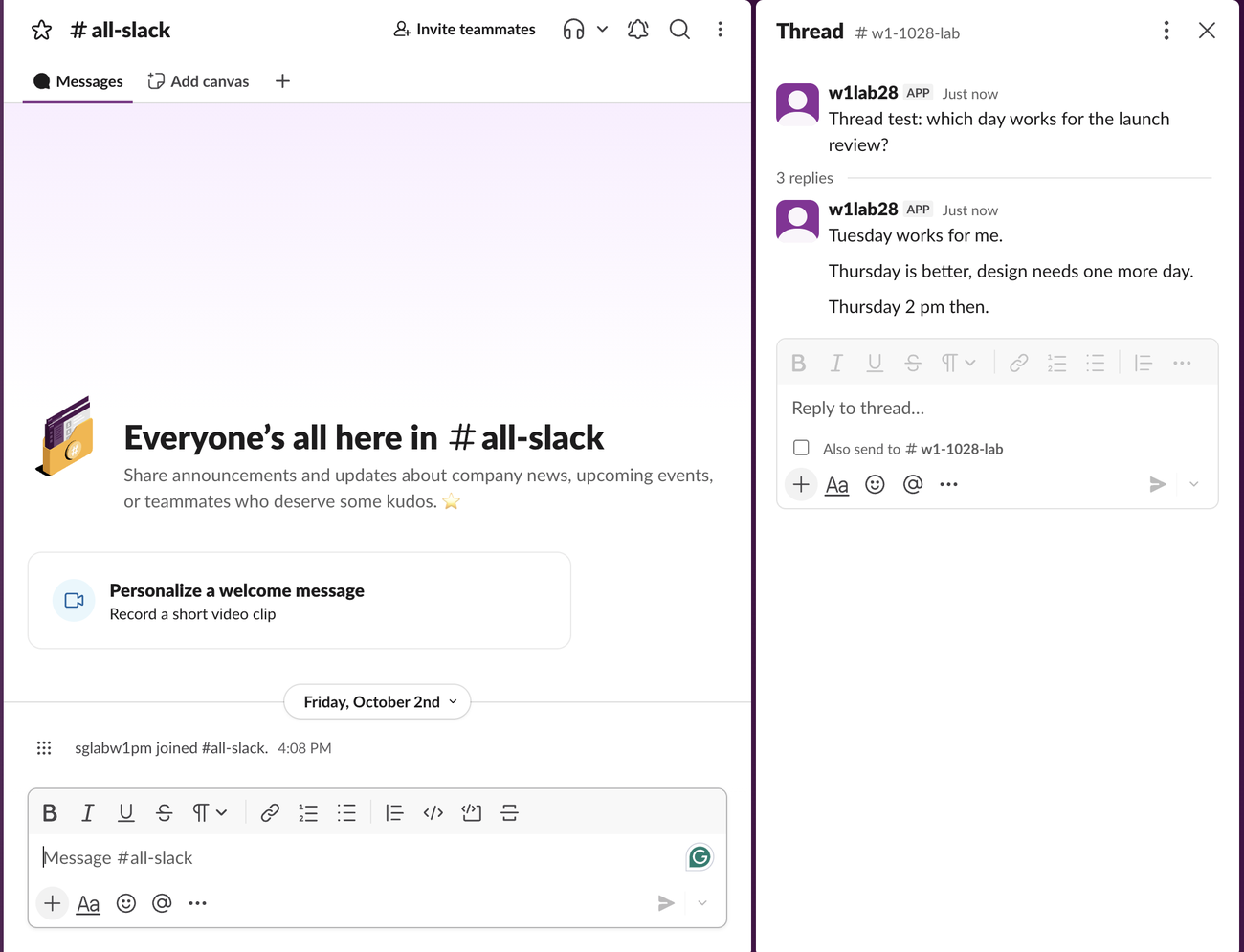
That is the closest thing to "pin a thread to the side" in the browser. A normal thread panel closes or changes when you open another conversation. The split pane does not. Close it with the X at its top right.
Never appear "away" on Slack again
Cloud-based. No downloads. Works 24/7 even when your laptop is off.
A thread link does not open it full width
We also tested the idea of pasting the thread link into the address bar to get a full-page thread.
- The link from Copy link has the form
https://your-workspace.slack.com/archives/C.../p...?thread_ts=...&cid=.... Pasted into the browser, it first showed a Launching Slack page that tries to open the desktop app. - We used the open this link in your browser link on that page. Slack loaded the channel and opened the thread in the normal side panel.
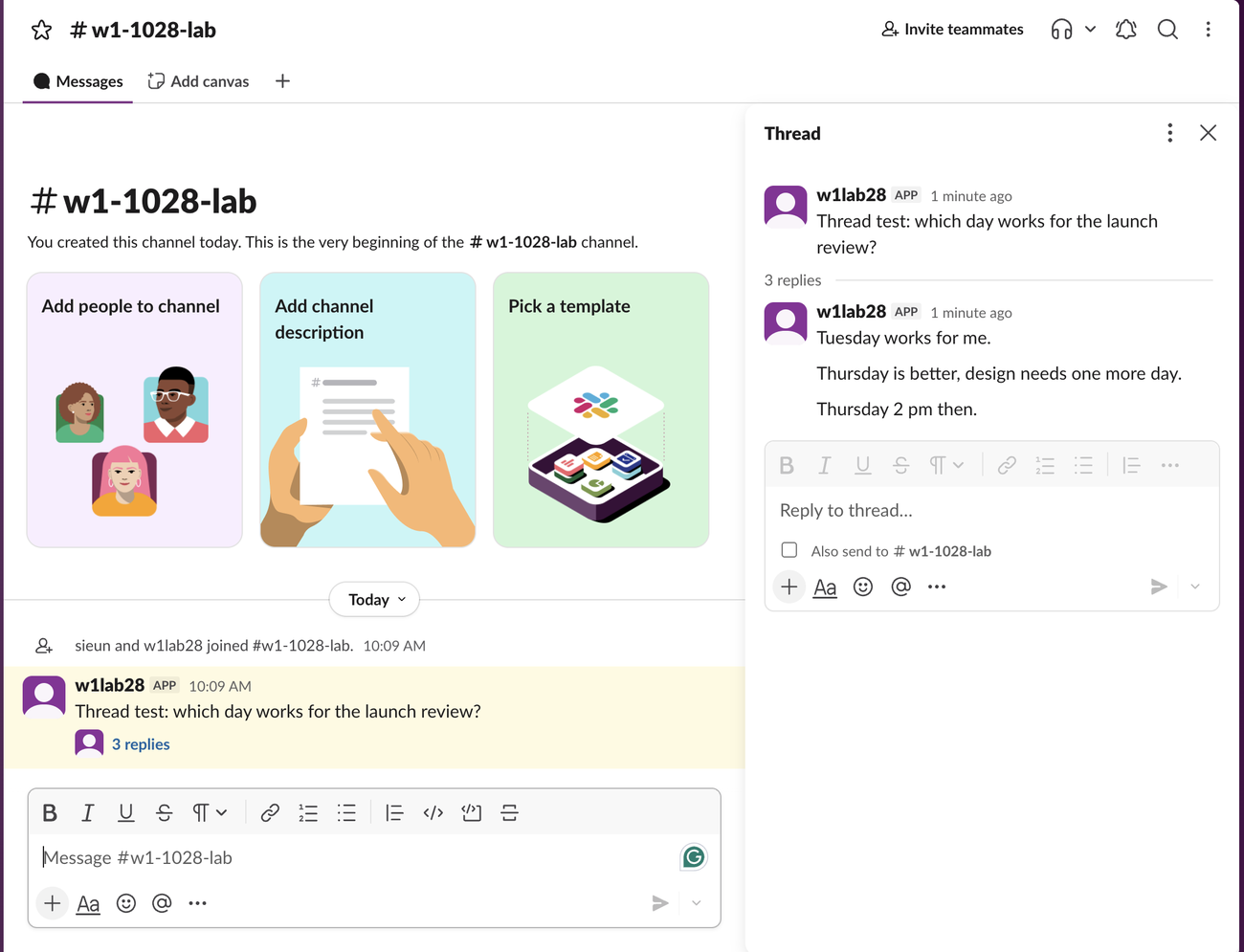
So no URL we found shows a thread as the main view in the browser. If you want the thread bigger, drag the edge of the side panel to make it wider, or use the desktop app's new window. More on link formats is in Slack message permalinks.
Ways to keep a thread in view
| You want | Use | Where we saw it |
|---|---|---|
| The thread in a separate window | Thread menu, Open in new window | Slack help, desktop app only (not tested) |
| The thread on screen while you browse channels | Thread menu, Open in split view | Tested in the browser |
| To get back to a thread later | Get notified about new replies, then the Threads view | Tested in the browser |
| To share the thread | Copy link | Tested in the browser |
If threads you follow keep coming back as unread, why Slack threads keep showing unread covers the causes. To take a thread's text out of Slack, see how to copy a Slack thread.
FAQ
Can I open a channel in split view too?
Yes. Slack's help page on split view says you can right-click a channel or DM in the sidebar and choose Open in split view. Canvases and lists have the same item in their three-dot menu.
Does split view work on the Free plan?
Yes. Our test workspace is on the Free plan, and Open in split view worked there with no upgrade prompt.
Is there a keyboard shortcut to open a thread in a new window?
We did not find one. Slack's help says to hold Cmd (Mac) or Ctrl (Windows) while you click a channel or DM to open it in a window in the desktop app; it gives no such shortcut for threads.
Stop Jiggling Your Mouse.
Join hundreds of remote workers who never worry about their Slack status. Set it up once, stay green forever.
Related Articles
Turn Off 'Joined the Channel' Messages in Slack (Tested)
Workspace owners and admins turn off join and leave messages in Settings & permissions, Channel Join & Leave Messages. It works on the Free plan. We switched it on and off on October 28, 2026: with it off, leaves posted nothing, but joins in a small channel still showed.
How to Mute Someone on Slack: DMs, Hide Person and What Still Shows
Slack has no mute button for a person across all of Slack. You can mute your DM with them, which stops notifications but still shows a number badge, or use Hide person. We muted a DM and tested what still came through on October 28, 2026.
How to Turn Off Huddles in Slack: Channel, Notifications and Sounds
To stop huddles in one channel, open the channel's Settings and set Huddles to No. To stop huddle alerts for yourself, untick New huddles in Preferences > Notifications. We tested both in a Free workspace on October 28, 2026.