
Webex Do Not Disturb: Turn It On, Schedule It, Turn It Off
Click your profile picture in the Webex App, choose Availability, then Do not disturb, and pick how long. What DND silences, how quiet hours schedule it, how to set it on a phone, and why Webex can stay in DND after you clear it.
To turn on Do not disturb in Webex, click your profile picture in the Webex App, choose Availability, then Do not disturb, and pick how long it lasts, or click Set a time for a custom end. Your icon turns red, and you stop getting message and call notifications until the time ends or you choose Availability > Clear. For a DND that starts by itself every evening, turn on quiet hours in the app's notification settings; that shows a moon instead of the red icon.
Webex DND stays inside Webex. If your team also uses Slack, Slack has its own do-not-disturb and its own away timer, which marks you away after 10 minutes without input in the Slack window. Slack Green keeps your Slack status green from a server during the hours you set.
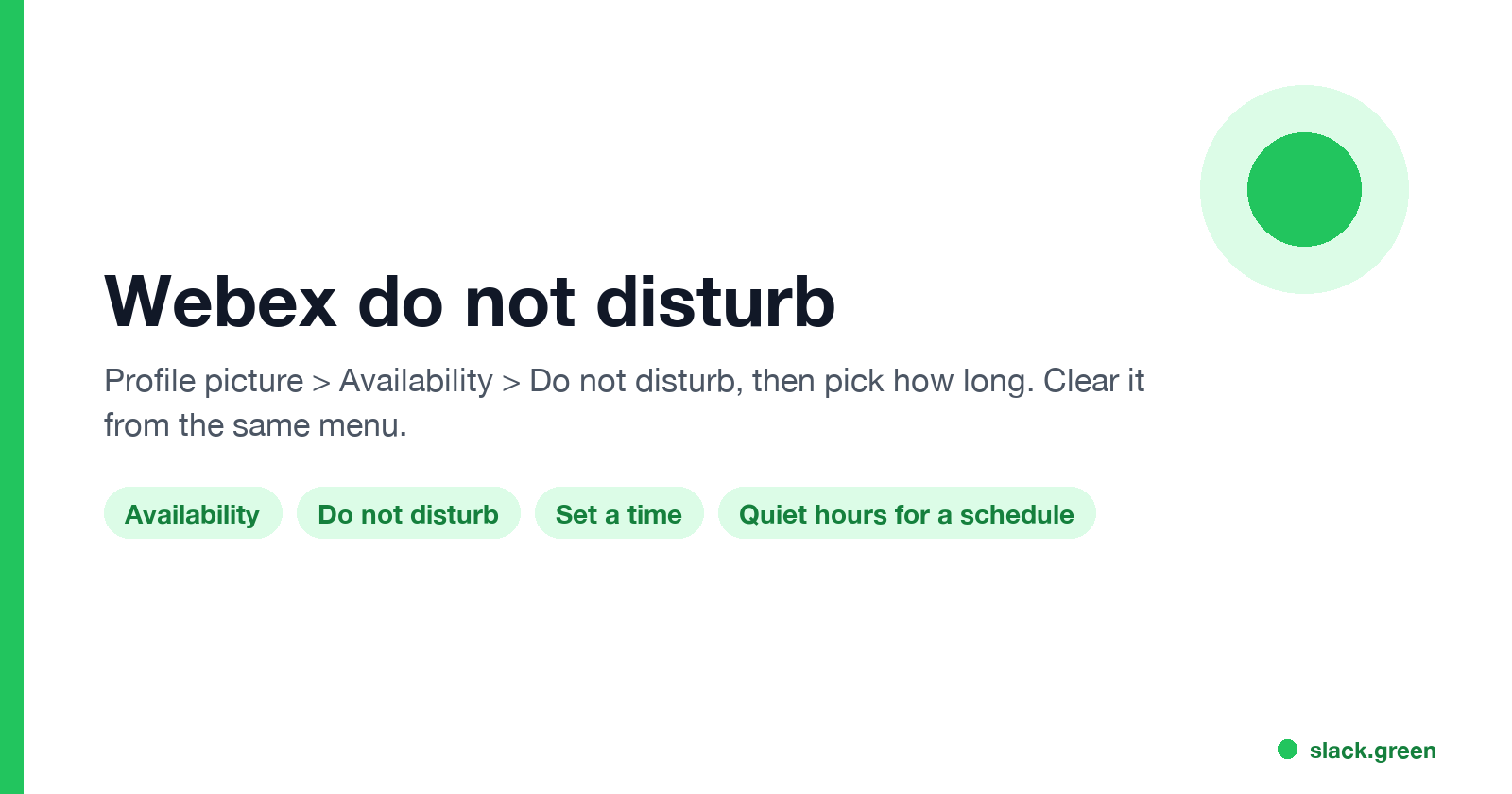
Turn on Do not disturb in the Webex App
On Windows and Mac:
- Click your profile picture at the top left.
- Choose Availability.
- Choose Do not disturb.
- Pick a duration from the list, or click Set a time and pick when it ends.
On iPhone, iPad and Android, tap your profile picture, tap Availability, then Do not disturb, and pick the duration the same way. The status syncs across your devices, so DND set on the phone also shows on the desktop app.
Add a status message if you want people to know when you are back: profile picture, then Set a status, and type something like "Writing until 3pm, call if urgent". The message shows next to your name when people open a chat with you.
What Webex DND silences, and what it does not
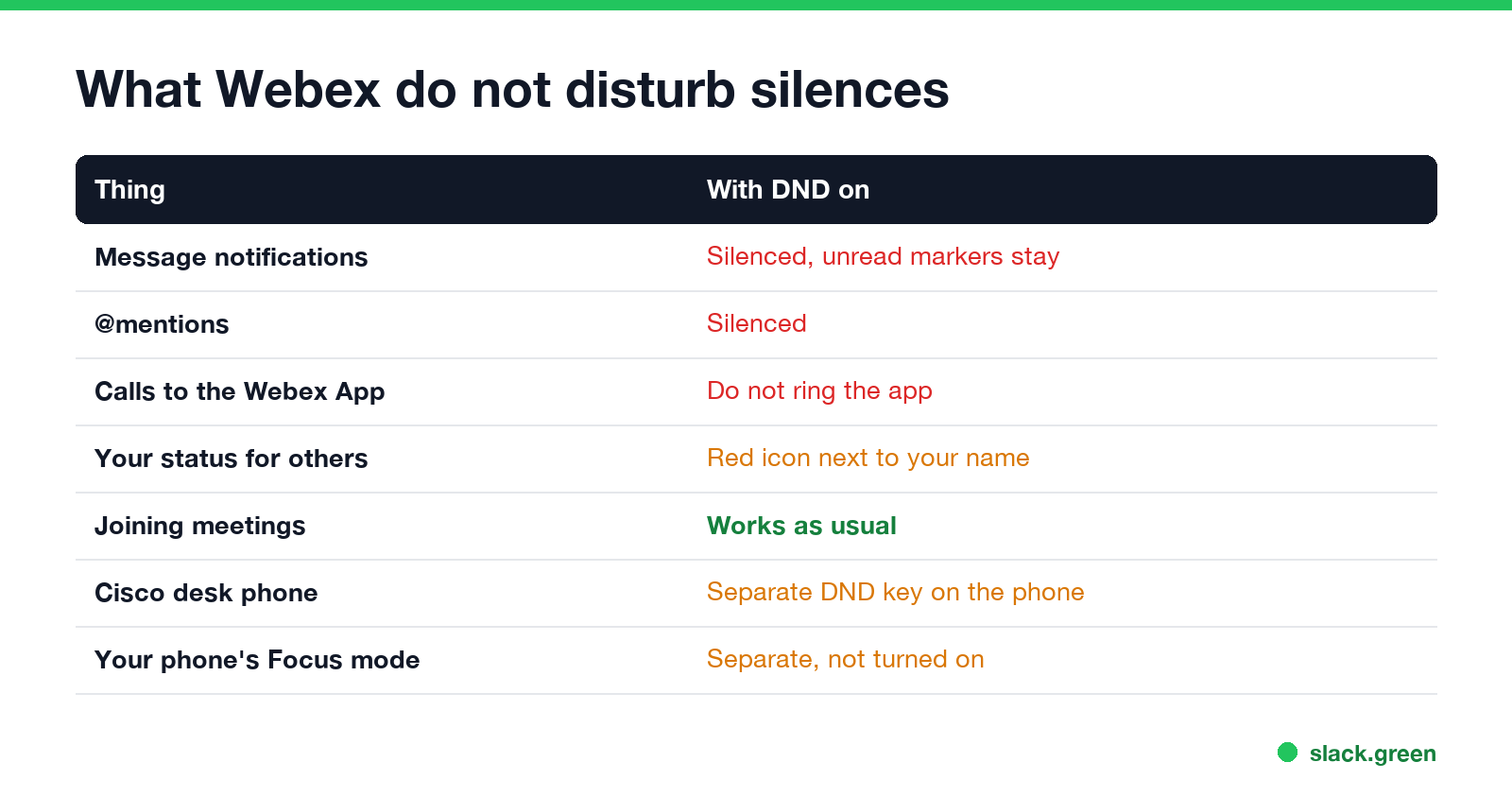
| Thing | With Do not disturb on |
|---|---|
| Message notifications | Silenced. You still see unread markers in the app |
| @mentions | Silenced like other messages |
| Calls to the Webex App | Do not ring your app |
| Your status for others | A red icon next to your name |
| Joining meetings | Works as usual; DND does not block you |
| A Cisco desk phone | Has its own DND key, set separately on the phone |
| Your phone's own Focus or DND | Separate. A Webex DND does not turn it on |
When two states apply at once, Webex shows the higher one. DND ranks above In a meeting, so a coworker sees the red icon, not the camera, while you are in a meeting with DND on. An Outlook out-of-office reply ranks above DND and shows an airplane. The full order is in Webex status icons meaning.
Busy, the orange icon, is the softer option. It tells people you are focused but still delivers notifications. Use Busy when you want to be reachable for urgent messages and DND when you do not.
Schedule Do not disturb with quiet hours
Never appear "away" on Slack again
Cloud-based. No downloads. Works 24/7 even when your laptop is off.
Webex has no recurring DND switch. Its scheduled version is quiet hours: you pick days and times, and Webex silences notifications inside that window every week.
During quiet hours your icon shows a moon, and people see that you are outside your working hours. Unlike DND, quiet hours come back on their own the next day, so they fit evenings and weekends. For a one-off block such as a two-hour focus session, a timed DND is the better fit.
Webex also holds back message and call notifications by itself while you share your screen in a call or meeting, so you do not need DND only to stop pop-ups during a presentation.
Turn off Do not disturb in Webex
Click your profile picture, choose Availability, then Clear. Your status goes back to the automatic one: green while you use your computer, the clock and "Active X minutes ago" when you stop.
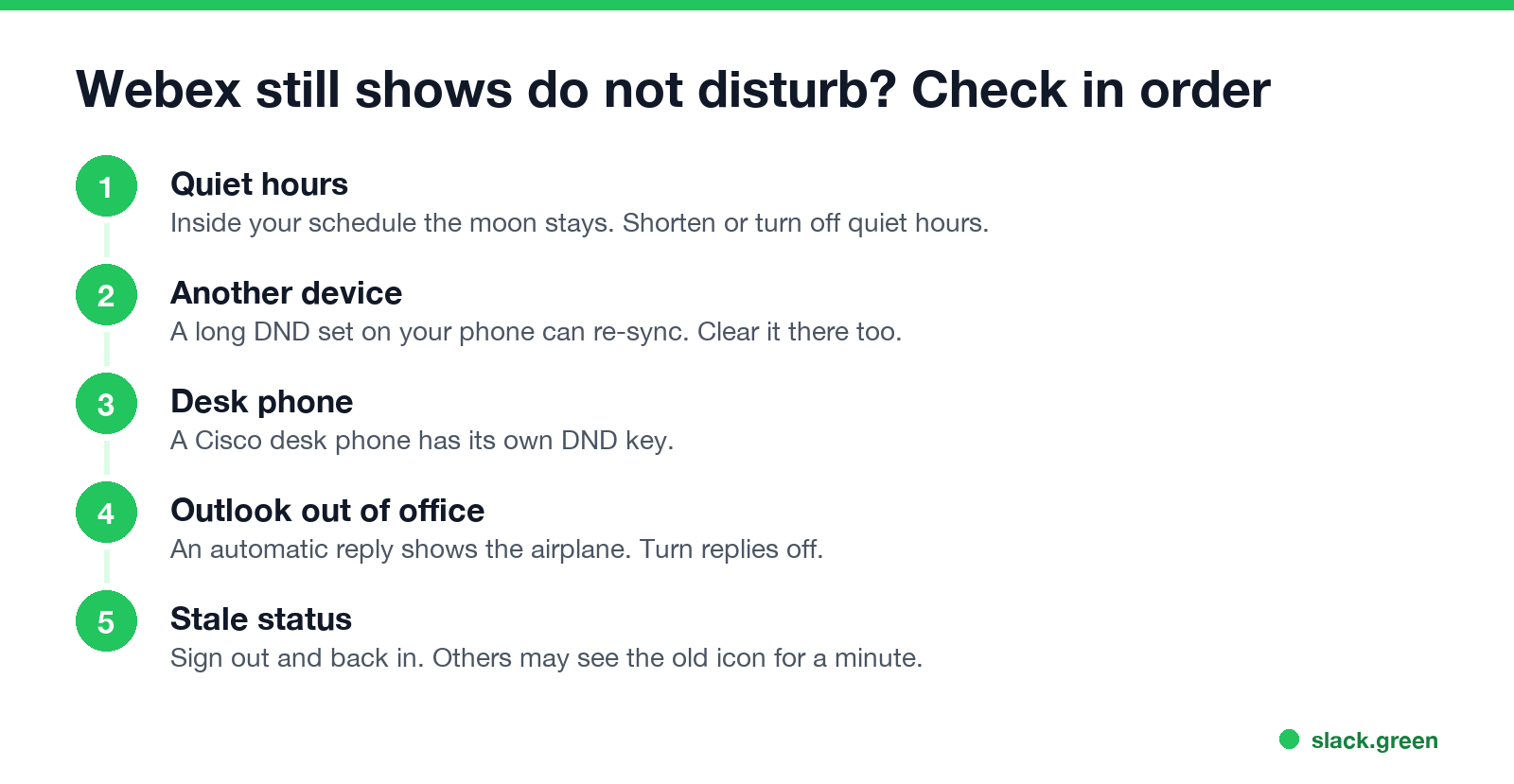
If Webex still shows DND after you clear it, check these in order:
Webex DND compared with Teams, Zoom and Slack
| App | Where to turn it on | Scheduled version | Icon |
|---|---|---|---|
| Webex | Profile picture > Availability > Do not disturb | Quiet hours | Red icon, moon for quiet hours |
| Microsoft Teams | Profile picture > status > Do not disturb | Quiet hours on mobile | Red circle with a bar |
| Zoom | Profile picture > Do not disturb | Recurring DND schedule | Red circle with a bar |
| Slack | Profile picture > Pause notifications | Notification schedule | Small z on your dot |
The step-by-step guides for the others are in Teams do not disturb, Zoom do not disturb and Slack do not disturb.
Do not disturb and looking active
Never appear "away" on Slack again
Cloud-based. No downloads. Works 24/7 even when your laptop is off.
DND tells people you are busy. It does not make you look active. Webex still tracks whether you use your computer, and after DND ends you drop to the clock if you have been idle. To stay green for longer, how to keep Webex status active lists what works, and how to hide your online status on Webex covers the opposite case.
FAQ
Does Webex DND send calls to voicemail? Calls do not ring your Webex App. With a Webex Calling phone number, where the call goes next depends on your call settings and your organization's setup, usually voicemail.
Can people see that I am on Do not disturb in Webex? Yes. People in your organization see the red icon next to your name wherever your picture appears.
How long does Webex DND last? As long as the duration you picked, or until the time you set. It does not stay on indefinitely unless you keep extending it.
Stop Jiggling Your Mouse.
Join hundreds of remote workers who never worry about their Slack status. Set it up once, stay green forever.
Related Articles
KeepingYouAwake vs Amphetamine: Which Mac Keep-Awake App to Use
KeepingYouAwake is a free, open-source menu bar switch that runs Apple's caffeinate for you. Amphetamine is a free App Store app with triggers, schedules and a closed-lid mode. Pick KeepingYouAwake for one click and Homebrew, Amphetamine for automation. Neither keeps Slack or Teams active.
Computer Locks After 15 Minutes? How to Tell If Group Policy Set It
A work laptop that locks after exactly 15 minutes, with screen settings greyed out, is almost always following a policy from IT: the Windows machine inactivity limit, a forced screen saver, or an Intune device lock. Security baselines and PCI DSS ask for 15 minutes. How to see which policy it is, and what you can and cannot change.
How to Keep a Citrix Session Active: Find Which Timeout Logs You Out
A Citrix session can end from four different timers: Windows locking inside the virtual desktop, the Citrix session idle timer, the Citrix Gateway session time-out, and the StoreFront web page timeout. Only input from your own device into the Citrix window resets them. How to tell which one hit you and what keeps each one quiet.