
How to Share Audio in a Slack Huddle (Screen Share With Sound)
To share audio in a Slack huddle, click the share screen icon, pick a screen or window, check Share system audio, then click Share. Everyone hears what your computer plays. Where the option is missing, how Chrome differs, why a Mac needs a permission, and how to stop echo.
To share audio in a Slack huddle, share your screen with sound: in the huddle, click the share screen icon, pick a screen, window or app, check Share system audio, and click Share. Everyone in the huddle now hears what your computer plays, such as a video, a demo with sound or music. On a Mac, Slack also needs Screen & System Audio Recording permission. In Slack in Chrome, the option comes from Chrome's own share picker instead. Wear headphones while you share, or your microphone picks the sound up a second time and people hear an echo.
Long screen shares have a side effect: you are watching your screen, not typing in Slack, and your dot can go grey 10 minutes after your last input in the Slack window. Slack Green keeps it green during the working hours you set, from the cloud.
Share your screen with sound, step by step
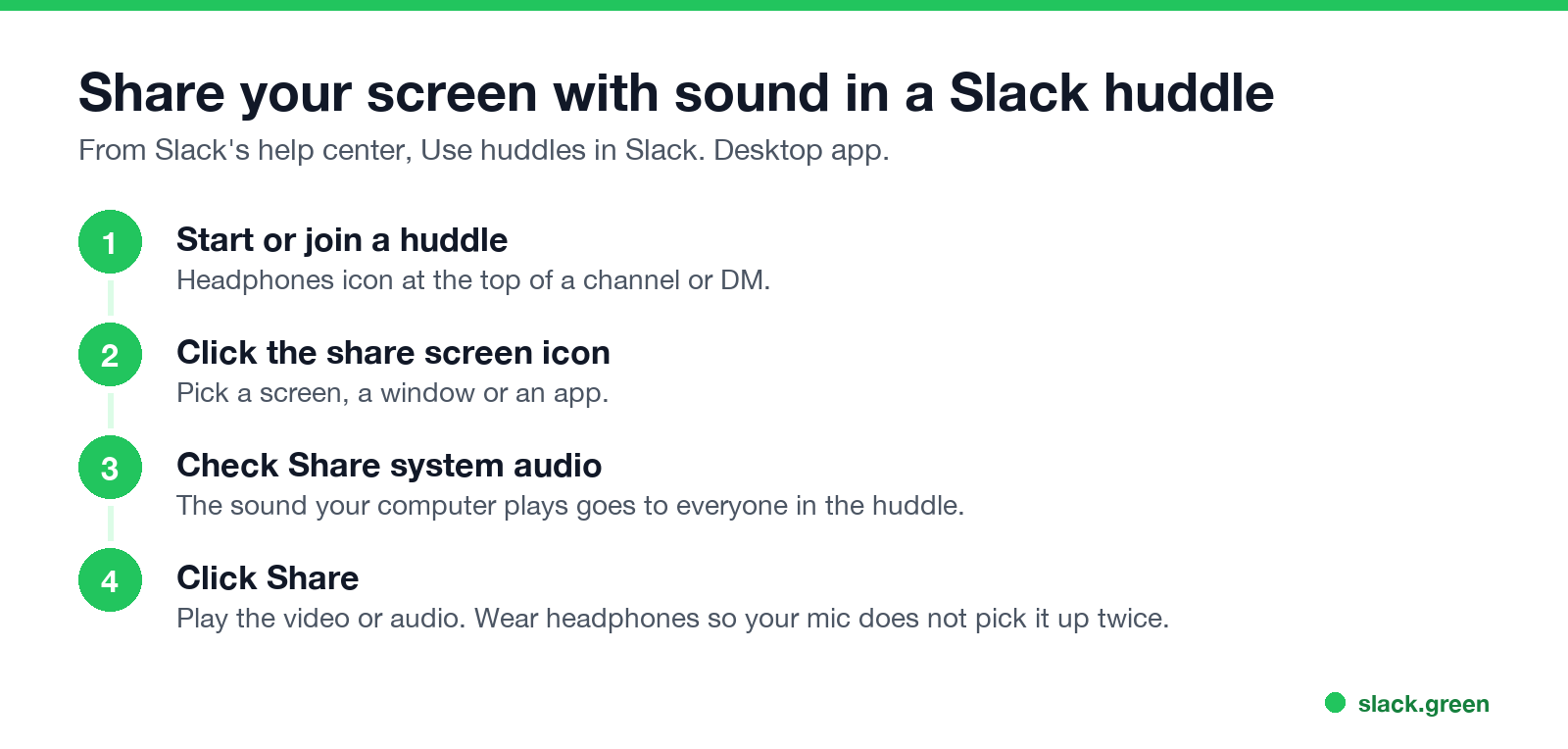
Slack's help center describes it in Use huddles in Slack:
- Start or join a huddle with the headphones icon at the top of a channel or DM.
- Click the share screen icon.
- Select a screen, window or application.
- Check Share system audio.
- Click Share.
Up to two people in a huddle can share a screen at the same time. To stop sharing audio, stop the screen share and start it again with the box cleared.
Where you can share sound
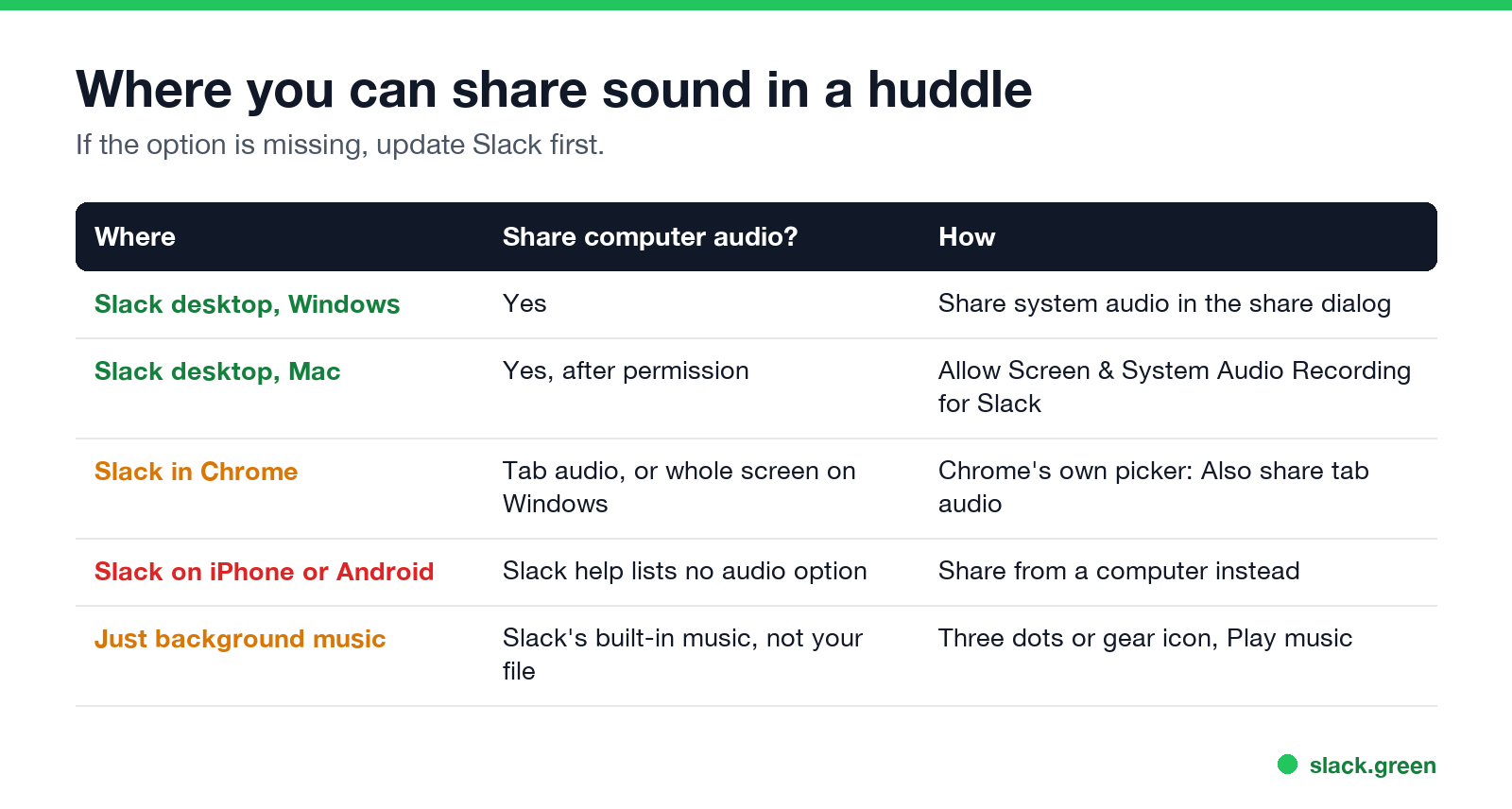
| Where | Share computer audio? | How |
|---|---|---|
| Slack desktop app, Windows | Yes | Share system audio in the share dialog |
| Slack desktop app, Mac | Yes, after you allow it | Slack needs Screen & System Audio Recording permission |
| Slack in Chrome | Tab audio on any system; whole-screen audio on Windows | Chrome's picker: Also share tab audio or Also share system audio |
| Slack on iPhone or Android | Slack's help lists no audio option | Share from a computer instead |
| Background music | Not your own file | Play music in the three dots or gear menu |
On a Mac
macOS treats system audio as part of screen recording. Open System Settings, Privacy & Security, Screen & System Audio Recording (called Screen Recording on older versions) and turn on Slack. Quit and reopen Slack after you change it. If Slack still says it has no access while the switch is on, remove Slack from the list and allow it again; Slack's help center documents this bug for people who moved to the Mac App Store version. The Terminal fix is in Slack huddle not working.
In Chrome
Slack in the browser uses Chrome's own share picker. To send the sound of a YouTube video, open it in a Chrome tab, choose the Chrome Tab option in the picker, and turn on Also share tab audio. On Windows, sharing the entire screen offers Also share system audio. On a Mac, Chrome can share tab audio only, so use the desktop app for sound from another app.
Slack huddle screen share has no sound
Slack पर फिर कभी "away" न दिखें
क्लाउड-आधारित। कोई डाउनलोड नहीं। लैपटॉप बंद होने पर भी 24/7 काम करता है।
If people see your screen but hear nothing:
If the huddle has no sound at all, not just the shared audio, the fixes are in Slack huddle not working.
Stop echo and doubled sound
Echo happens when your speakers play the shared audio and your microphone sends it again. Use headphones, or mute your mic while the clip plays with Cmd+Shift+Space on a Mac or Ctrl+Shift+Space on Windows. Holding a phone speaker to the microphone is the worst option: it sounds thin, and noise suppression may cut it out.
Play music in a Slack huddle
The huddle menu (three dots, or the gear icon in the expanded window) has Play music. It is Slack's built-in option for background sound, not a way to play your own file. For your own playlist or a video, share your screen with Share system audio checked.
Audio settings for huddles
Slack पर फिर कभी "away" न दिखें
क्लाउड-आधारित। कोई डाउनलोड नहीं। लैपटॉप बंद होने पर भी 24/7 काम करता है।
Your microphone, speaker and camera are set in Preferences, Audio & video, which also has Run test under Troubleshooting. Inside a huddle, the three dots menu lets you pick a speaker, test it, and turn on push-to-talk. For a record of what was said, see how to record a Slack huddle.
FAQ
Can you share audio in a Slack huddle?
Yes. Check Share system audio when you start a screen share in the desktop app.
Why is there no Share system audio option?
Update the Slack desktop app. In a browser, Chrome shows its own tab and system audio options instead.
Can I share audio without sharing my screen?
Not your computer's audio. Share a single window, such as the video player, to keep the rest of your screen private.
Can I share audio from my phone in a huddle?
Slack's help center lists screen sharing on mobile but no system audio option. Use a computer.
Why do people hear an echo when I share audio?
Your microphone is picking up your speakers. Wear headphones or mute your mic while the audio plays.
माउस हिलाना बंद करें।
सैकड़ों रिमोट वर्कर्स अब Slack स्टेटस की चिंता नहीं करते। एक बार सेटअप करें, हमेशा के लिए हरे रहें।
Related Articles
Slack Lists Tutorial: Create, Organize and Share a List
Slack lists are tables of tasks inside Slack, with fields, assignees, due dates, a board view and a comment thread on every item. How to create a list from scratch or a template, set up fields, turn it into a kanban board, add messages to it, share it, and what the plan limits are.
Slack Jira Integration: Setup, /jira Commands and Notifications
Install the Jira Cloud for Slack app, type /jira connect in a channel to send a Jira space's updates there, /jira notify for personal notifications as DMs, and create work items from any message with More actions. Every /jira command, Jira automation to Slack, and fixes when previews or notifications stop.
How to Create a Slack Workspace, on Desktop or Phone
Go to slack.com/get-started, enter your email, type the confirmation code, and click Create a Workspace. It is free to start, you become the Primary Owner, and it takes about five minutes. Steps for desktop, iPhone and Android, and what to set up next.