
How to Create a Slack Workspace, on Desktop or Phone
Go to slack.com/get-started, enter your email, type the confirmation code, and click Create a Workspace. It is free to start, you become the Primary Owner, and it takes about five minutes. Steps for desktop, iPhone and Android, and what to set up next.
To create a Slack workspace, go to slack.com/get-started#/createnew, enter your email address and click Continue (or continue with Apple or Google), type the confirmation code Slack emails you, then click Create a Workspace and follow the prompts. It is free to start on Slack's Free plan, and the person who creates the workspace becomes its Primary Owner. If the workspace is for work, sign up with your company email address.
The steps come from Slack's help article "Create a Slack workspace". We build Slack Green, a tool that keeps your Slack status green during your working hours, and we write guides for the Slack questions our users ask.
Create a Slack workspace on a computer
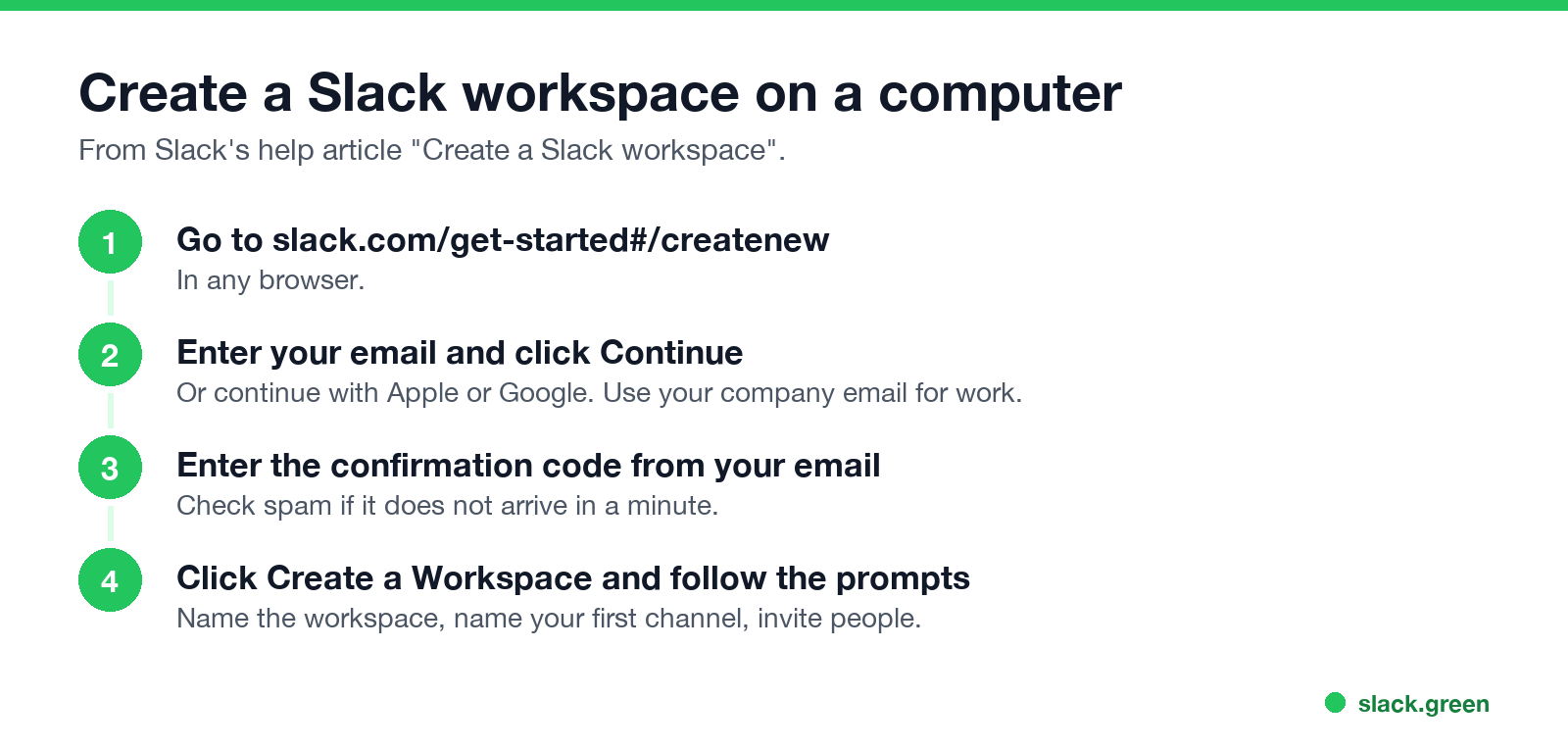
- Go to slack.com/get-started#/createnew in a browser.
- Enter your email address and click Continue, or choose Continue with Apple or Continue with Google.
- Check your email for a confirmation code, and enter it.
- Click Create a Workspace and follow the prompts: name the workspace, name your first channel, and invite people.
- Open the Slack app and tap Get Started.
- Tap Continue with Email, or continue with Apple or Google.
- Tap Confirm Email Address in the email Slack sends.
- Tap Create a new workspace and follow the prompts.
- Open the Slack app and tap Get started.
- Enter your email address.
- Tap Confirm Email Address in the email Slack sends.
- Tap Create a new Slack Workspace and follow the prompts.
No confirmation code? Check your spam folder, and make sure you typed the email correctly. Slack's help center has troubleshooting tips for missing codes.
Create a Slack workspace on iPhone or Android
iPhone or iPad:
Android:
Is a Slack workspace free?
Slack पर फिर कभी "away" न दिखें
क्लाउड-आधारित। कोई डाउनलोड नहीं। लैपटॉप बंद होने पर भी 24/7 काम करता है।
Yes. A new workspace starts on the Free plan, with no time limit. The Free plan has limits that matter once a team uses it every day: only the last 90 days of messages and files are visible, you can install 10 apps, and huddles are one-to-one. Guests, user groups, workflows, canvases and lists need a paid plan. The full list is in Slack free plan limits, and whether upgrading pays off is in is Slack Pro worth it.
What to set up after you create it
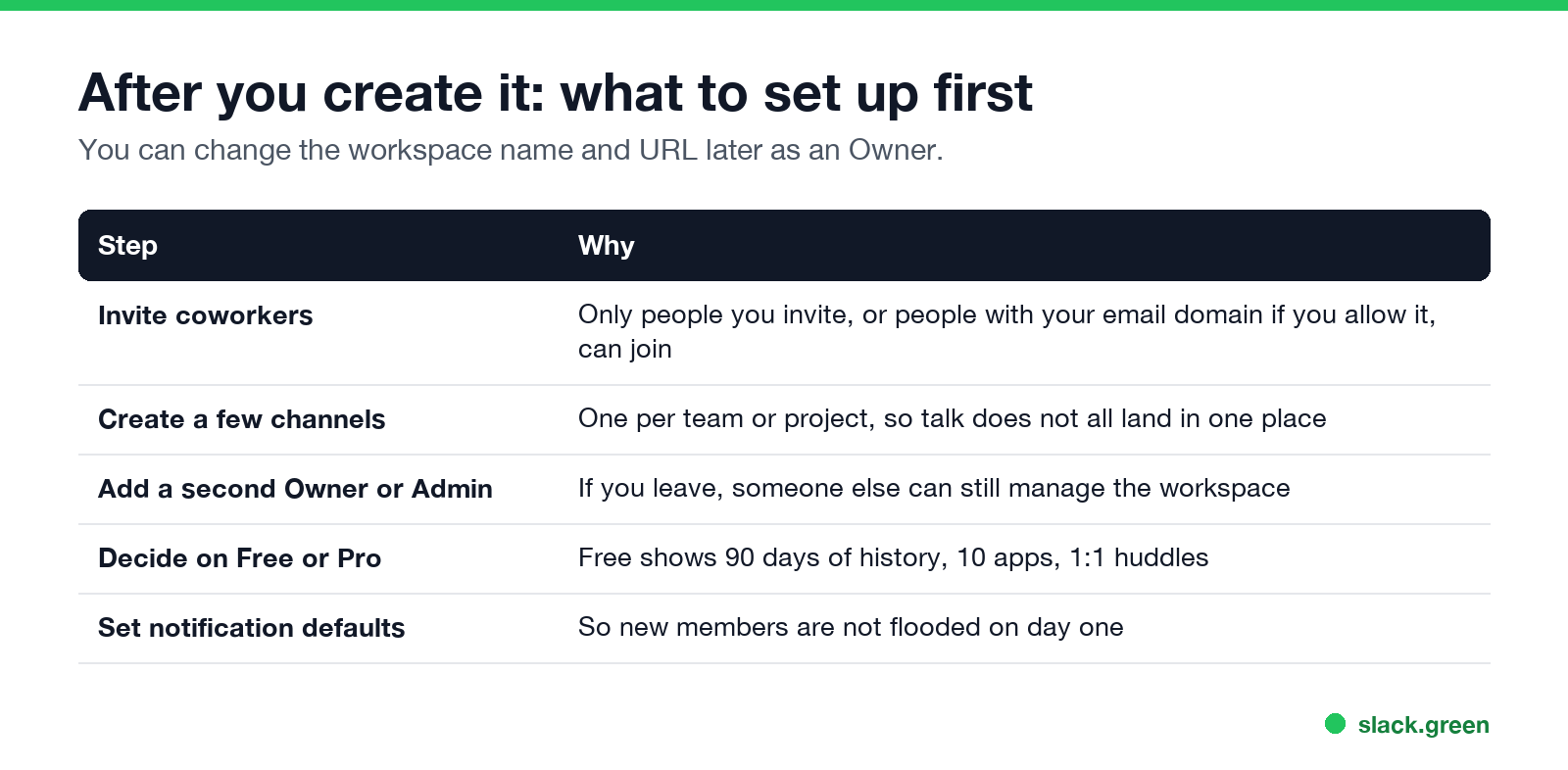
Owners can change the workspace name and URL later in the workspace settings.
Create a new workspace when you already have one
You can belong to several workspaces with the same email address. Create the new one from slack.com/get-started#/createnew, or through the add-a-workspace option in the desktop app's workspace switcher, then switch between them with Ctrl+Tab. Each workspace keeps its own account, status and presence, as covered in using several Slack workspaces at once. If you want to work with another company rather than create a second workspace, Slack Connect links two workspaces.
FAQ
Slack पर फिर कभी "away" न दिखें
क्लाउड-आधारित। कोई डाउनलोड नहीं। लैपटॉप बंद होने पर भी 24/7 काम करता है।
How do I create a Slack workspace?
Go to slack.com/get-started#/createnew, enter your email, enter the confirmation code, then click Create a Workspace.
Is it free to create a Slack workspace?
Yes. New workspaces start on the Free plan, with 90 days of visible history and 10 apps.
Who owns a new Slack workspace?
The person who creates it becomes the Primary Owner. Only they can delete it or transfer ownership.
Do I need a company email to create a Slack workspace?
No, but Slack recommends a company email if the workspace is for work.
Can I create a Slack workspace on my phone?
Yes. Open the Slack app, tap Get Started, confirm your email, and choose to create a new workspace.
How do I create a Slack account?
You create an account when you create or join a workspace. Each workspace has its own account, even with the same email.
माउस हिलाना बंद करें।
सैकड़ों रिमोट वर्कर्स अब Slack स्टेटस की चिंता नहीं करते। एक बार सेटअप करें, हमेशा के लिए हरे रहें।
Related Articles
Slack Lists Tutorial: Create, Organize and Share a List
Slack lists are tables of tasks inside Slack, with fields, assignees, due dates, a board view and a comment thread on every item. How to create a list from scratch or a template, set up fields, turn it into a kanban board, add messages to it, share it, and what the plan limits are.
Slack Jira Integration: Setup, /jira Commands and Notifications
Install the Jira Cloud for Slack app, type /jira connect in a channel to send a Jira space's updates there, /jira notify for personal notifications as DMs, and create work items from any message with More actions. Every /jira command, Jira automation to Slack, and fixes when previews or notifications stop.
Slack Sidebar Sections: Create, Sort, Share and Fix Them
Slack sidebar sections are custom groups of channels, DMs and apps in your sidebar. Only you see them, and they need a paid plan. How to create one on desktop and mobile, move many channels at once, sort and filter each section, share a section with your team, and get disappeared sections back.